Workflow Builder ScreenOverviewThe Workflow Builder allows users to create and manage automated business processes by connecting workflow elements such as Triggers, Conditions, Actions, and Flow Control. These elements work together to automate tasks based on predefined business rules.
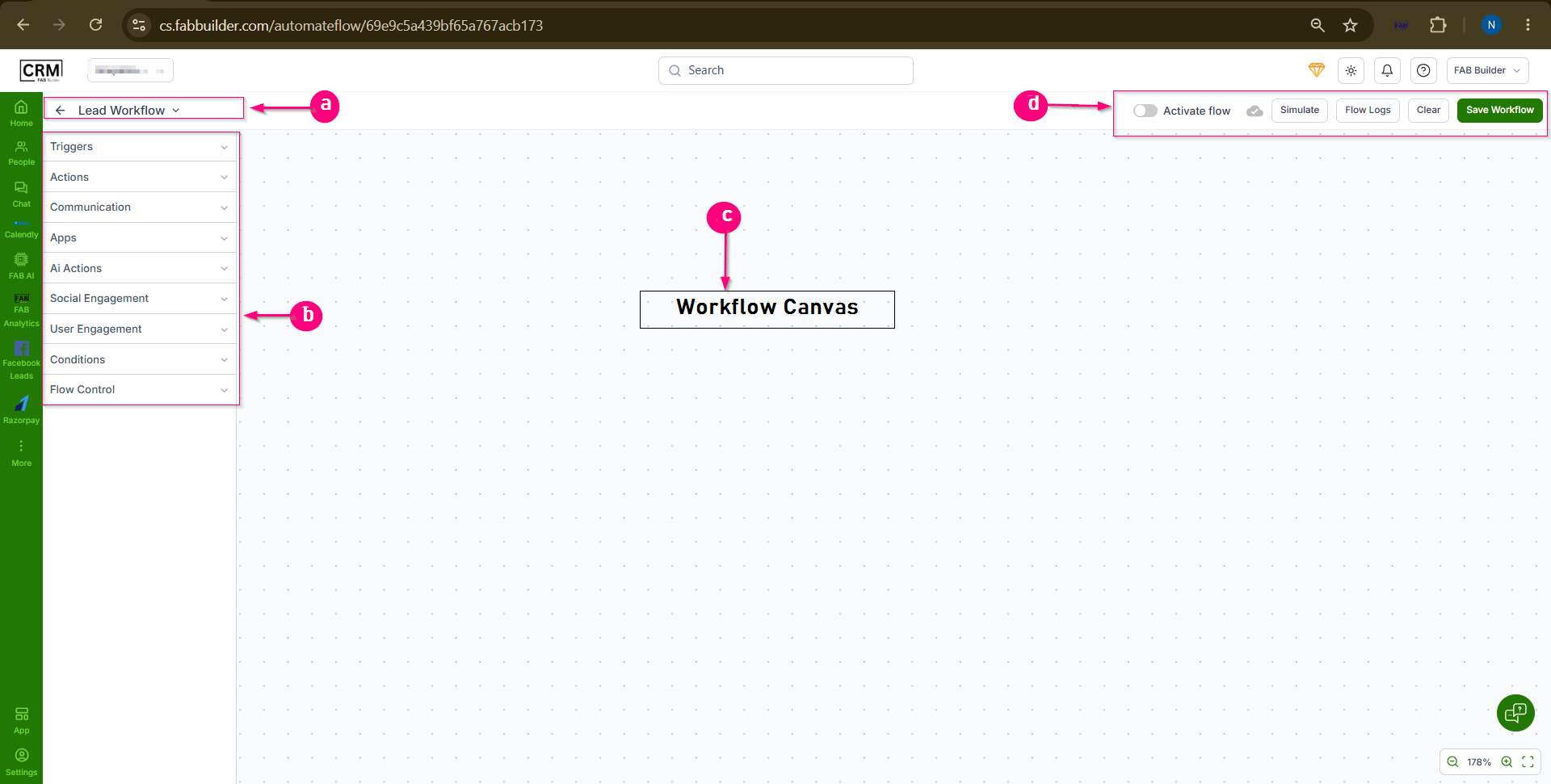 Screen-Workflow Builder Screen
Workflow Builder Screen Componentsa.Workflow NameDisplays the name of the workflow being created or edited. b.Workflow Elements PanelLocated on the left side of the screen, this panel contains all available workflow components that can be added to the workflow canvas. The available workflow element categories include:
c.Workflow CanvasThe central workspace where workflow elements are added, connected, and configured to create an automation flow. d.Workflow Management OptionsThe following options are available in the top-right corner of the screen:
Workflow ElementsTriggerA Trigger defines the event that starts the workflow.
Available Triggers:
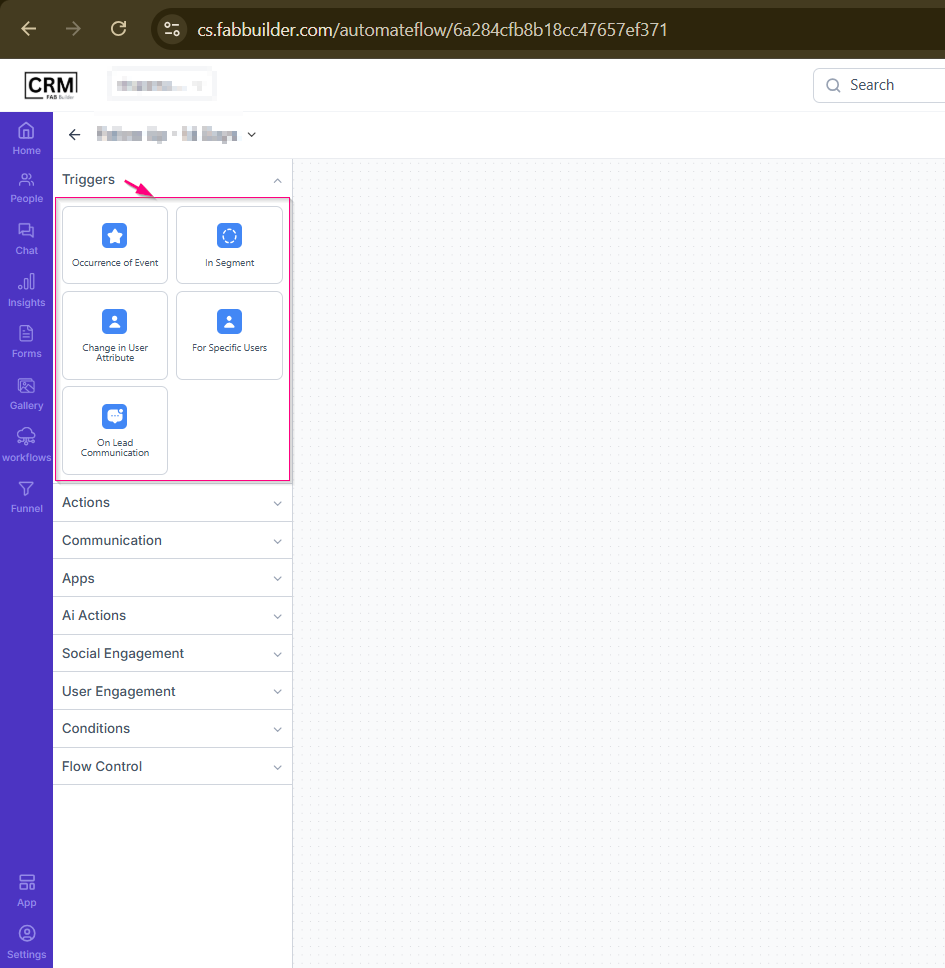 Screen- Trigger
ActionAn Action defines the activity performed when trigger and condition requirements are met. Available Actions:
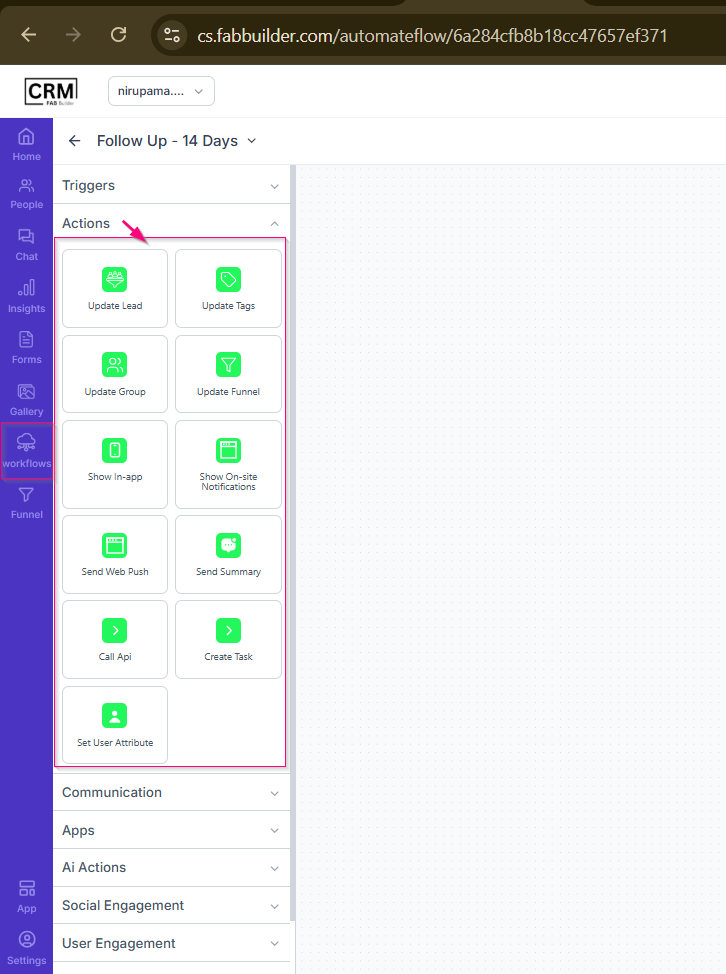 screen- Action Conditions Conditions evaluate specific criteria before the workflow proceeds to the next step. Available Conditions:
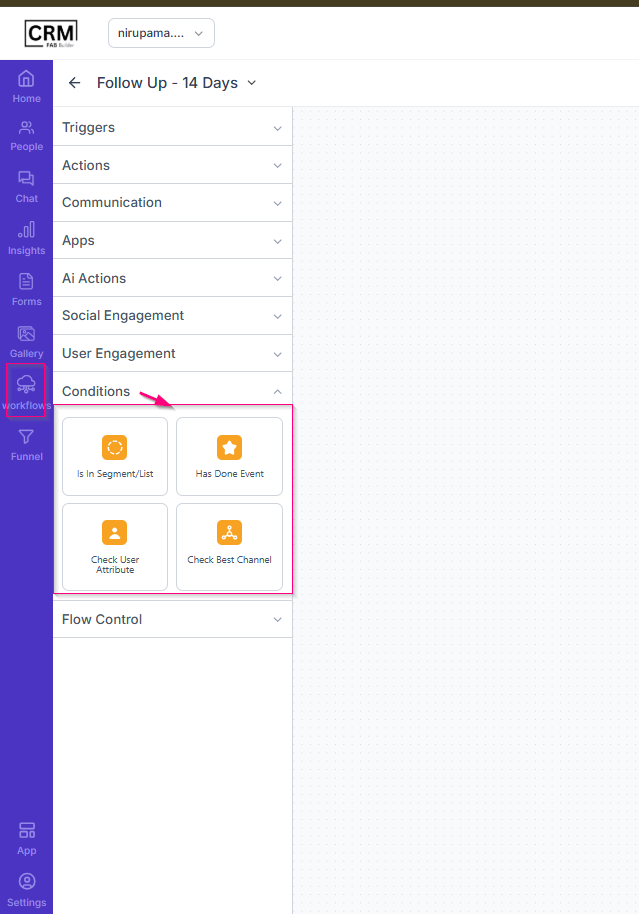 Screen-Condition
CommunicationCommunication elements are used to automatically send messages and notifications through configured communication channels when workflow conditions are met. Available Communication Actions:
Example Use Case When a new lead is created:
Result:
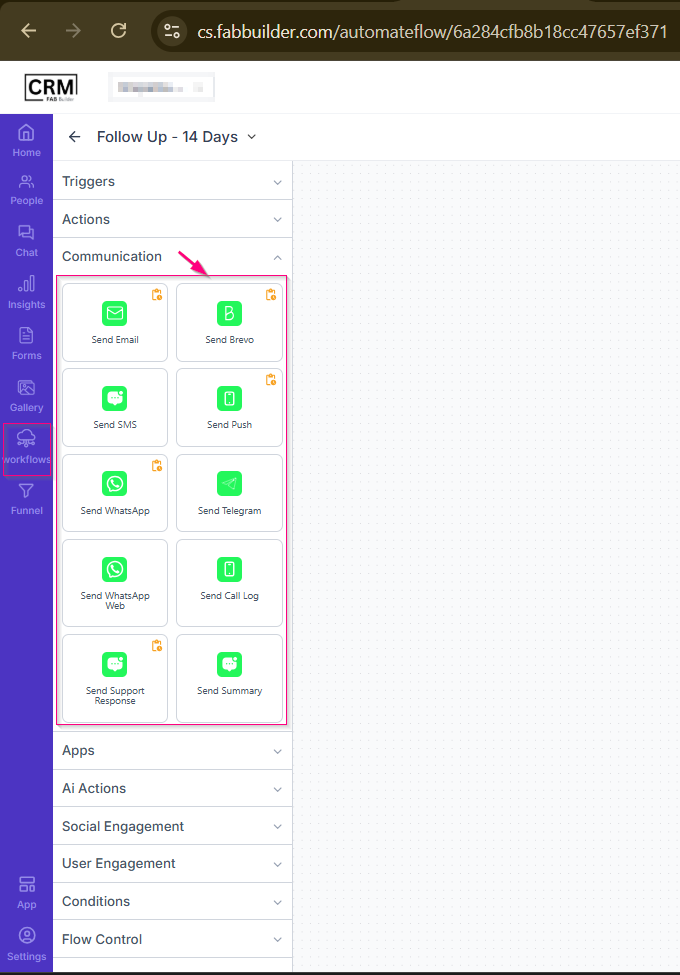 Screen -Communication
AppsApps elements are used to perform actions through integrated third-party applications and services. Available App Actions:
Note: The required application integration must be configured before using App actions in a workflow.
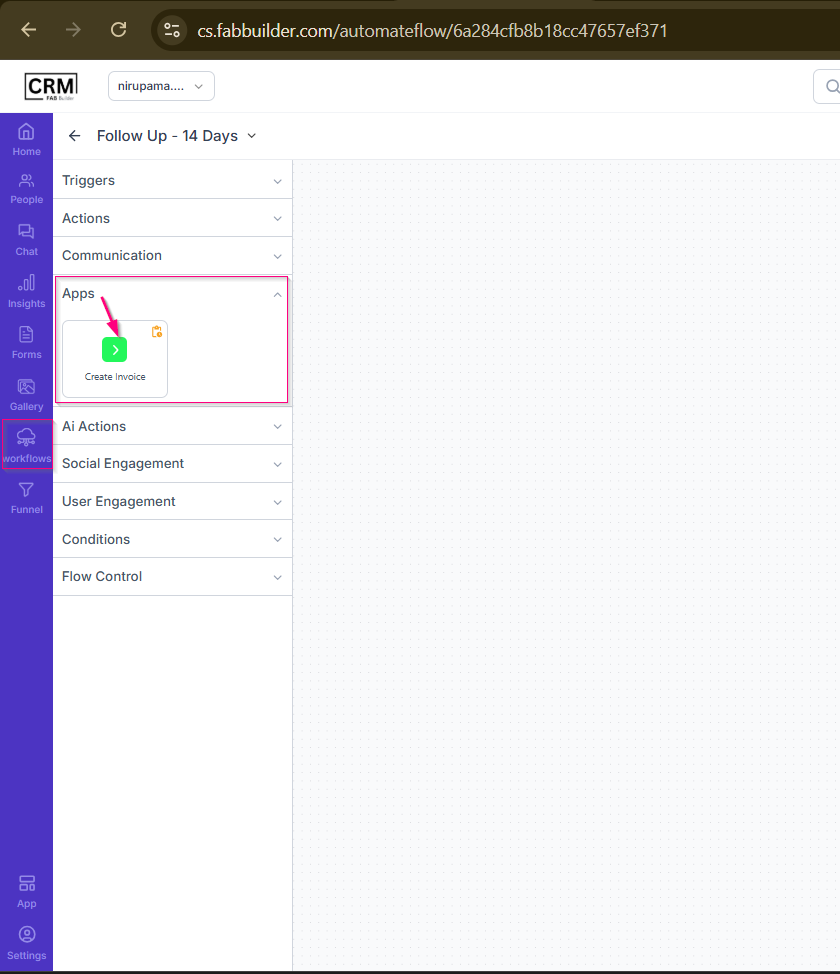 Screen- Apps
AI ActionsAI Actions use artificial intelligence to generate content and automate AI-powered tasks within a workflow. Available AI Actions:
Note: AI Actions require appropriate AI configuration and prompts to generate accurate results. 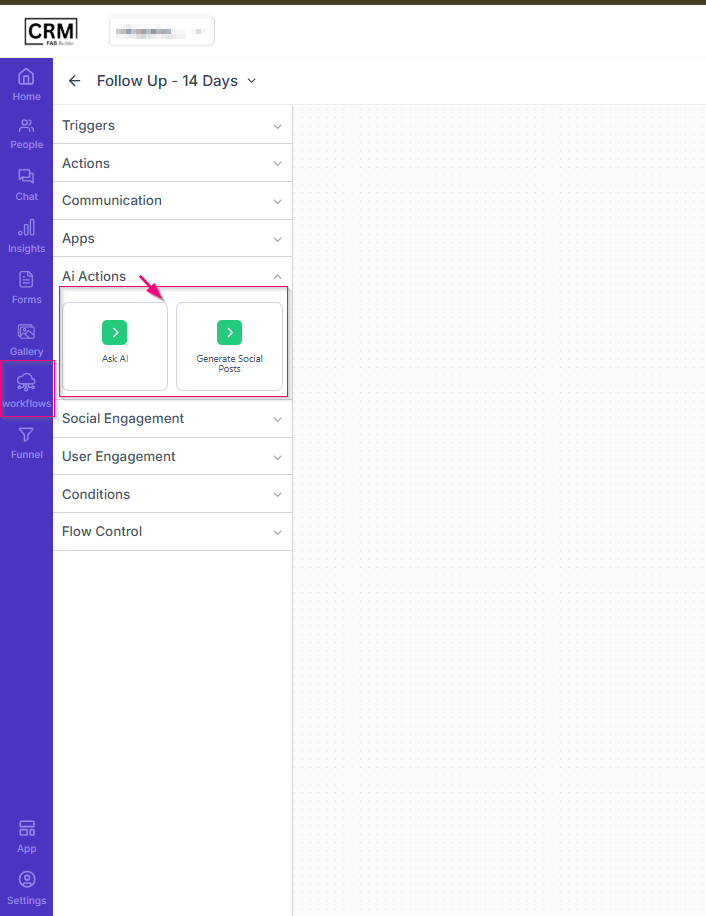 Screen- AI Action
Social EngagementSocial Engagement elements are used to automatically publish content to connected social media platforms when workflow conditions are met. Available Social Engagement Actions:
Example Use Case When a new blog article is published:
Result: Note: Social media accounts must be connected and authorized before using Social Engagement actions in a workflow.
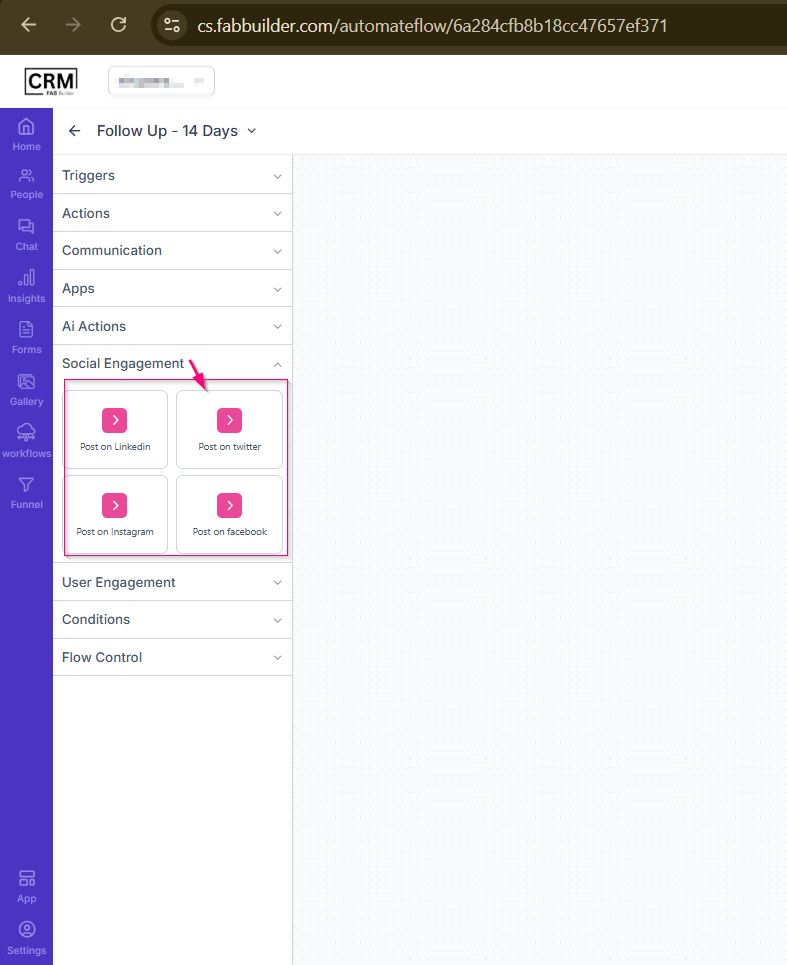
User EngagementUser Engagement elements are used to display interactive content to users as part of an automated workflow. Available User Engagement Actions:
Example Use Case When a new user signs in for the first time:
Result: The user automatically receives a guided tour to understand the application features.
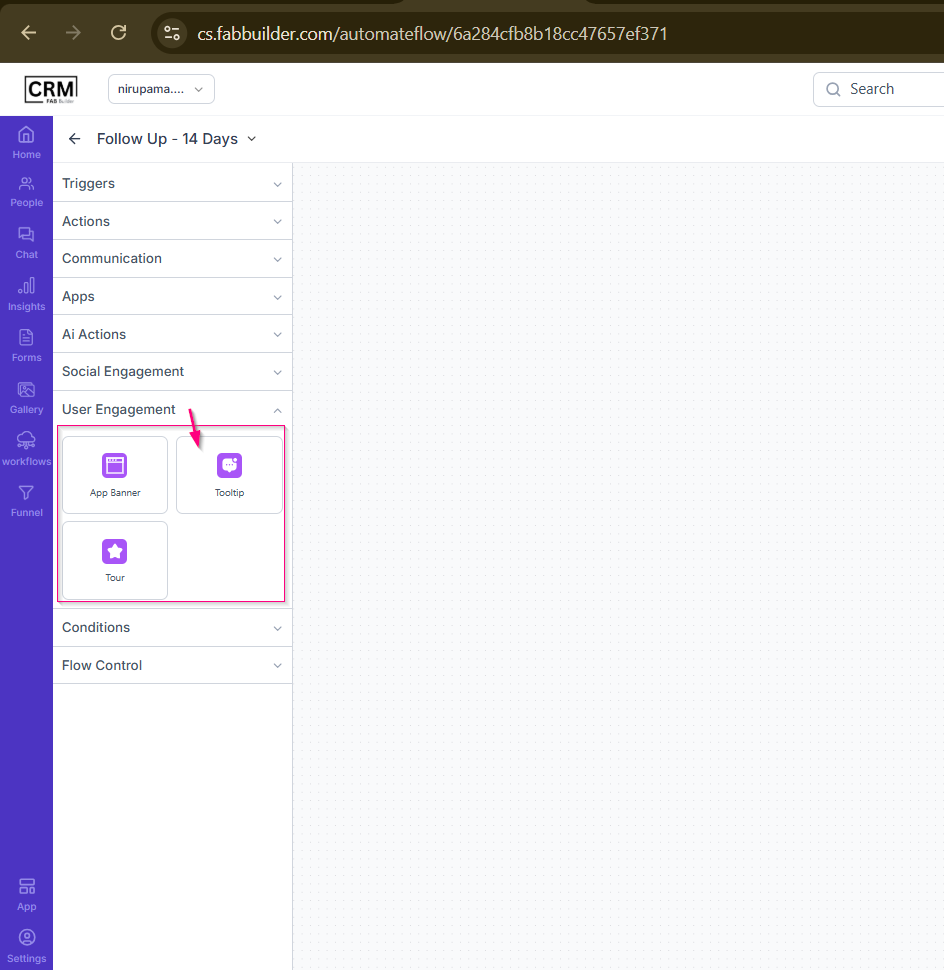 Screen-User Engagement
Flow ControlFlow Control elements are used to manage workflow timing, routing, and execution flow. Available Flow Control Elements:
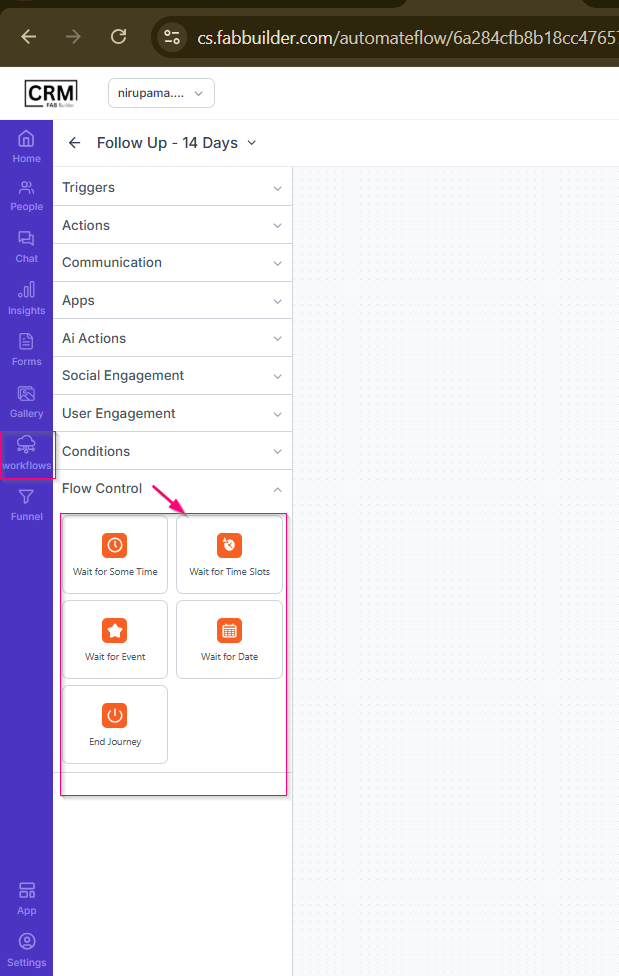 Screen- Flow Control |