FAB Customer Experience

GuideDocsDocs DraftGuide-Draft
k
FAB CRM Introduction
Getting Started
Insight Module
Forms
Gallery
Workflows
App
My Settings
Data
Communication
App Integeration
References
Configuring Instagram

Build by FAB Builder. The source code is available on GitHub.

ContactSponsor

Translate

Choose language

Select your preferred language for this documentation.

The Insight Module provides a centralized view of communication logs, user activities, tasks, and missed opportunities across the CRM. It helps managers and team members monitor engagement, track team-wise activities, review communication status, identify missed follow-ups, and analyze performance from a single location.

Key Benefits

  • Track communication history across all channels.
  • Monitor team-wise activities and user performance.
  • Review pending and completed tasks.
  • Identify missed customer engagement opportunities.
  • Filter records by channel, user, and date range.
  • Analyze customer interactions and follow-up status.

Use Case

A sales manager can use the Insight Module to track team-wise communication activities, monitor task completion, review customer interactions, identify missed follow-ups, and measure engagement across different channels.


The section covers:

  • Navigation to the Insight Module
  • Insight screen layout and components
  • Insights tab
  • Activities tab
  • Tasks tab
  • Missed Opportunities tab
  • Filter options and their usage

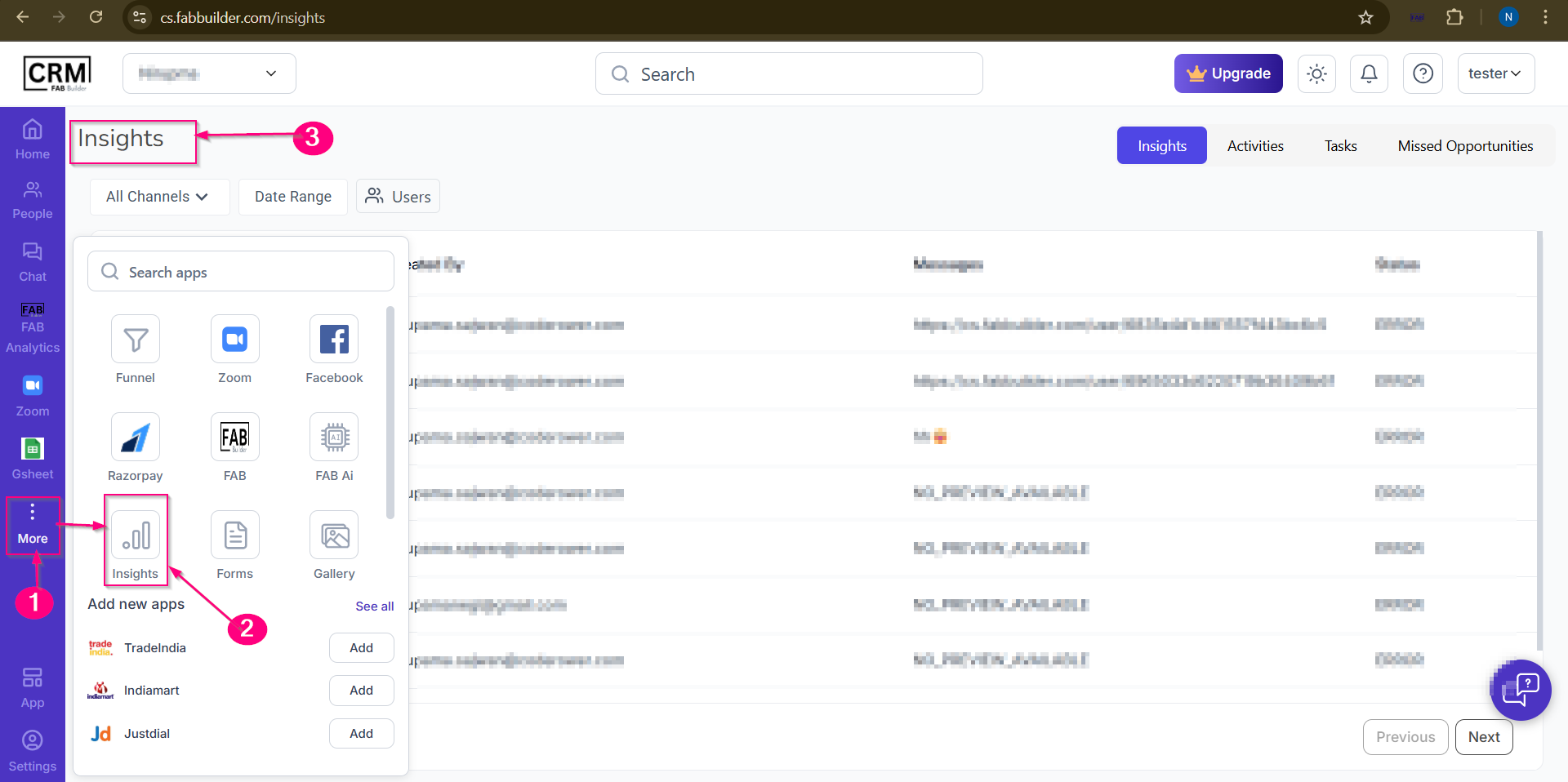
Above screen provides the path to navigate insight module.


Three dot on navigation bar→ Insight Menu tab on panel → Insight Title with screen


Screen- Insight Module

Insight screen

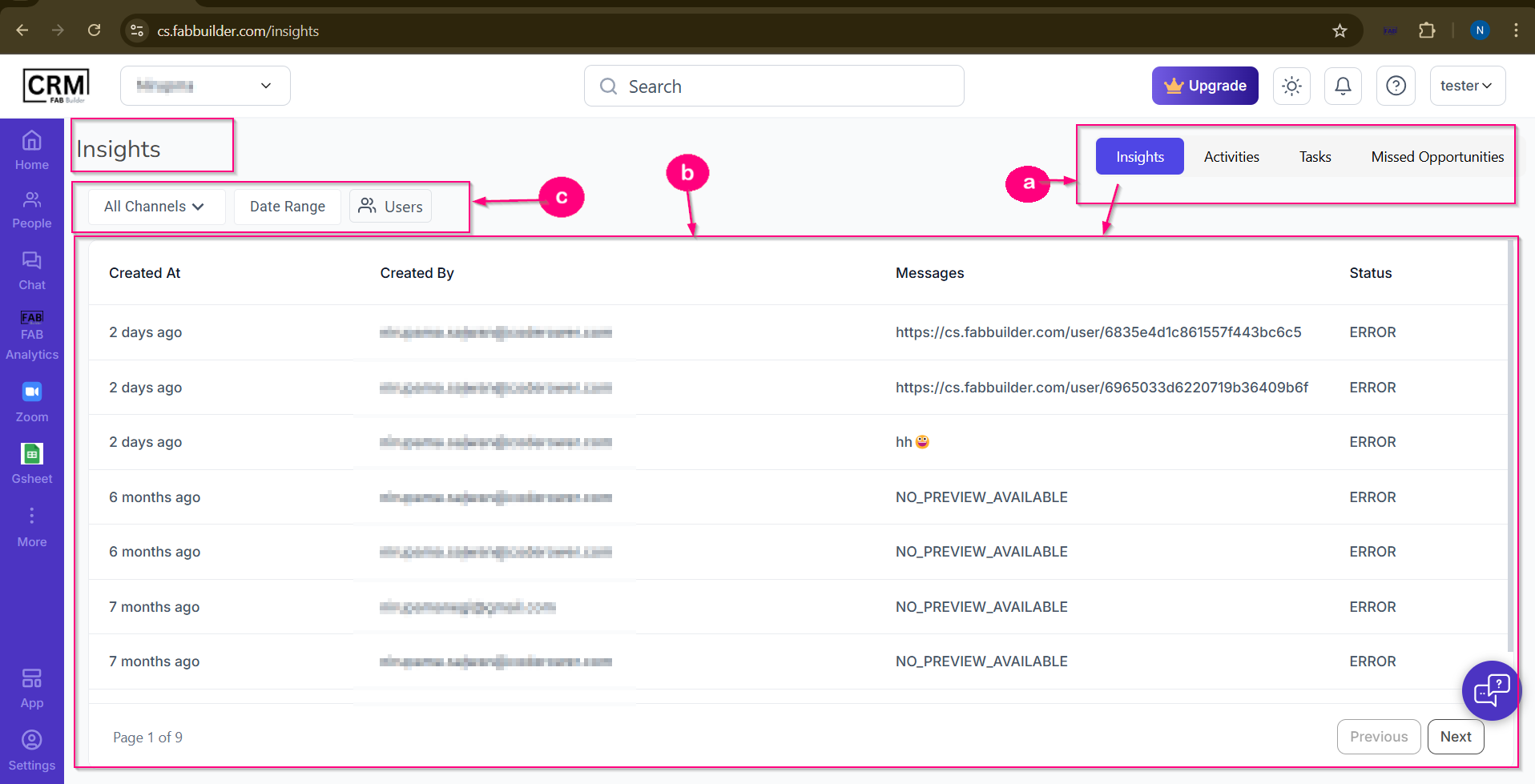
It provides access to Insights, Tasks, and Missed Opportunities tabs with other filter tabs at the top right corner of the sc

reen. By default, the Insights tab is selected once user lands on insight page. 

The screen is labelled as follows-

Screen- Insight

a. Tab area


  • Insights Tab – Displays all message logs with columns such as Created At, Created By, Message, and Status. Users can click a message to view details.
  • Activities Tab – Shows all interactions, including tasks, calls, and meetings, related to leads and customers.


  • Tasks Tab – Displays details of scheduled activities with leads or customers.
  • Missed Opportunities Tab – Shows leads where contact opportunities were missed, along with basic details like Email, Name, Phone, WhatsApp, and Created At.


b.Table Area

This area rendering the details based on selected tab.Currenly insight tab is active and user can view all communication logs in a tabular form.


c.Filter Area


  • All Channels – Filters lead details by source channel. By default, data from all channels is shown.
  • Date Range – Filters lead details based on the selected date range.
  • Users Filter – Filters lead details based on the business team member handling the lead.