Home Screen Overview
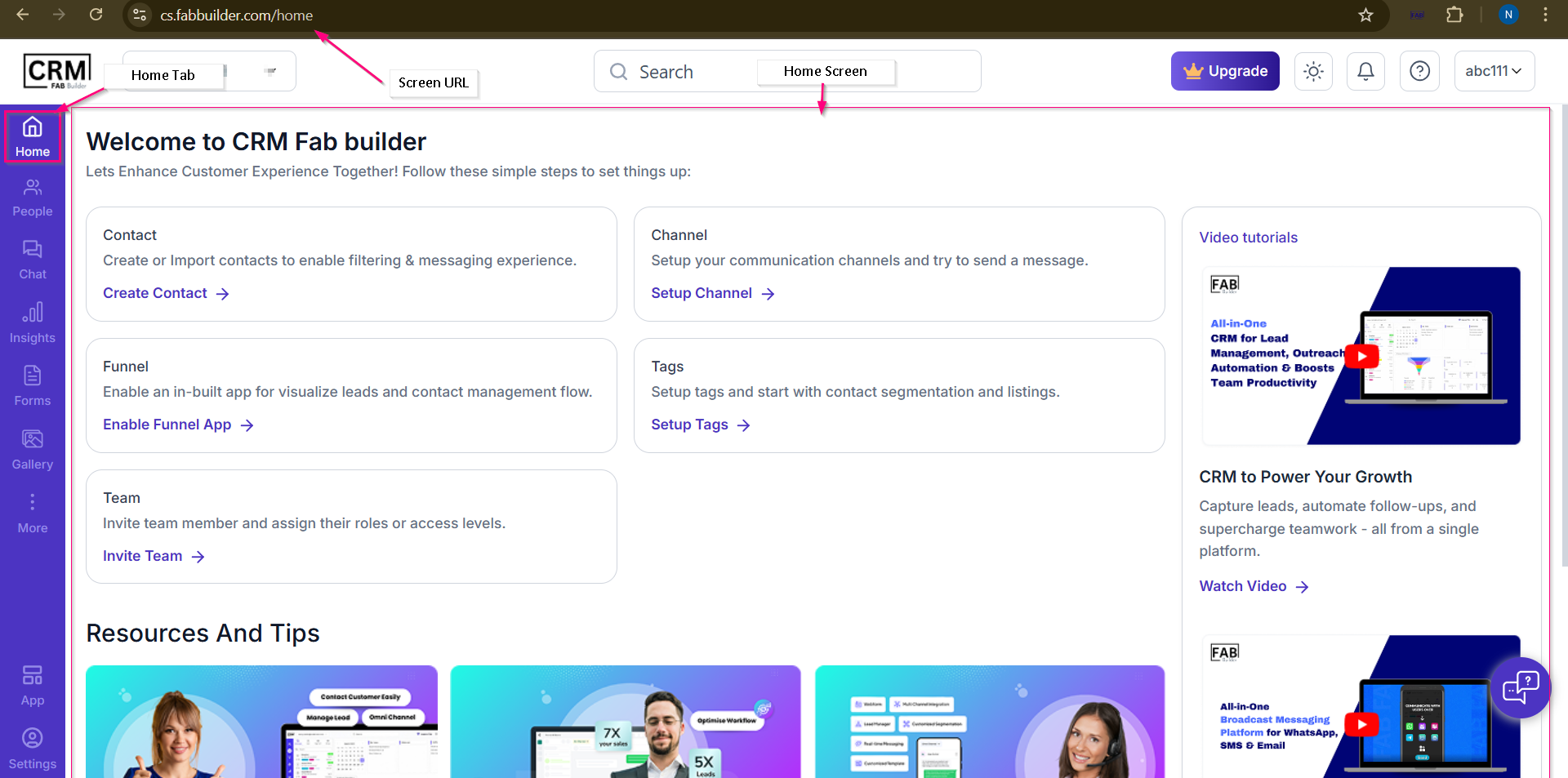
Home screen of the CRM displays below .This is the first page user is redirected to after a successful sign-up or first time sign in.
This screen allows the user to:
Screen- Home Home Screen components Home screen can be defined by majorly three component
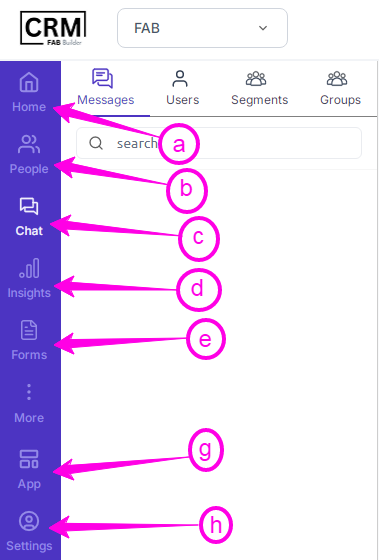
Top Universal Tool BarThe CRM FAB Builder application features a consistent top toolbar, displayed as a horizontal strip across the top of the screen. This toolbar is accessible from all the pages available of the CRM FAB Builder interface. The main toolbar contains the following elements.  Screen- Universal Toolbar a.CRM FAB Builder Logo– On the extreme left of the” Toolbar”, a CRM FAB Builder Logo is shown. b.Business User ID/Profile– Displays the logged-in business user’s name or ID, with a dropdown to access profile settings and logout. c.Search Tool– A universal search tool allows business users to find contacts, segments, and messages. d.Upgrade Plan– Displays the current subscription status and provides an option to upgrade your CRM plan. e.Light/Dark Mode Toggle– Allows you to switch between light mode and dark mode for better visual comfort. f.Notification Bell Icon– Shows system “alerts”, “updates”, and “messages” for the CRM business user. g.Domain Name– Shows the departmental name of the business user. h.Domain Name– Shows the departmental name of the business user.
Main Navigation Panel These are small, interactive icons used on the home page of the CRM platform on the left-hand sidebar (blue in color). These icons display specific information and quick accessto the CRM system automation settings. A few modules are customized and can be added, removed, or rearranged by users. a. People – View and manage all users or contacts within the CRM system. b. Chat – Access and manage all chat conversations and communication threads. c. Lead Funnels – This visual representation helps the business owners to track and interact with potential customers and leads. d. Insights – This helps the business to track, manage, and analyze customer interaction and performance. e Forms – Design and manage data collection forms for lead capture or surveys. f. Gallery – Store and manage media files such as images, videos, or documents. g. Workflow – Build and automate business workflows or sequences. h. App Integration – Connect and manage third-party applications (e.g., Brevo) and integrations. i. My Profile – Shows all personal details (email ID) of the business user who can change their setting by clicking the tab. Main AreaThe Main Area displays the primary workspace of the CRM platform. It provides quick access to setup options, learning resources, video tutorials, guides, and important CRM features. Users can perform initial configurations such as creating contacts, setting up channels, enabling funnels, configuring tags, and inviting team members from this section.
The Main Area also includes resource cards, support materials, and tutorial videos to help users understand and use the platform effectively. 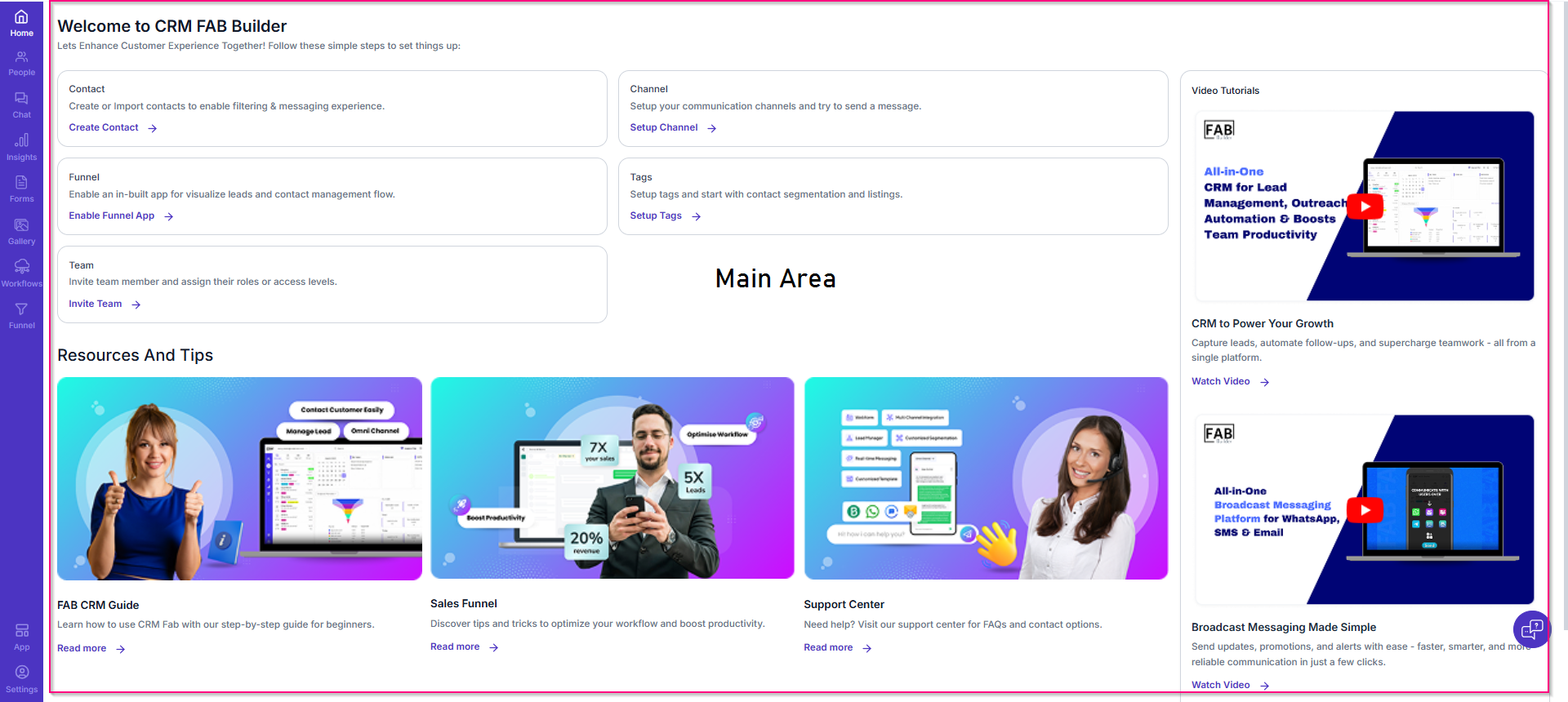 |