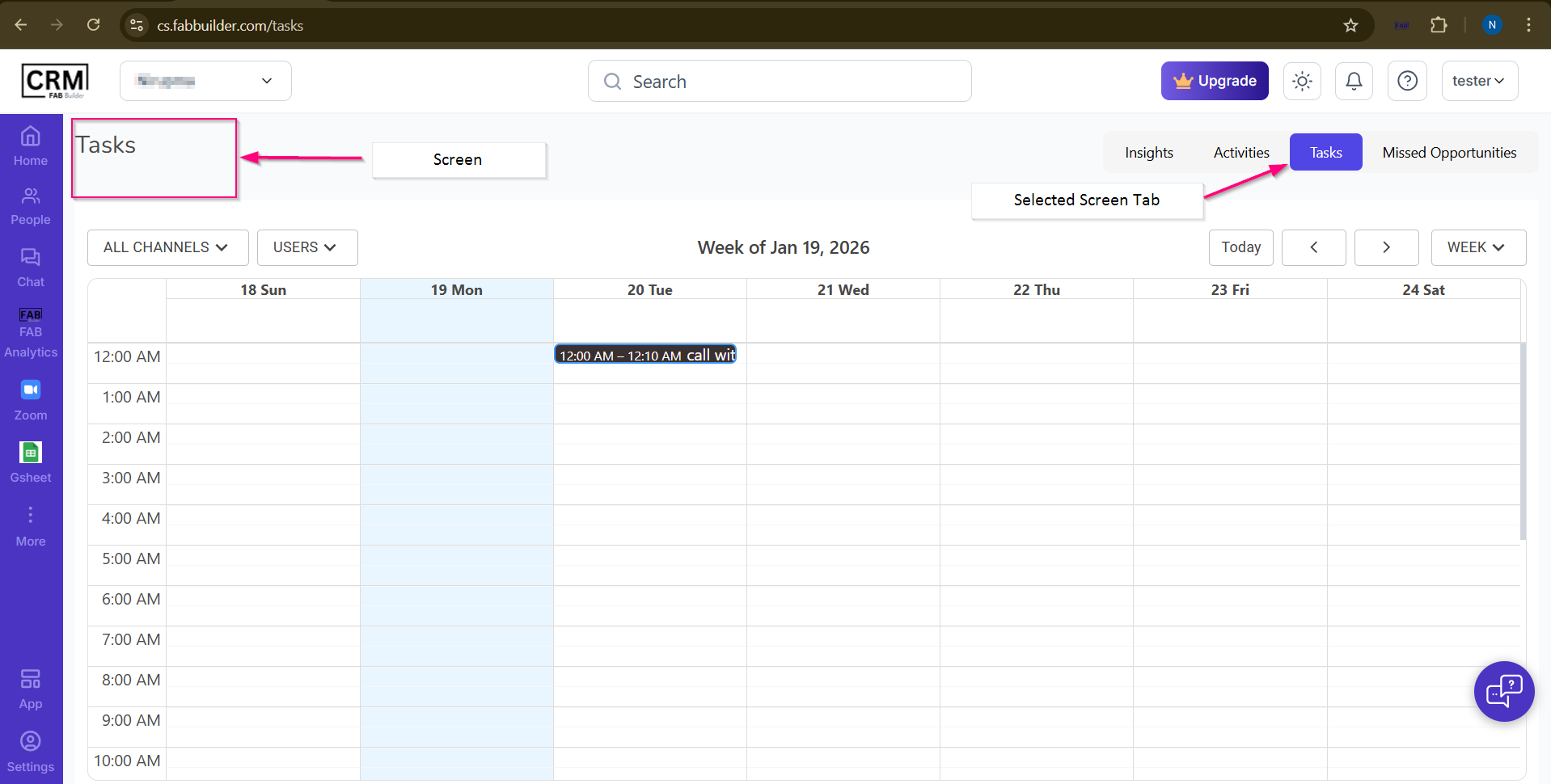
Tasks Tab (Insights Module)The Tasks tab provides a calendar-based view of all scheduled follow-ups and assigned activities. It enables users to track upcoming actions, manage commitments, and ensure timely engagement with leads and contacts. When a task is created from the Lead Details screen in the People module, the task information, including the assigned user, notes, date, and time, is automatically reflected in the Tasks tab. Users can also filter tasks by channel, team member, and date range to view specific assignments. Accessing the Tasks TabInsights → Tasks Viewing Task DetailsBefore accessing the Tasks tab, ensure that follow-up tasks have been created for leads and assigned to team members. Scheduled tasks are automatically displayed in the calendar based on the assigned date and time. Users can click on any task displayed in the calendar to view detailed information, including the task description, assigned user, related lead, scheduled date and time, notes, and task status. Related Topic: For instructions on creating a task, refer to Create a Task from Lead Details or Create a Task from Missed Opportunities. PurposeThe Tasks tab helps users plan, organize, and monitor follow-up activities across leads and team members. It provides visibility into upcoming assignments and ensures that scheduled actions are completed on time. Use CaseA sales manager assigns follow-up tasks to team members for potential leads. By accessing the Tasks tab, the manager can review scheduled activities, monitor assignments, apply filters, and ensure that all follow-ups are completed within the planned timeline.
Screen-Tasks Tan |