App integration allows the CRM to connect with external applications and services. It helps users centralize business operations by enabling seamless communication and data exchange between the CRM and third-party platforms. Integrated applications can be managed from a single location, improving efficiency and reducing manual configuration efforts.
Prerequisites
Before integrating an application, ensure that:
How to Integrate an AppIn this section, we will describe how to integrate an application with the CRM. Users can access the App screen using either of the following methods: 1.Click on App module from the navigation menu or Navigate to Settings → App & Integration. 2.When the App screen is opened, the App tab is selected by default and displays the list of available and integrated applications.
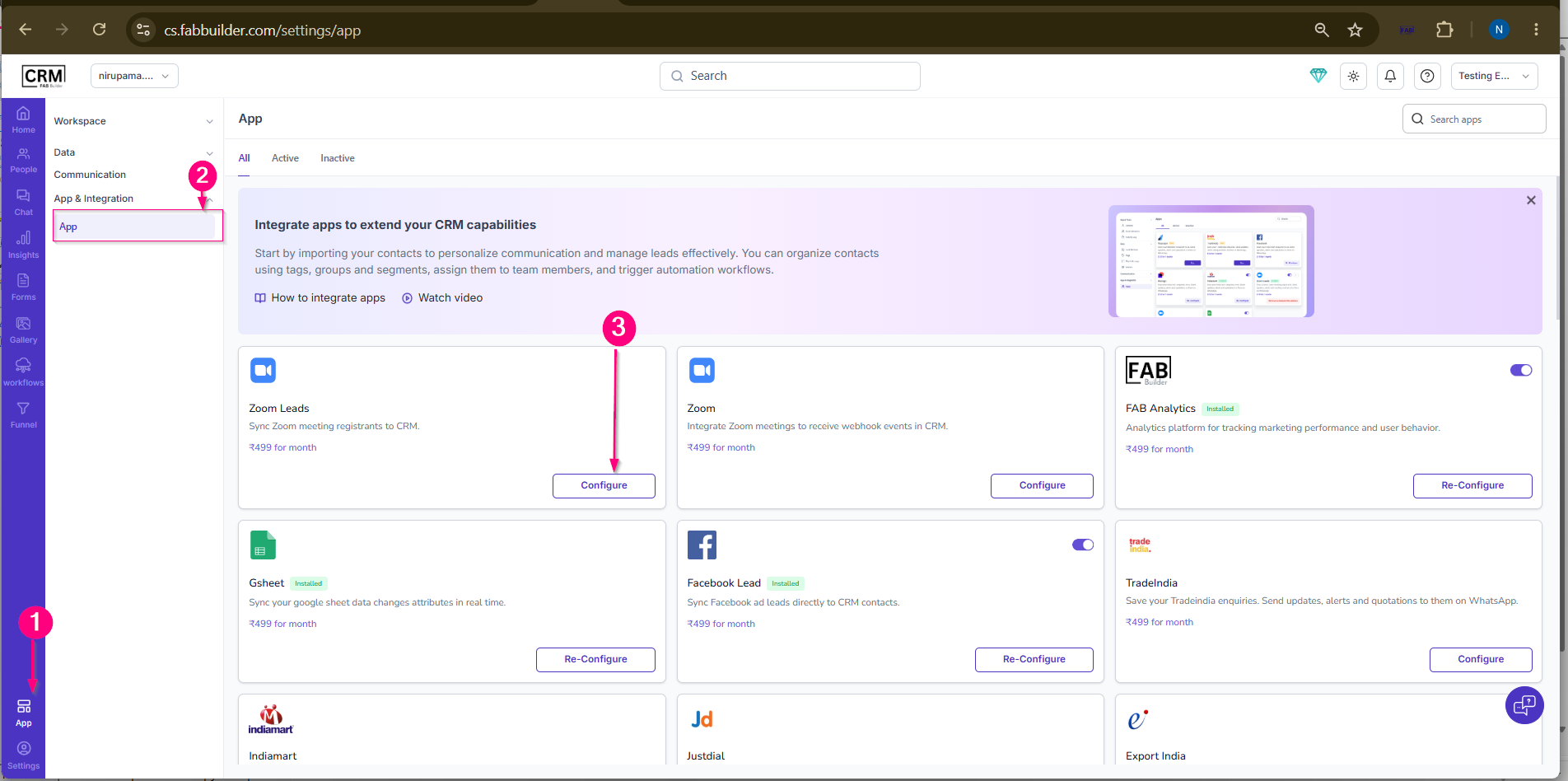 3.Select and Configure the Application. 4.Enter the required details and complete the configuration. 5.ClickSaveto store the configuration settings.
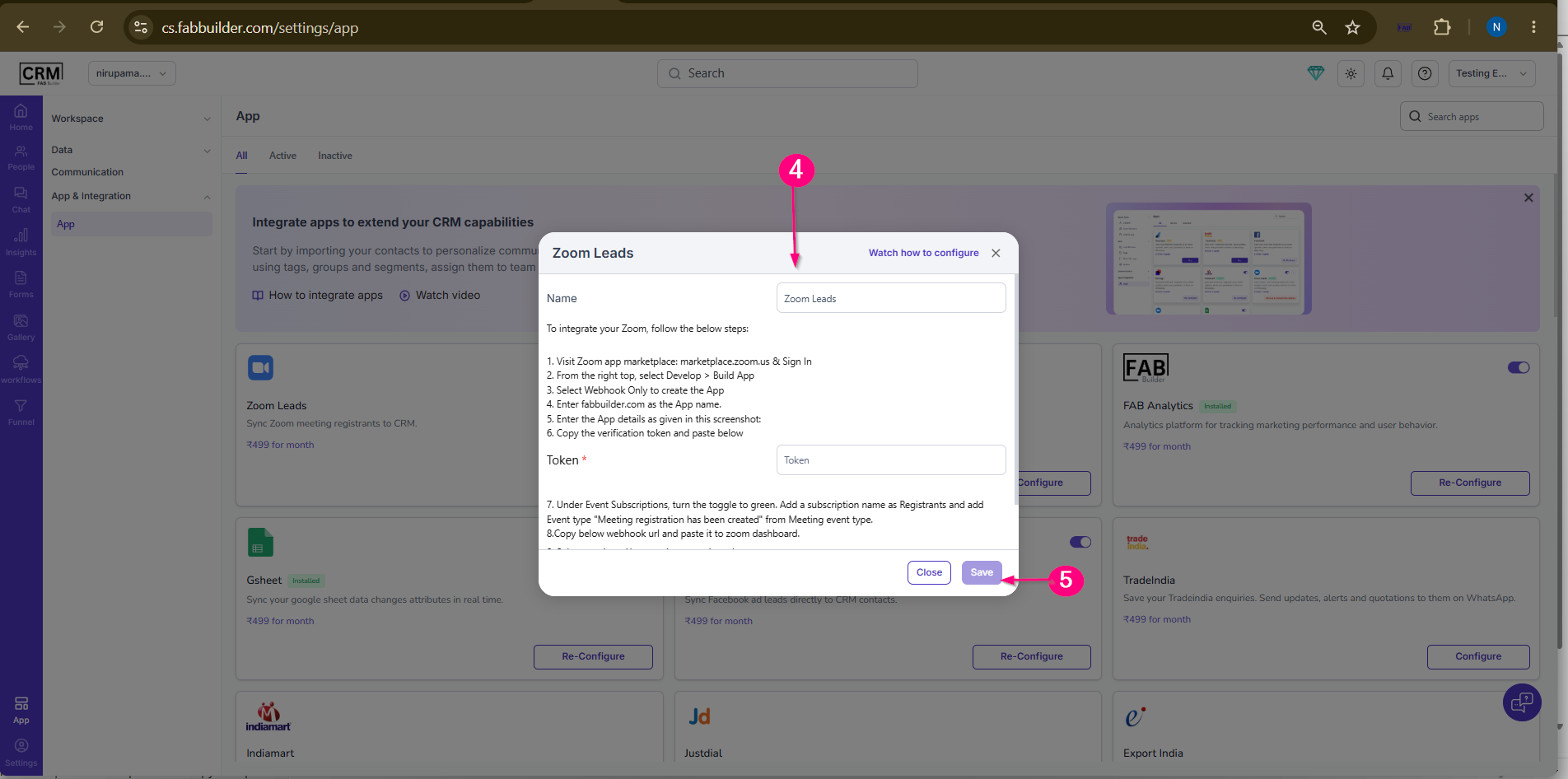
ResultThe selected application is successfully integrated with the CRM. Users can manage the integration using the Configure, Re-Configure, and Enable/Disable options available on the App screen.
|