Add People in People Module
This section describes the different ways to add people (leads/customers) in the People module of the CRM FAB Builder application.
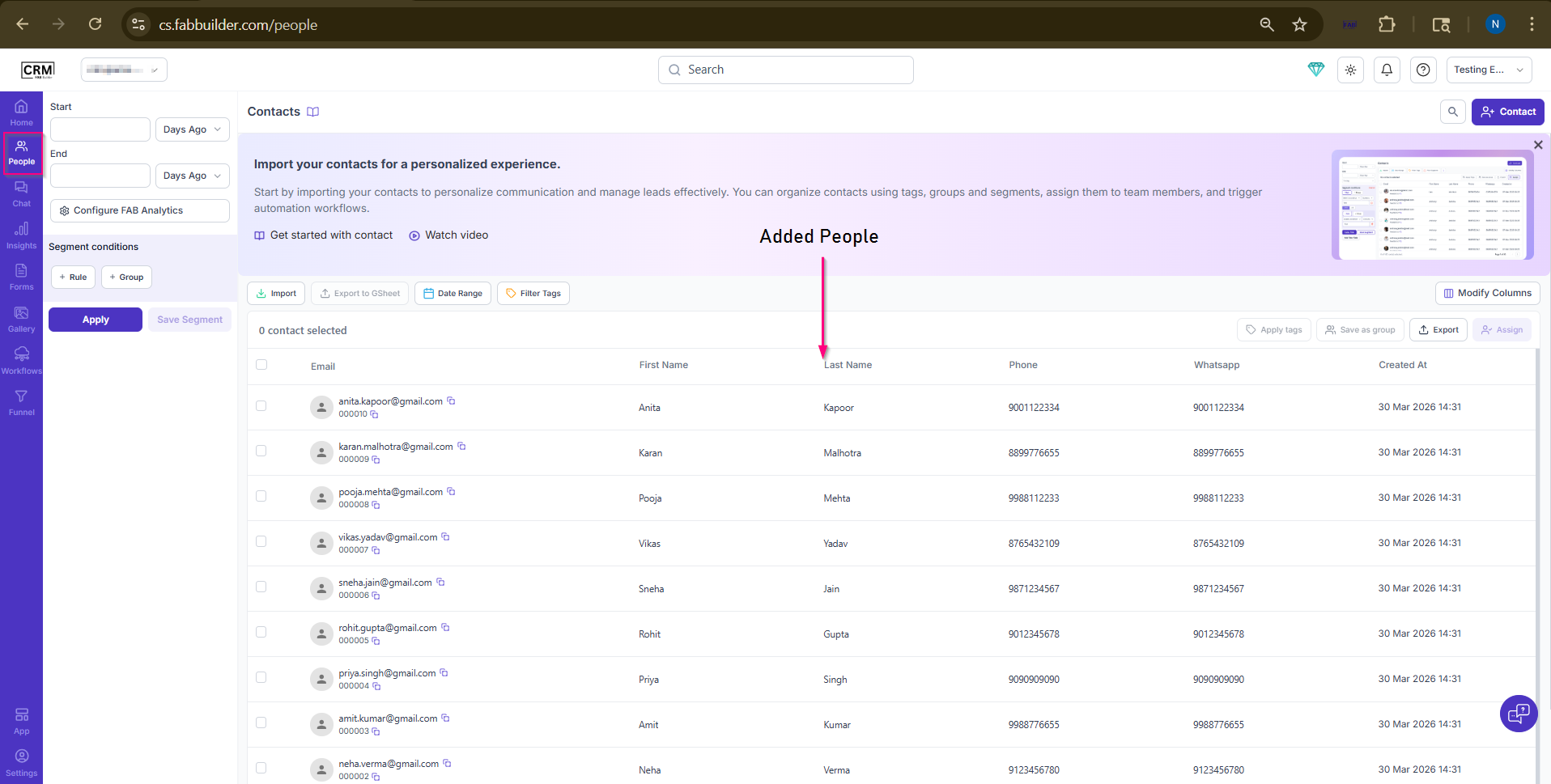
Screen- Added People Contact
There are two ways to add people:
a. Add Contact Manually (One by One)
This option is used to add a single contact manually in the People module by entering the required details and saving the record.
b. Add Contacts in Bulk (Bulk Insert)
This option allows users to add multiple contacts at once by entering or pasting data directly into the system. The data must follow the correct sequence (e.g., First Name, Last Name, Email, Phone).
Note:This method is manual but faster than adding contacts one by one.
c. Add Contacts by Importing (Upload Excel File)
This option allows users to import contacts in bulk by uploading a CSV or Excel file into the CRM. The file must follow the required template format to ensure correct field mapping.
Note:This method is best suited for importing large datasets.
d. Add Contacts by Importing from Google Sheets
This option allows users to add contacts in bulk by importing data from Google Sheets into the CRM. It enables users to fetch contact details from a connected Google Sheet, provided the data is structured in the required format.
Note:Auto-sync is not currently supported. Any updates in Google Sheets must be re-imported into the CRM.
Add People manually'(one by one)
After successful login into the CRM FAB Builder application via https://cs.fabbuilder.com , the user needs to follow the steps below to add people manually.
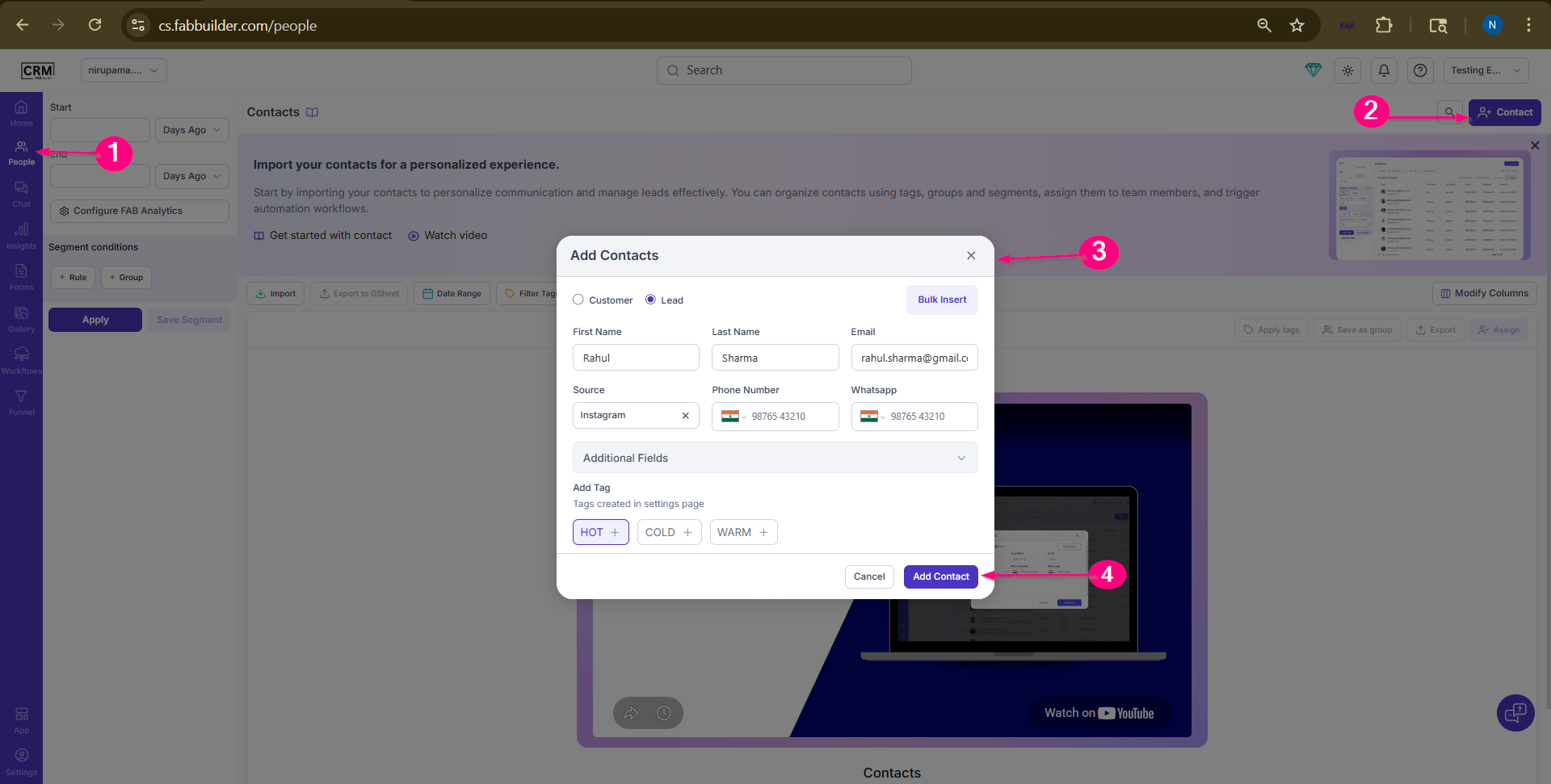
Screen -Step to Add People
User must follow the step to add contact
- Click on the People module from the left panel
- Click on the + Contact button
- After clicking the contact button, the Add Contacts popup will open. Select whether it is a Customer or Lead, and add the following details:
- First Name
- Last Name
- Email ID
- Phone Number / WhatsApp
- Source
- Additional Fields (if required)
- Tags (Hot, Cold, Warm)
4.Click on the Add Contact button
Added contact can be seen in people dashboard
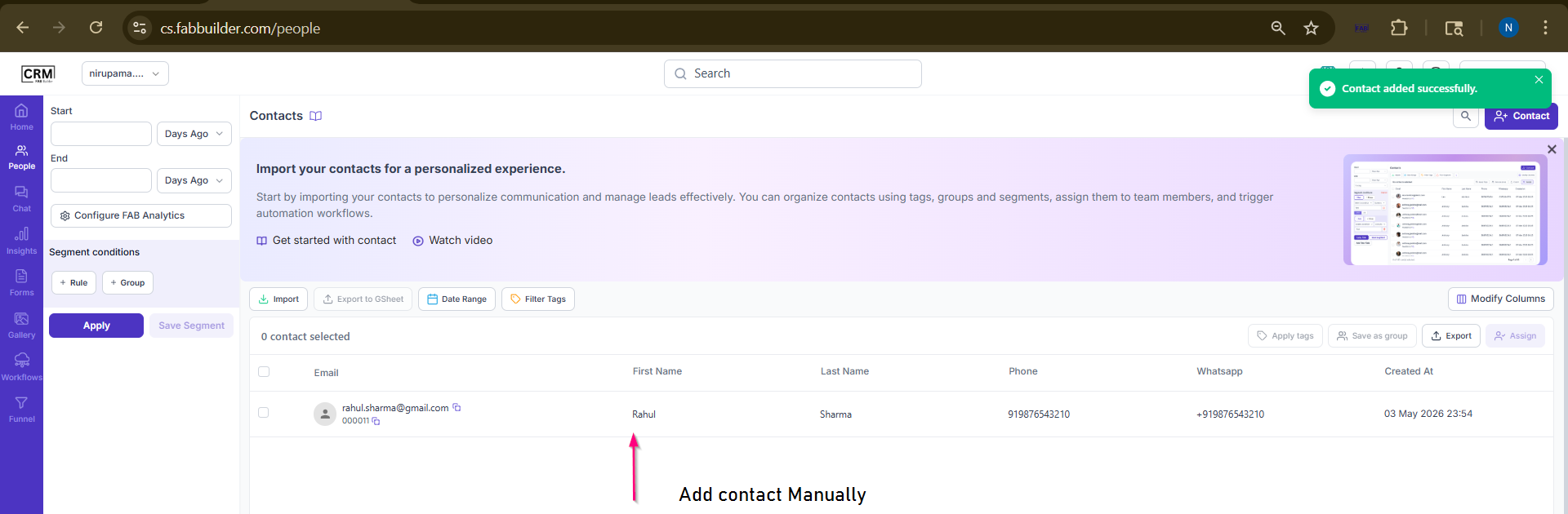
Screen -Add Contact Manually
Add Contacts in Bulk (Bulk Insert)
This section explains how to add contacts in bulk in the People module by copying data from an Excel file and pasting it into the Bulk Insert field area.
Important prerequisite (VERY IMPORTANT)
Ensure that the Excel sheet follows the predefined template format, with columns matching the required fields such as First Name, Last Name, Email, Phone, etc.
User must follow the step to add contact
- Click on the People module from the left panel
- Click on the + Contact button
- Select type of contact customer or Lead
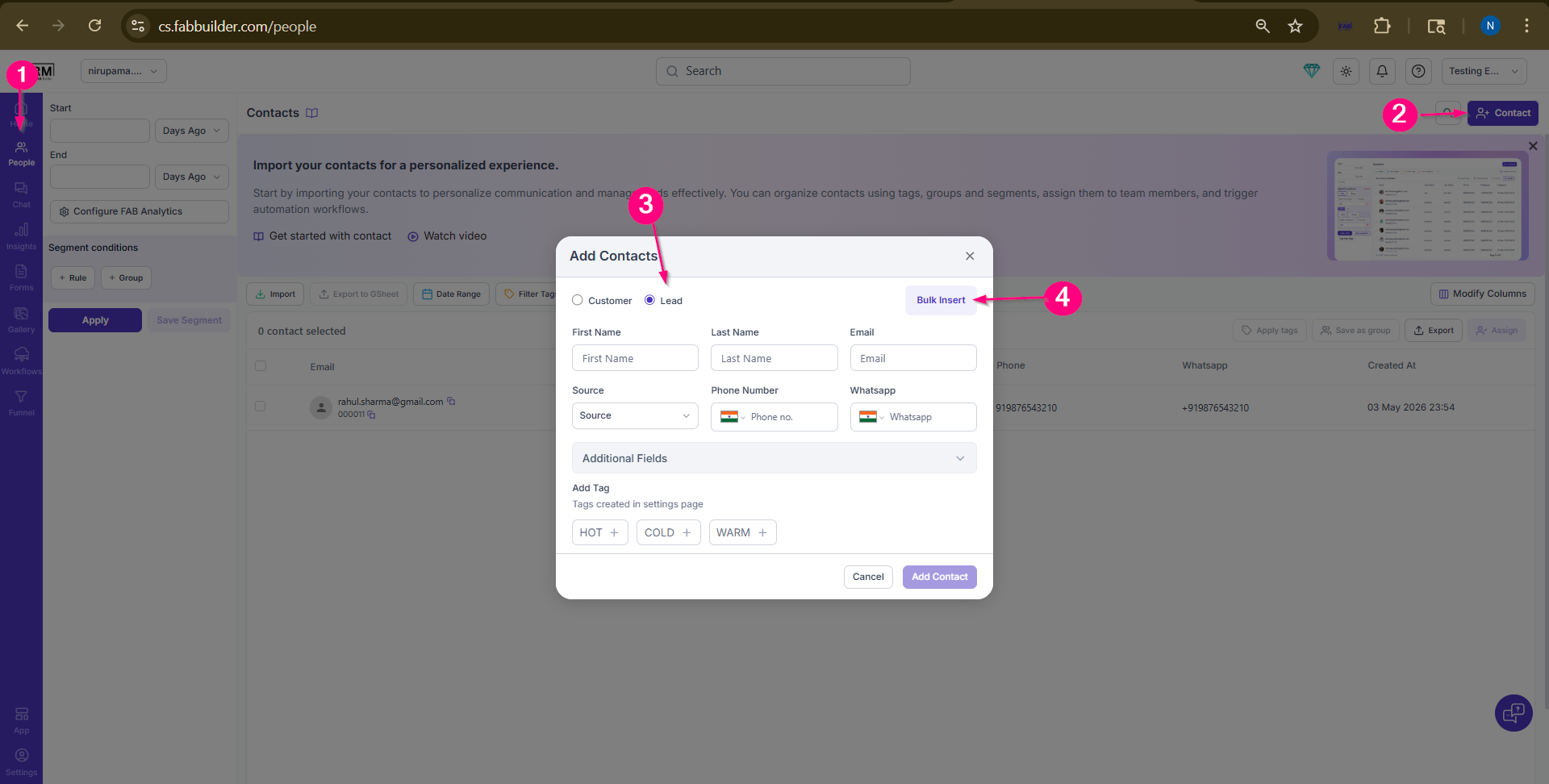
Screen- Select Bulk Insert
5.in this step one the excel sheet of contact details and copy them.
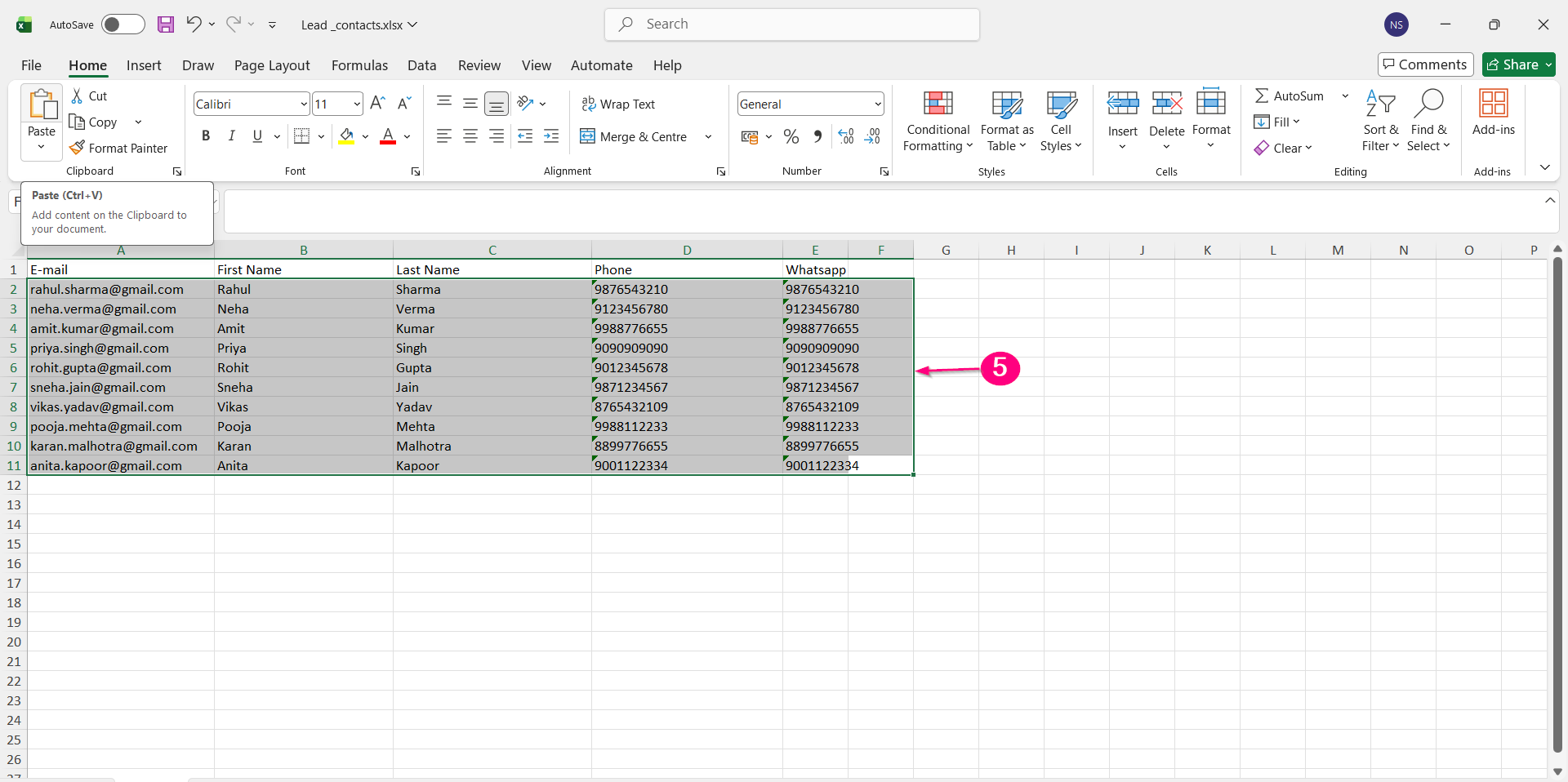
Screen- Copy the Contact Details from Excel
6.Now paste the select contact in step 5 into thebulk inset area of pop up screen.
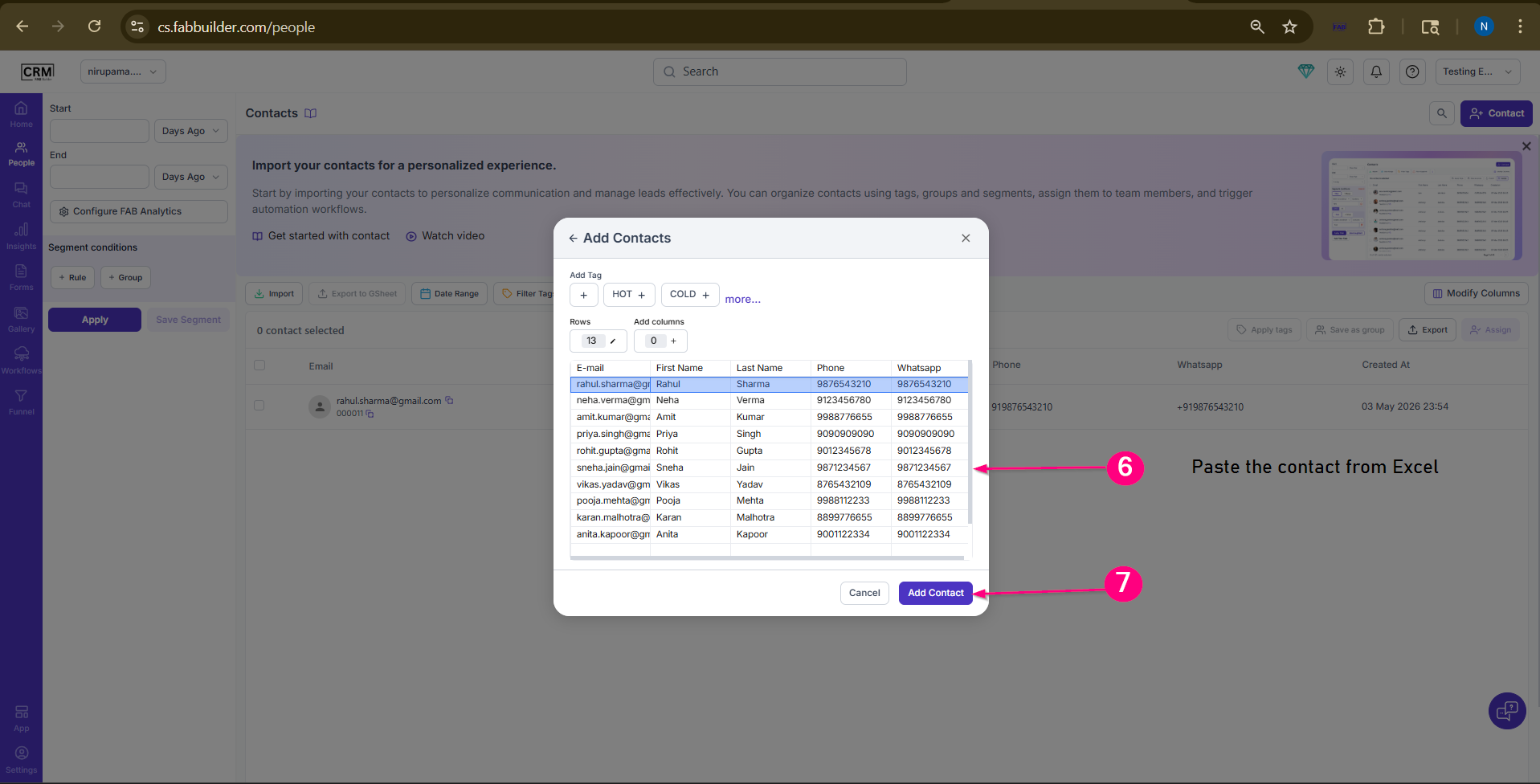 Screen- Paste the contact
Now Succefully added contact details will pop up
8.Click on ok button
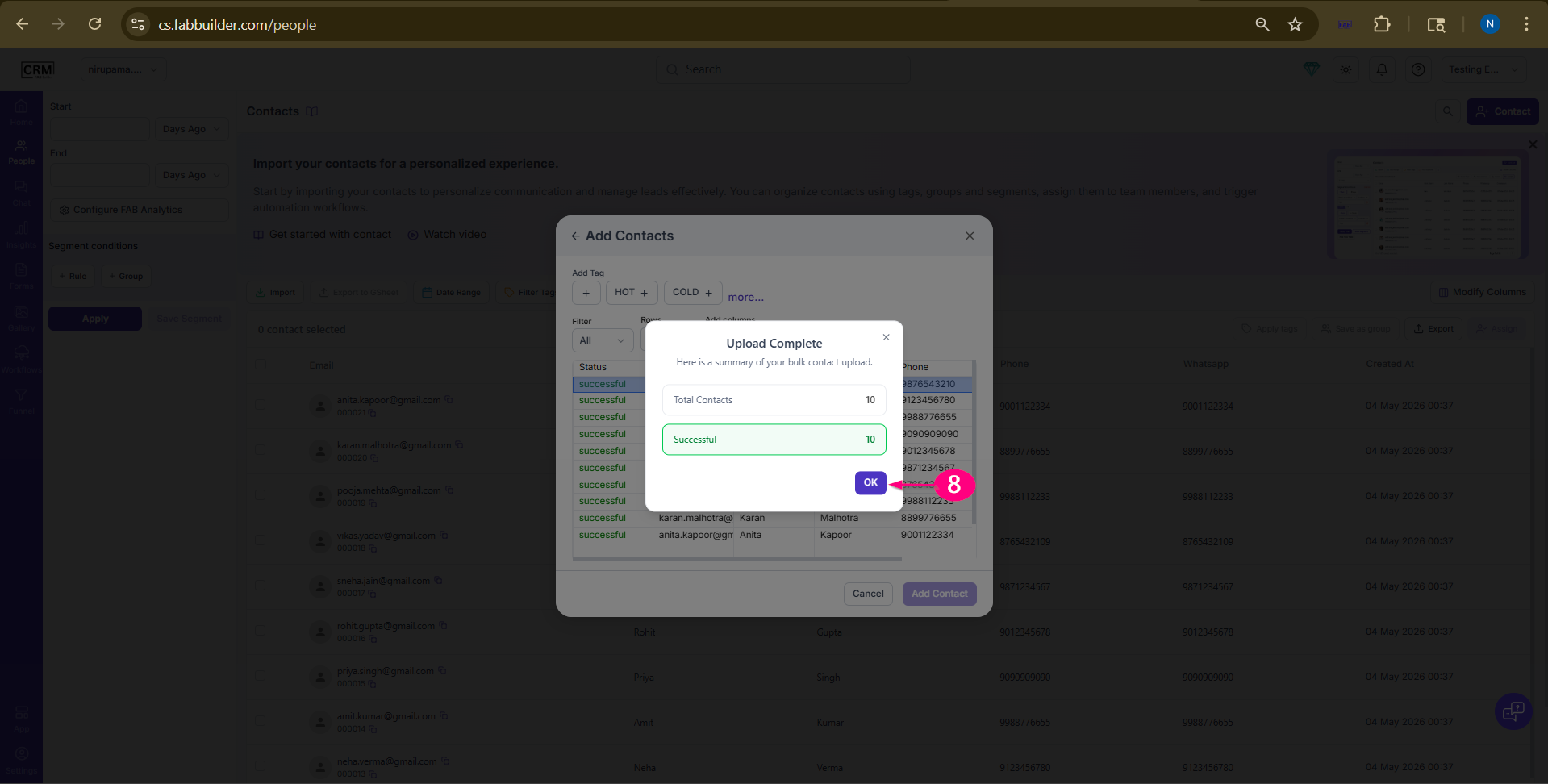
Screen- Select ok.
Now user can view the details of added contact.
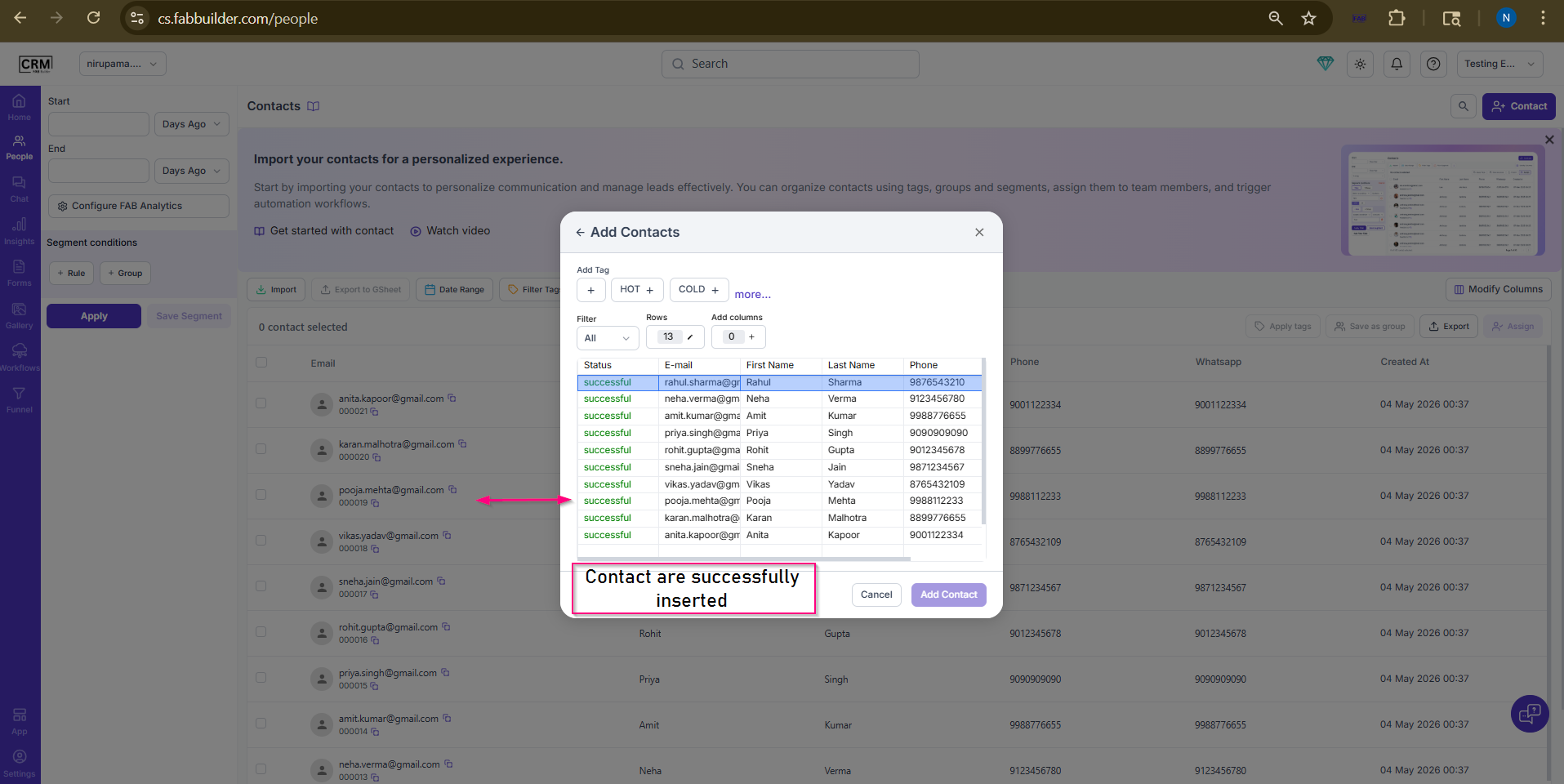
Screen- Contact added successfully
Add Contacts by Import (Upload Excel sheet)
This section explains how to import contacts in bulk in the People module by uploading data from an Excel file into the CRM. It outlines the steps to import contacts using the Excel file.
Important prerequisite (VERY IMPORTANT)
Ensure that the Excel sheet follows the predefined template format, with columns matching the required fields such as First Name, Last Name, Email, Phone, etc.
After successful login into the CRM FAB Builder application via https://cs.fabbuilder.com , the user needs to follow the steps below to add people in bulk by import
- After successful login, click on the People module
- Click on the Import button
- Click on the drag and drop area or browse the file, then select the file to upload
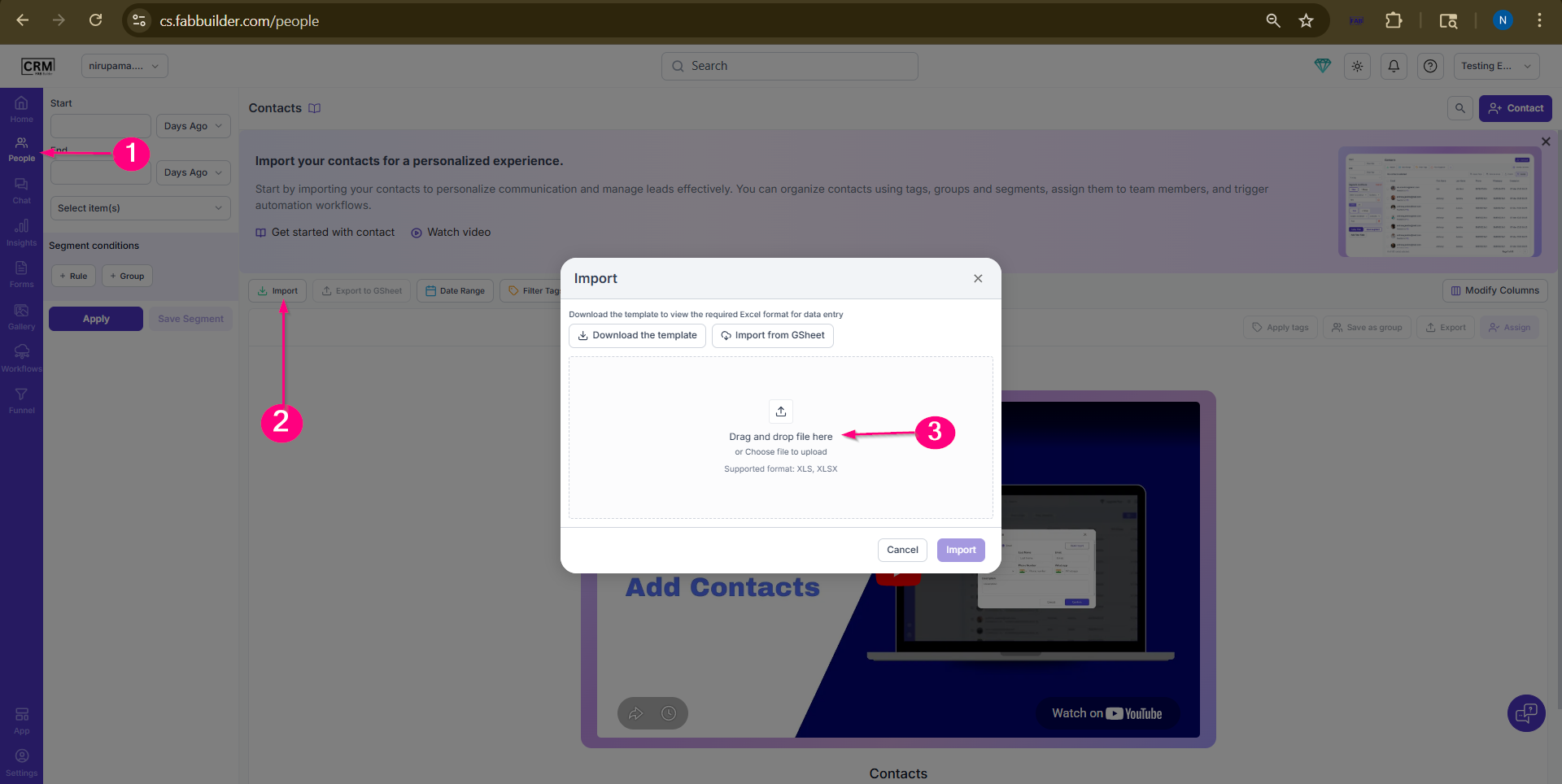
Screen - Step to import Excel file of contact
Screen- Step to import contact
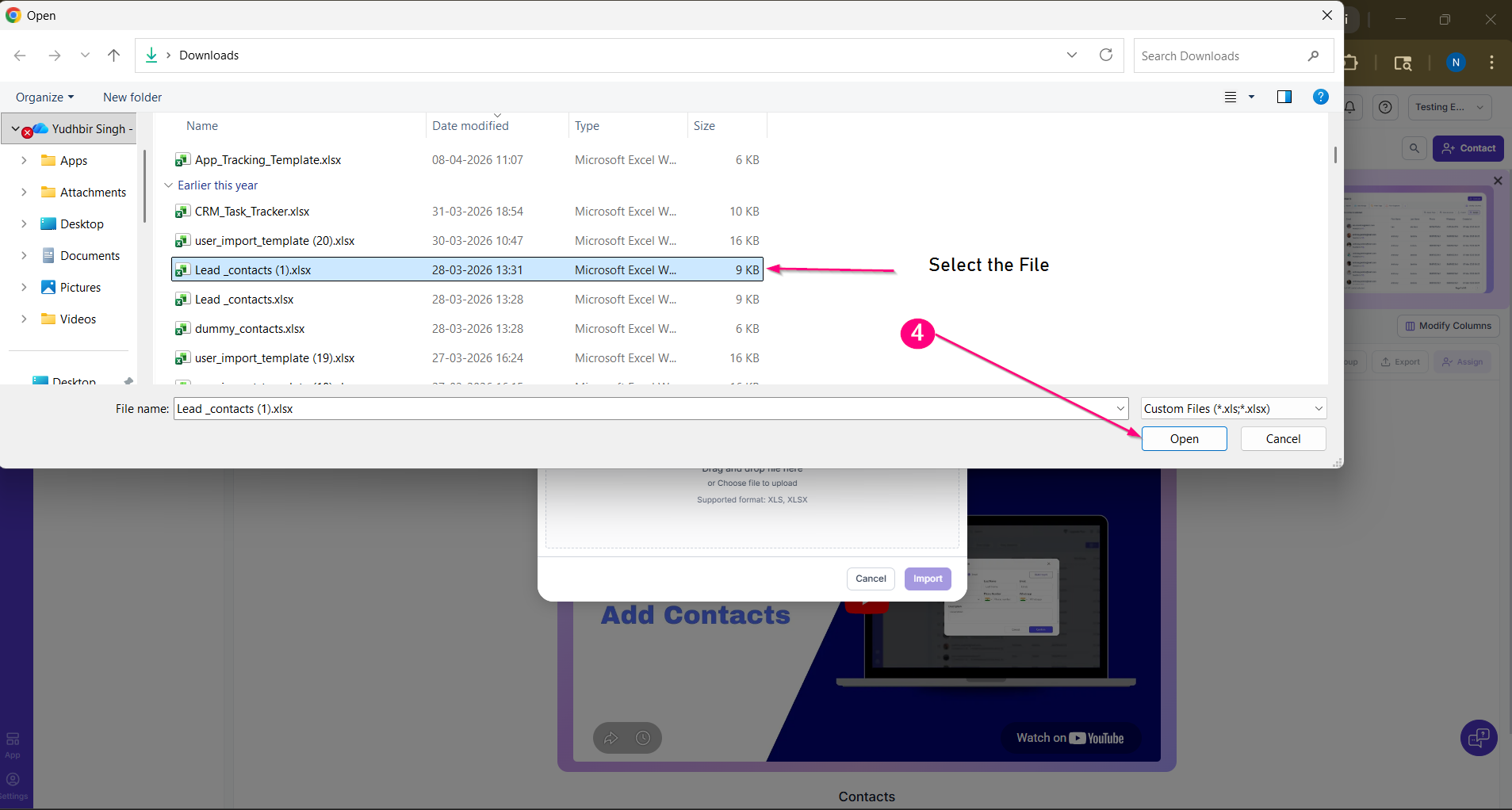
4.select and open file to upload contact
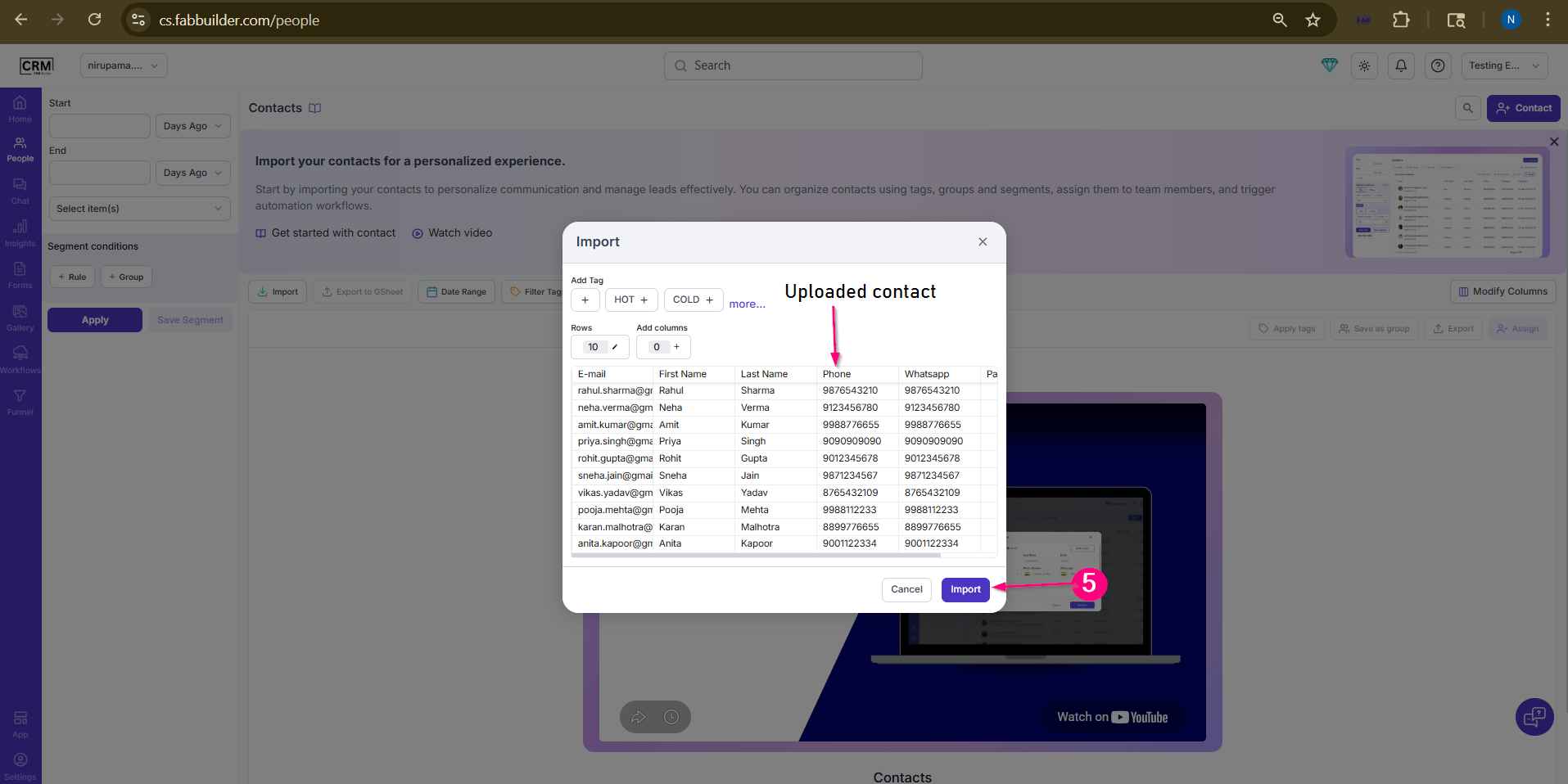
6 Ater uploading lead data click on import
6.select ok button on pop screen
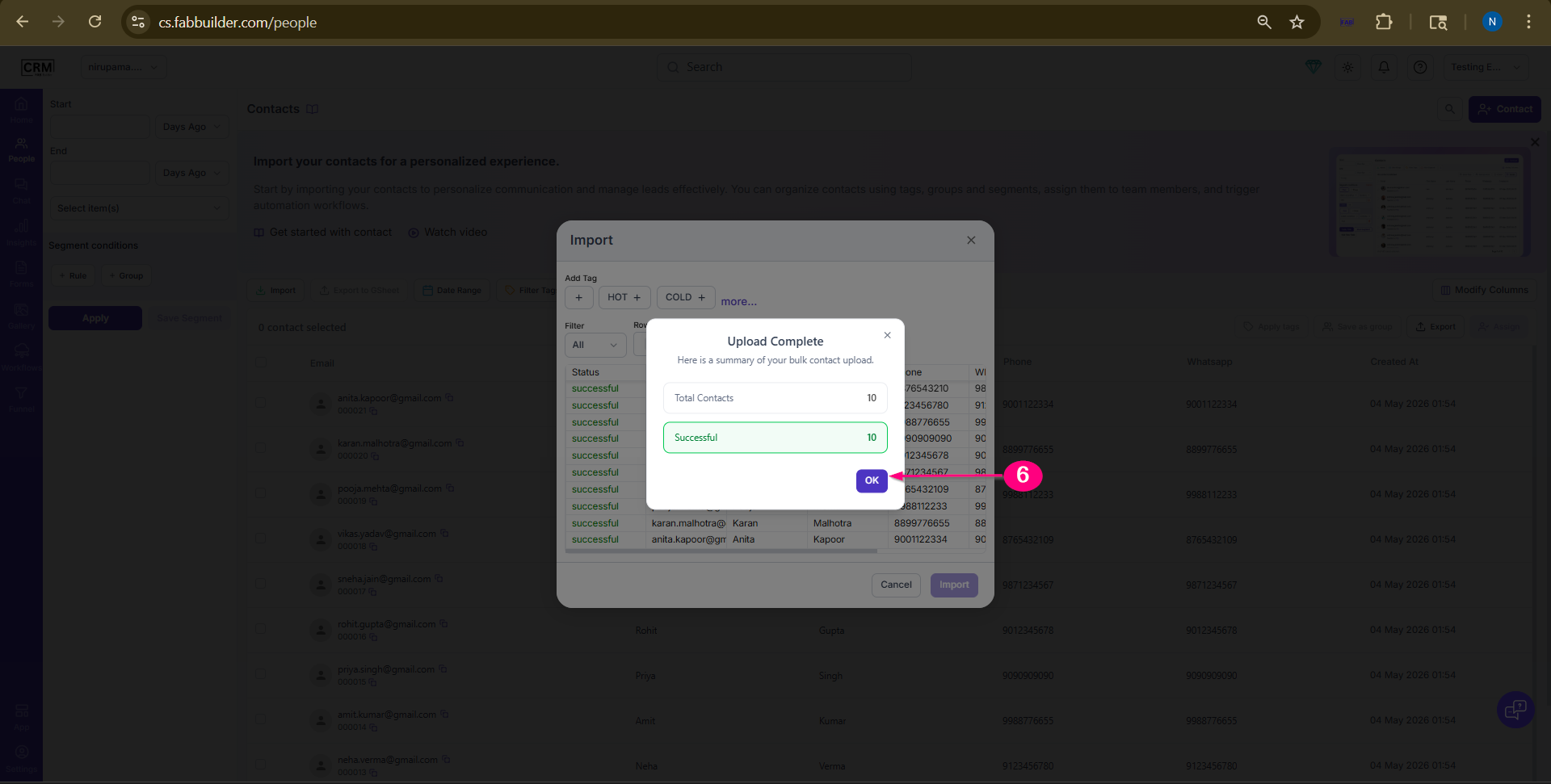
Screen - select ok
Now user can view the impoted details as shown in the beggining of this documentation.
Result:
- Contacts are imported in bulk.User can view the impoted data in the beginning of this documentation
- The uploaded contacts will be visible in the People module
Add Contacts by Importing from Google Sheets
After successfully logging into the CRM FAB Builder application via https://cs.fabbuilder.com, users must configure Google Sheets integration before importing contacts. Users can refer to the Google Sheets Configuration document for setup instructions.
Prerequisites
- Ensure the data fields in Google Sheets match the CRM fields (e.g., First Name, Last Name, Email, Phone).
- Download and follow the provided template format before preparing the data.
- Ensure the Google Sheets integration is configured and enabled.
- Verify that the required access permissions are granted to connect and fetch data from Google Sheets.
Steps to Import Contacts from Google Sheets
Once Google Sheets integration is enabled, users can import contact details by following the steps outlined below.
- Navigate to the People module.
- Click on the Import option.
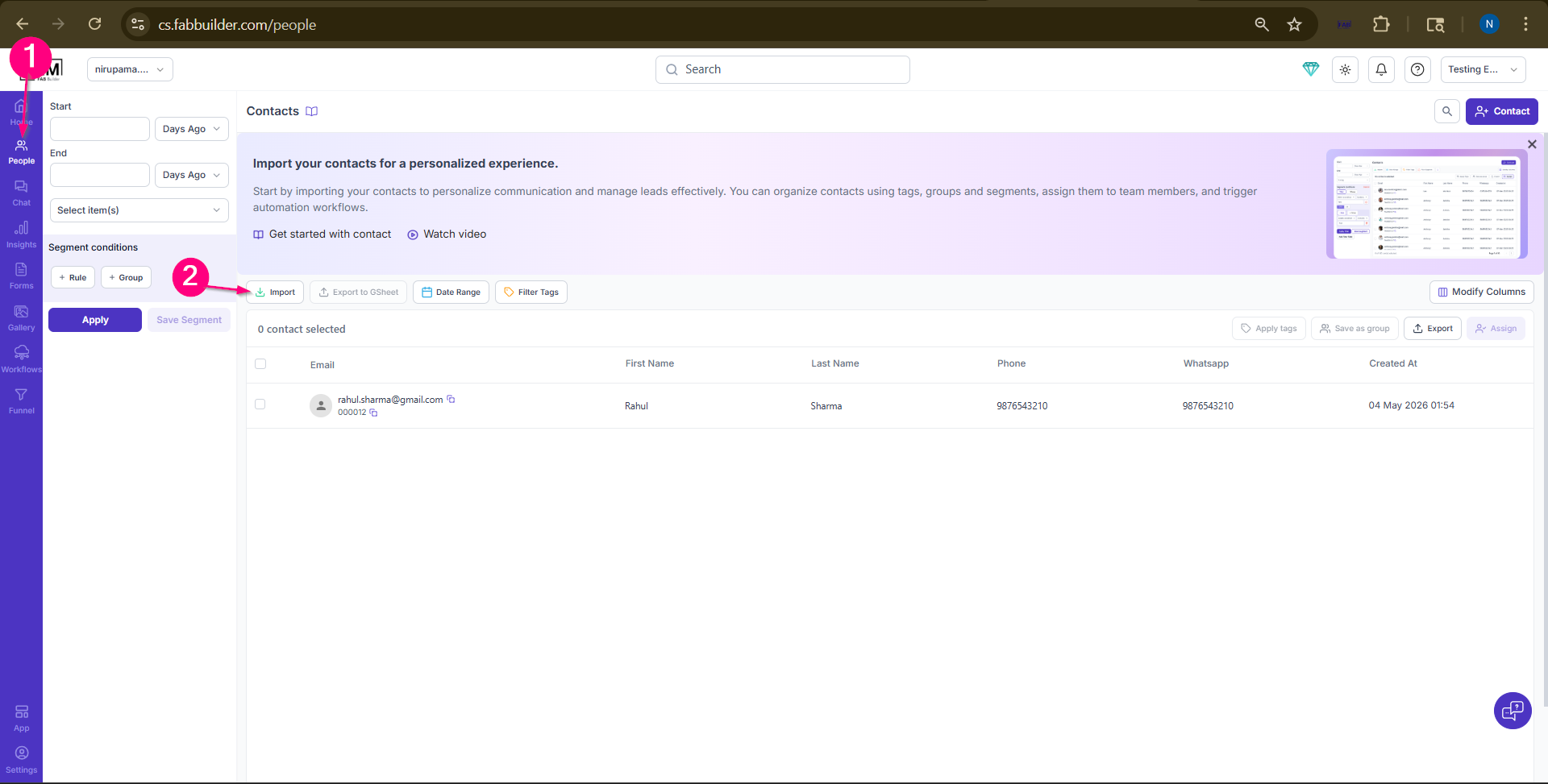
Screen- Access to import button
3.Select Import from Google Sheets.
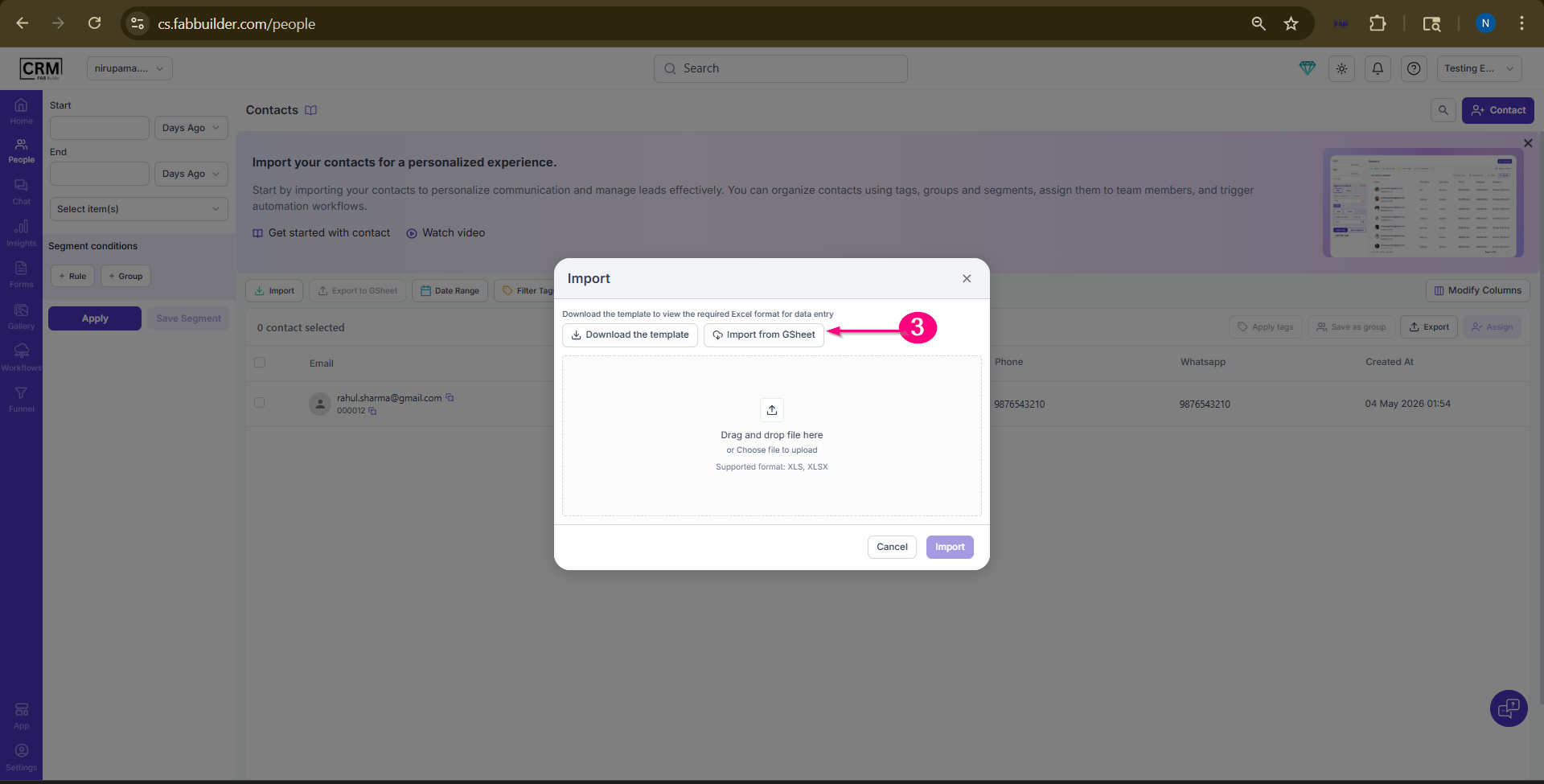
Screen- Select Import from Gsheet
4.Add the tag (optional))
5.Proceed with the import.
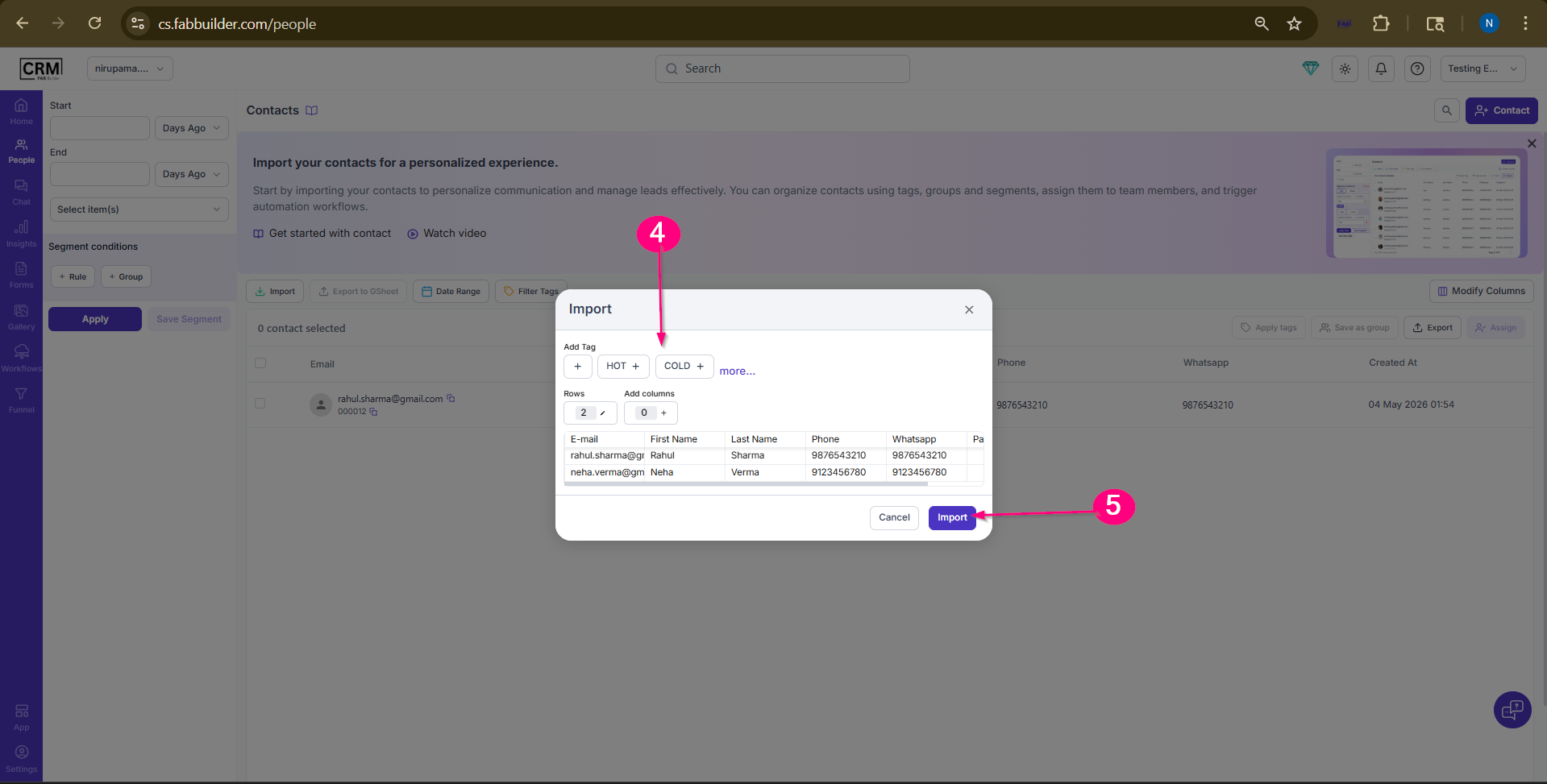
Screen- Add tag and import data
6.Click on ok button
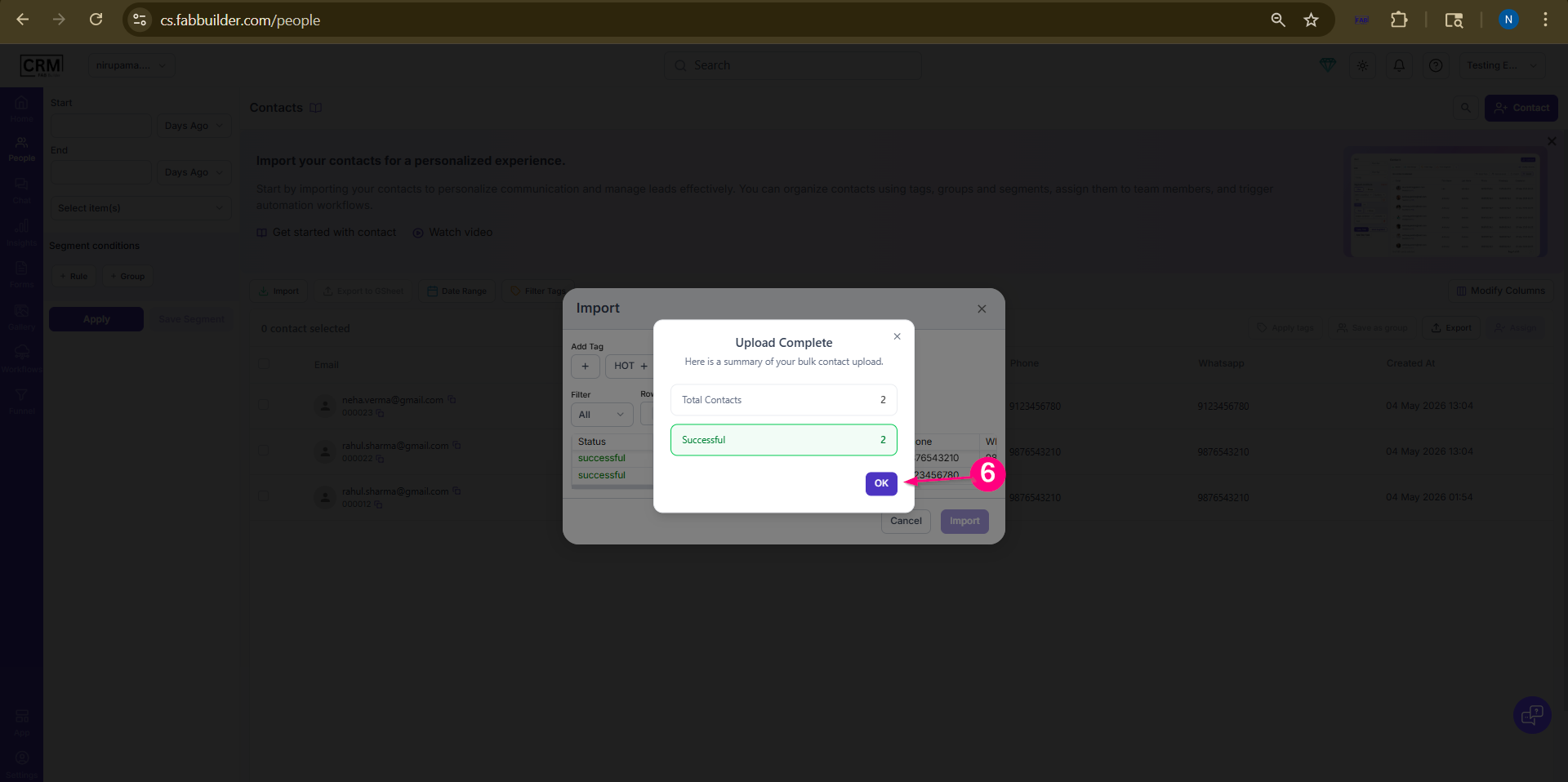
Screen-Click ok button
Result
After completing the import, the contact data from Google Sheets will be successfully added to the CRM system
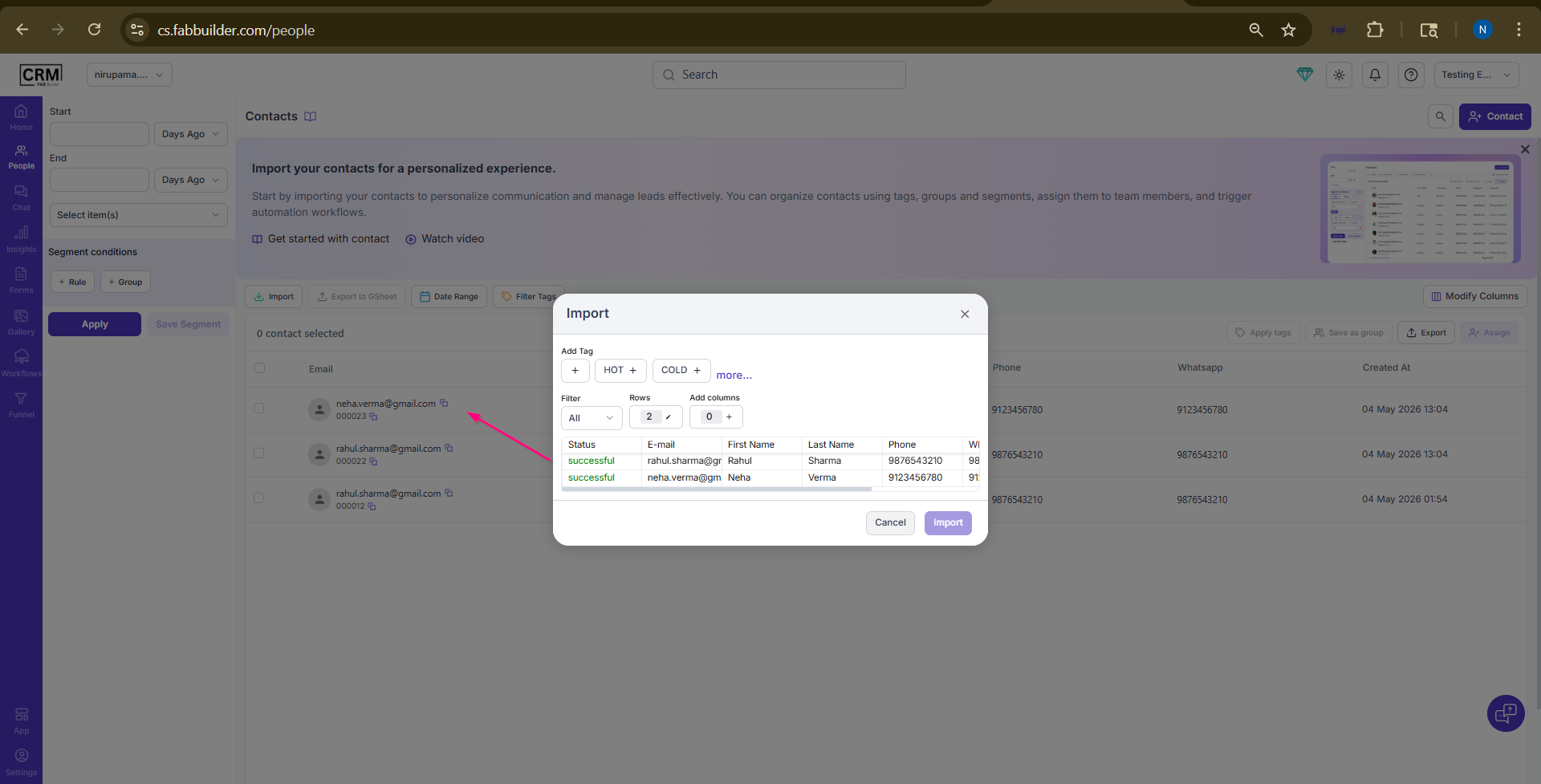
Screen - Contact Added imported by Gsheet