Edit / Update Lead Details
This section describes how a user can view and update the details of a lead saved in the CRM.
After successful login, the user can access the CRM through the https://cs.fabbuilder.com. Once logged in, follow the steps outlined below to view and update lead details.
Steps to Edit Lead Details
On Social Media Platforms
In this section all social media plateforms of leads can be edited by following the step outlined below.
Step 1: Go to the People Module.
Step 2: Select the required contact/lead by clicking on any field such as Name, Email, Mobile, or WhatsApp number.
This will open the side panel containing the lead’s details.
Step 3: Click on the pencil (edit) icon to modify the social media(at Top o) details such as Name, Mobile Number, WhatsApp Number, etc.
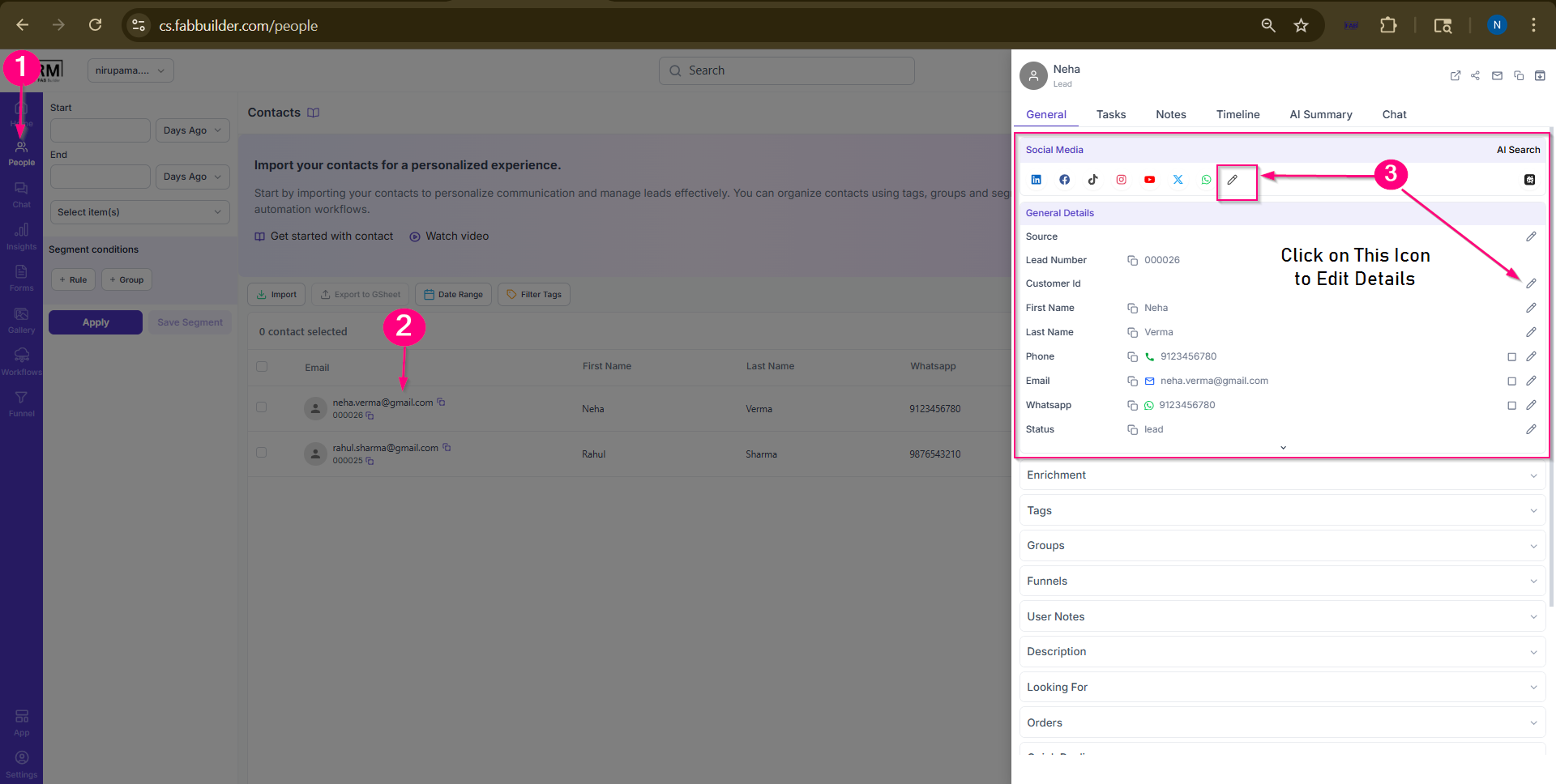
Screen- Step to Edit Details
Step 4: Update the required information and save the changes.
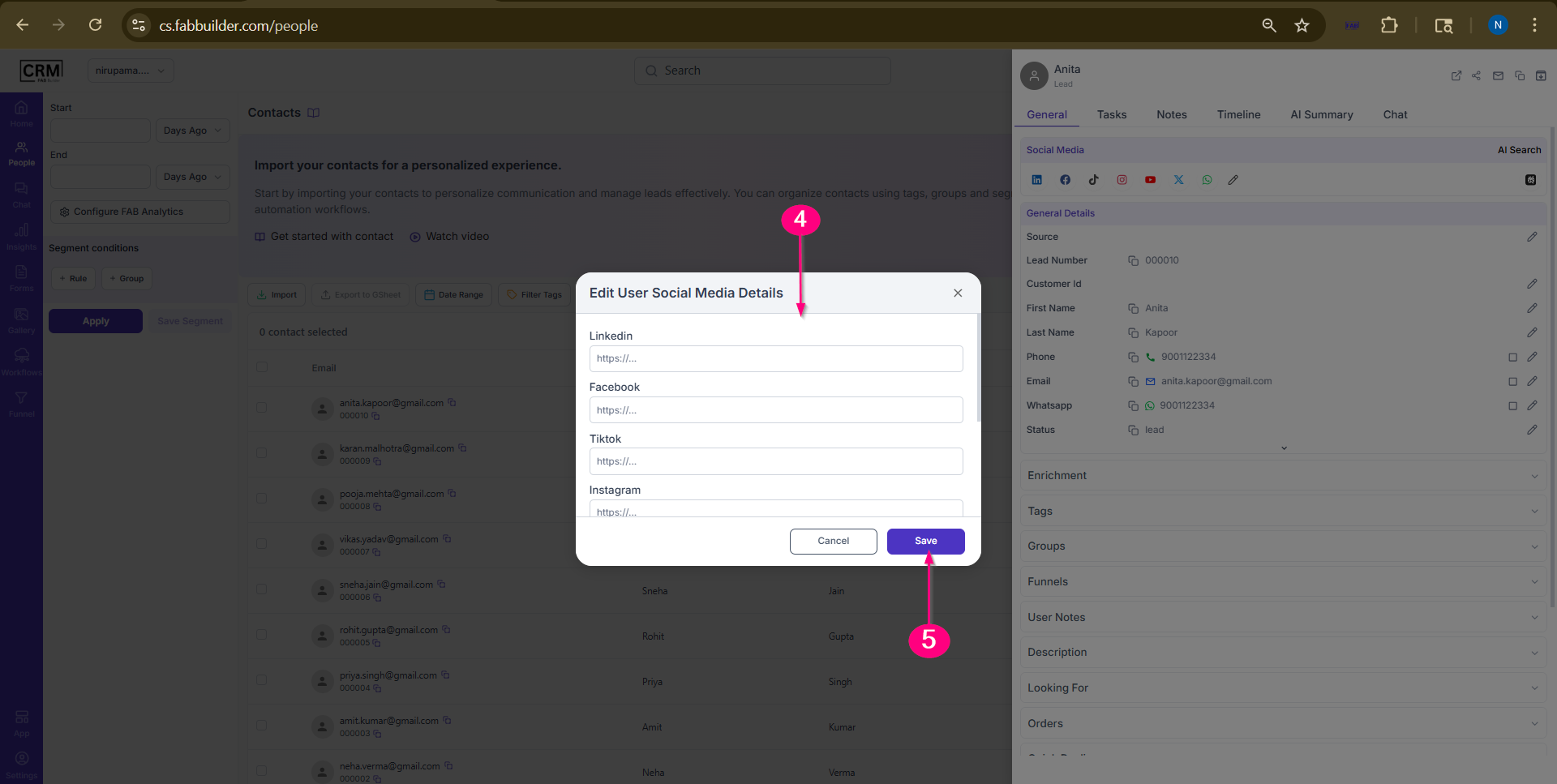
Screen- Edit social Media Details
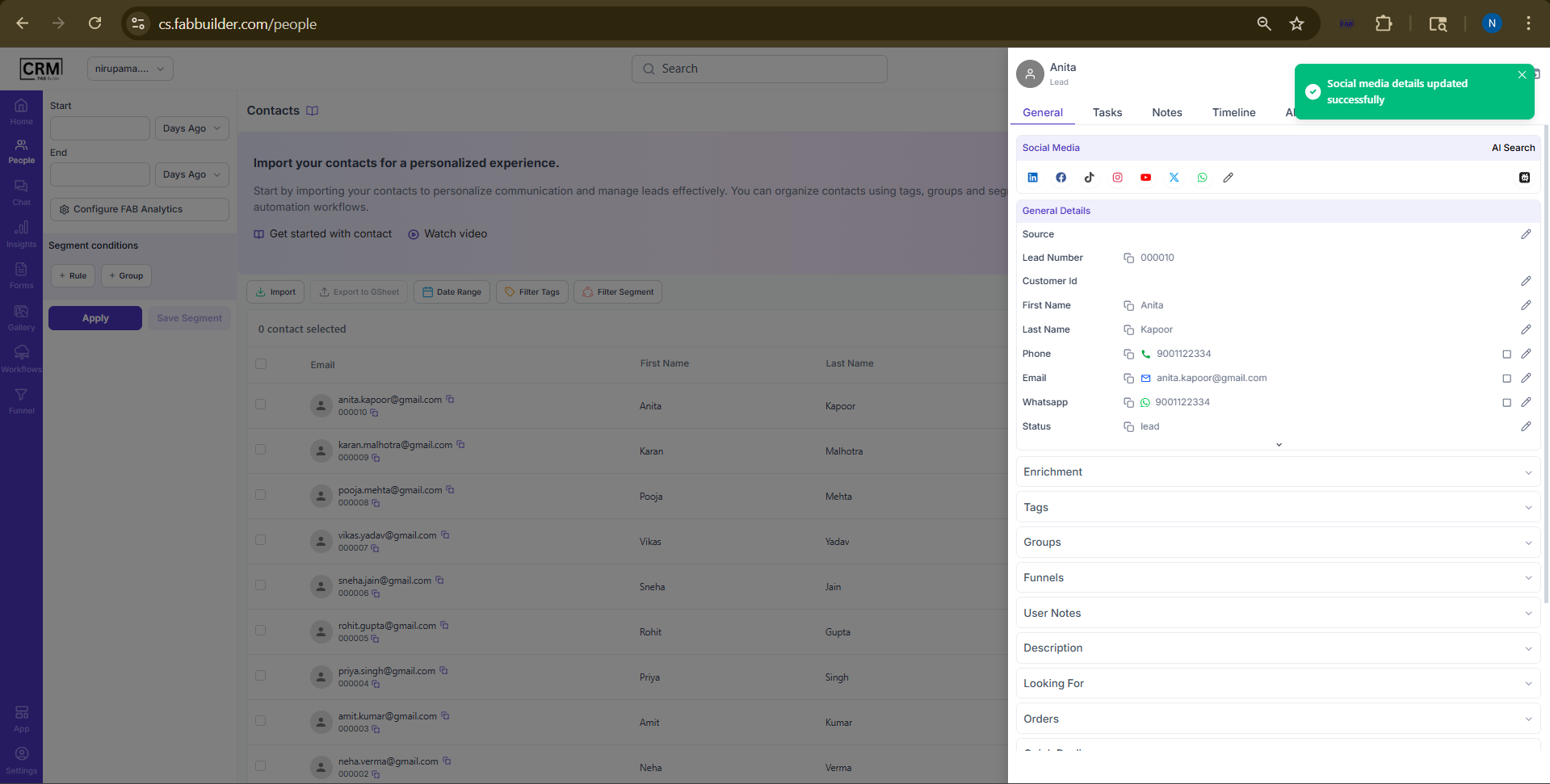
Screen-Details Edited successfully
User will get successful message on top right corner after successful details updates.
Edit Personal Details Name/Phone/Email/
In this section, all personal details of a lead—such as First Name, Last Name, Phone Number, Email, and WhatsApp Number—can be edited.
Below are the steps to update the Lead Name. The same steps can be followed to update other details.
Step 1: Go to the People Module.
Step 2: Select the required contact/lead by clicking on any field such as Name, Email, Mobile, or WhatsApp number.
This will open the side panel containing the lead’s details.
Step 3: Click on the pencil (edit) icon to modify the General details such as Name
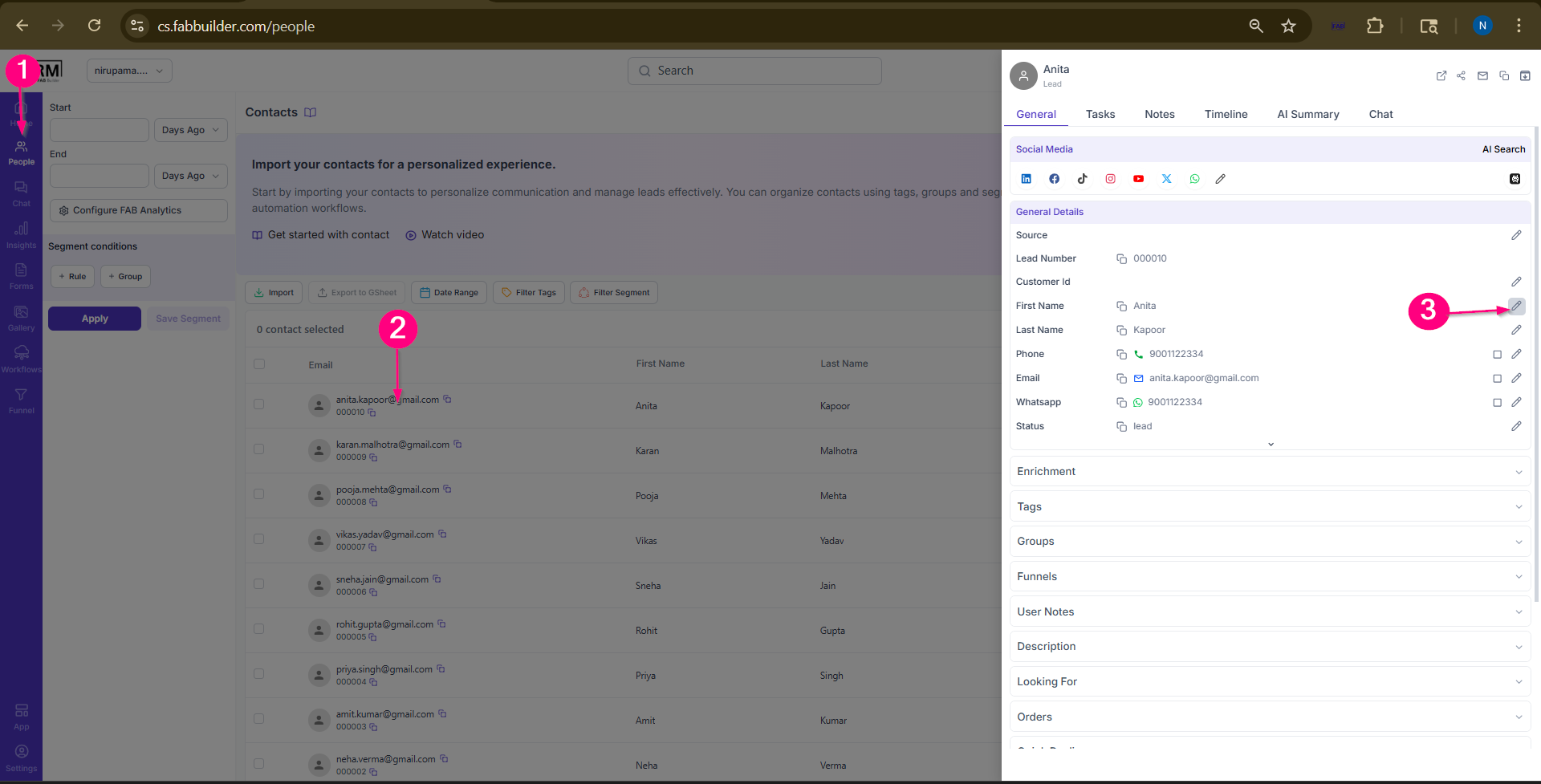
Screen- Step to change Details
Step 4: Update the required information.
Step 5: Click on save the changes.
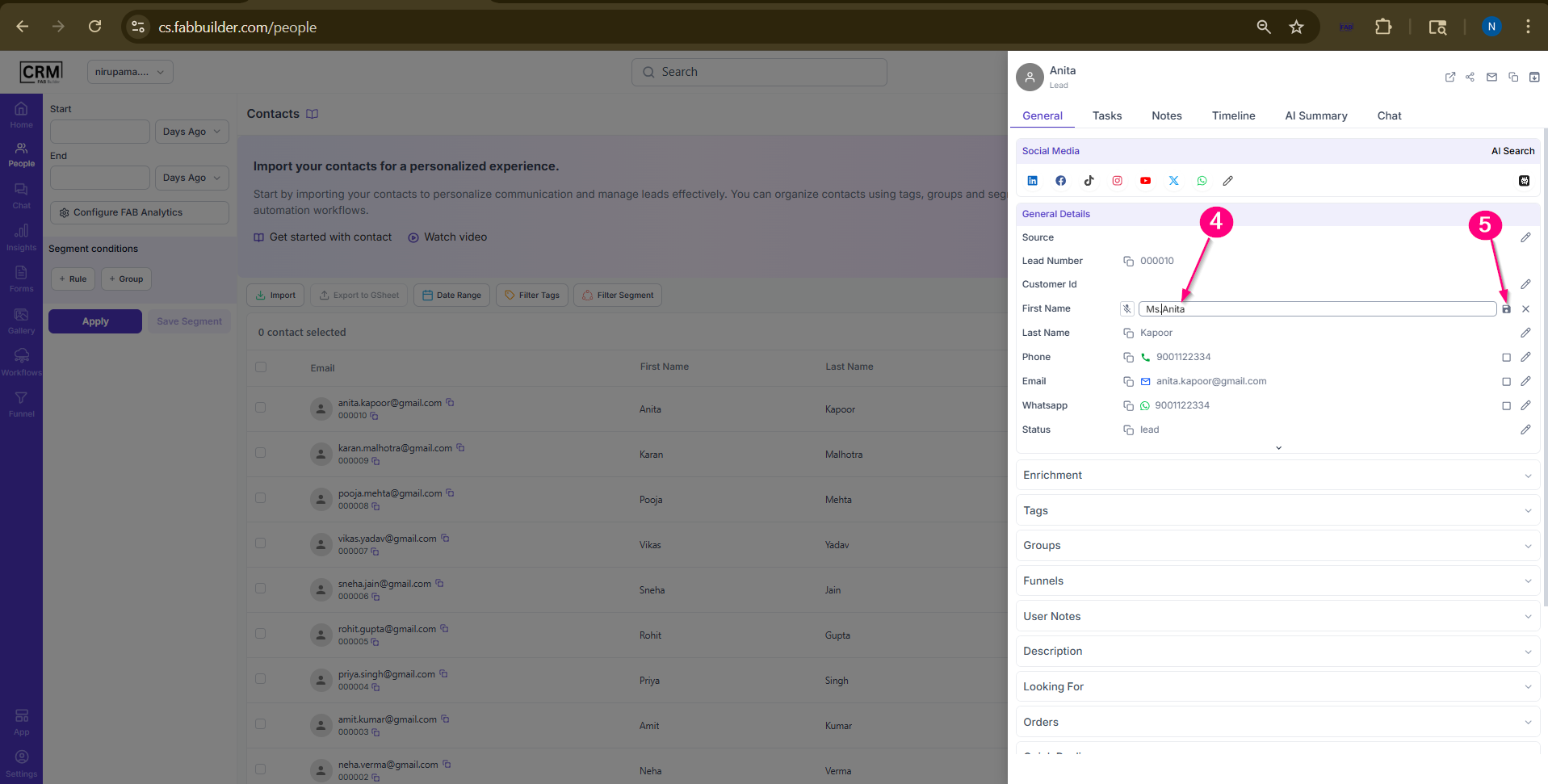
Screen- Edit and save Details
User can view the details updated successfully.(i,e. Now updated name is Ms Anita)
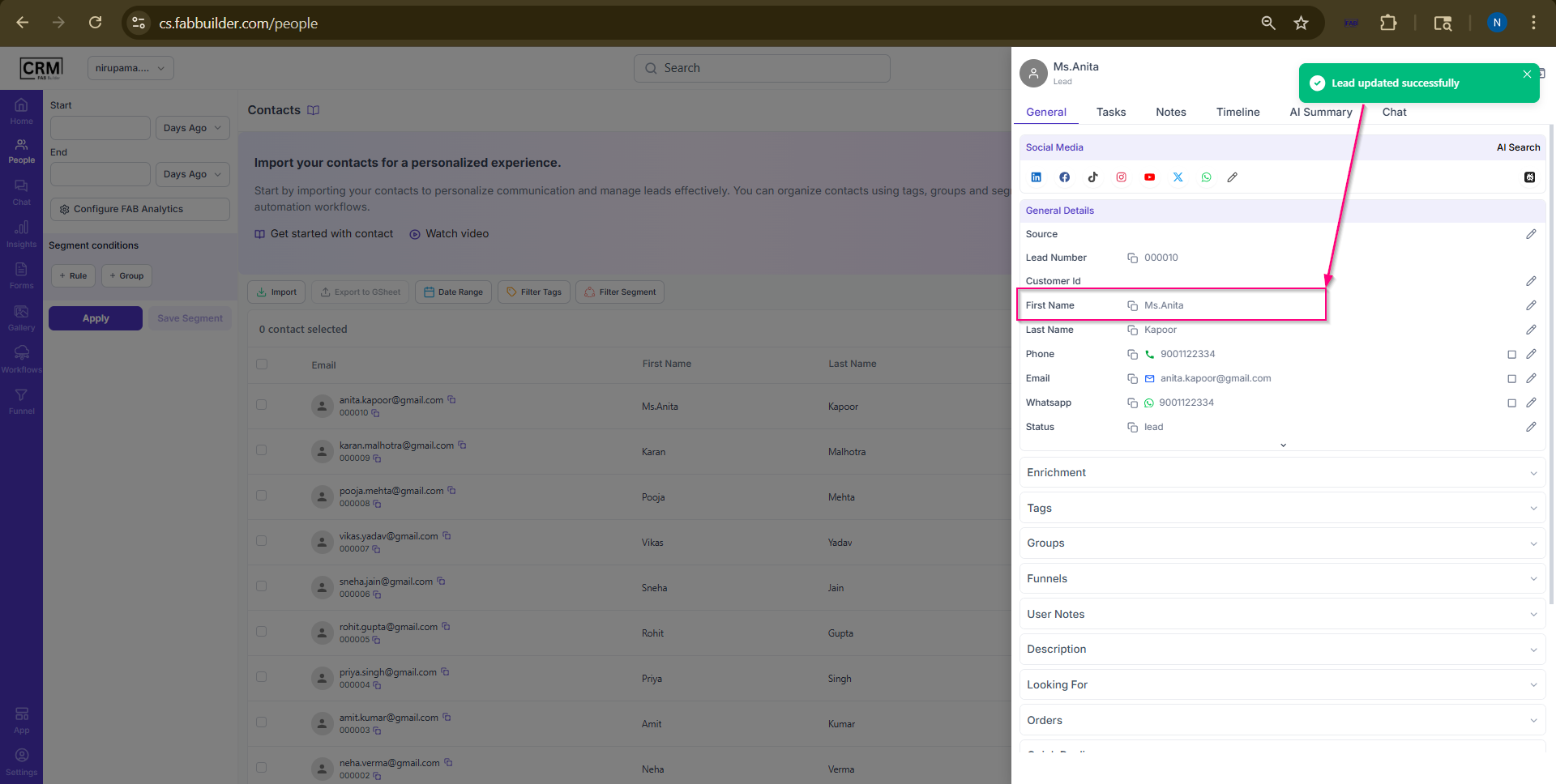
Screen -Details Edited Successfully