FAB Customer Experience

GuideDocs
k
FAB CRM Introduction
Getting Started
Dashboard
Home
People
Chat
Funnel
Insight Module
Forms
Gallery
Workflows
My Settings
Data
Communication
App Integeration
References

Build by FAB Builder. The source code is available on GitHub.

ContactSponsor

Translate

Choose language

Select your preferred language for this documentation.

Create a Task from Lead Details

This section explains how to create and assign a follow-up task for a lead from theLead Detailsscreen in thePeoplemodule. Tasks help users schedule future actions, assign responsibilities to team members, and ensure timely follow-up with leads.


Prerequisites

Before creating a task, ensure that:

  • The lead has been created in thePeoplemodule.

  • The required task date and time are available.

  • At least one team member has been added to the system so the task can be assigned.


Steps to Create a Task

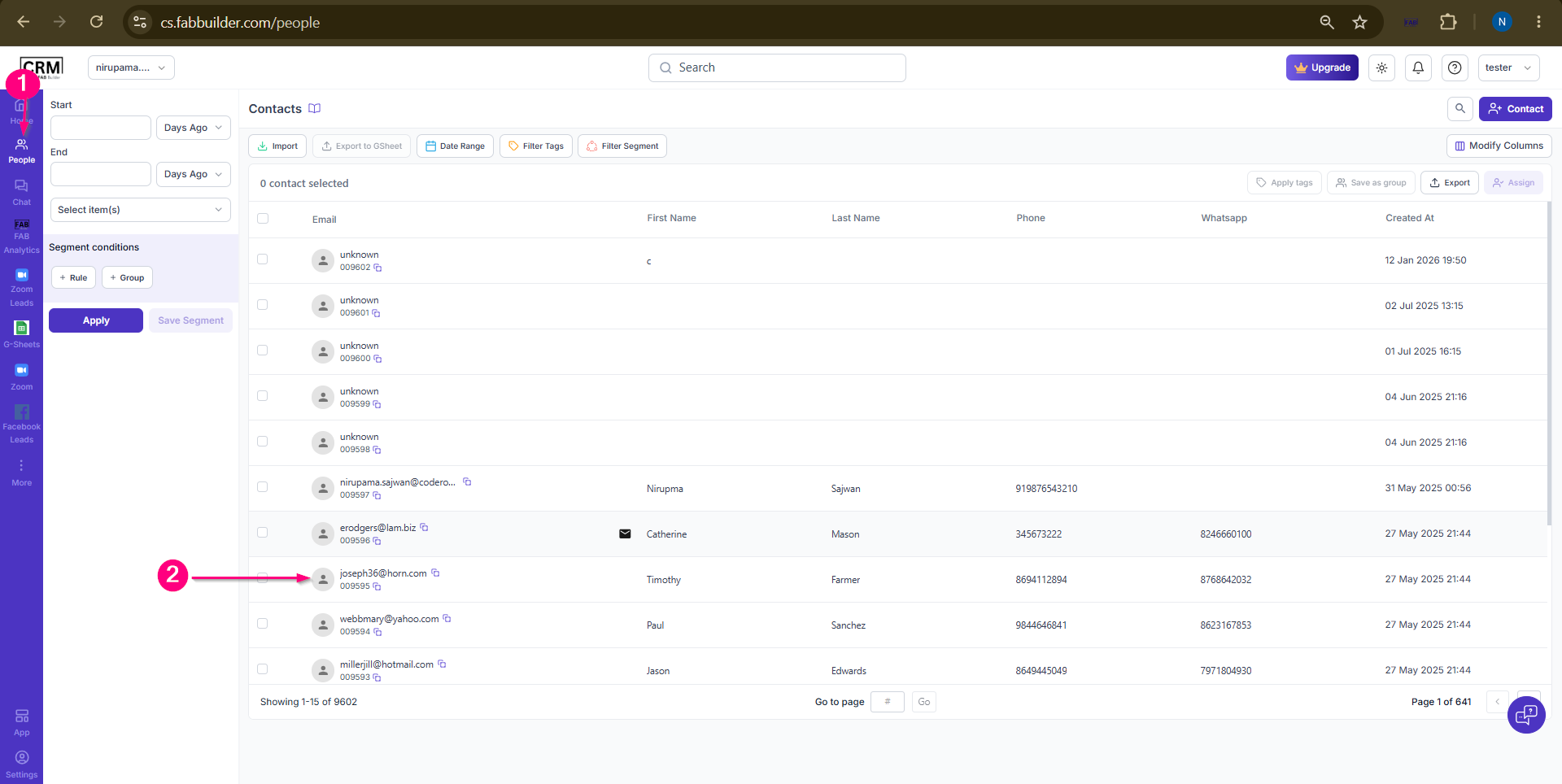
  1. Navigate to thePeoplemodule.

  2. Select the required lead from the list of contacts and Click the lead name to open theLead Detailspanel.

Sample product
Screen- Select Lead

After clicking the lead name, a slide-out panel opens displaying the lead details and related tabs.

3.From the available tabs, select the Tasks tab.
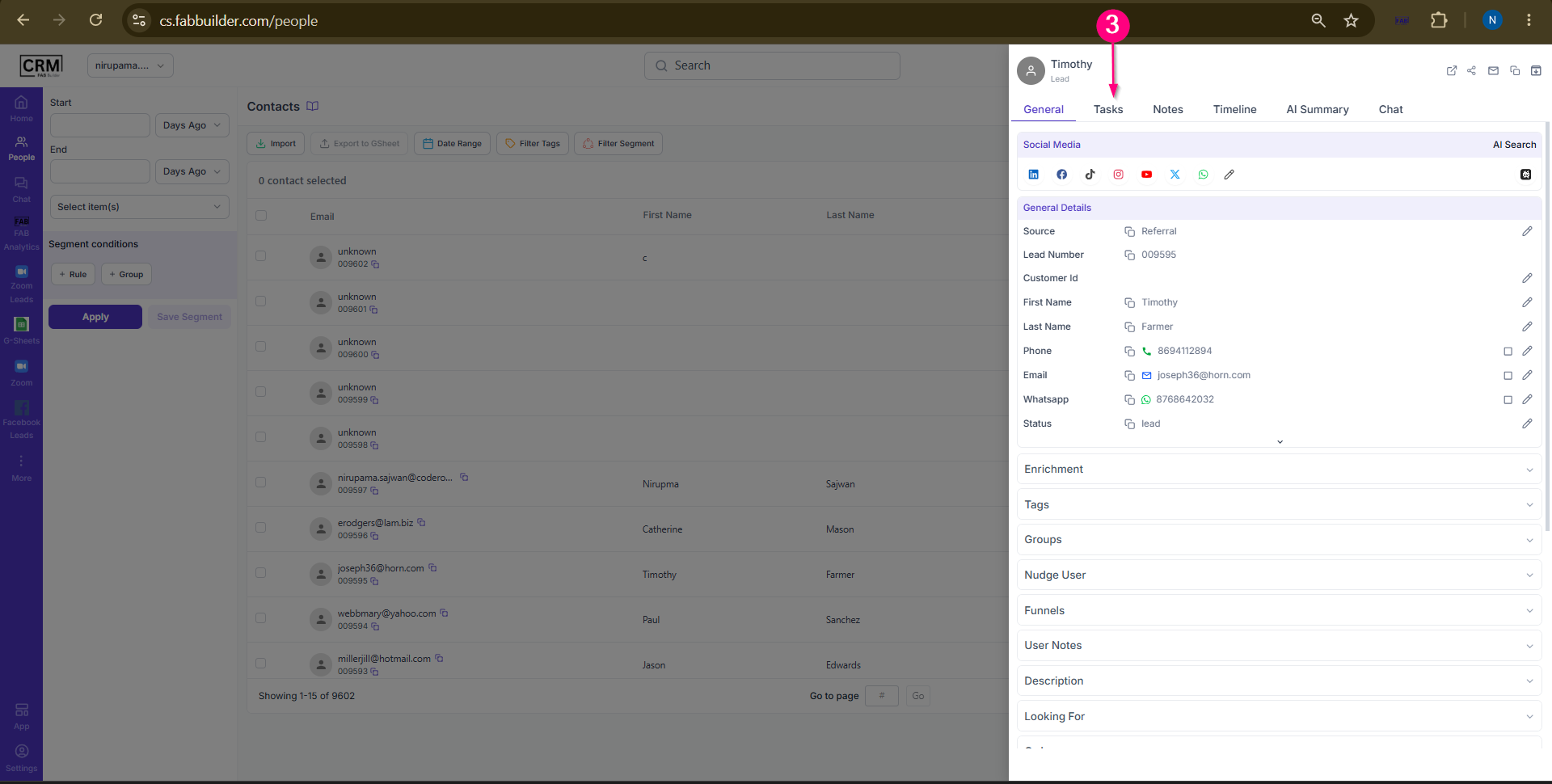

Sample product
Screen- Select Task Tab
 

4.Click Create Task taskpanel.
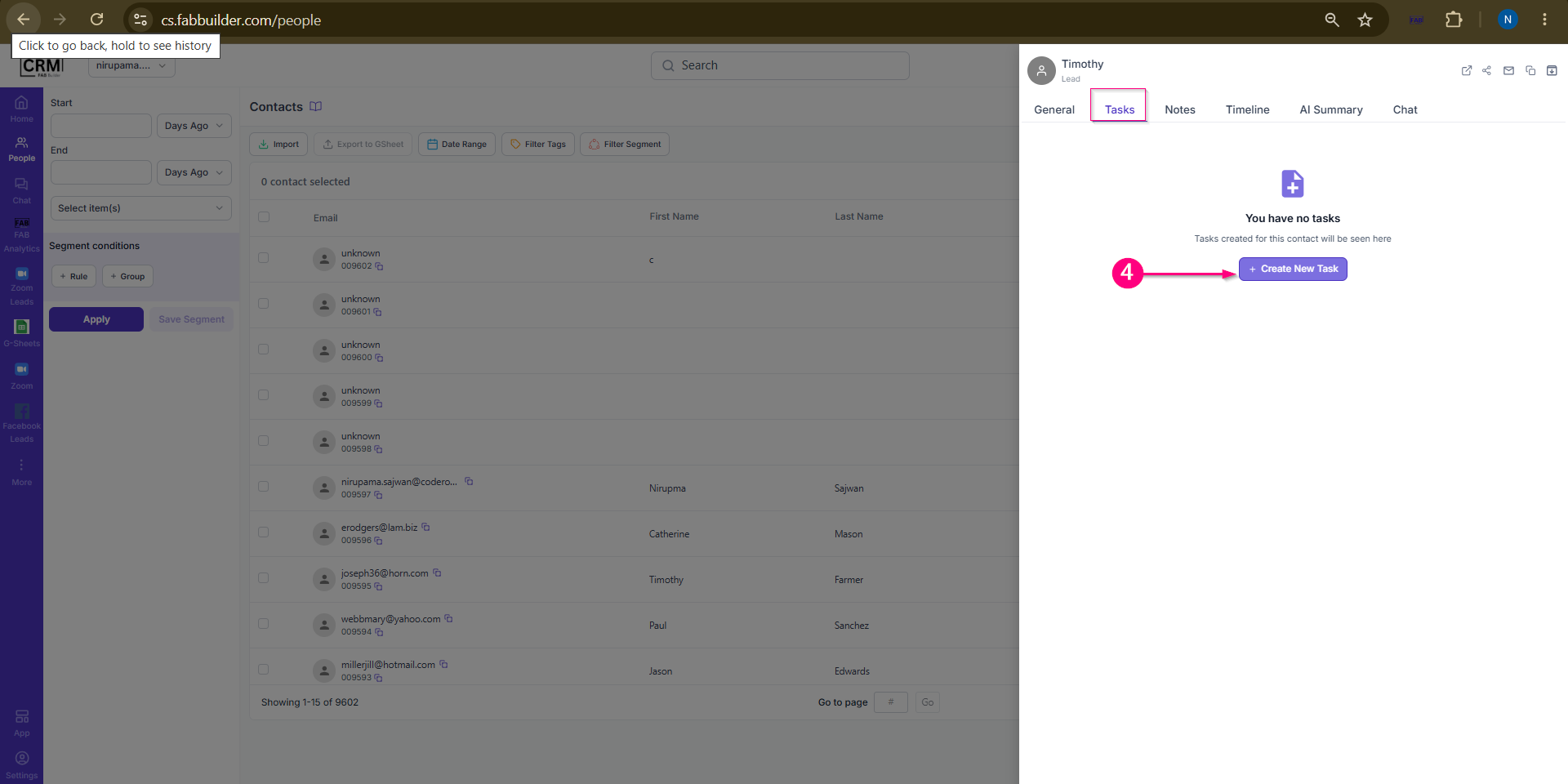
Sample product
Screen- Create A task
 

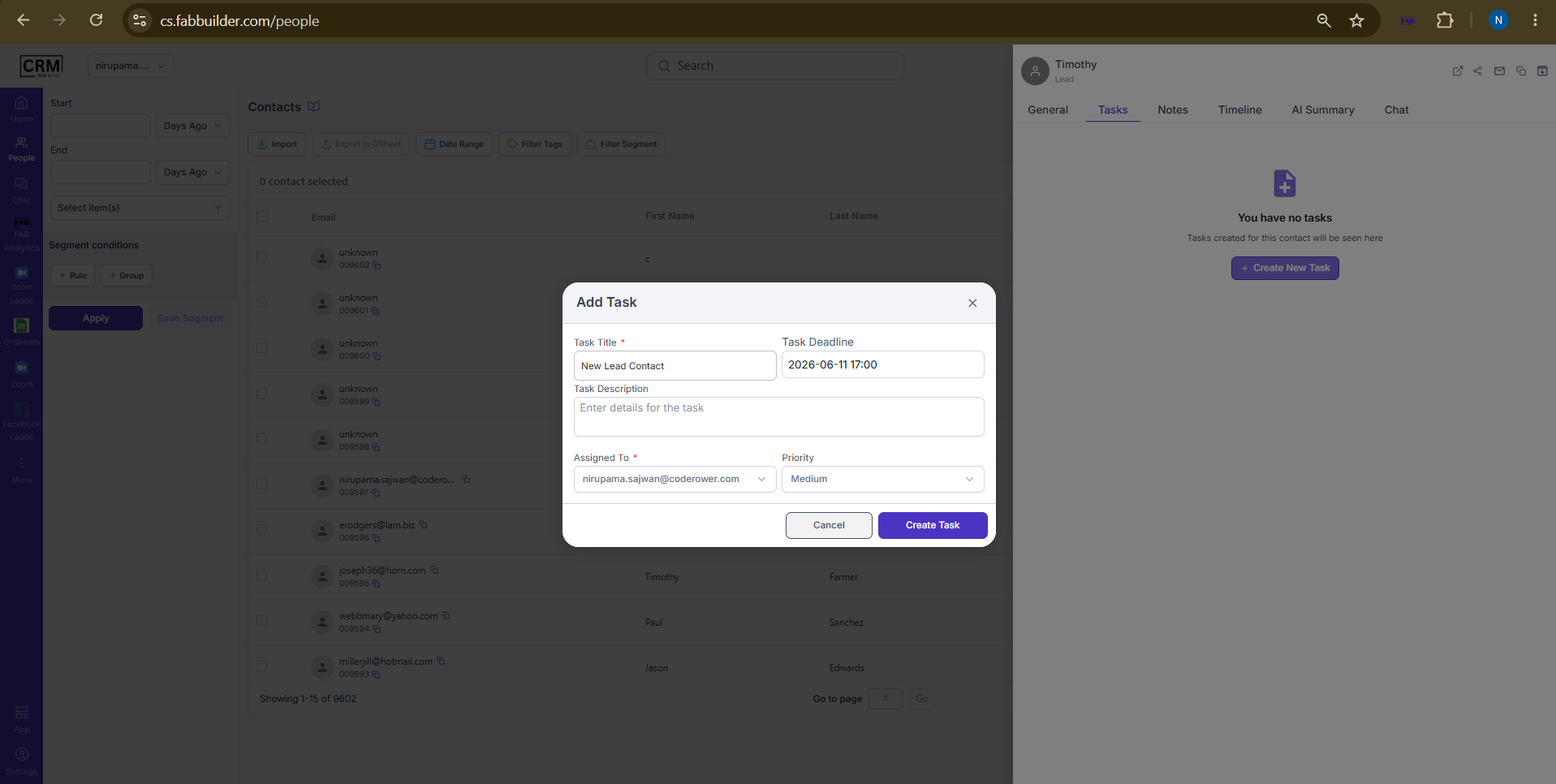
5.Enter the required task details:

Task Name
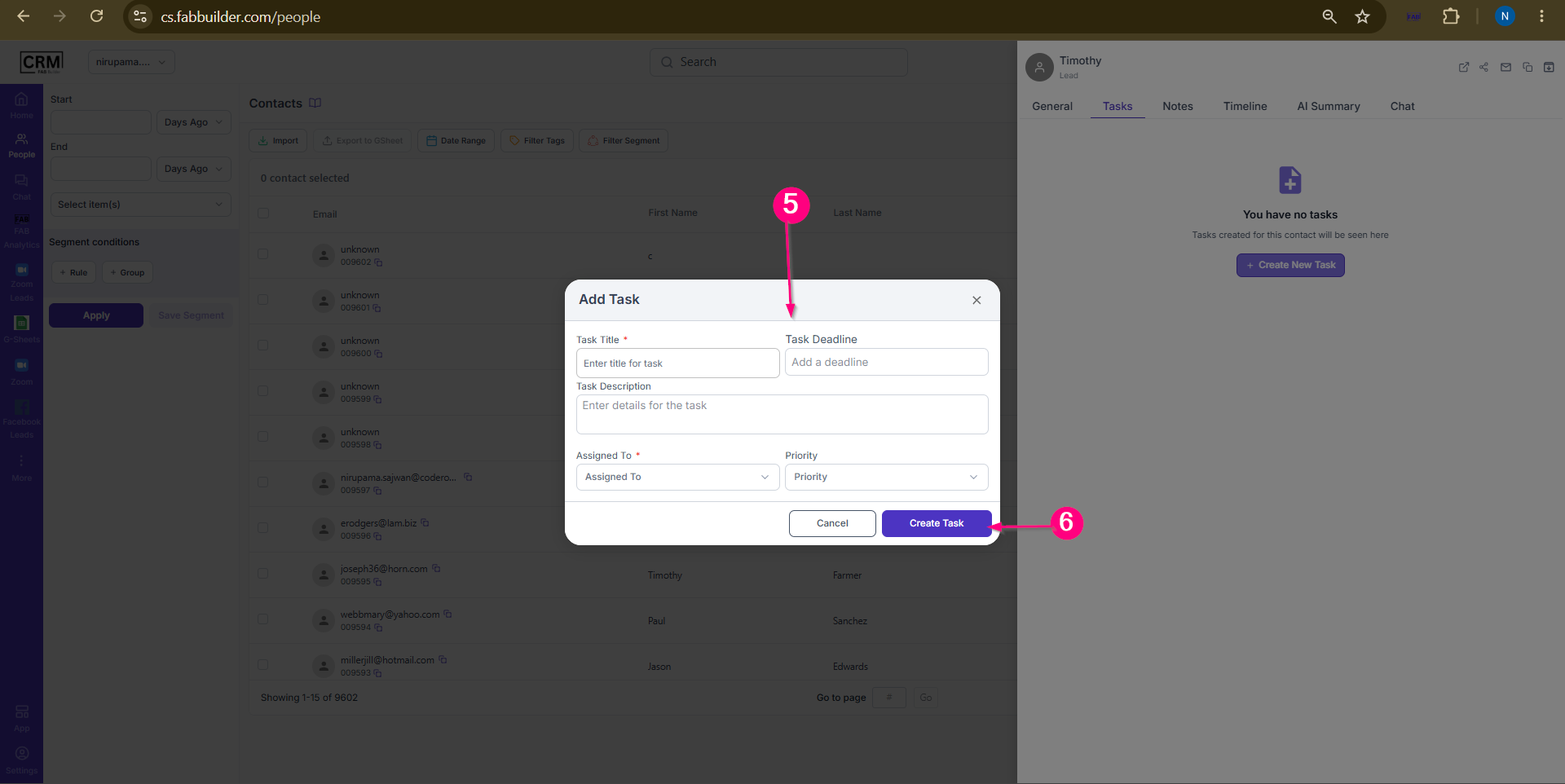
  • Assigned To
  • Date and Time
  • Description/Notes (if applicable)
6.ClickAdd Taskto create the task.


Sample product
 Screen - Add Task 
Following screen with added task details mentioned below
Sample product
Screen- Adding Task Details
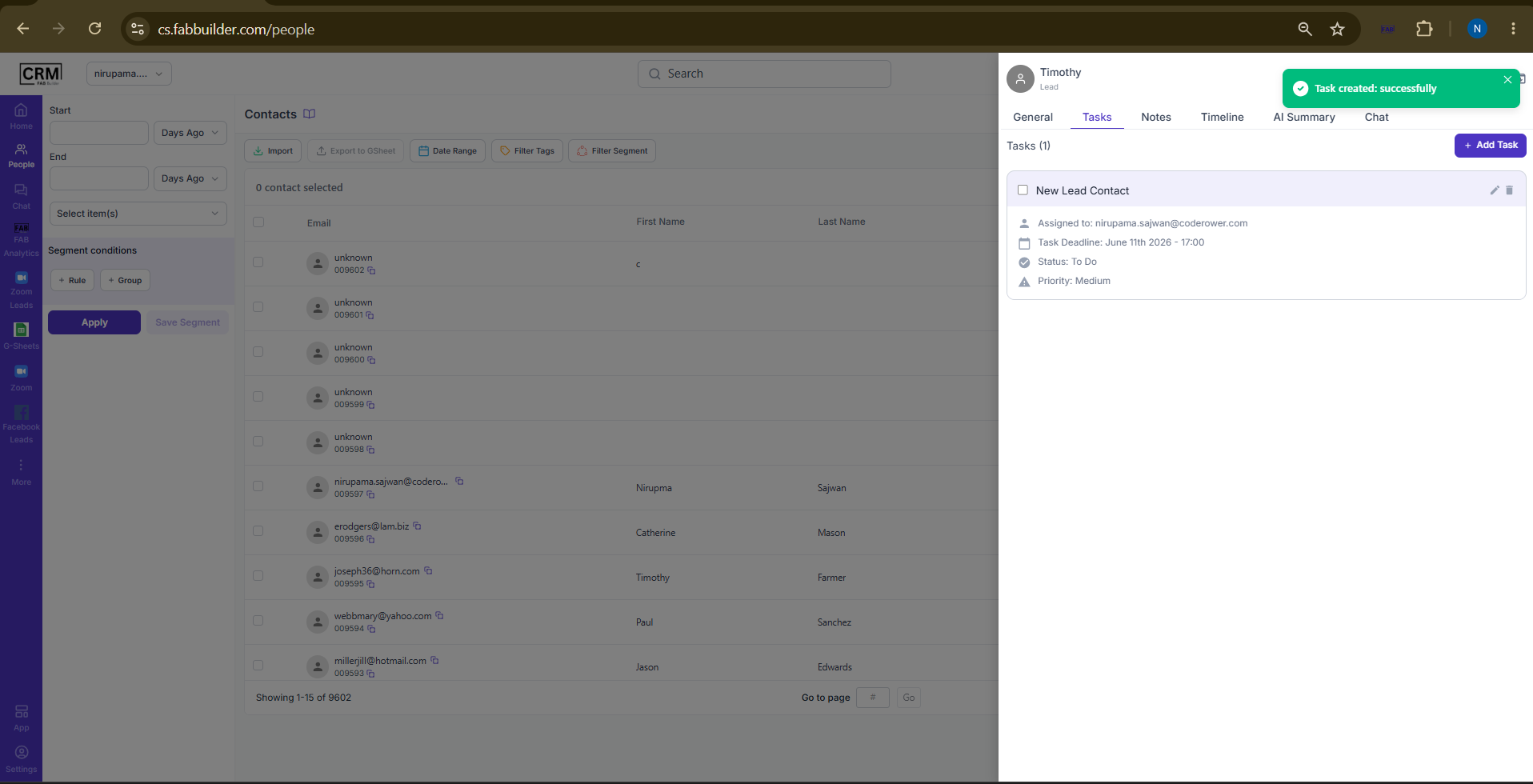
User can preview and edit detaild of added task details.
Sample product
Screeb- Preview the added task details
Result

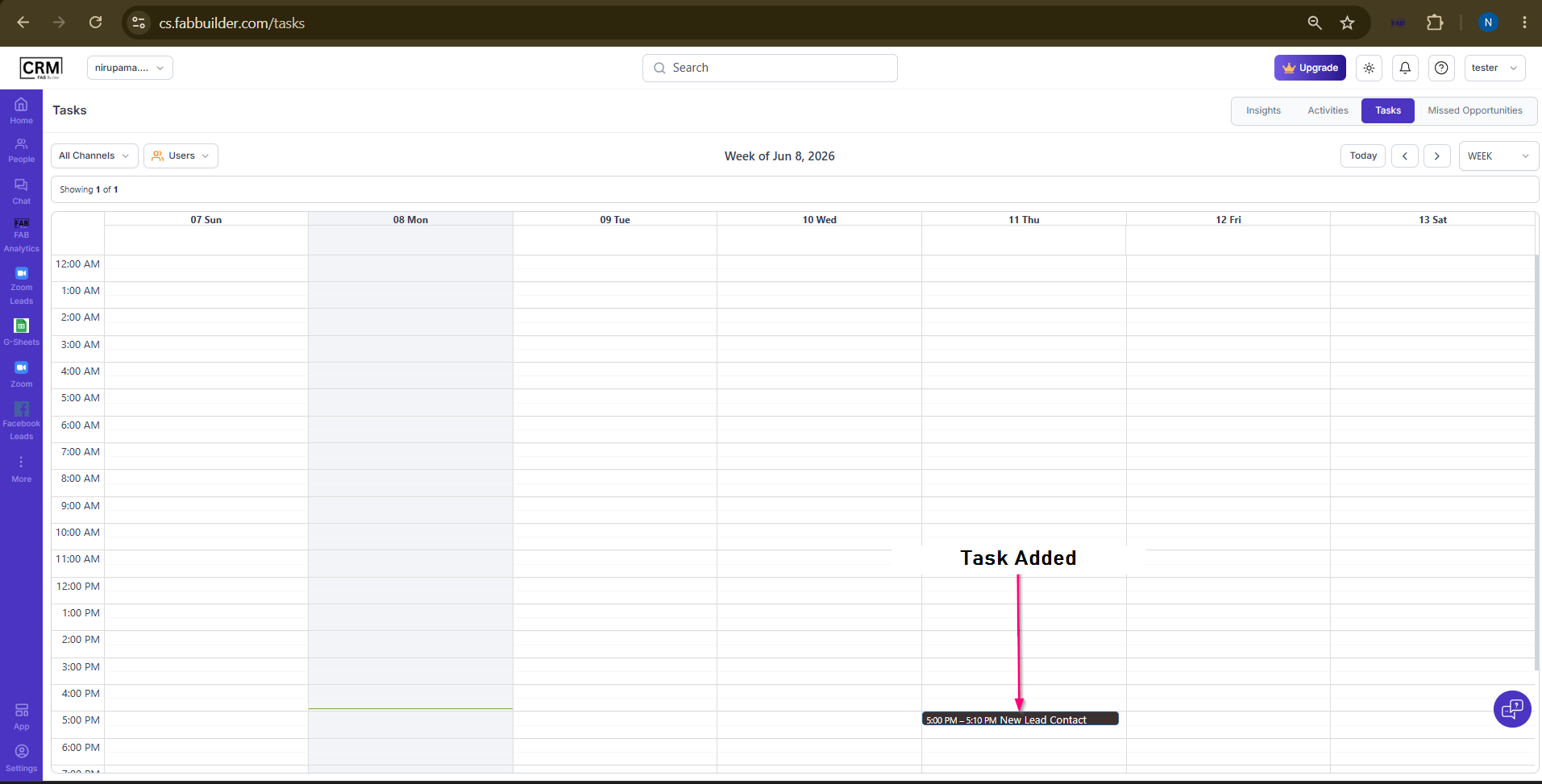
The task is created and assigned to the selected team member. It is automatically displayed in the Tasks tab of the Insights module based on the scheduled date and time.
Sample product