Create a Task for a Missed LeadThis section explains how to create and assign a follow-up task for a lead from the Missed Opportunities list. Navigation Path
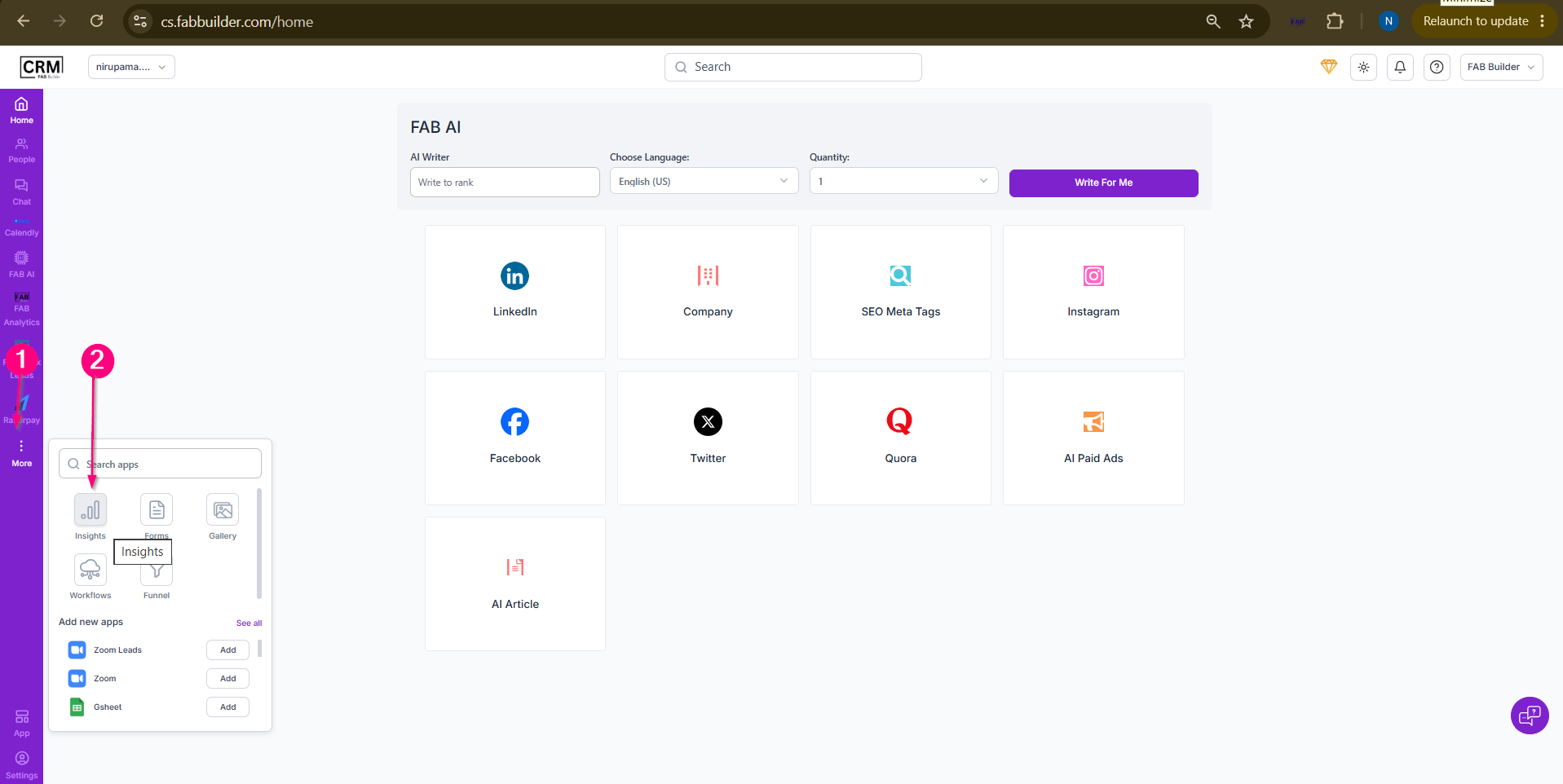 Screen- Access Insight Module 3.Click Missed Opportunities.
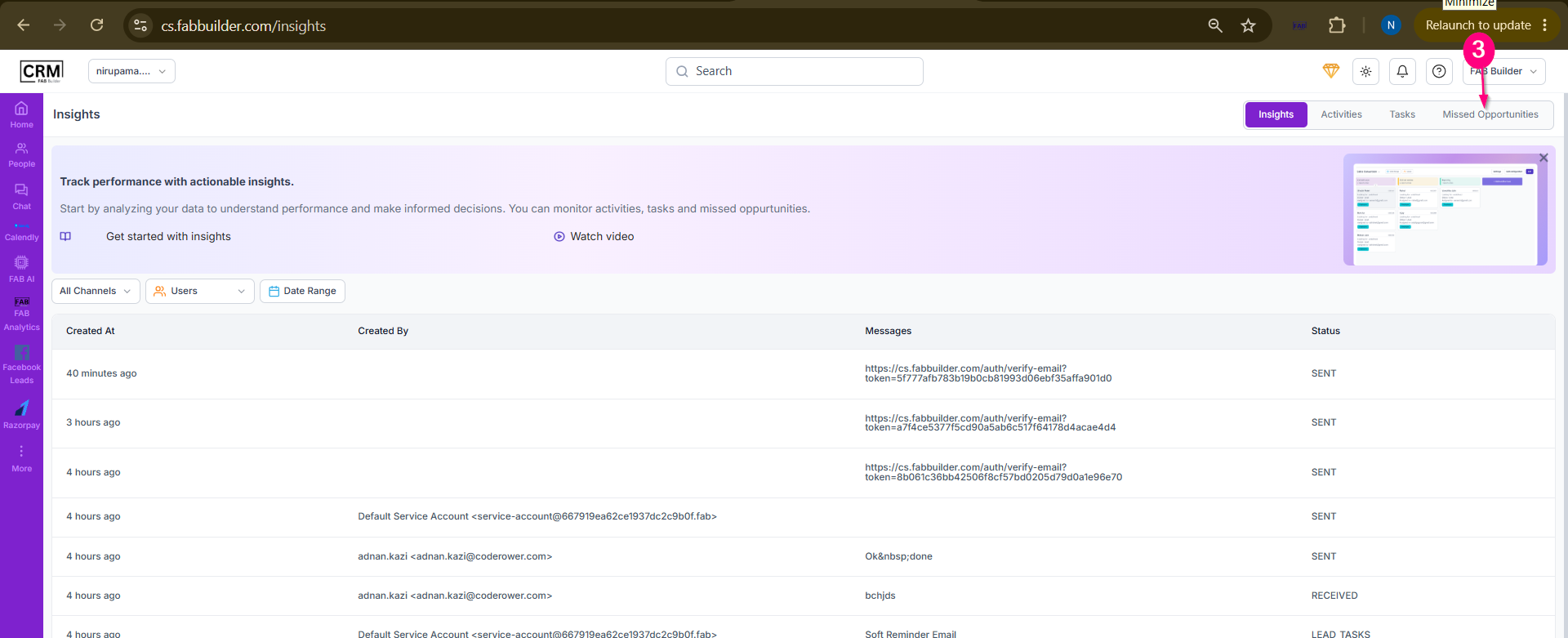 Screen- Missed Opportunity
4.Select the required lead from the list. The Lead Details panel opens on the right side of the screen. 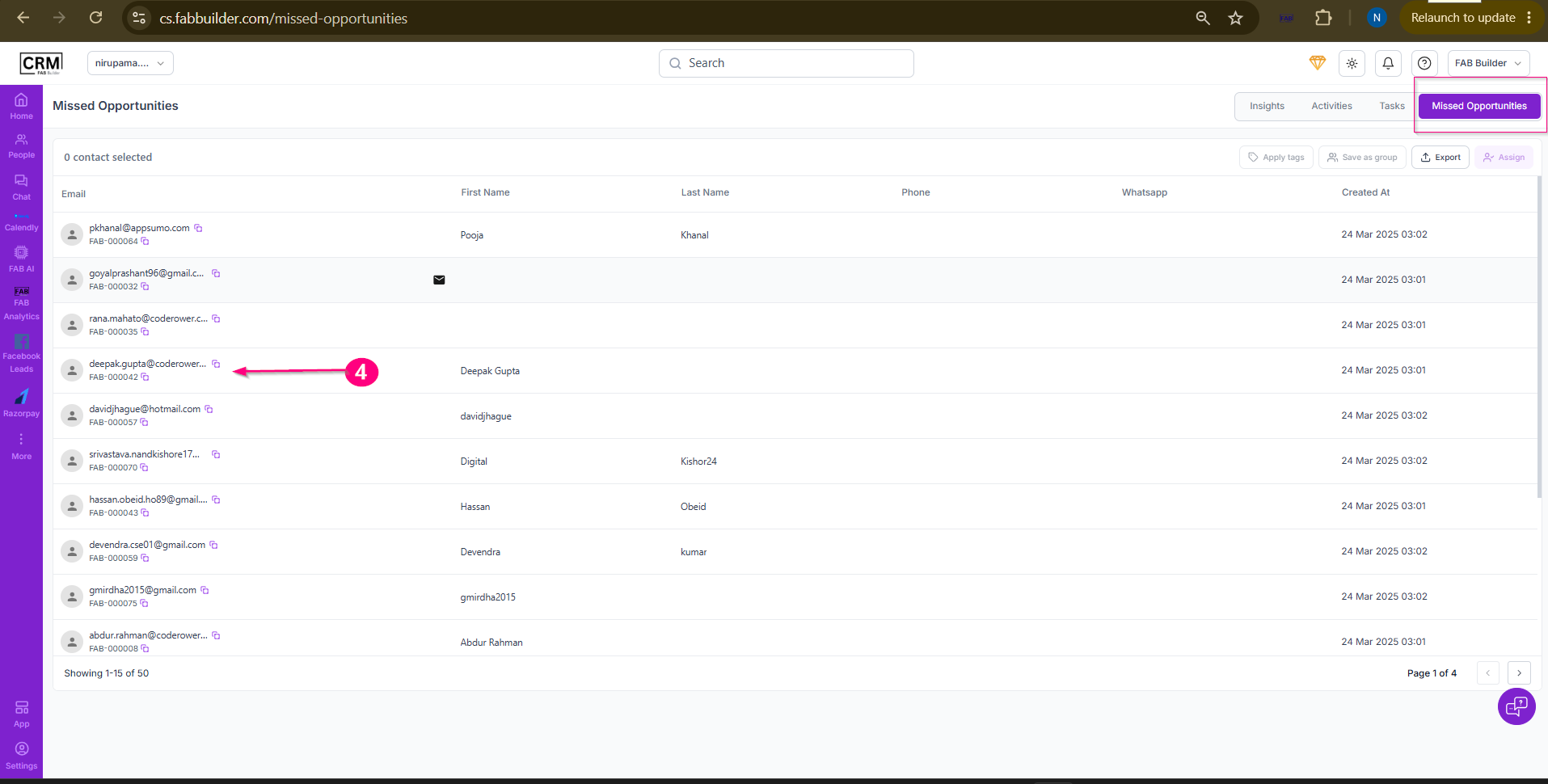 Screen- Select Missed lead 5.Click the Tasks tab.
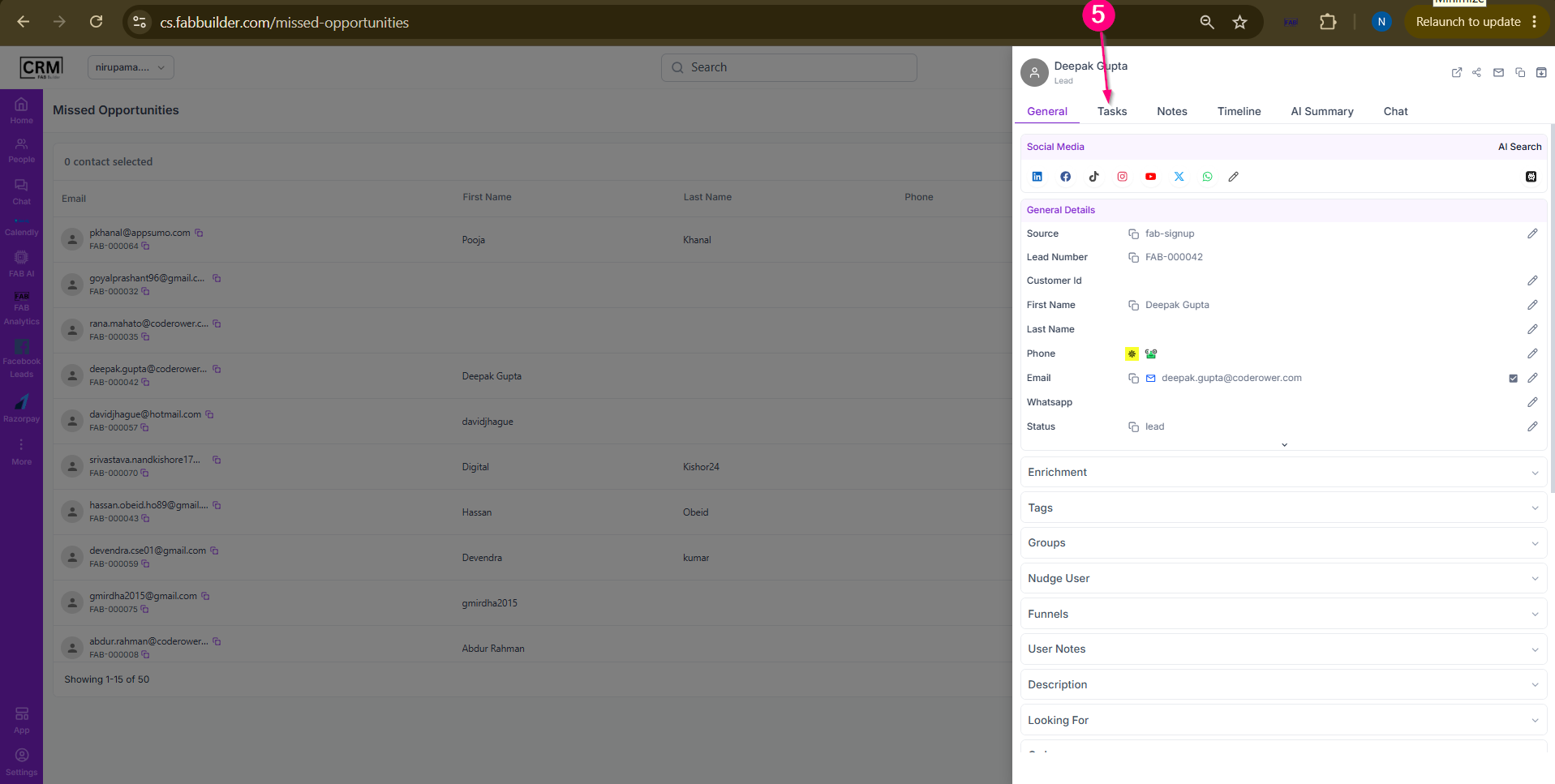 Screen- Add task 6.ClickCreate New Task 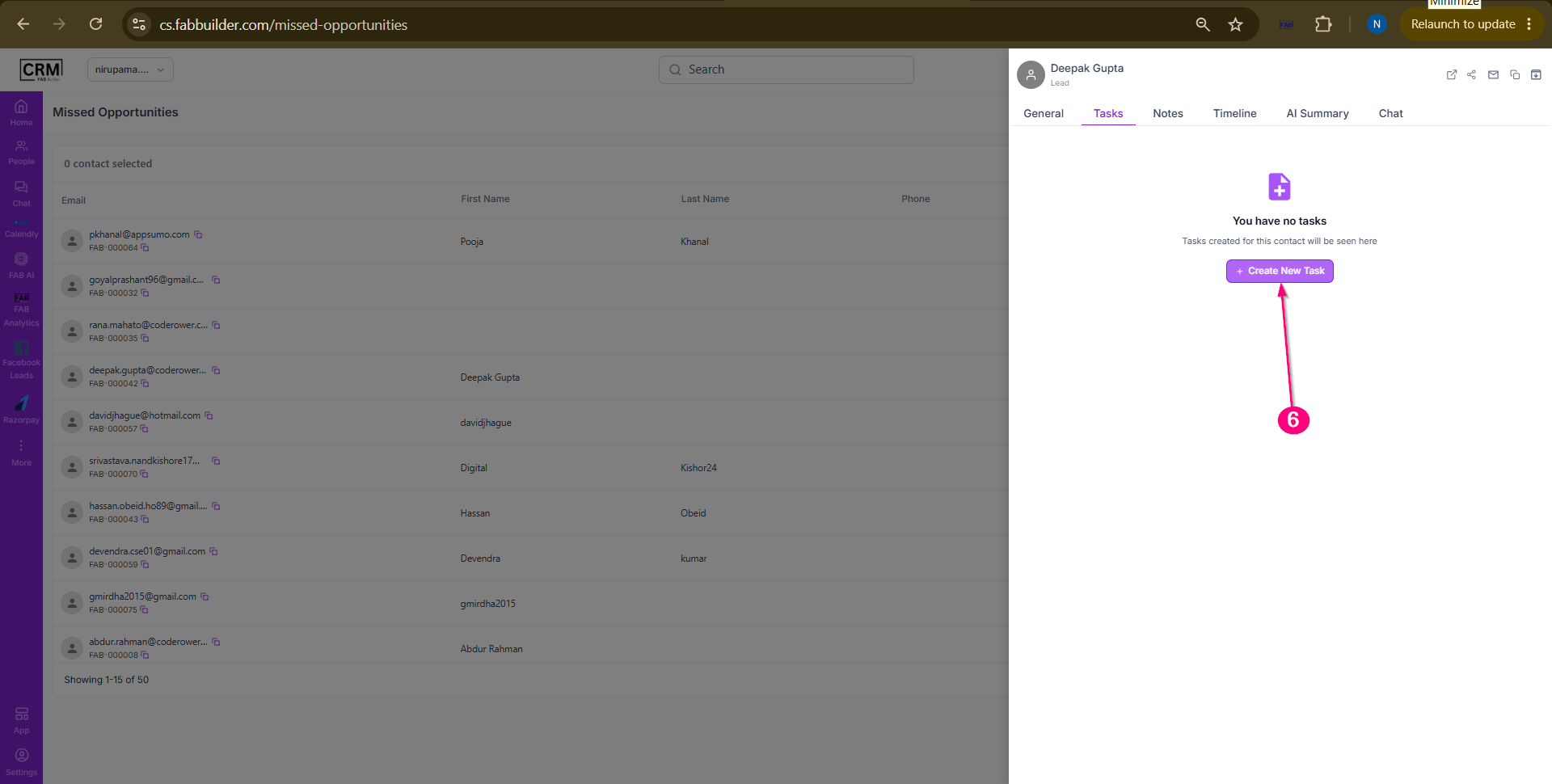 Screen- Create New Task 7. Add Following task related Details
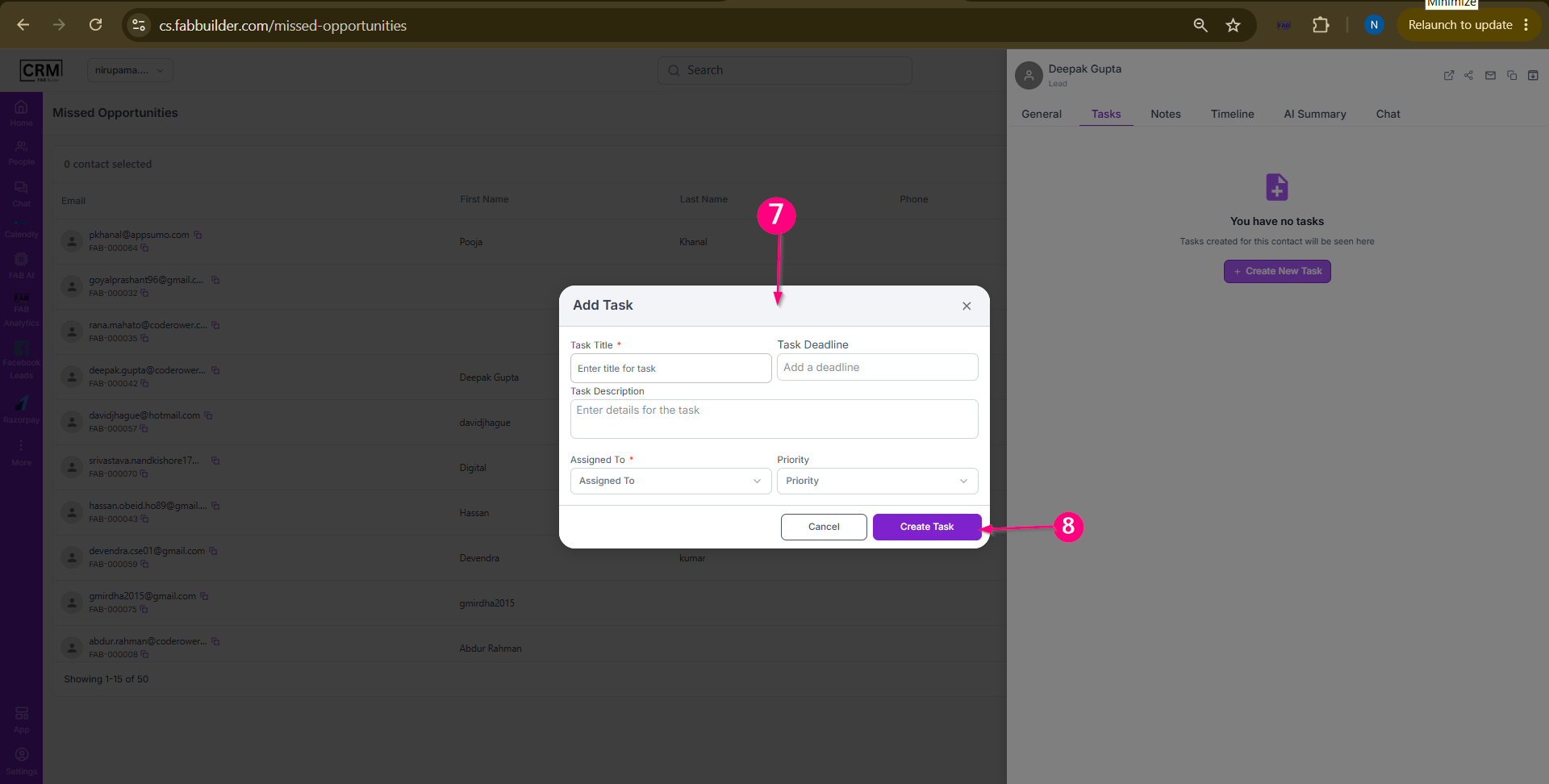 Screen- Add Task Related Details
ResultThe task is linked to the selected lead and assigned to the chosen team member. The assigned user can view and manage the task from the lead's Tasks section and follow up with the lead accordingly.
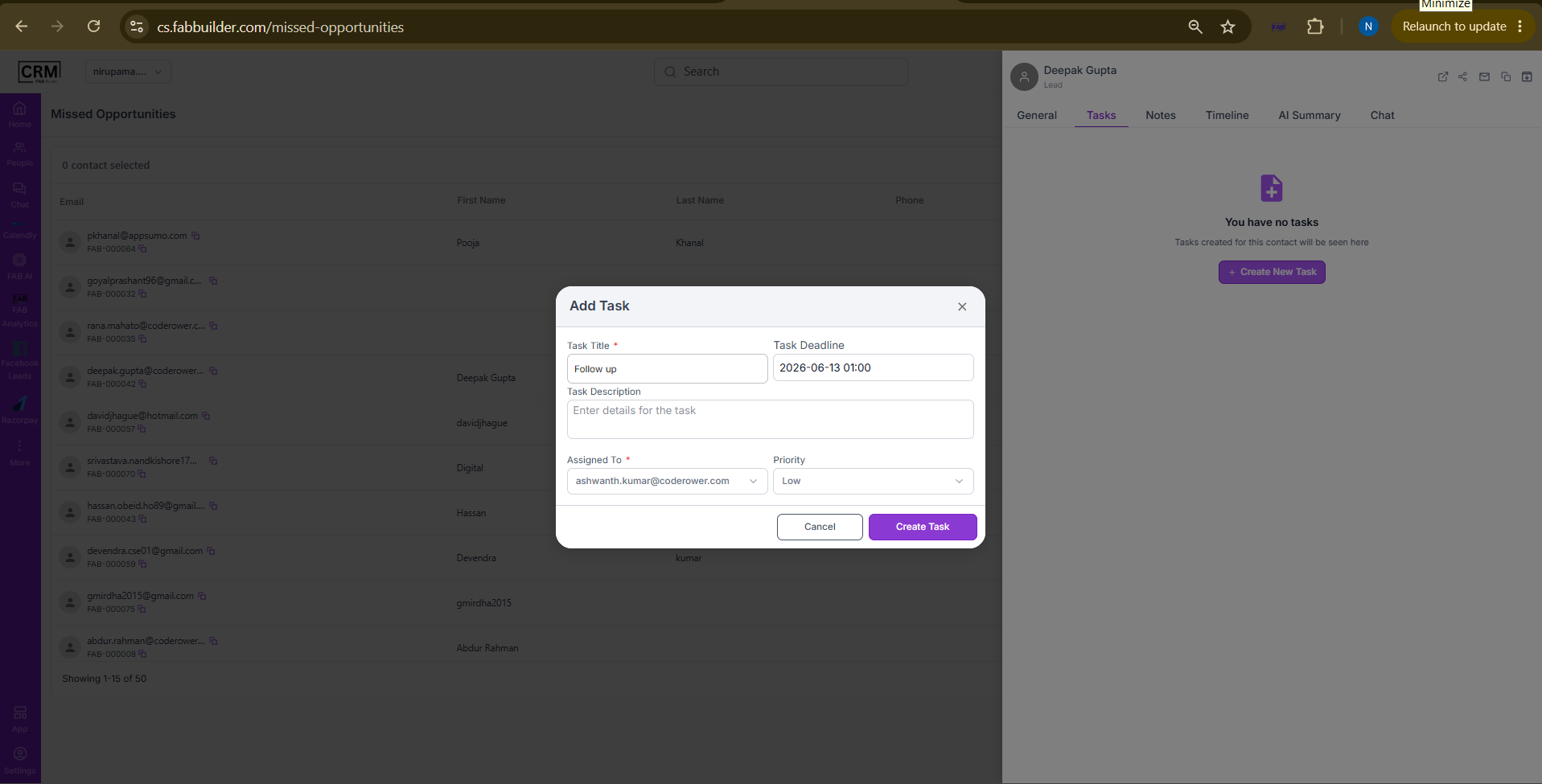 Screen- Screen with Added Task Details 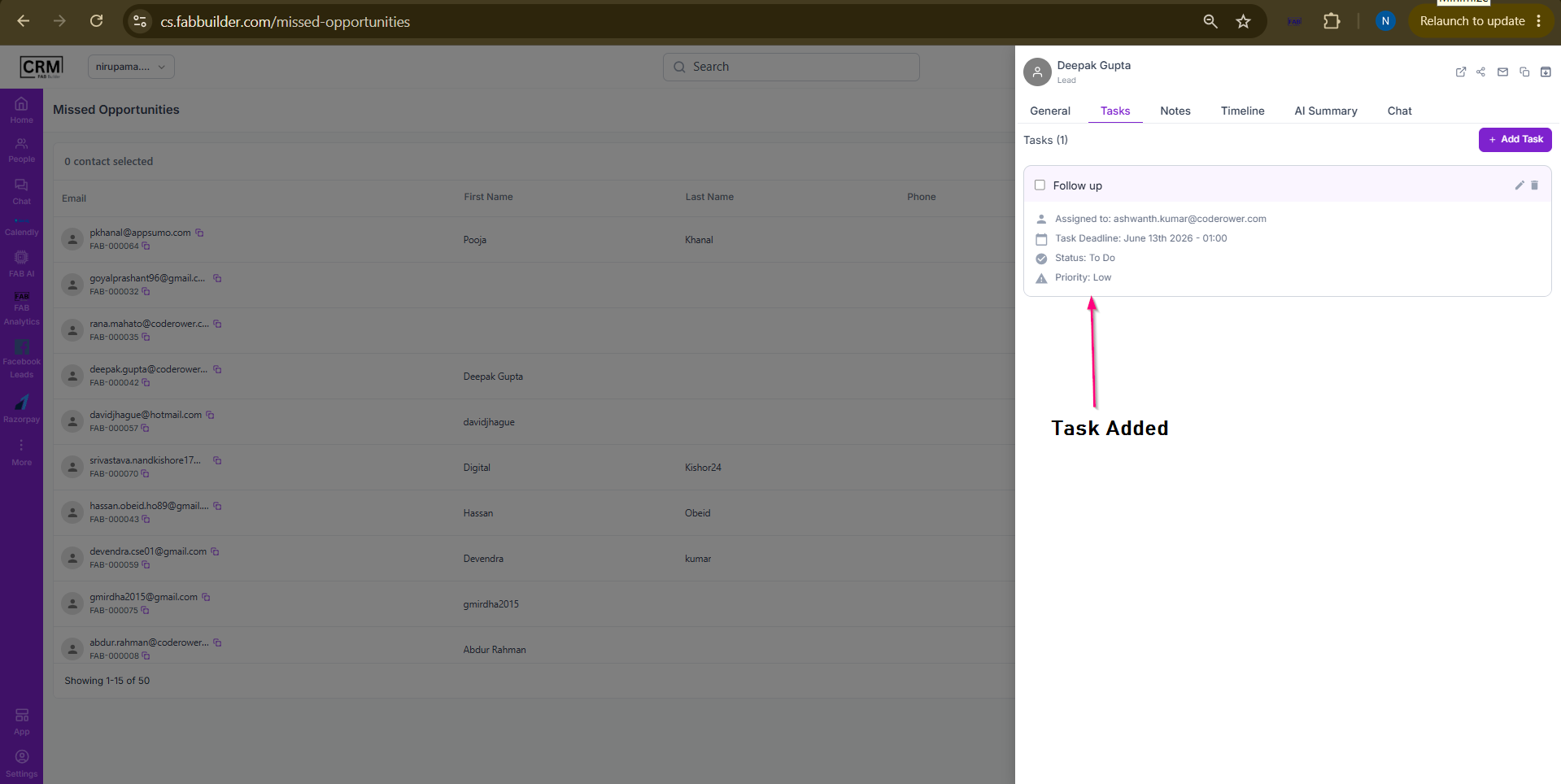 Screen- Added task successfully to A team member |