WhatsApp Web in CRM
Overview
WhatsApp Web in CRM allows users to open and use their WhatsApp account directly from the CRM interface using a QR-based session.
It enables users to initiate chats with leads, but messaging is handled through the WhatsApp Web session.
Prerequisites
Before using WhatsApp Web in CRM, ensure the following:
- User is logged into the CRM (cs.fabbuilder.com)
- A valid and active WhatsApp account is available on mobile
- Mobile device has an active internet connection
- Desktop/laptop browser has internet access
How It Works
- CRM provides a WhatsApp Web interface
- User scans QR code using mobile WhatsApp
- A session is created
- CRM can open chats with selected contacts
Messaging is still done through WhatsApp, not controlled by CRM backend
Steps to Open WhatsApp Web in CRM
After succesful log into the CRM (cs.fabbuilder.com) navigate the whasapp web by following steps
- Navigate to App
- Go to Workspace → Communication Channels
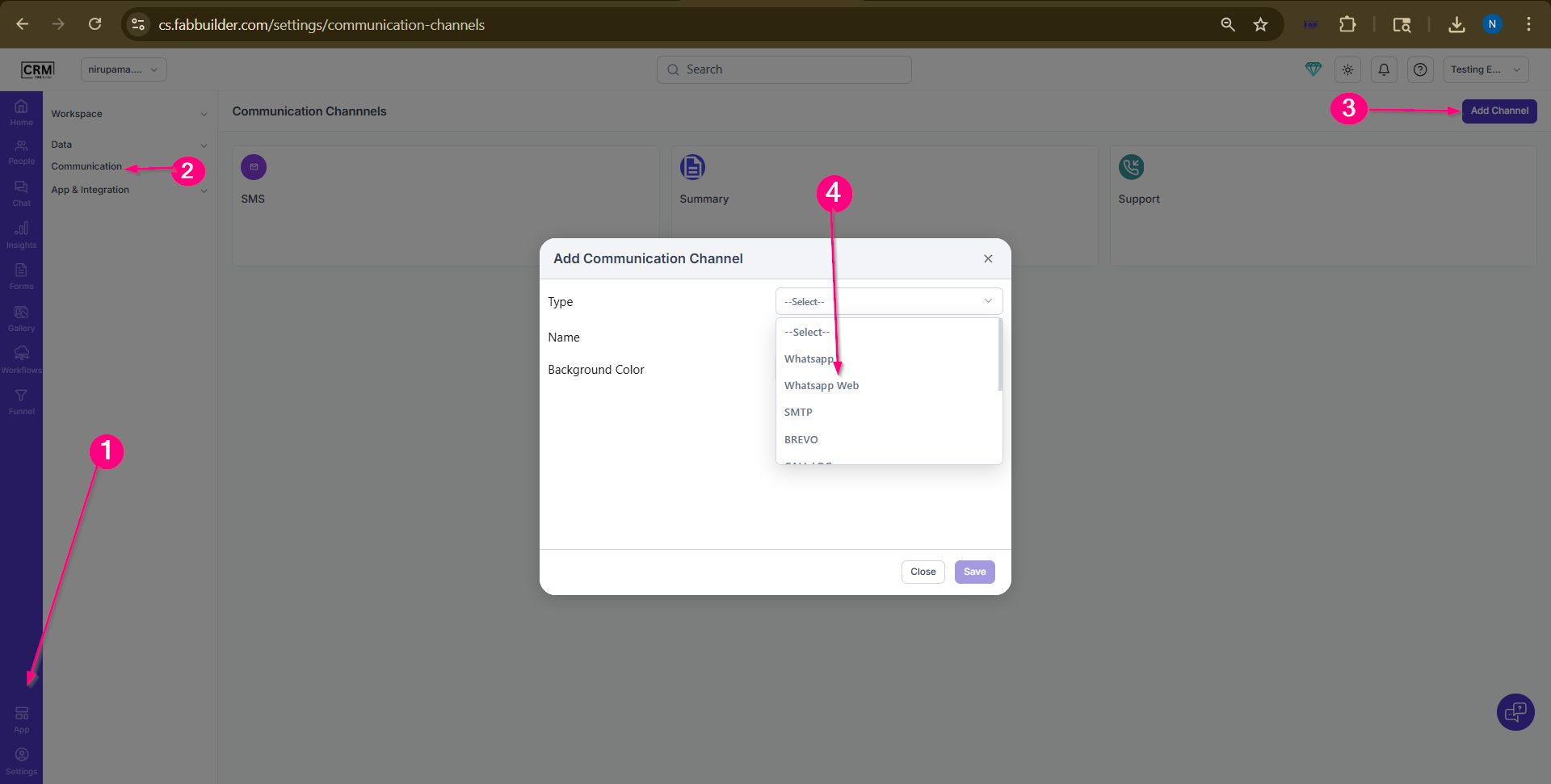
Screen-Step to configure
3.Click on Add channels tab
4.Select WhatsApp Web from the channel list.
5.Click to save.
Now user will be redirected to QR code screen.
6.Scan code with your mobile phone by following steps
- Open WhatsApp on mobile
- Go to Linked Devices → Link a Device
- Scan the QR code.
WhatsApp Web session will be connected.
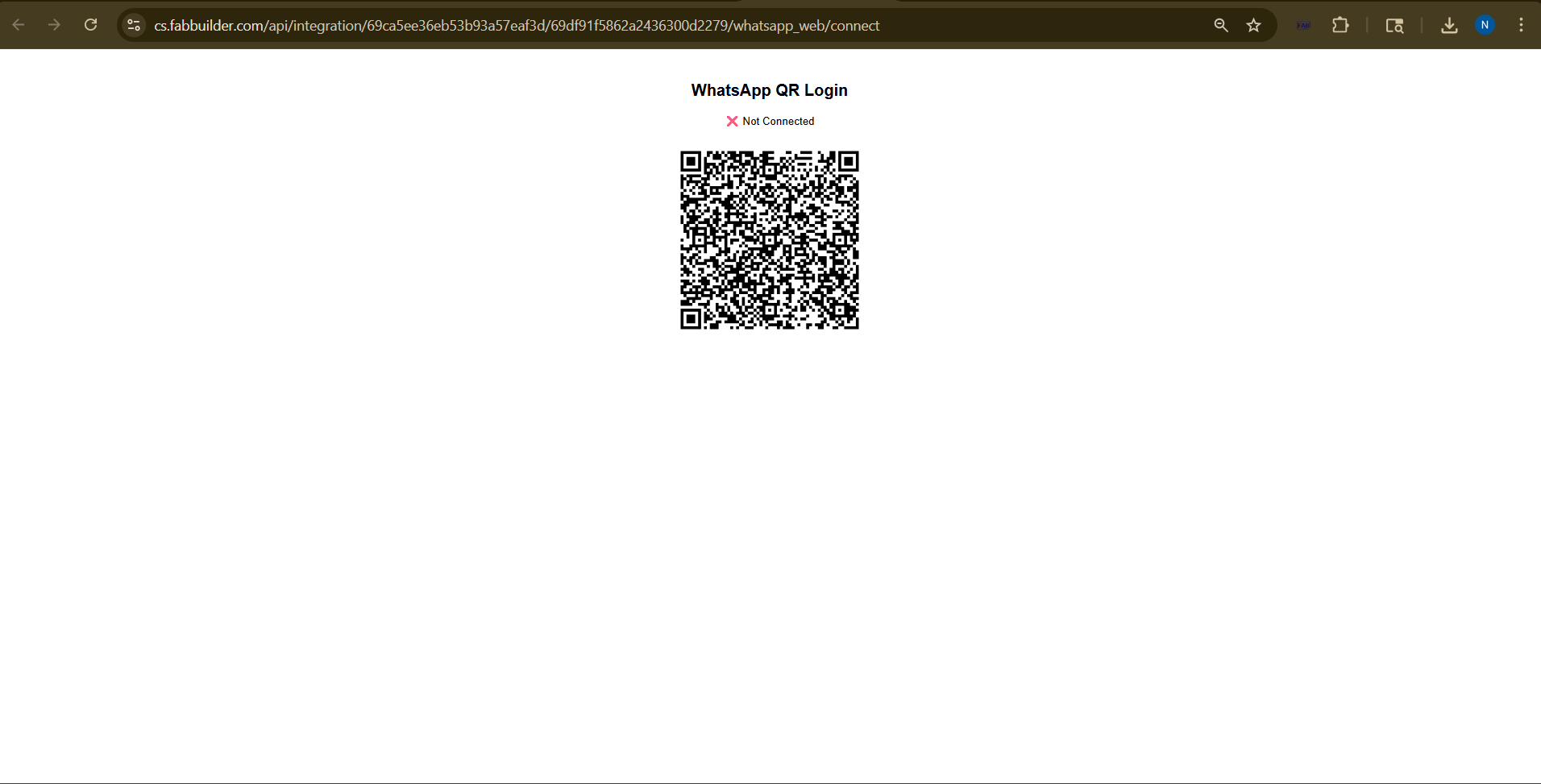
Screen- Scan QR to connect whatapp web
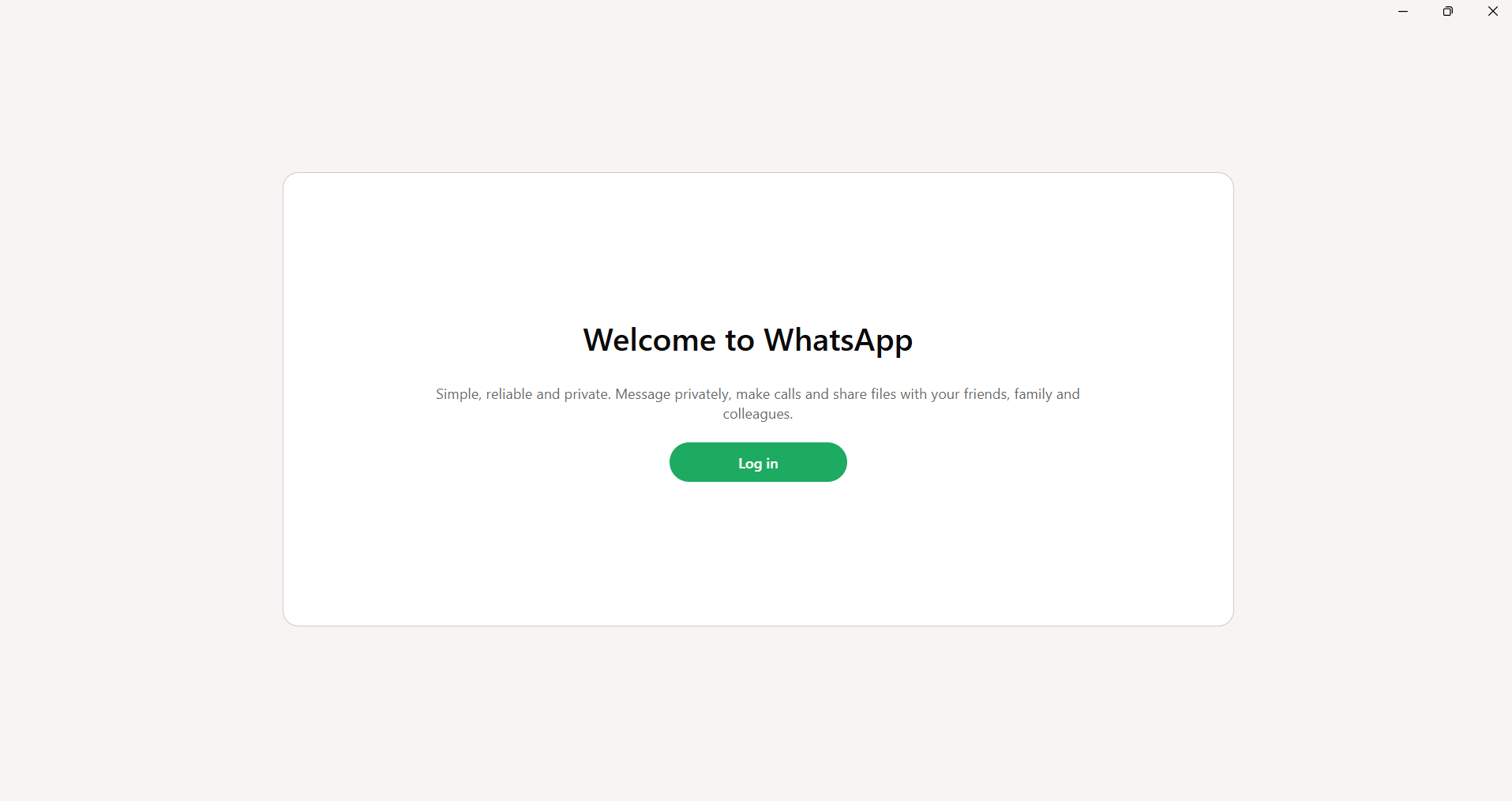
Screen- Open Whatapp on whatapp browser
How to Use in CRM
- Navigate to Chat
- Select a contact/lead
- Click on WhatsApp option/icon
- WhatsApp Web opens with the selected contact
- Send message manually
Expected Behavior
- WhatsApp Web opens inside or via CRM
- Chat is initiated with selected contact
- Messages are sent through WhatsApp session
Important Notes
- Requires active mobile WhatsApp account
- QR scan is mandatory for login
- CRM does not send messages automatically
- Messaging is manual
Limitations
- No API-based automation
- No message tracking in CRM (limited)
- Depends on WhatsApp Web session