Overview
Twilio Caller integration enables users to make and manage calls directly from the CRM using Twilio’s cloud communication services. This integration improves communication efficiency and tracks call activities within the CRM.
Prerequisites
Before configuring the integration, the user should ensure the following:
• Active Twilio account
• API access enabled
• API credentials (API Key / Auth Token)
• Valid Twilio phone number
• CRM access (cs.fabbuilder.com)
• Required permissions
How It Works (User Flow)
Before using the integration, it is important to understand how the process works:
1. Select a lead/contact from the chat module.
2. Click Call option fromright side communication lead panel.
3. Request sent to Twilio
4. Call is initiated
5. Call activity is logged
Twilio Configuration
Before configuring CRM, retrieve API credentials from Twilio:
1. Login to Twilio account
2. Go to Console/API section
3. Copy API Key / Account SID / Auth Token
4. Ensure phone number is available
CRM Configuration
Before starting, login to CRM via Login to https:/cs.fabbuilder.com/ and navigate to integration:
1. Navigate App
2. Go to workspace→ App & Integration → App
3. Search Twilio Caller. Click Configure
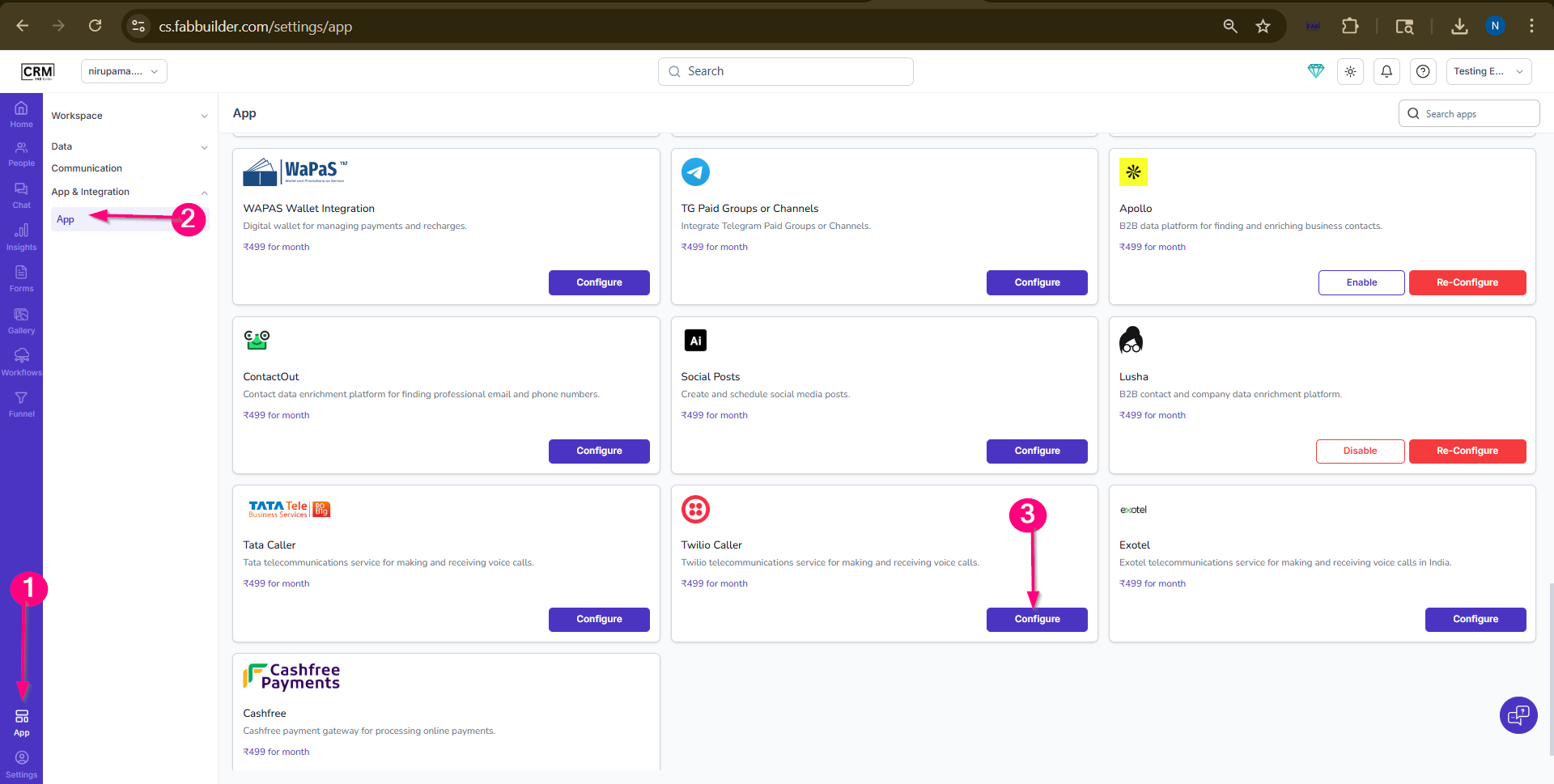
Screen- Configuration Step
4. Enter Name and API Key
5. Click Save
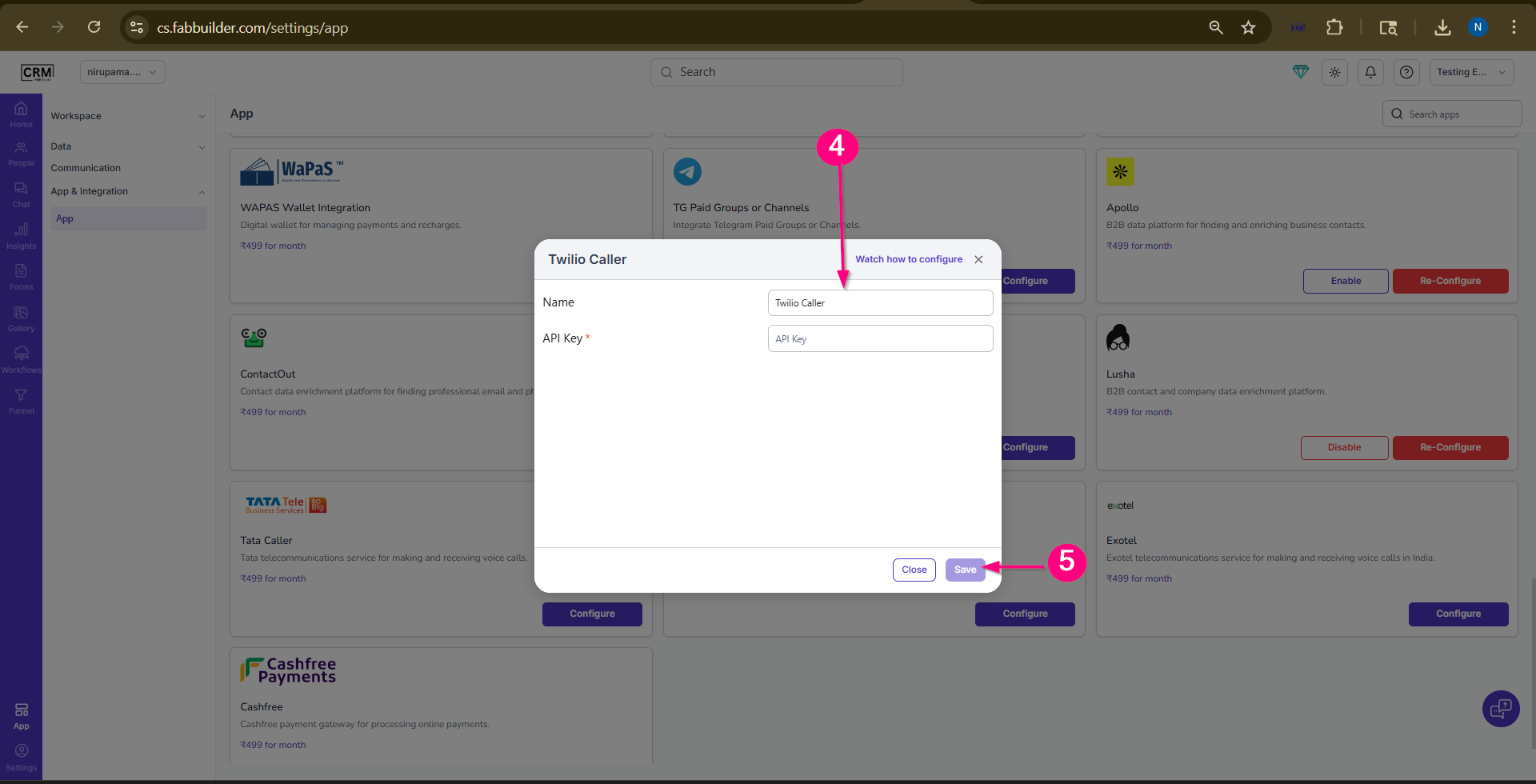
Screen- Configuration screen
6.Click on enable button.
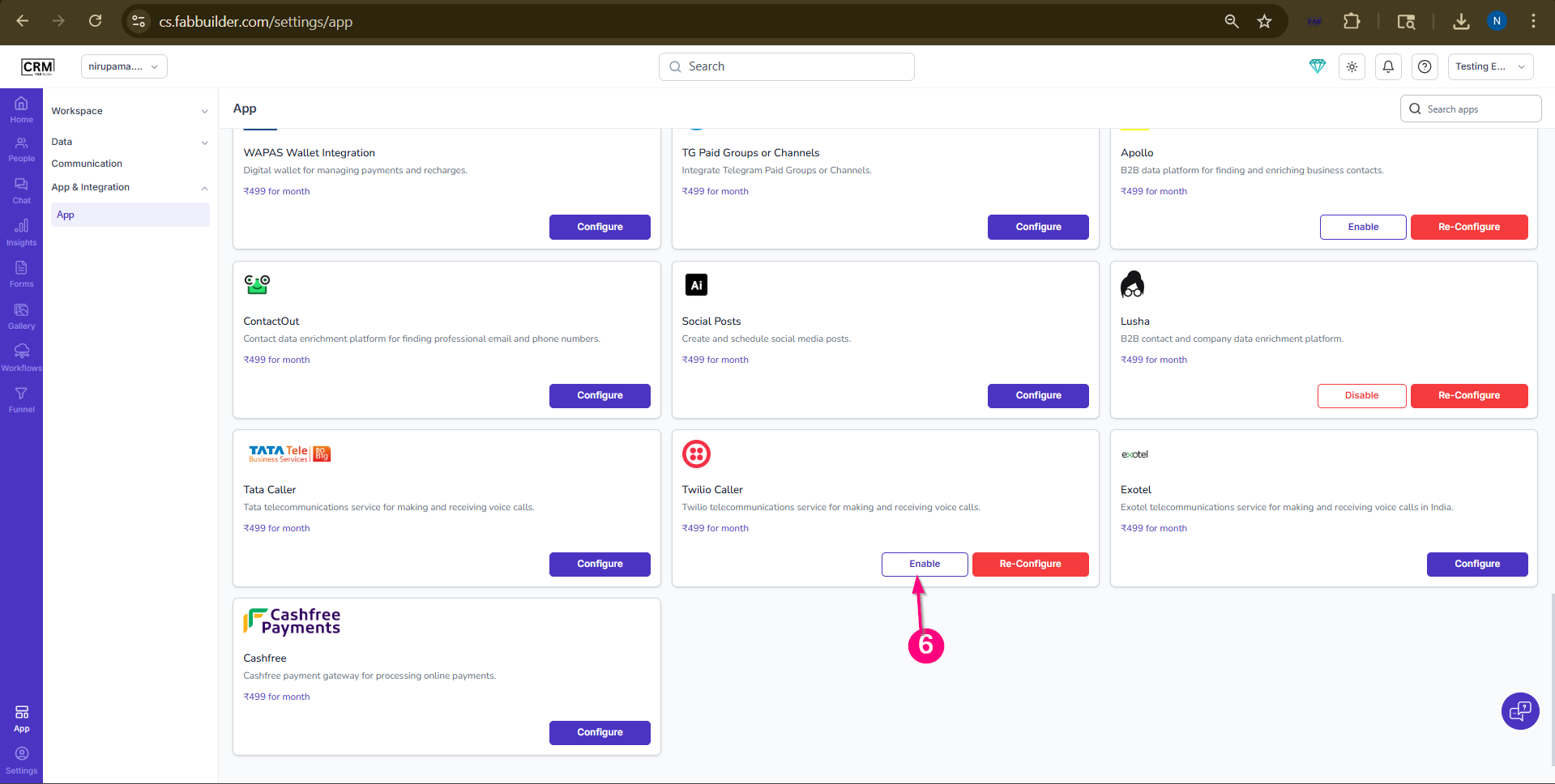
Screen- Enable Twilio
Verification
Ensure configuration is saved successfully and calling functionality is active.
Functionality After Integration
• Make calls
• Receive calls (if enabled)
• Track call activities
• Log call details
• Improve communication