Zerodha Integration with FAB CRM
Overview
Zerodha integration enables the CRM to connect with trading and investment services.
It allows businesses to manage and track user trading activities and investment data directly within the CRM, ensuring a smooth, efficient, and centralized workflow.
Prerequisites
Ensure the following before starting the integration:
- Active Zerodha account
- Access to Zerodha API services
- API credentials
- Admin access to FAB CRM
- Stable internet connection
Important Note (Credentials)
All required credentials (Auth ID, Auth Token, Client Secret) are generated after Zerodha account setup and API access approval.
- Use testing credentials (if available) for initial setup
- Use production credentials for live usage
Credentials Required
Enter the following details during configuration:
- Auth ID
- Auth Token
- Client Secret
How It Works
- User performs a trading or investment-related action
- CRM sends a request to Zerodha
- Zerodha processes the request
- Response is returned to CRM
- CRM displays the relevant result or status
Flow:
User Action → CRM → Zerodha → Response → CRM Display
Configuration Steps
After successfully logging in to the CRM system, follow the steps below to configure Zerodha:
- Navigate to the App module
- Go to:Workspace → App & Integration → App
- Search for Zerodha.Click on Configure.
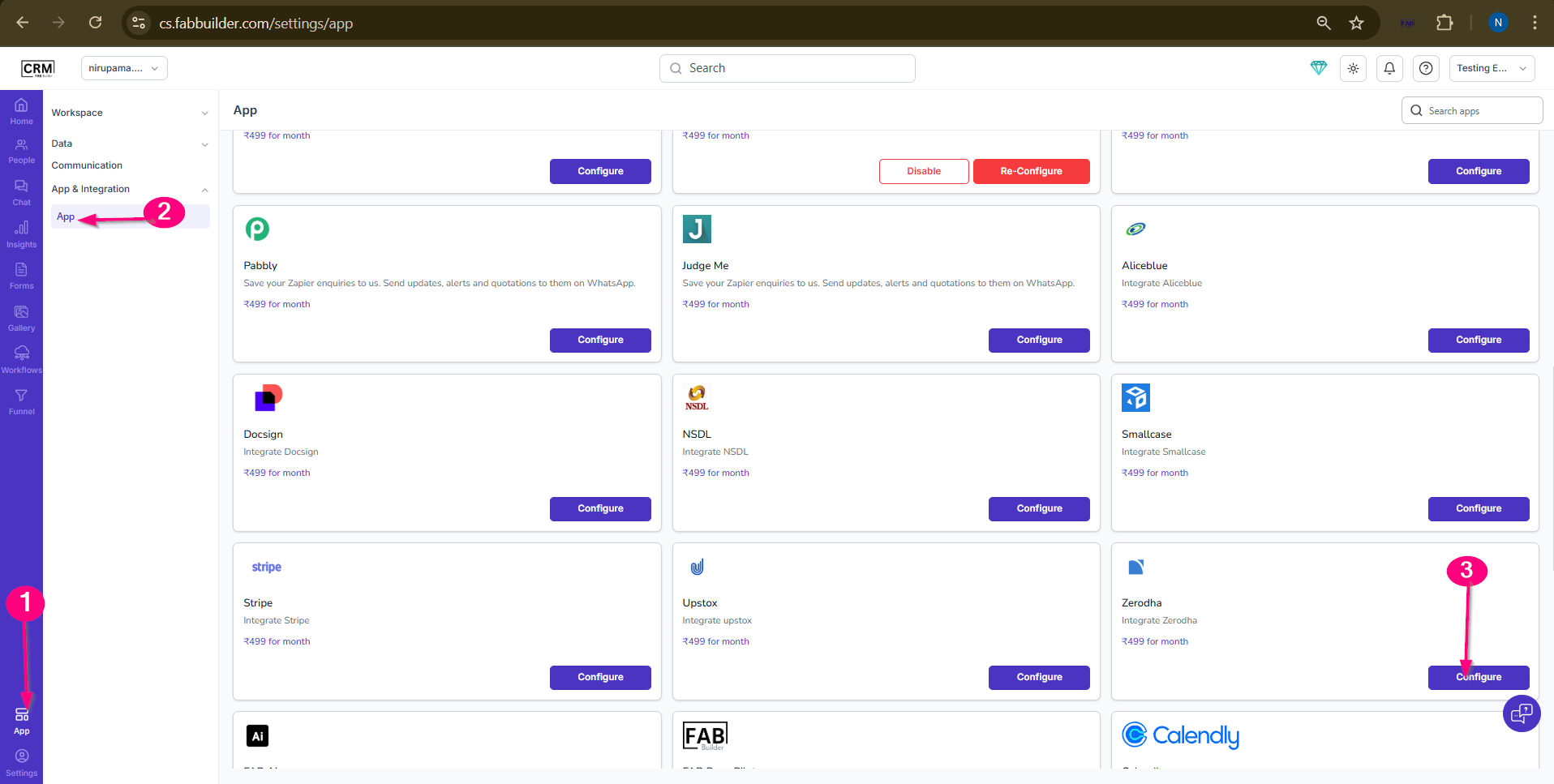
Screen- Steps to Access App
4.Enter the required details:
- Name (default: Zerodha)
- Auth ID
- Auth Token
- Client Secret
- (Optional) Enable Pin in Left Menu
5.Click on Save.
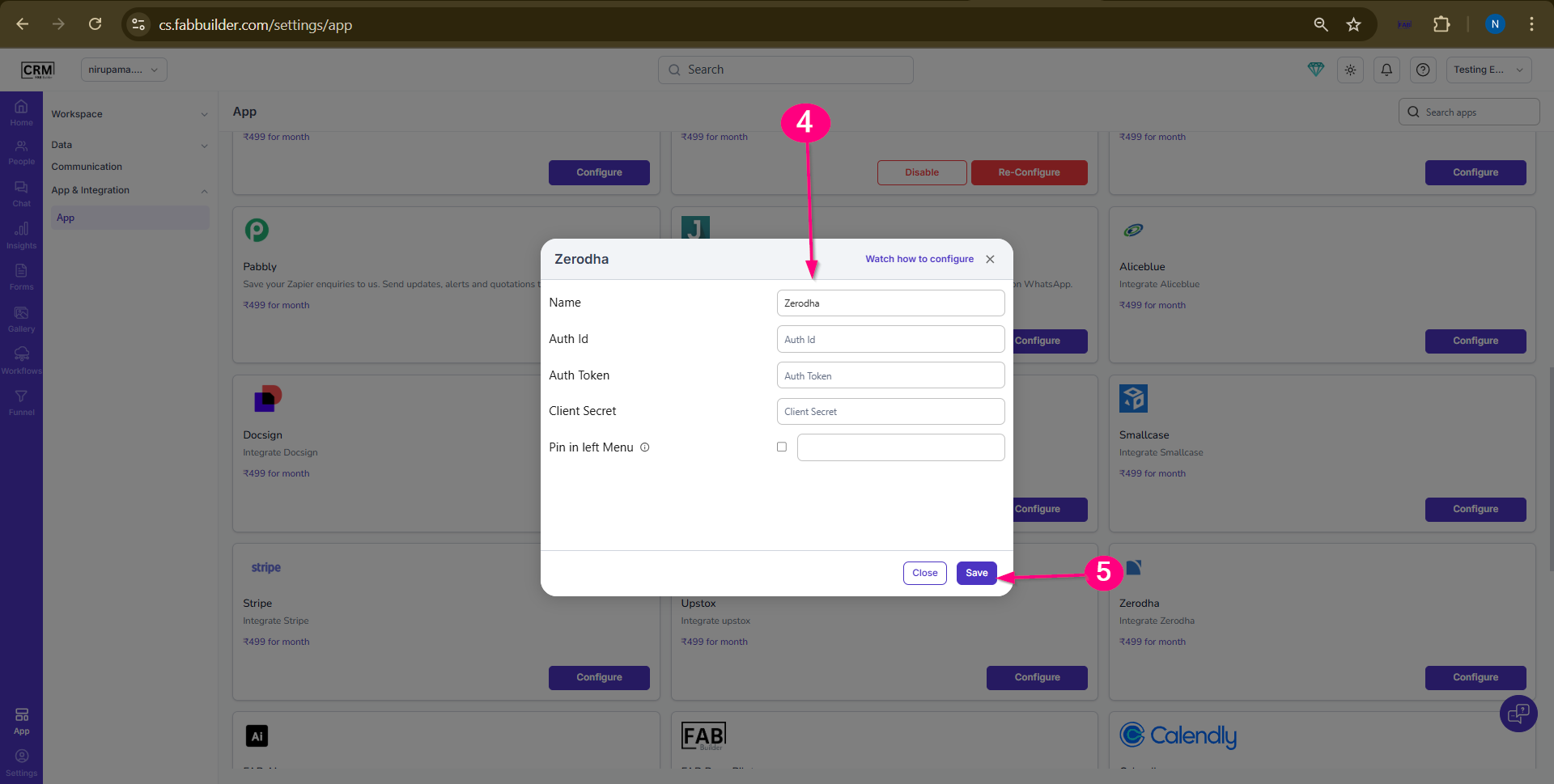
Screen- App Configuration
Validation Outcome
After completing the configuration:
- The system validates the entered credentials
- If credentials are correct, the integration is activated
- If credentials are incorrect, validation fails
- Once validated, users can start using Zerodha features