Overview
Zapier integration enables automated data transfer between CRM and third-party applications. It acts as a bridge to connect applications that do not have direct integration with CRM, allowing seamless workflow automation.
Prerequisites
- Active Zapier account
- CRM access with App & Integration permissions
- Basic understanding of Zap (automation workflow)
Required Details
- Webhook URL / API Endpoint – Provided by CRM (if required in Zap)
- App credentials – Provided by respective third-party application (if applicable)
Integration Flow
The integration process takes place in two phases: configuration in the CRM and configuration in Zapier.
Configuration in CRM
After successful login, navigate to the App module from the left-side navigation panel.
1.Click on App module
2.Navigate to App & Integration → App
3.Search and select Zapier.Click on Configure
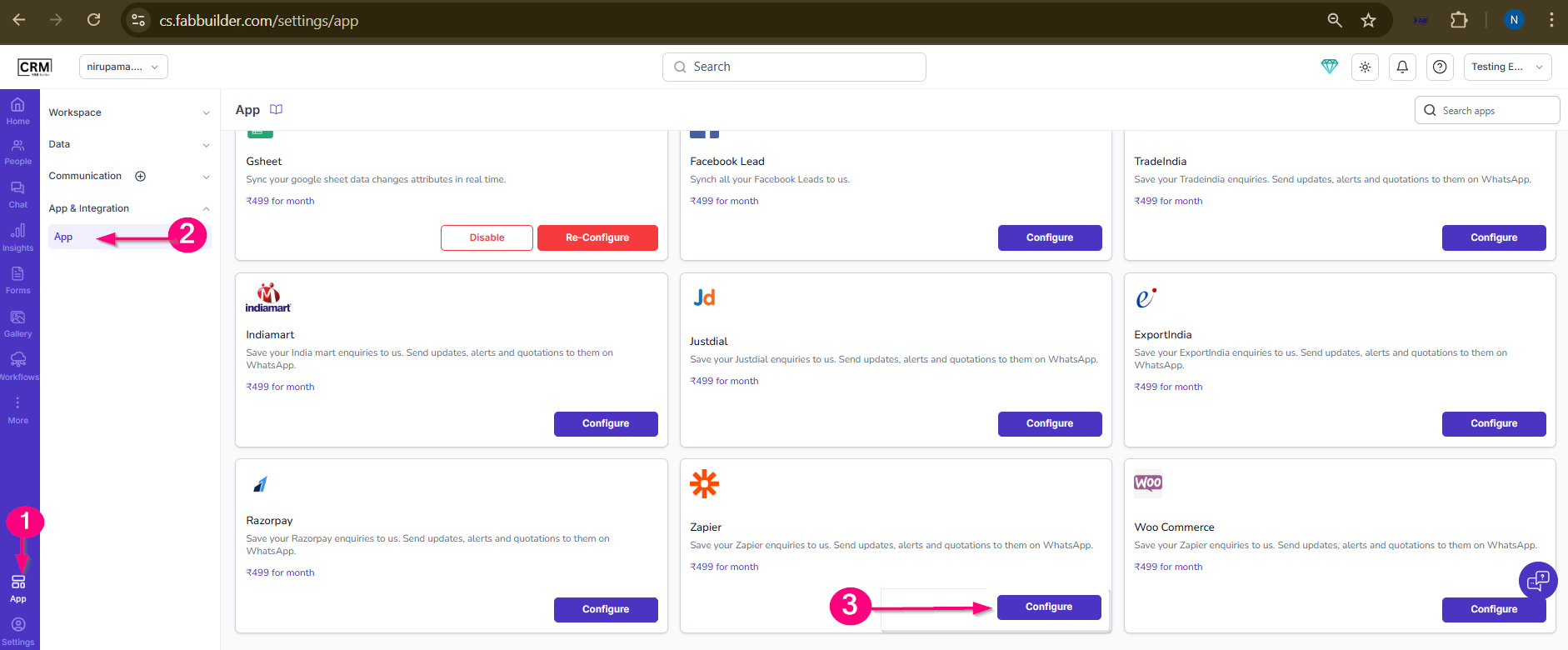
Screen- App Access
4.Click on Save
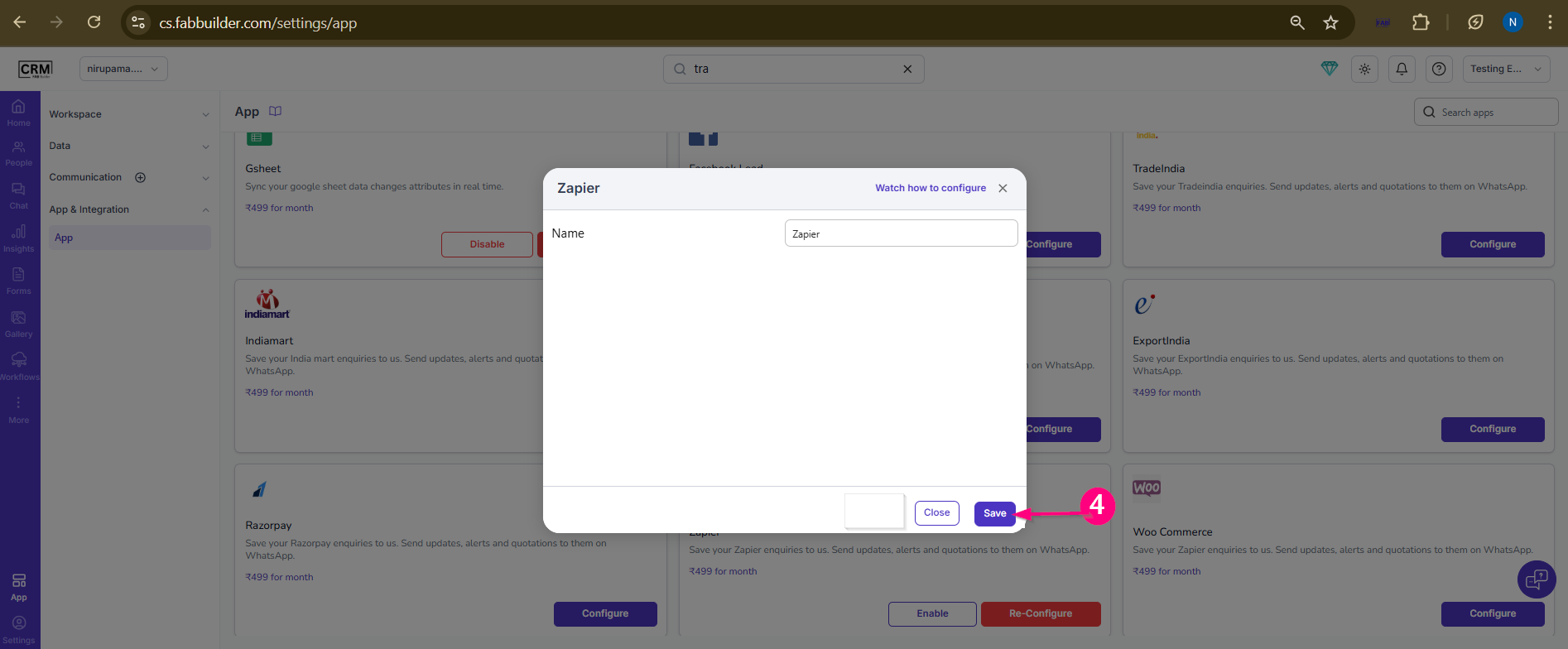
Screen- Click to save Button
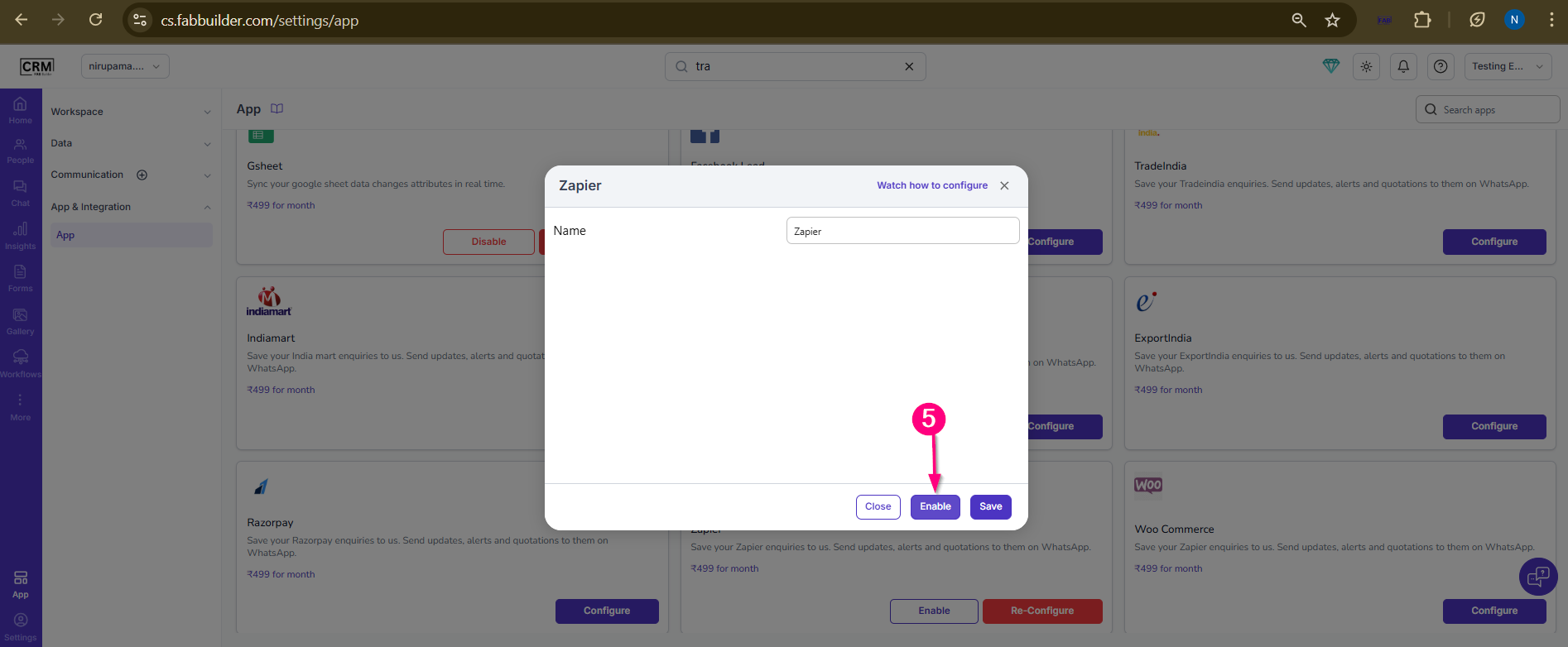
Screen- Enable Zapier App
5.Click on Enable button. User can view successful message on screen.
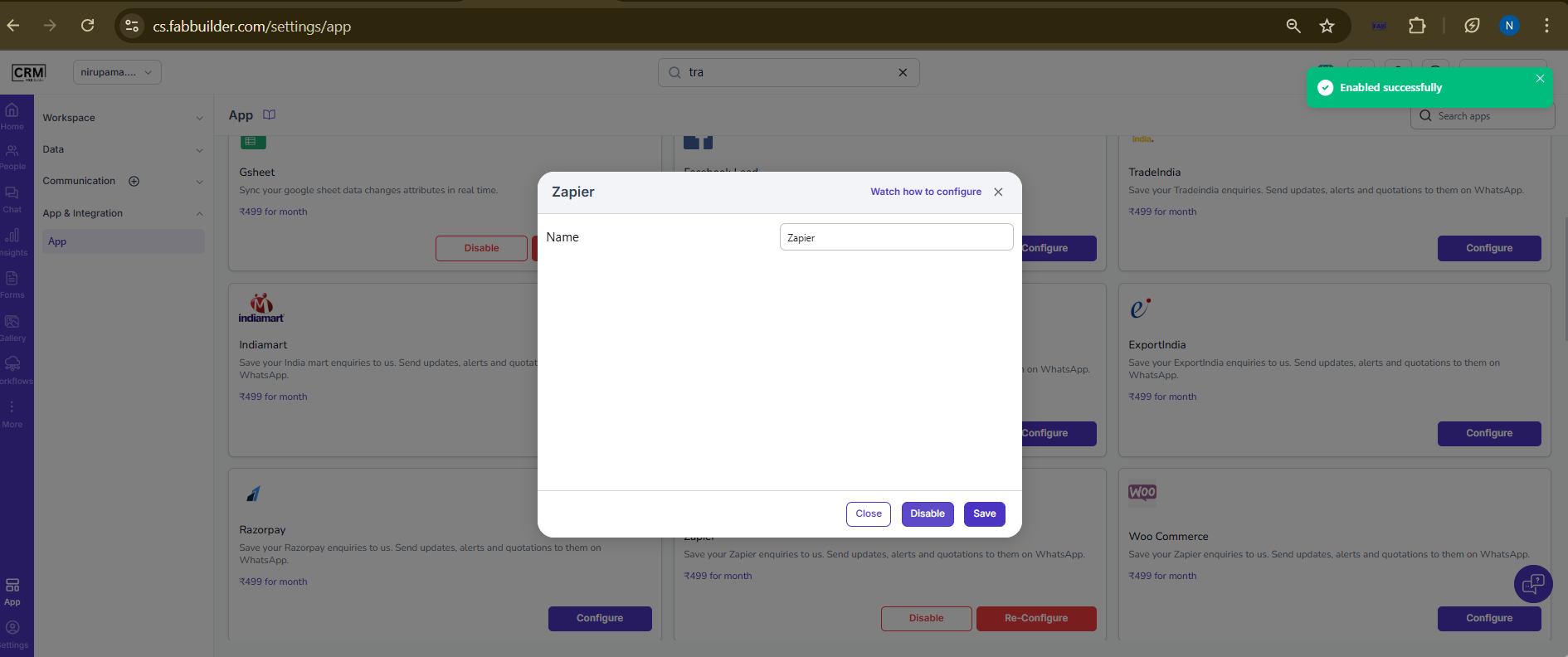
Screen- App Enabled Successfully
Note: CRM configuration only enables Zapier integration. Actual workflow setup is done in Zapier.
Configuration in Zapier
Zapier Integration Configuration
Step 1: Login to Zapier
- Go to Zapier
- Login using your credentials
Step 2: Create a Zap
- Click on Create Zap from the dashboard
Step 3: Configure Trigger
- Select a Trigger App
- (Example: Google Sheets, Facebook Lead Ads, etc.)
- Choose a Trigger Event
- (Example: New Row, New Lead)
- Connect your Trigger App account
- Click on Test Trigger to verify data is being fetched
Step 4: Configure Action
- Select an Action App
Option 1: Webhooks by Zapier
Option 2: CRM (if directly available)
Step 5: Setup Action Details
- Enter your CRM Webhook URL / API Endpoint
- Map required fields such as:
- Name
- Mobile Number
- Any other custom fields
Step 6: Test the Action
- Click on Test Action
- Verify that data is successfully sent to the CRM
Step 7: Activate Zap
- Once testing is successful, click Turn ON Zap
Final Outcome
After activation:
- Data from the selected trigger app (e.g., Facebook Leads, Google Sheets) will automatically flow into your CRM system in real time.
How Data is Triggered
Zapier listens for trigger events from the selected application. When the event occurs (e.g., new row added in Google Sheets), Zapier processes the workflow and sends data to CRM automatically.
Validation
- Ensure Zap is turned ON
- Perform trigger action (e.g., add new row in Google Sheet)
- Verify data in CRM
Check
- Data is received successfully
- Fields are correctly mapped
- No missing or incorrect data
Conclusion
Zapier enables automated (near real-time) data flow between CRM and external applications, making it easier to integrate unsupported platforms without direct API integration.