Overview
The WhatsApp integration allows users to communicate with leads and team members directly from the CRM system. This integration uses the official API provided by Meta to enable seamless messaging with minimal manual effort.
Prerequisites
- A valid business phone number (recommended, not personal)
- Access to Meta Business Manager
- WhatsApp Business Account setup
- Access to Meta Developer Dashboard
- WhatsApp Cloud API enabled
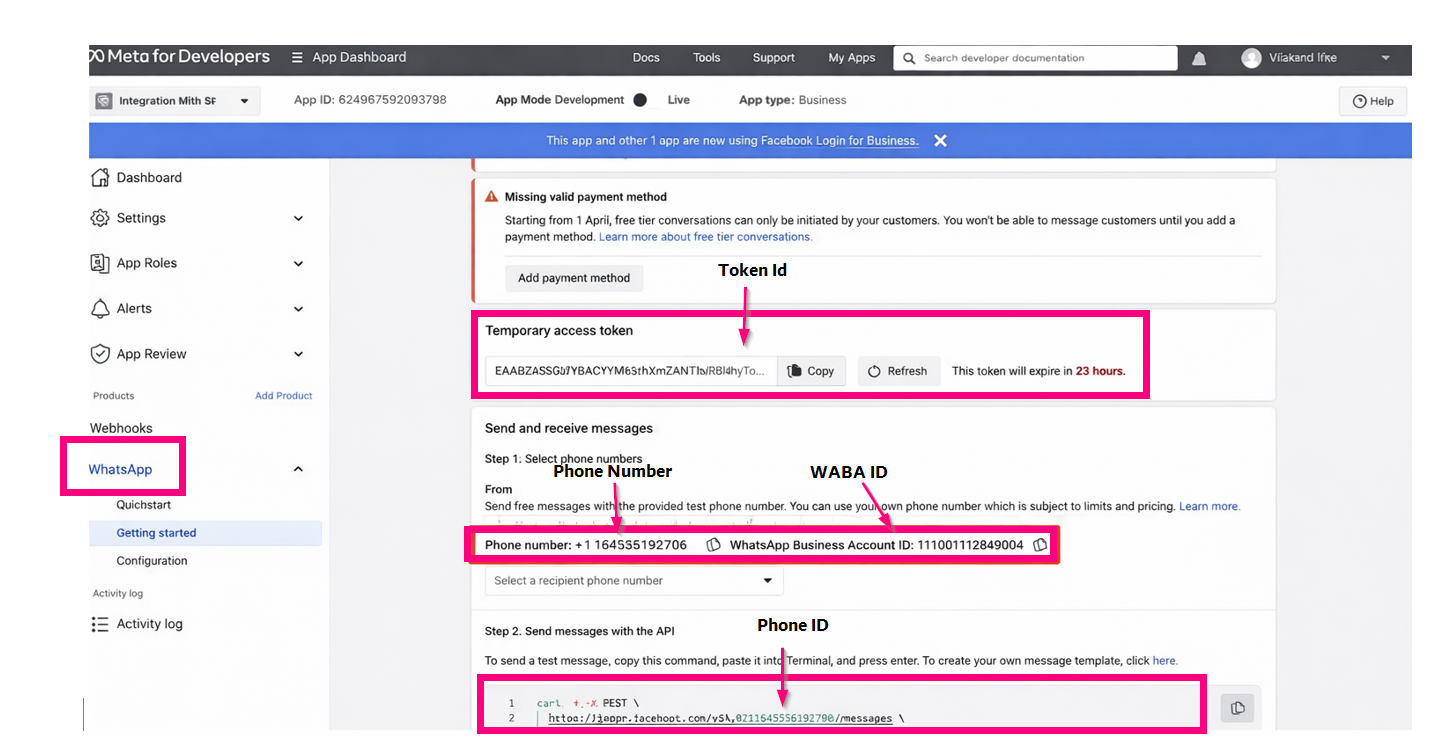
Screen- Whatsapp Required Credential details for Configuration
Required Credentials
· WABA ID (WhatsApp Business Account ID)
· Phone ID
· Access Token
· Registered Phone Number
Note: These credentials are generated from Meta Business Manager or Meta Developer Dashboard
.
Integration Steps
After successfully logging in to the CRM system, follow the steps below to configure Whatsapp:
- Navigate to the App module
- Go to:Workspace → communication → click on "+" .
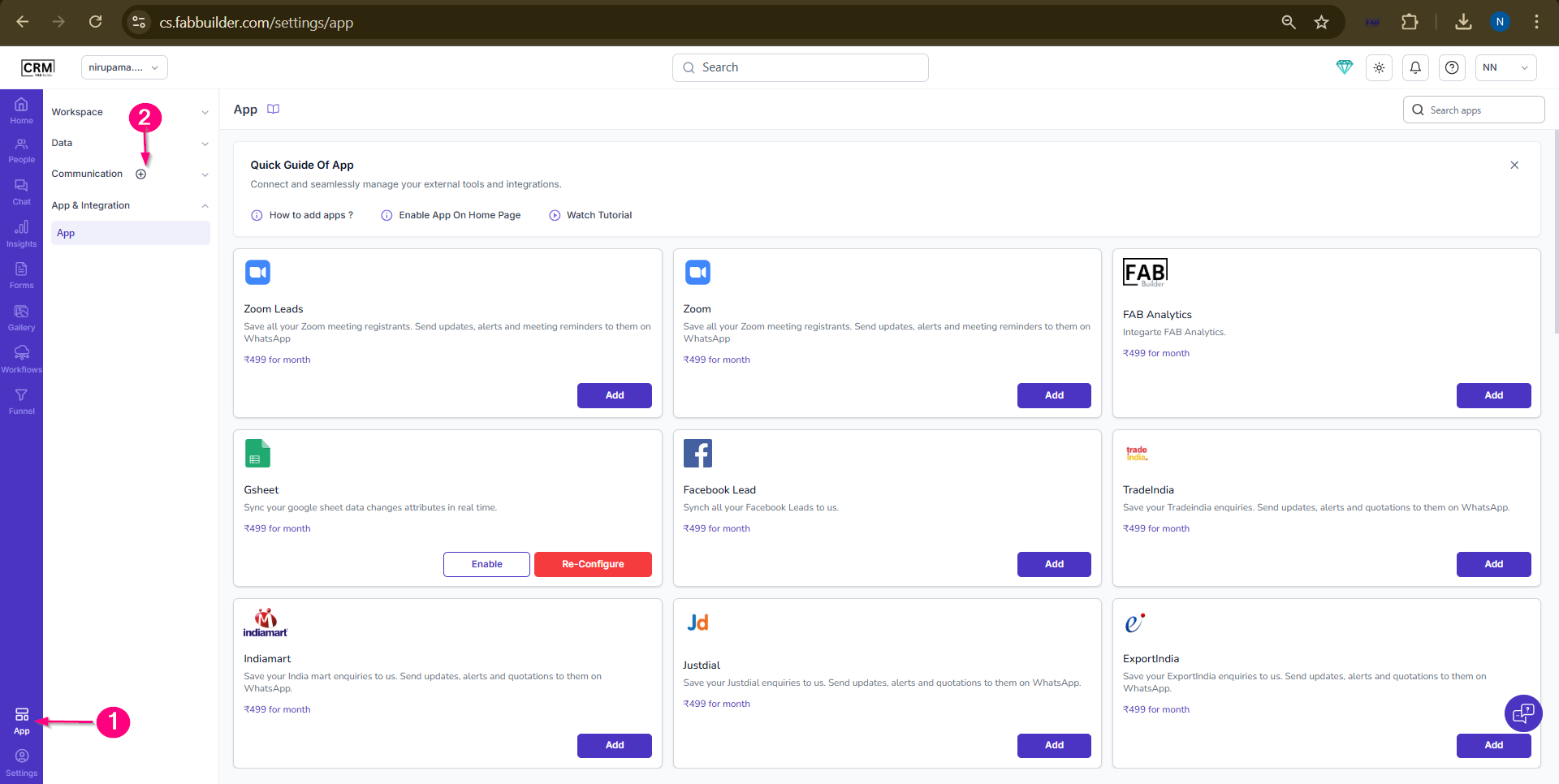
Screen -Step to Access Whasapp
3.Click and open menu drop down list.
4.Select the whatsapp.
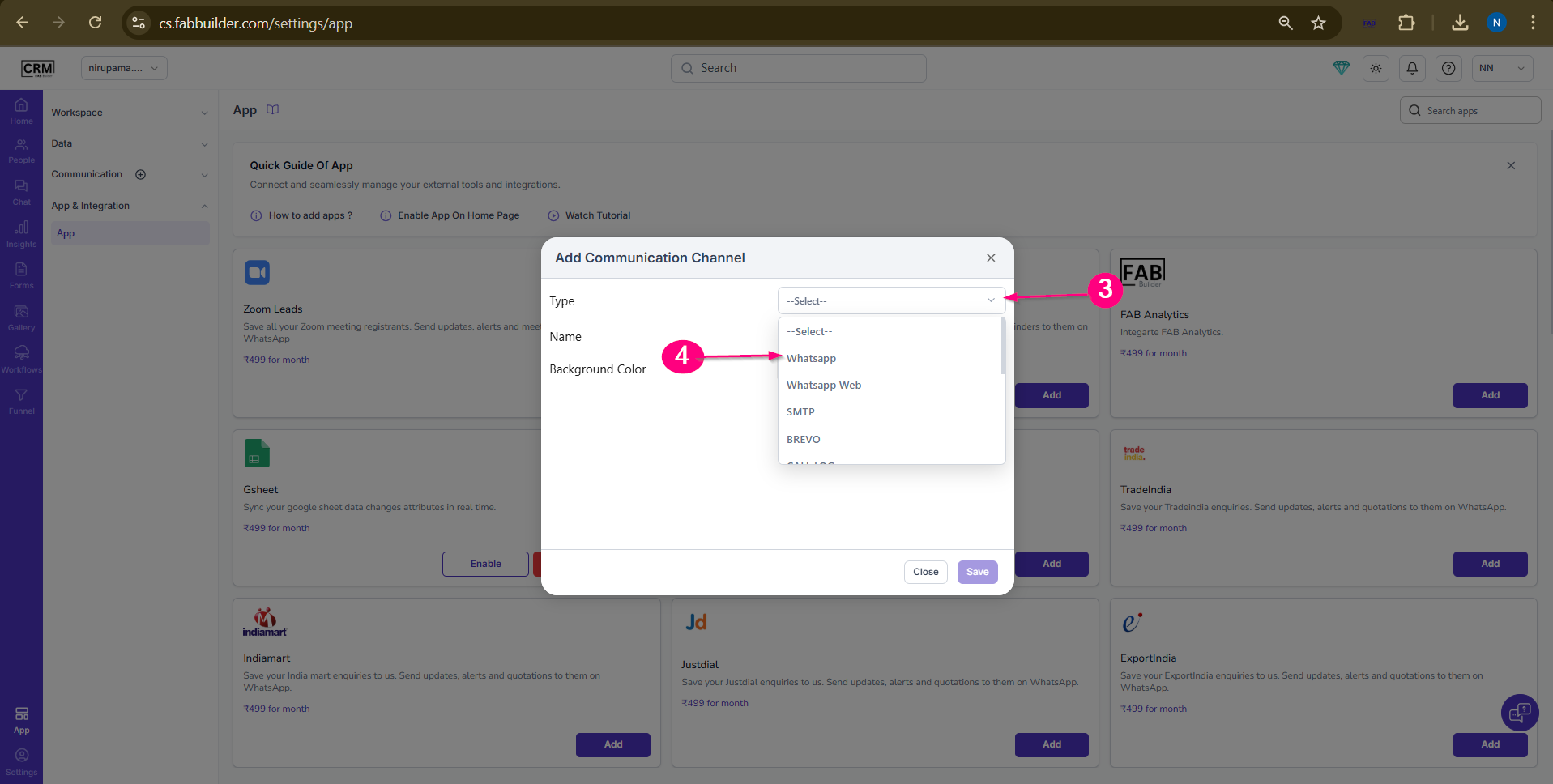
Screen- Select the Whats App Channel
5. Enter required details as follows below
- App Type
- App name
- Backgroud Color.
User can get following details need from Meta bussiness manager screen and paste into the Fab CRM confiuration screen.
- WABA ID.
- Phone ID
- Access Token
- Phone Number
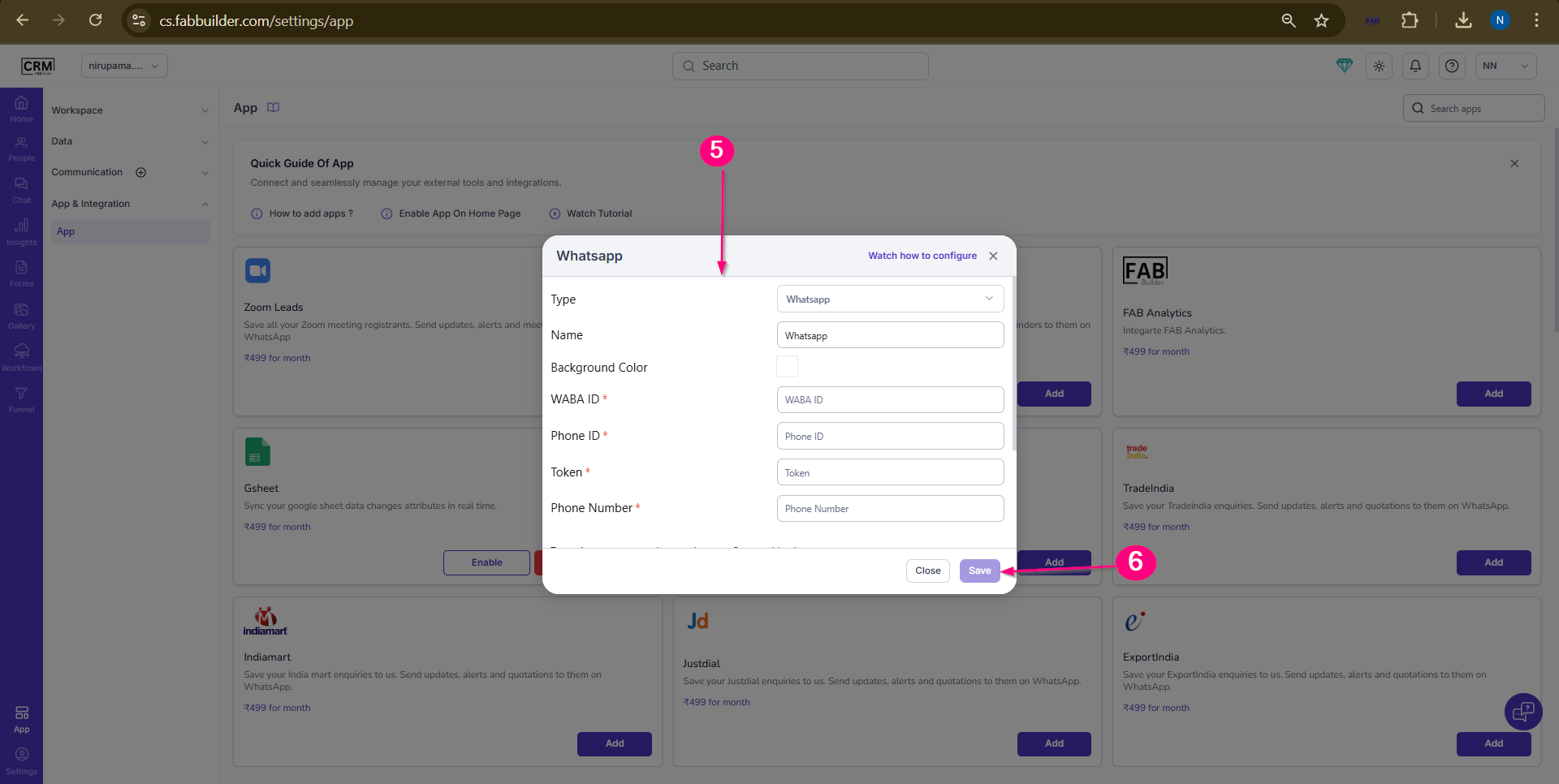
Screen- Add whatapp Details
6. Click Save
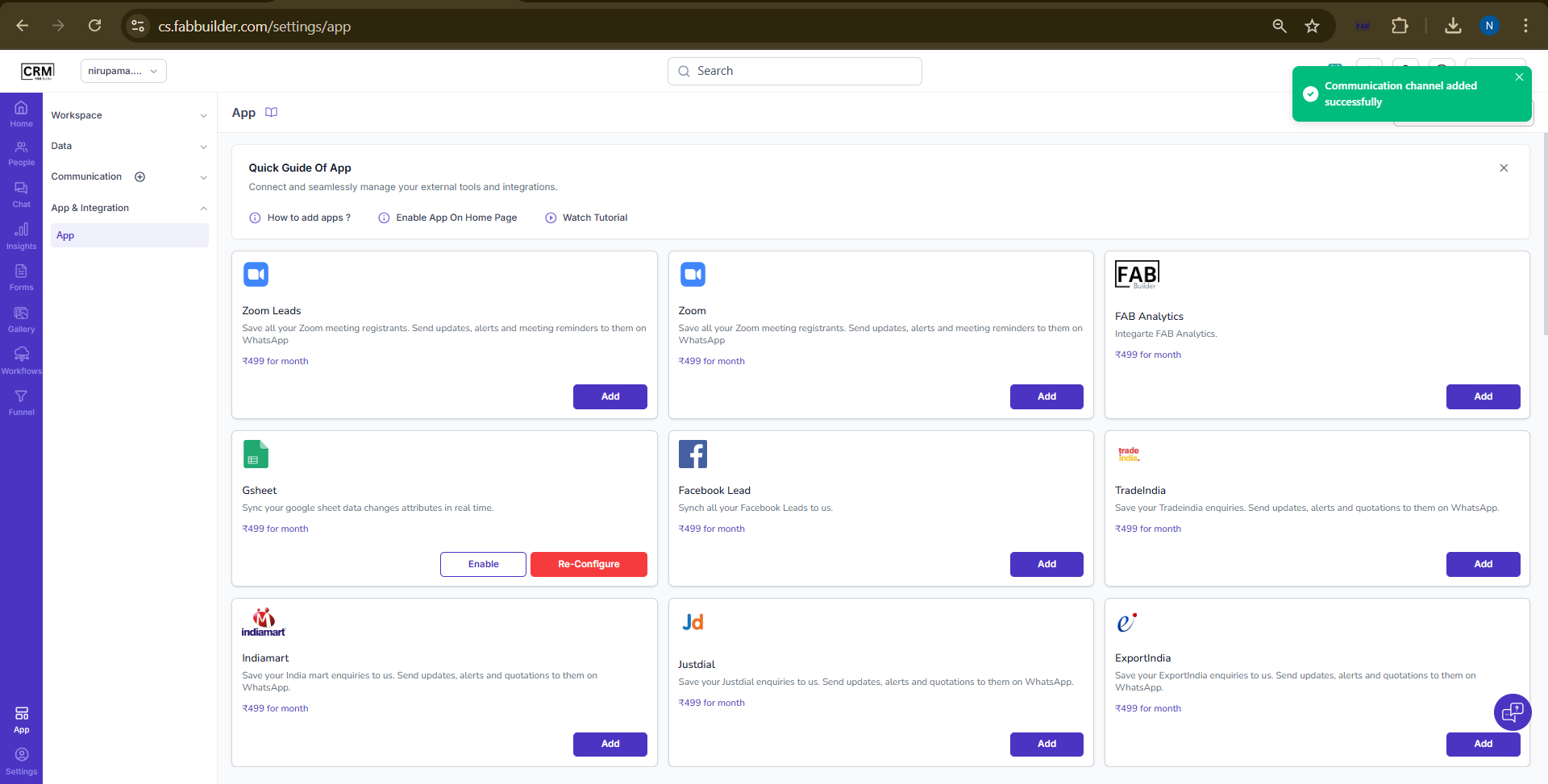
Screen- Message of whatsapp successfully added in FAB CRM
After successful integration user can communicate by navigating to the chat module by selecting the contact number from the chat panel .
Validation
Use can validate the successgul integration by sending a test message and verify delivery in CRM and WhatsApp.
7.Select the Lead contact on chat Module for send message . Once contact selected ,right panel of same contact will open to show the current chat and chat history.
8.Click on all channel drop down menu.
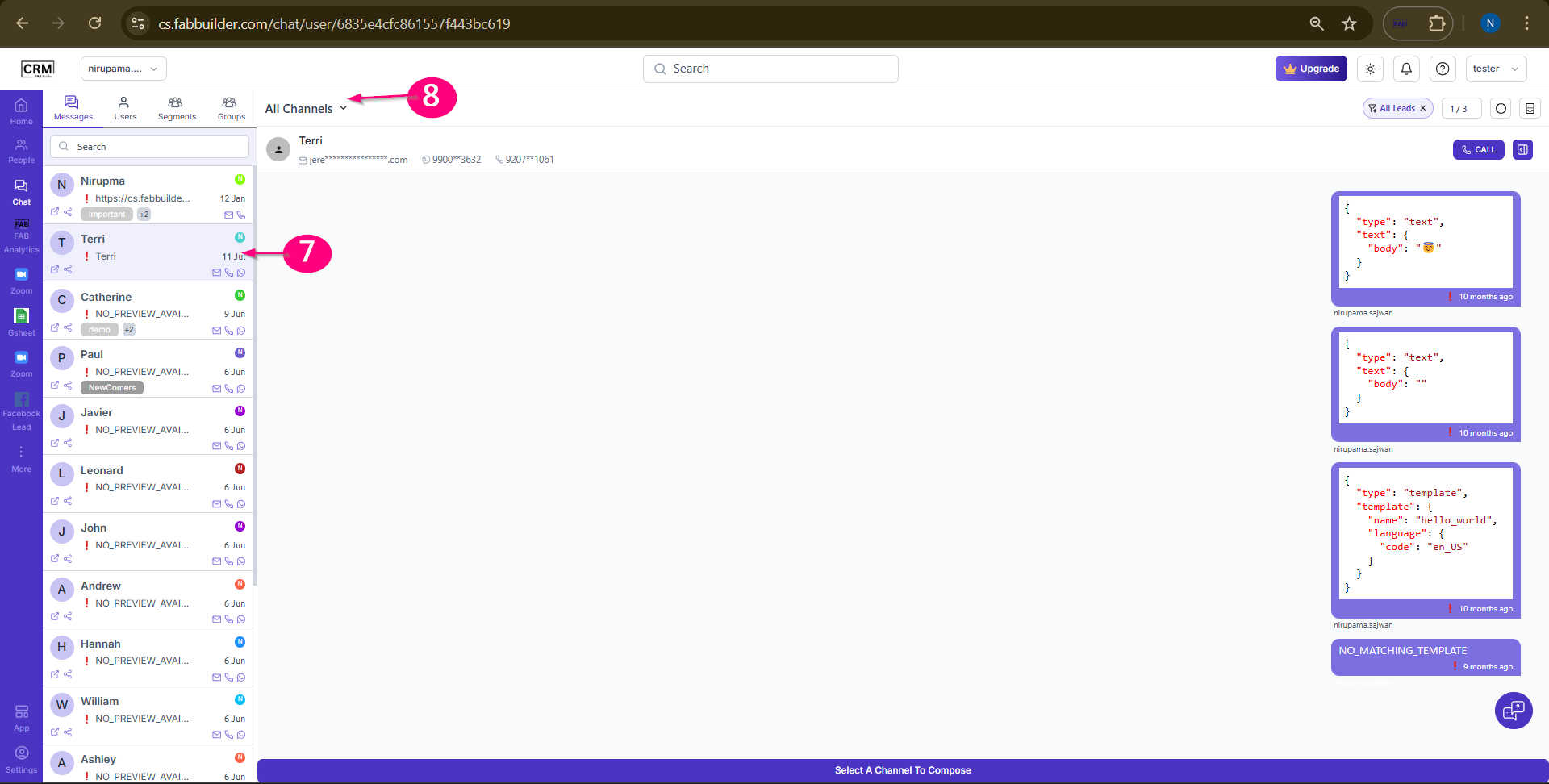
Screen- Select channel to Send Meassage
9.Select the Whatsapp channel to communicate.
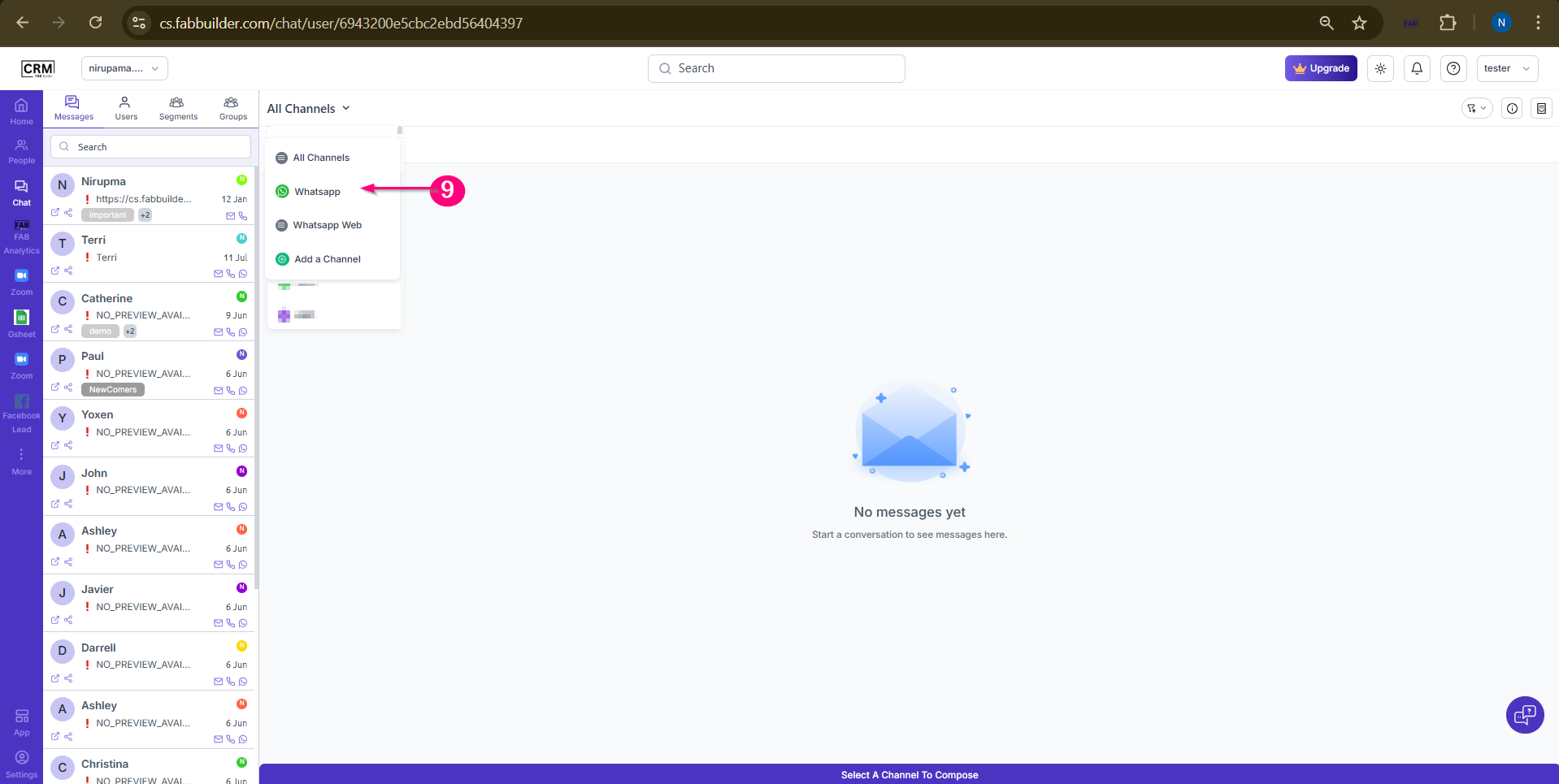
screen- Added Whatsapp communication channel listed in menu.
10.Type Message inside the box at the footer of screen.
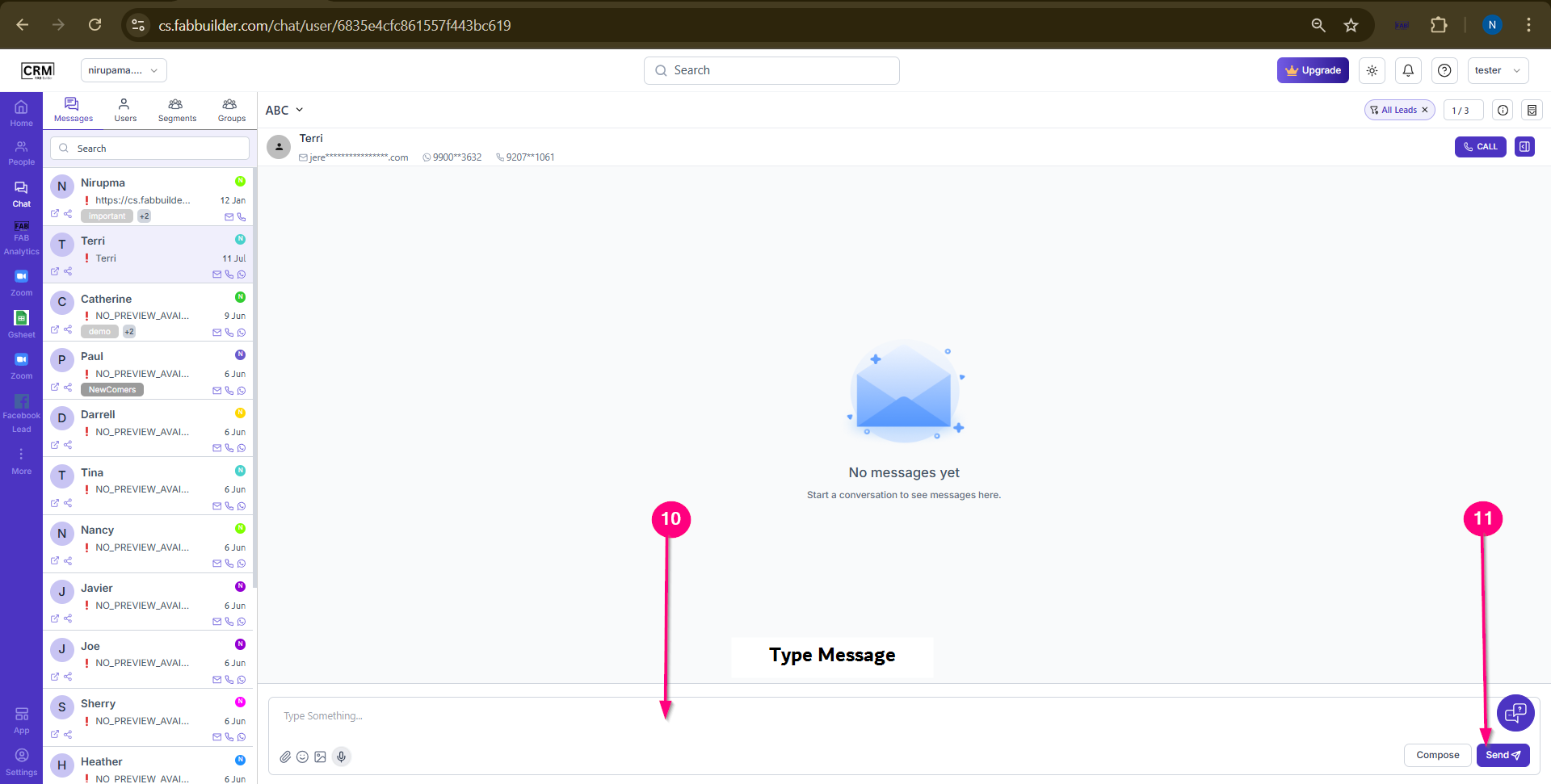
Screen- Compose message box
11.Click on send button
Once sent, all message details are displayed on the right-side panel for easy tracking and reference.
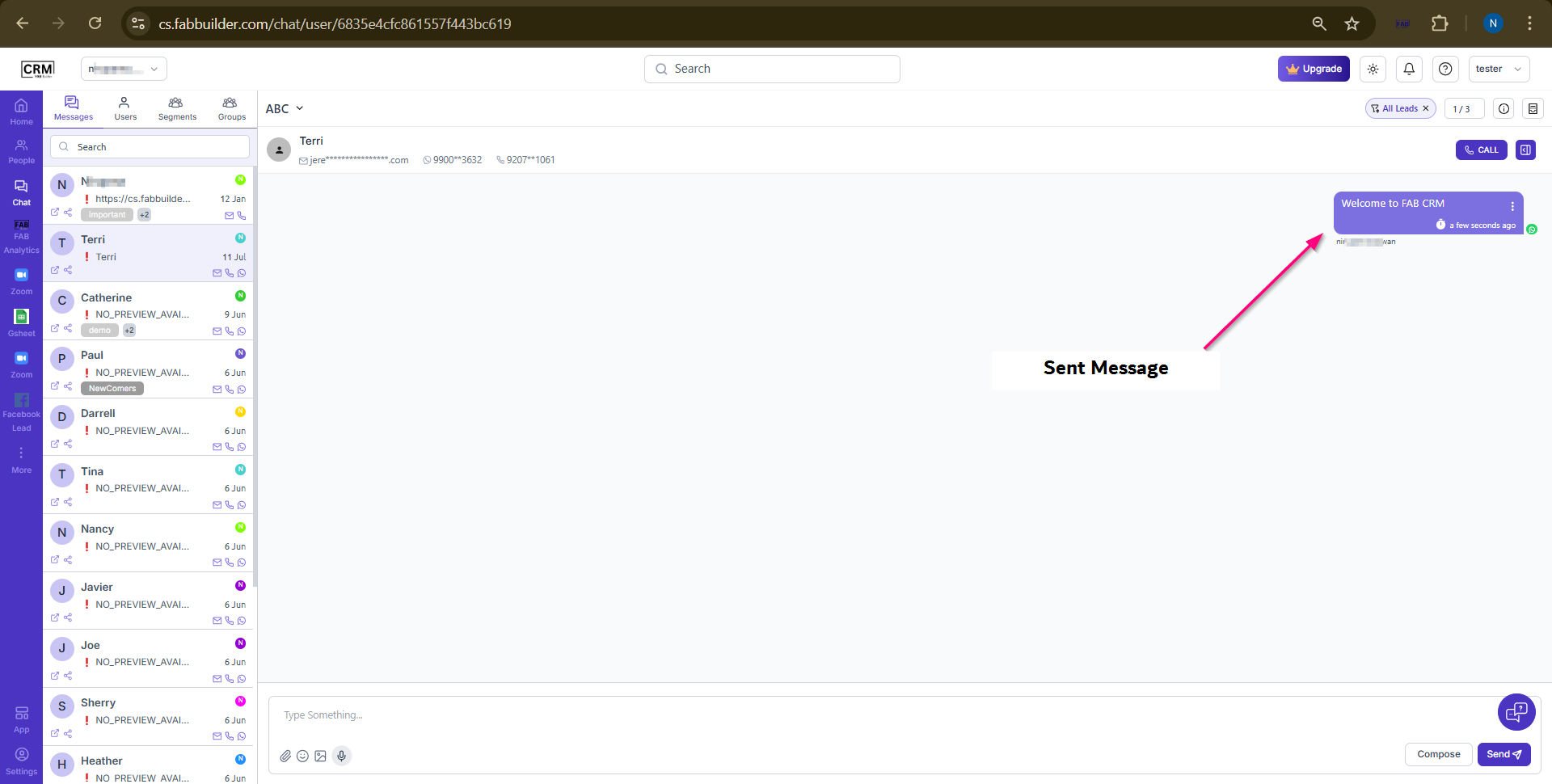
Screen- Message sent