Communication Summary
Overview
The Summary is an AI-generated brief of all communication with a selected user.
This feature allows users to quickly understand interaction history with a selected contact using the prompt box. Instead of manually reviewing all messages, users can generate a quick summary of communication. It highlights the most important points from messages, so you don’t have to read the full conversation.
This feature enhances productivity and helps users make informed communication decisions efficiently.
Prerequisites (Summary)
before adding the summey channel user must ensure the availibily of following details outlined below
- At least one communication channel (WhatsApp, Email, Telegram, etc.) must be configured
- User/Lead data should be available in CRM
- Communication (messages/interactions) must exist for the selected user
- User should have access to the Chat → Users section
Add Summary Under Coomunication Channel (Summary Channel)
User must log in to https:/cs.fabbuilder.com/ to before adding the channel and follow the step outlined below.
- Goto app/setting.Here app module is selected
- Go to Communication Channels in CRM
- Click on Add Channel
- Select Summary Channel
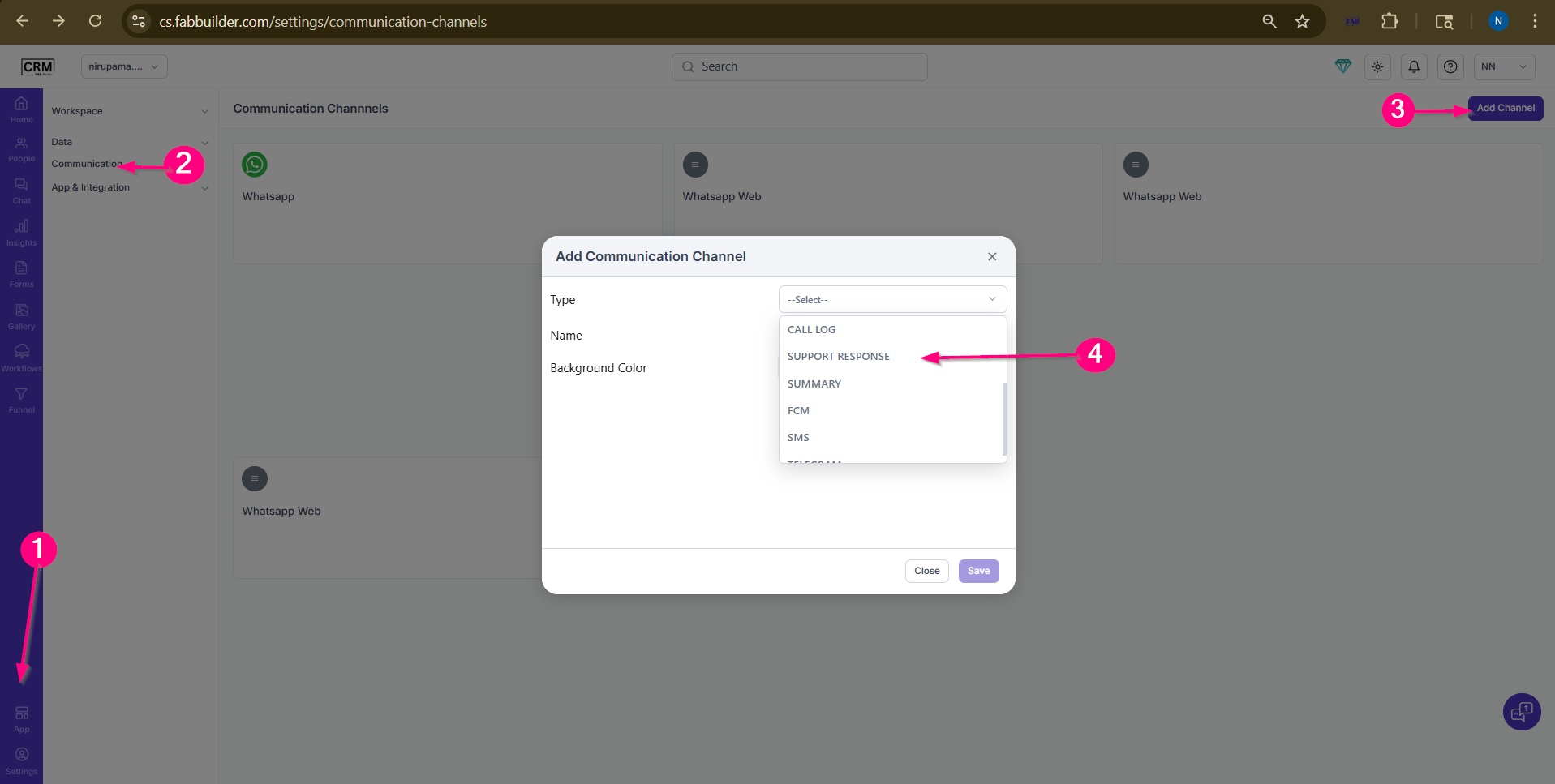
Screen-Steps to Add Summary Channel
5.Select the name of the summary channel.
6.Click on save button.
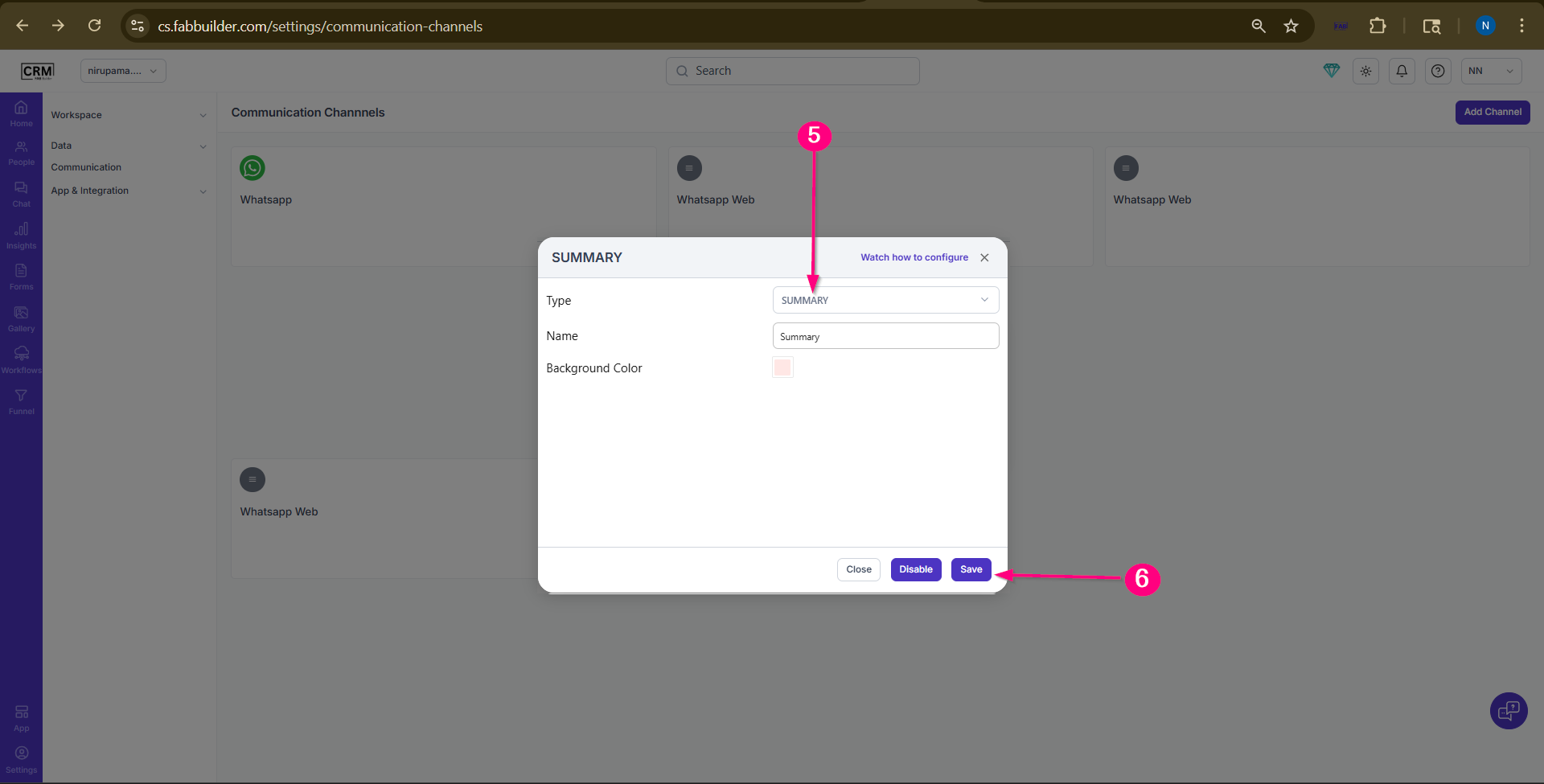
Screen- Summary Channel is Enabled
The Summary Channel will be automatically enabledIt will appear in the Channel ListThe channel will be visible in the Chat Module
Steps to Get Communication Summary
- Login to CRM
- Open CRM (cs.fabbuilder.com) and log in with your credentials.
- Navigate to Chat Module
- From the left-side menu, click on Chat.
- Select Users Tab
- Click on the Users tab to view all contacts.
- Choose a User
- Select any user from the list (e.g., Anita).
- The chat panel and user details will open.
- Locate the Prompt Box
- Scroll to the bottom of the chat screen and find:
- “Ask anything about this data…”
- Enter Summary Query
- Type a query such as:
- “Show communication summary”
- “Summarize all messages”
- “What is the last interaction?”
- Click Submit
- Click on the Submit button.
- View the Output
- The system will generate and display a communication summary based on available data.
What Information You Get
- Summary of past conversations
- Last interaction details
- Key highlights from communication
- Insights based on message history
Use Cases
- Quick review before contacting a user
- Understanding customer history
- Saving time from reading full conversations
- Preparing for follow-ups
⚠️ Important Notes
- This feature works only if communication data is available
- If no interaction exists, the system may display:
- 👉 “No messages yet”
- Output depends on the data and configured communication channels