Smallcase Integration with FAB CRM
Overview
Smallcase integration enables the CRM to connect with investment portfolios and stock-based products.
It allows businesses to manage and track user investment-related activities directly within the CRM, ensuring a structured, efficient, and seamless experience.
Prerequisites
Ensure the following before starting the integration:
- Active Smallcase account
- Access to Smallcase API services
- API credentials
- Admin access to FAB CRM
- Stable internet connection
Important Note (Credentials)
All required credentials (Auth ID, Auth Token, Client Secret) are generated after Smallcase account setup and API access approval.
- Use testing credentials (if available) for initial setup
- Use production credentials for live usage
Credentials Required
Enter the following details during configuration:
- Auth ID
- Auth Token
- Client Secret
How It Works
- User performs an action related to investments (e.g., selects a portfolio)
- CRM sends a request to Smallcase
- Smallcase processes the request
- Response is returned to CRM
- CRM displays the result or relevant information
Flow:
User Action → CRM → Smallcase → Response → CRM Display
Configuration Steps
After successfully logging in to the CRM system, follow the steps below to configure Smallcase:
- Navigate to the App module
- Go to: Workspace → App & Integration → App
- Search for Smallcase.Click on Configure.
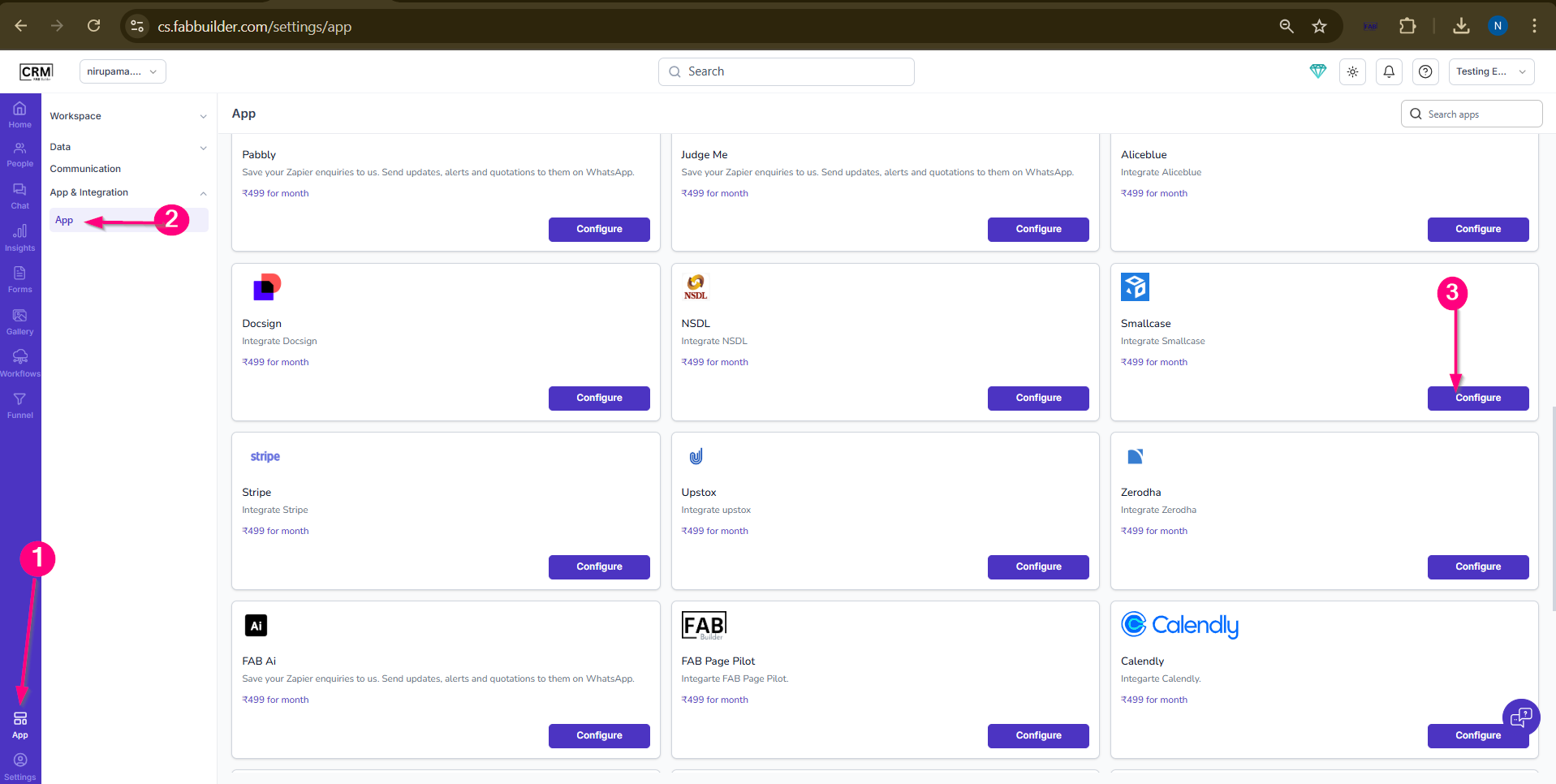
Screen- Flow to Access App
4.Enter the required details:
- Name (default: Smallcase)
- Auth ID
- Auth Token
- Client Secret
- (Optional) Enable Pin in Left Menu
5.Click on Save.
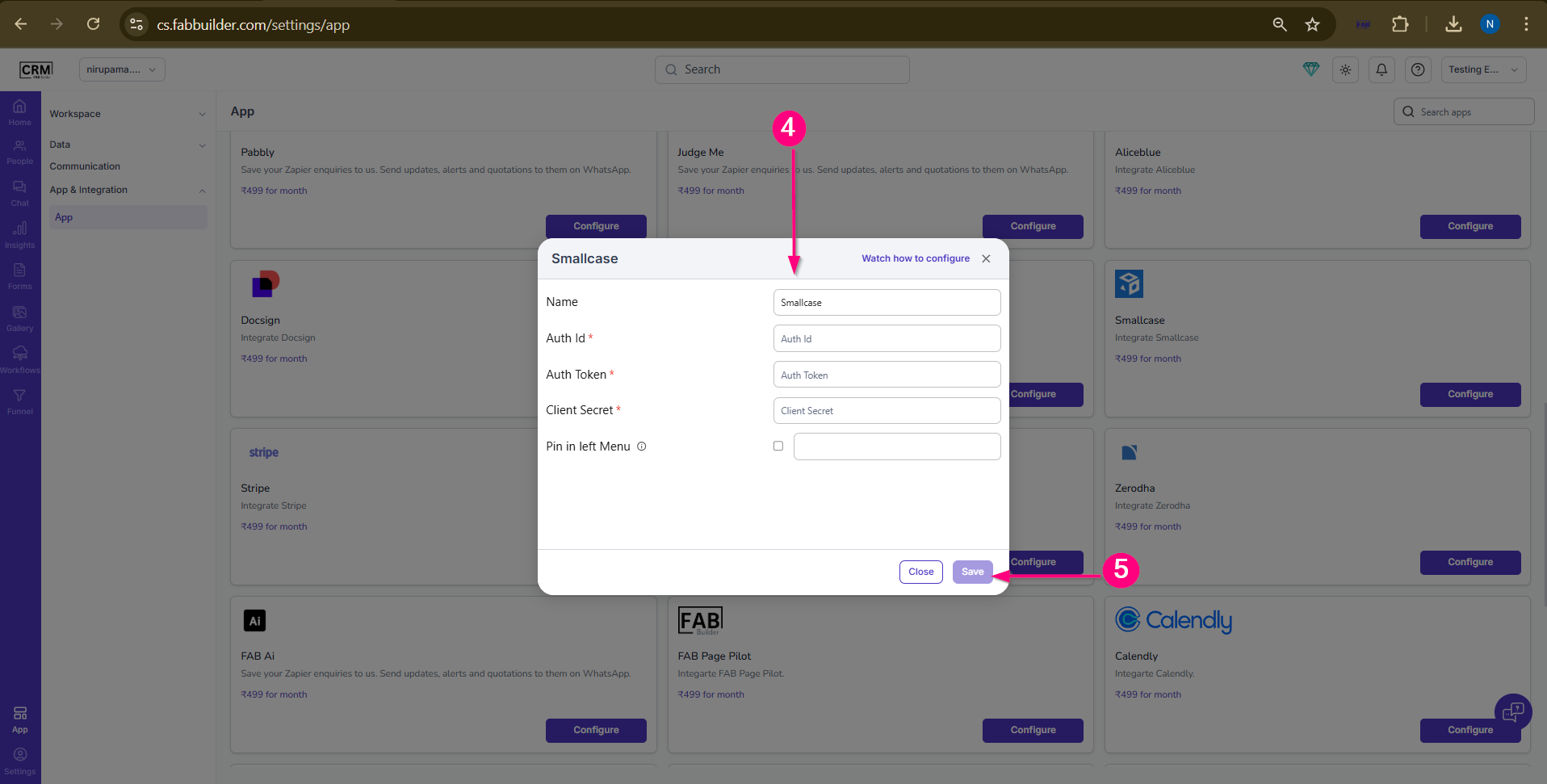
Screen- Configuring App
Validation Outcome
After completing the configuration:
- The system validates the entered credentials
- If credentials are correct, the integration is activated
- If credentials are incorrect, validation fails
- Once validated, users can start using Smallcase features