Razorpay Integration Documentation
Overview
Razorpay is a payment gateway used to accept online payments through multiple methods such as credit card, debit card, UPI, net banking, and wallets. Integrating Razorpay with FAB CRM enables businesses to collect payments directly from customers and track transactions efficiently.
Prerequisites
Before starting the integration, ensure the following:
- Active Razorpay account
- Access to Razorpay Dashboard
- API Key ID and Key Secret
- CRM (FabBuilder) access with admin permissions
Required Credentials
The following credentials are required for integration.
- Key ID – Public key used to initiate payment
- Key Secret – Private key used for authentication
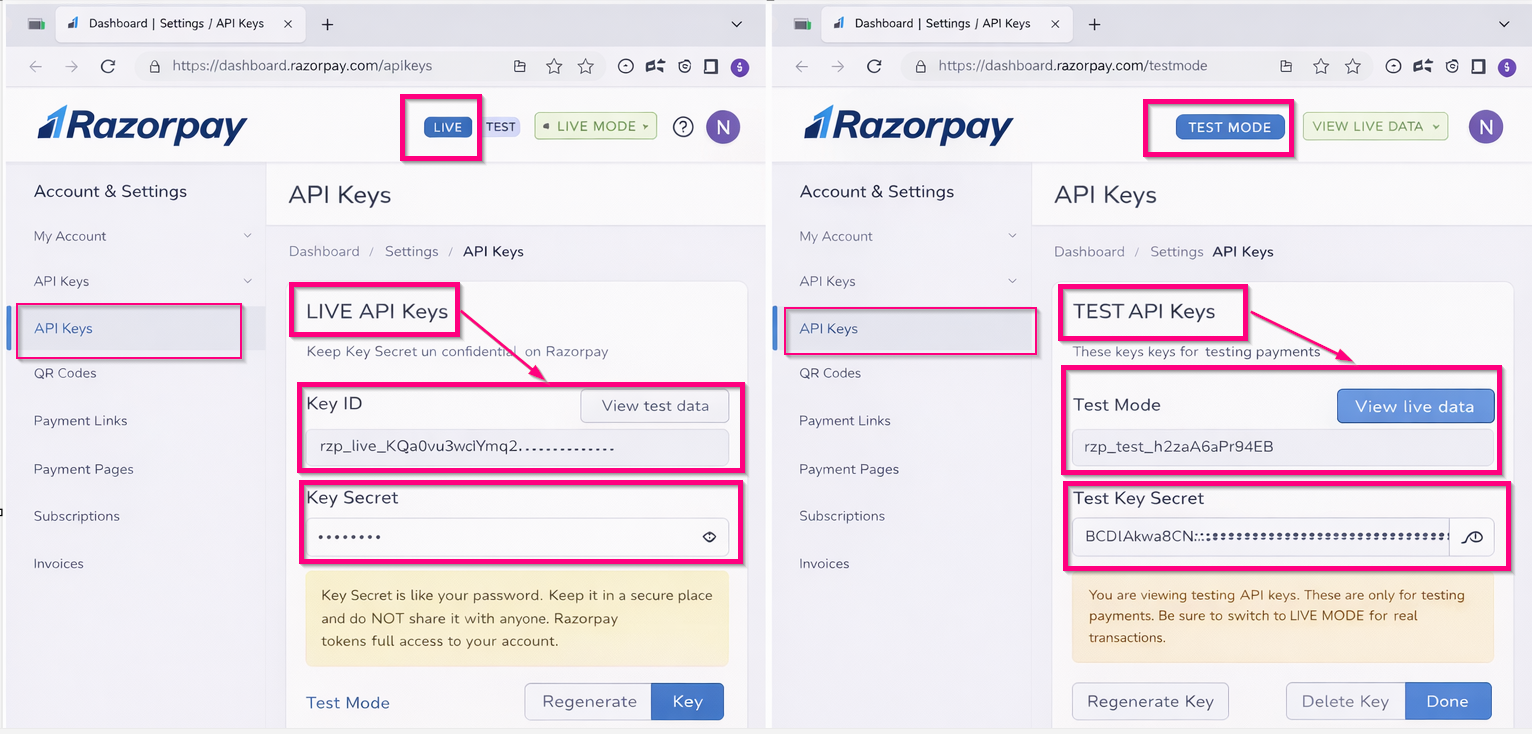
Screen- Razor Pay Key Secret
- Webhook/Callback URL (Provided by CRM)-CRM automatically provides a Callback URL.

This URL is used during payment processing and need to be pasted webhook section within razor pay.
- Webhook Secret – Used to verify payment events.(e.g. qwerty )
- Environment Selection
- Test Mode (for testing)
- Live Mode (for production)
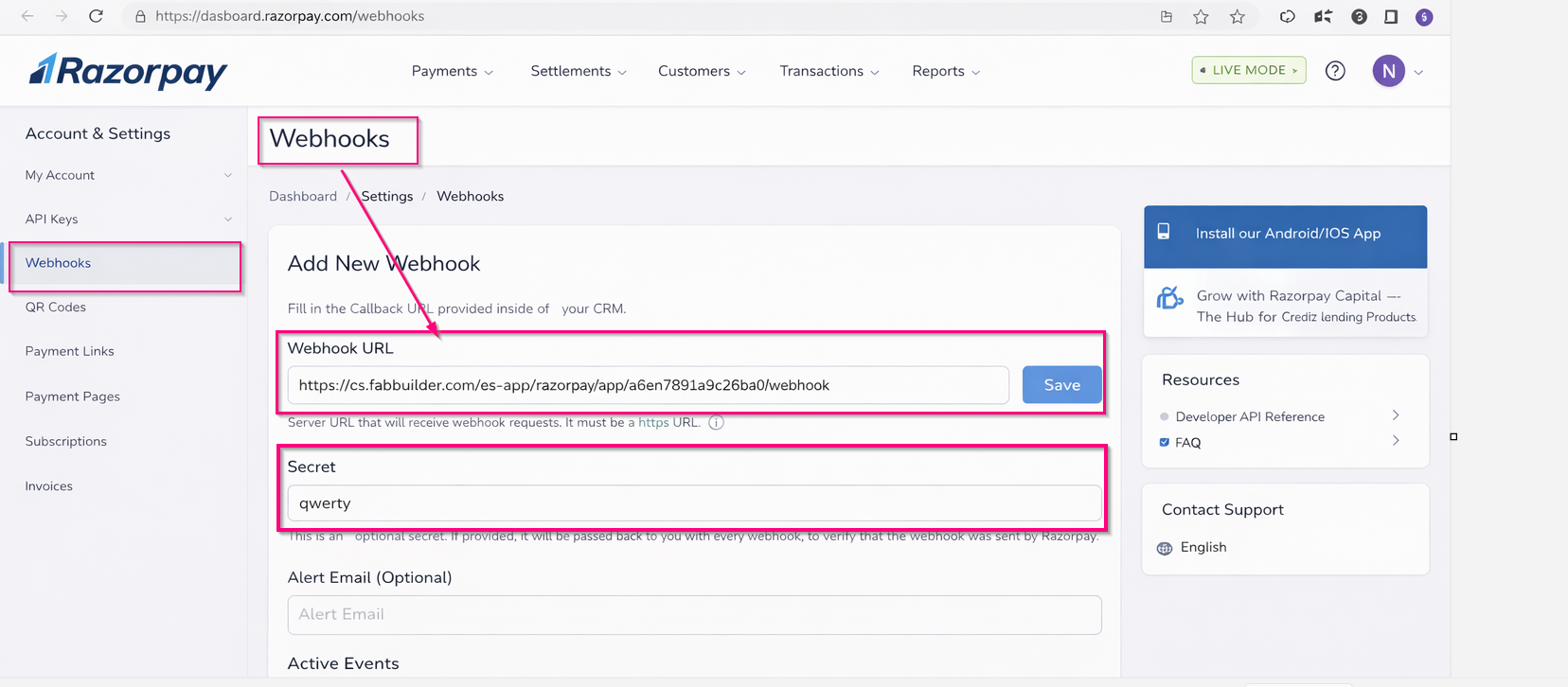
Screen- Webhook Configuration
CRM Configuration Steps
After successful log in user follow the steps outlined below
- Go to App module
- Navigate to workspace →App & Integration
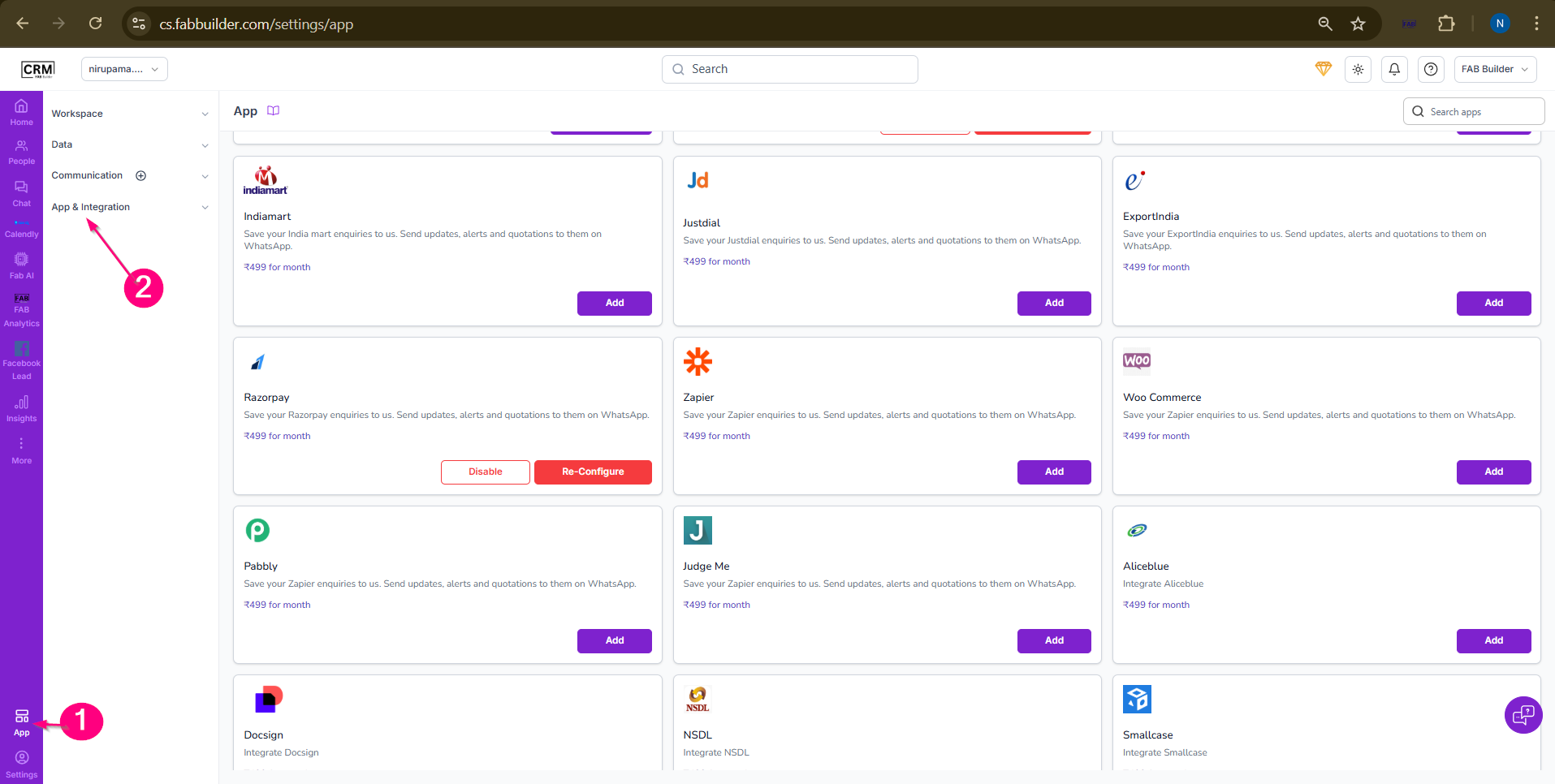
Screen- Step to Access Razorpay
3.Click on App
4.Search and select Razorpay.Click on Configure.
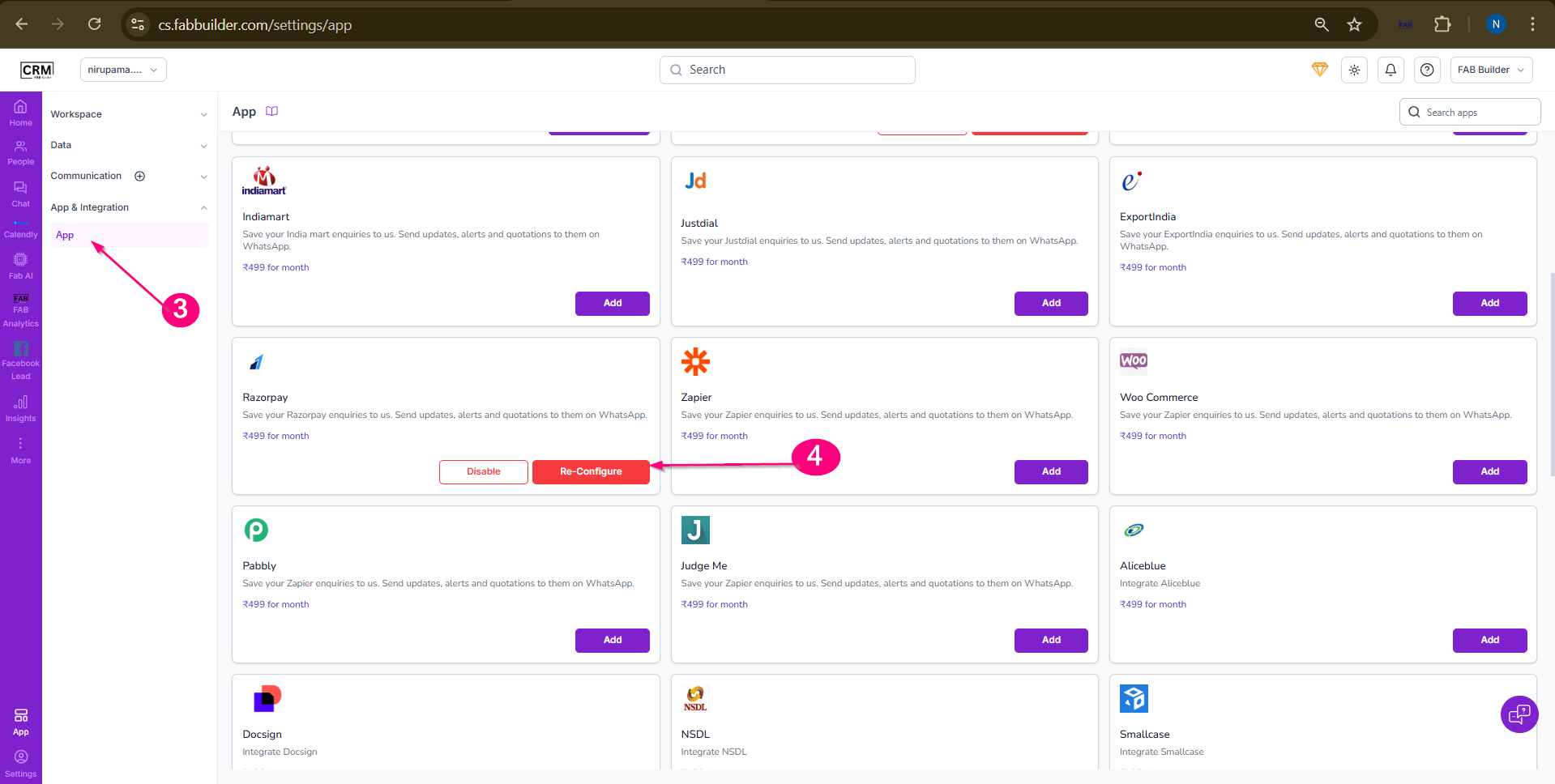
Screen- Step to Access Razorpay
5.Enter the following details:
- Key ID
- Key Secret
- Select Environment (Test/Live)
6.Click Save
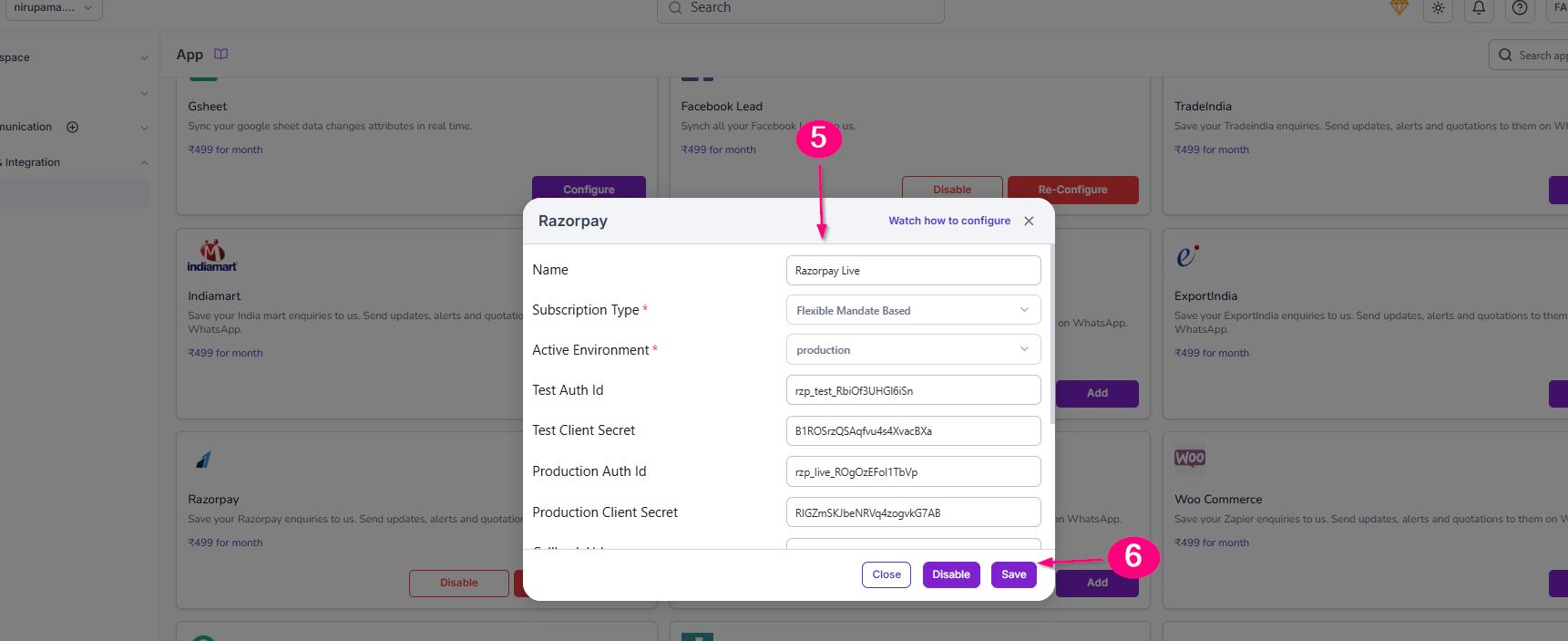
Screen- Razor Pay Updated details
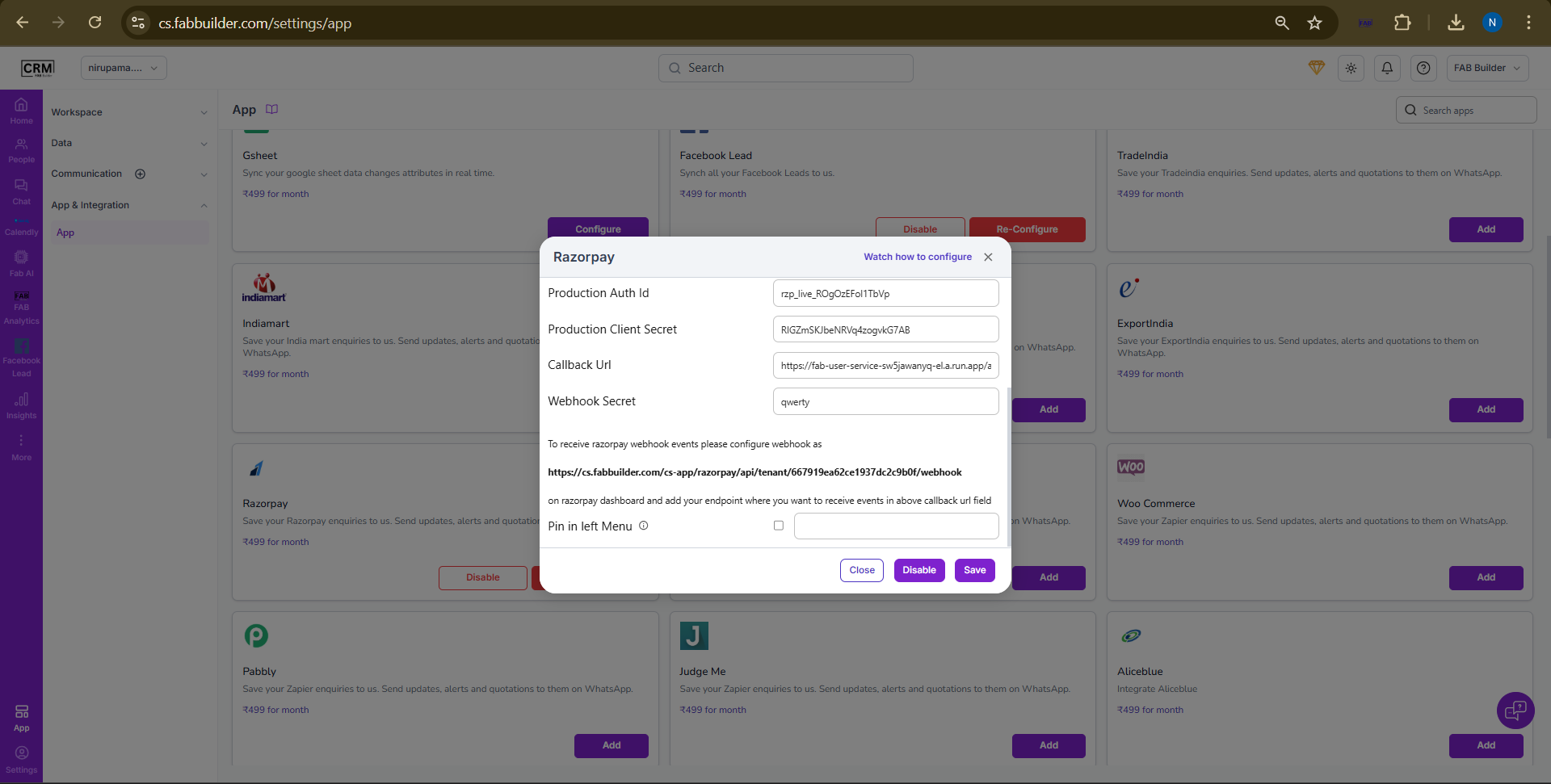
Screen- Razor Pay Updated details
Verify successful configuration message.
Steps to Generate API Keys
- Login to Razorpay Dashboard
- Navigate to Settings → API Keys
- Click on Generate Key
- Copy:
- Key ID
- Key Secret
5.Save these credentials securely
Webhook Configuration
Webhooks are used to receive payment updates automatically.
Steps:
- Go to Razorpay Dashboard
- Navigate to Settings → Webhooks
- Click on Add New Webhook
- Enter:
- Webhook URL (Provided by CRM, e.g. FabBuilder webhook URL)
- Select events:
- payment.captured
- payment.failed
- order.paid
- Enter Webhook Secret
- Click Save
How It Works
- Customer initiates payment from CRM or payment link
- Razorpay processes the payment
- Payment status is sent to CRM via webhook
- CRM updates payment status automatically
Testing
- Use Test Mode credentials
- Perform dummy transactions using Razorpay test cards/UPI
- Verify:
- Payment status updates in CRM
- Webhook is triggered successfully
Notes
- Always use Test Mode before going live
- Keep API credentials secure
- Ensure webhook URL is correctly configured
- Switch to Live Mode after successful testing