The IndiaMART integration connects the seller’s IndiaMART account with their CRM account. Once activated and configured, enquiry leads generated on IndiaMART are automatically synced into the CRM for centralized management.
IndiaMART–CRM integration enables automatic transfer of buyer inquiries from IndiaMART seller account to CRM system.
Push Pull Type Integration
There are two ways bussiness team can connect IndiaMart account with Client's Fab Builder CRM account.
- Pull Integration: CRM periodically fetches new leads from IndiaMART.
- Push Integration: IndiaMART sends new leads to CRM via webhook on real time.
This ensures real-time lead management, better tracking, faster response, and improved sales conversion.
Lead Data Synced from Indiamart Integration
IndiaMart integration can fetch all types of leads as mentioned below.
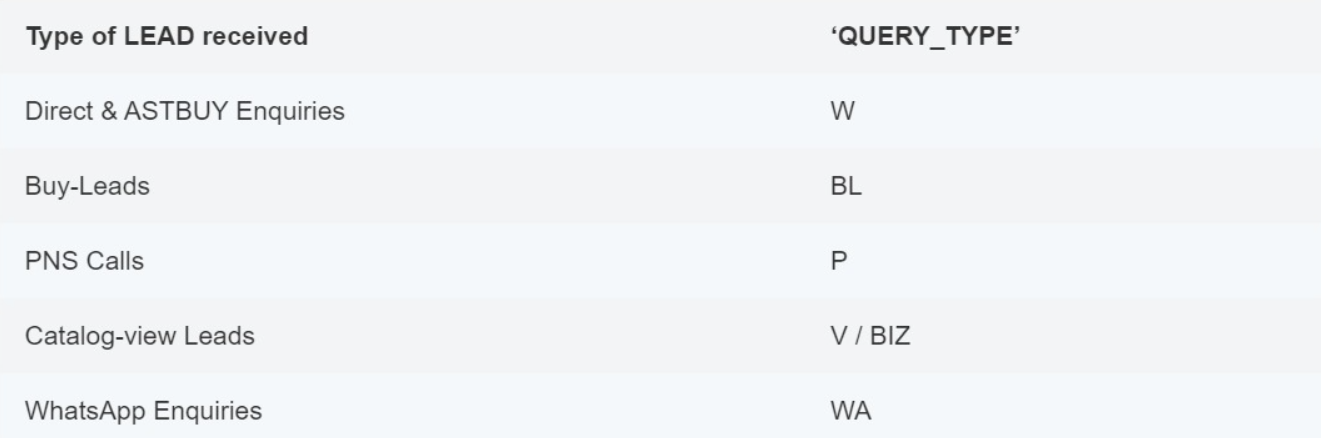
Screen- Lead Data
The IndiaMART integration supports all lead types generated on the IndiaMART platform.
The leads created in FabBuilder CRM will include a field called QUERY_TYPE, which helps identify how the enquiry was generated on IndiaMART.
This value is assigned by IndiaMART and passed through the API during lead synchronization.
For example:
- If a buyer (called lead)submits a direct enquiry from sellers product or seller page, the QUERY_TYPE may appear as a specific code (such as “W”), representing a Direct Enquiry as shown in screen (above).
- If the enquiry originates from a Buy Lead, it may carry a different QUERY_TYPE value by BL.
These codes help in distinguishing the source and type of lead inside the CRM for better filtering, reporting, and lead management.
Pre-Requisites
Before configuring IndiaMART integration, ensure the following:
- Active IndiaMART Seller Account-The user must have a valid seller account on IndiaMART.
- CRM/API Access Enabled on IndiaMART-CRM Key generation or Push API access must be available in the IndiaMART seller panel.(This may require activation from IndiaMART support.)
- IndiaMART Credentials
- Registered Mobile Number linked with IndiaMART
- CRM Key (for Pull Integration)
- Secret Key (for Push Integration)
4.Admin Access in FabBuilder CRM-User must have permission to configure integrations.
5.Stable Internet Connection
Pull Integration Steps
Configure Pull in FabBuilder CRM
After completing all the prerequisites, the user can proceed with the following steps to configure and enable India mart pull type integration for pulling the lead details within the CRM .
1.Go to App section/setting section on side blue bar. This will open the list of subsection.
2.Select App and integration and select app tab.
3.Select Indiamart to the right panel of app section dashboard.After the click new screen of congfiuration will pop up.
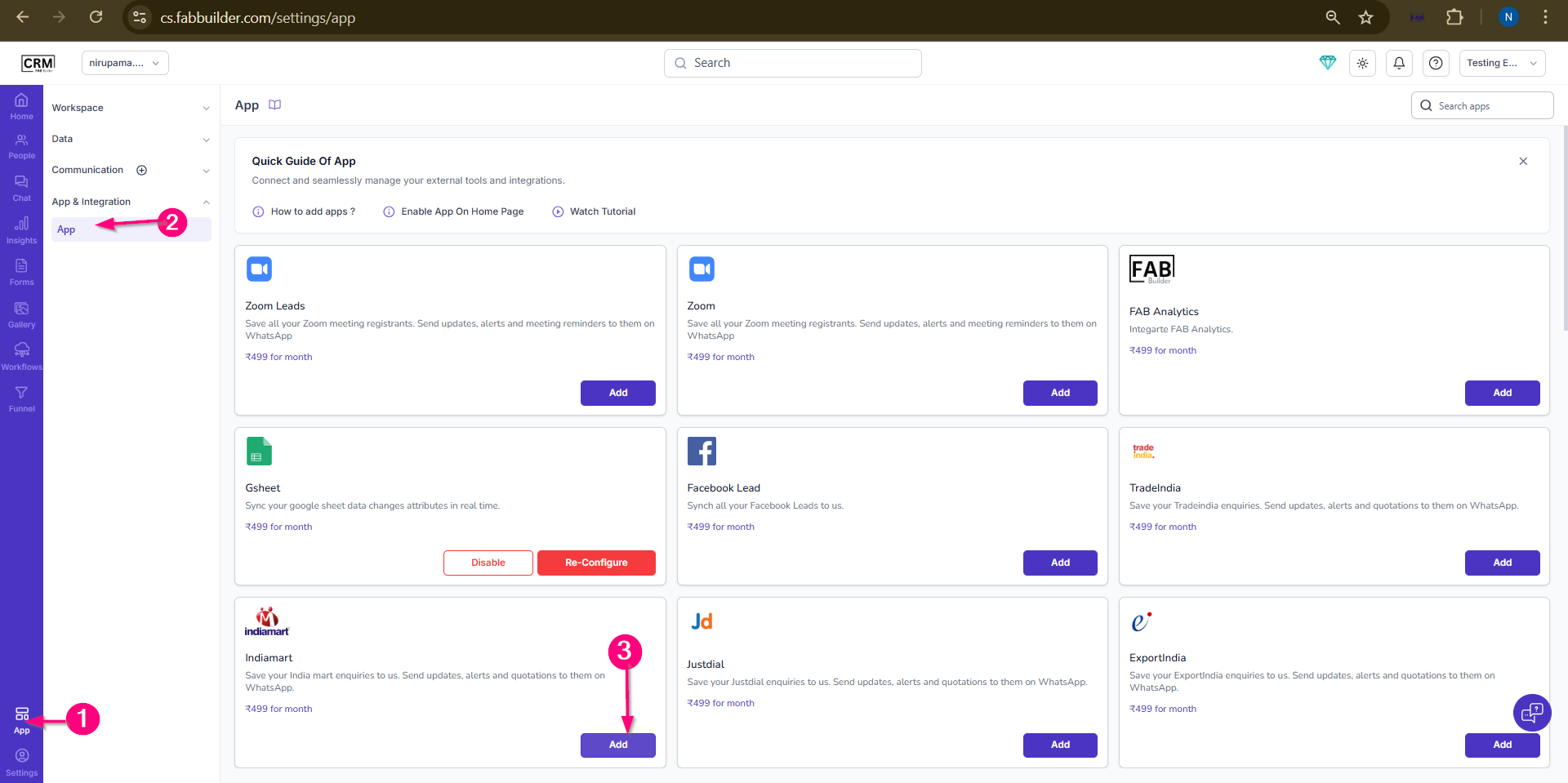
Screen- India mart Access
4.Fill all details as follows
- Enter app name IndiaMart
- Select integration type ( i.e., Pull type)
- Add phone number
- Enter API keys generated from indiamart account.
- Select the mapping field
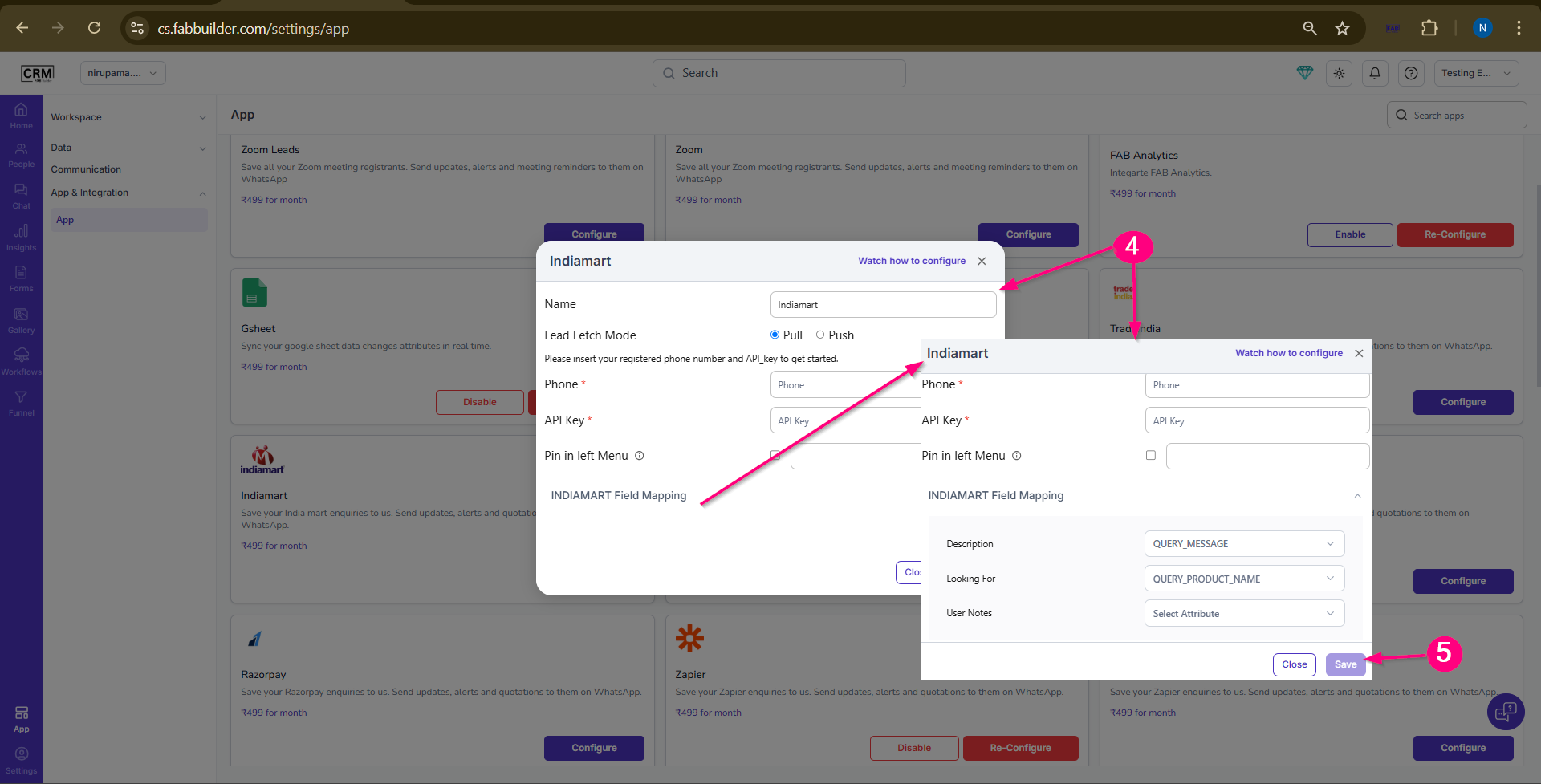
Screen- App Configuration
4.Click on save button.
Leads will now be fetched periodically from IndiaMART into CRM.
Validate the lead data Pulled from CRM into Indiamart
Generate CRM Key from IndiaMART
- Login to IndiaMART Seller Panel
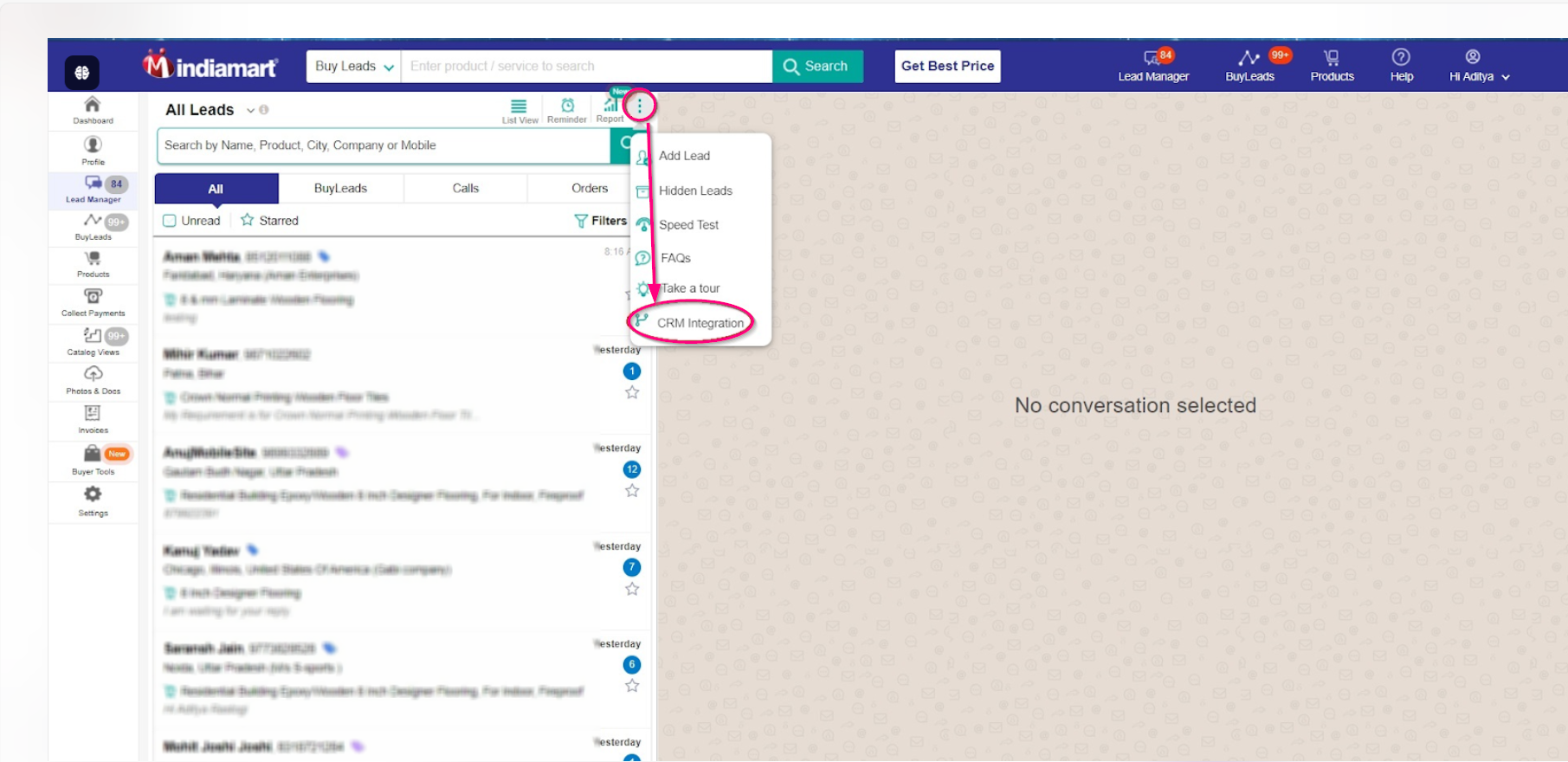
Screen- Sign in
2.Navigate to Settings
3.Click on CRM Key Generation
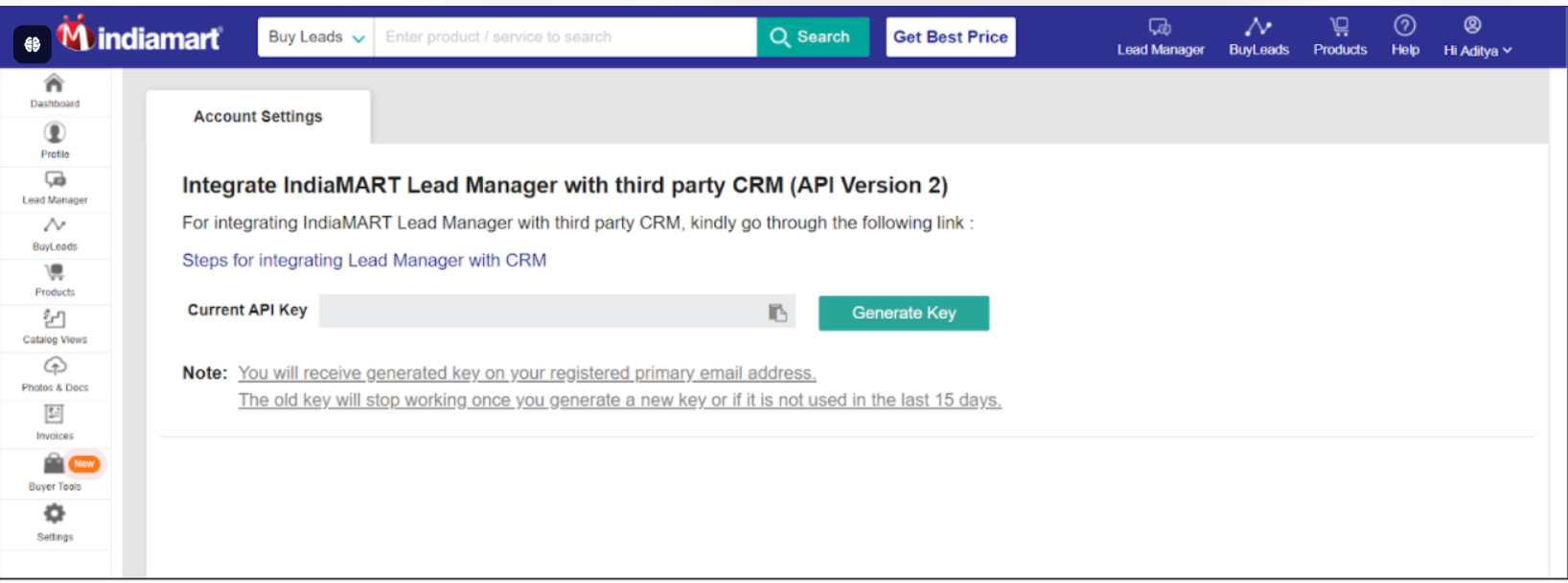
Screen- Generate Key
4.Click Generate Key
5.Copy the generated key and paste it into CRM configuration screen.
Push Integration Steps
Configure Push in FabBuilder CRM
After completing all the prerequisites, the user can proceed with the following steps to configure and enable India mart pull type integration for pulling the lead details within the CRM .
1.Go to App section/setting section on side blue bar. This will open the list of subsection.
2.Select App and integration and select app tab.
3.Select Indiamart to the right panel of app section dashboard.After the click new screen of congfiuration will pop up.
Screen- India mart Access
4 Fill all details as follows below
- Select indiaMart and
- Select Push type integration.
- Copy the webhook url and paste it into the indiamart configuration page.
- Select field mapping
.
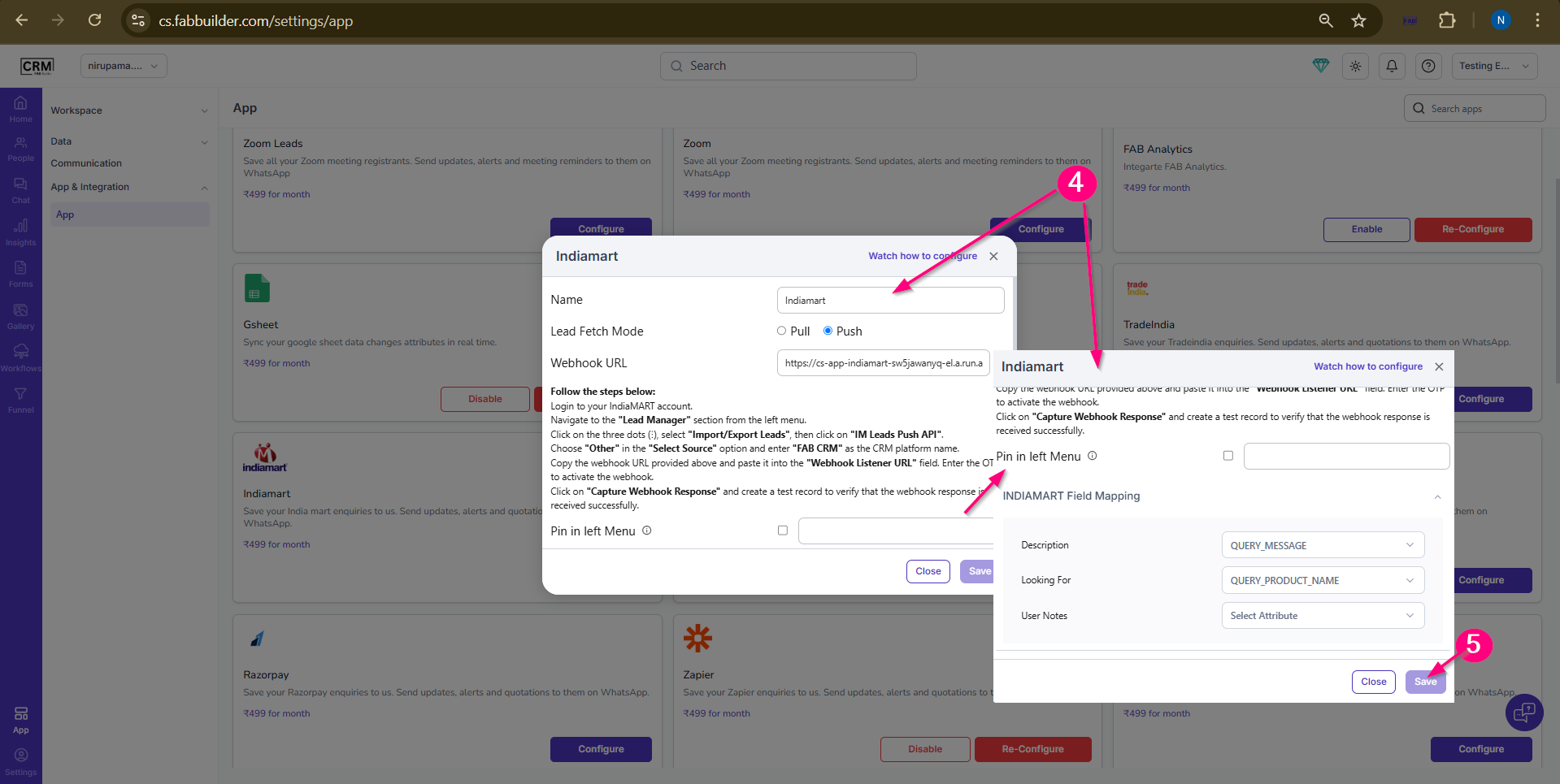
Screen- App configuration
4.Click on save button.
Leads will now be pushed on real time from IndiaMART into CRM.
Validate the lead data Push by Instamart
Generate Secret Key from IndiaMART
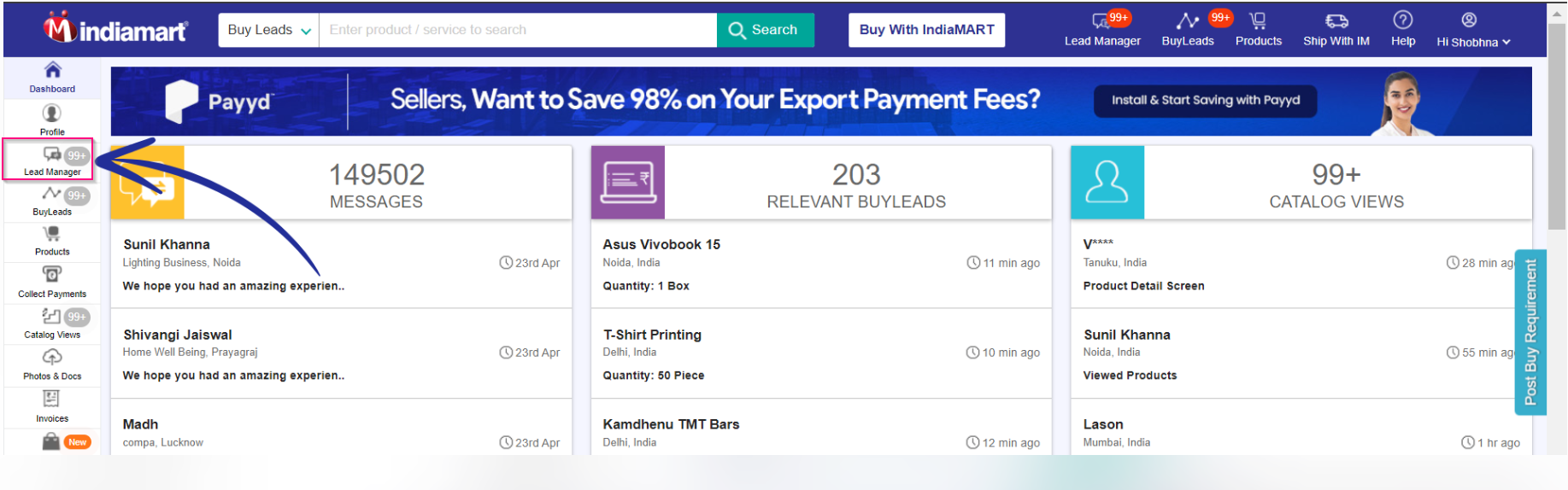
Screen- Lead Manager
- Login to IndiaMART Seller Panel
- Navigate to Lead Manager
- Select India Mart Leads Push API
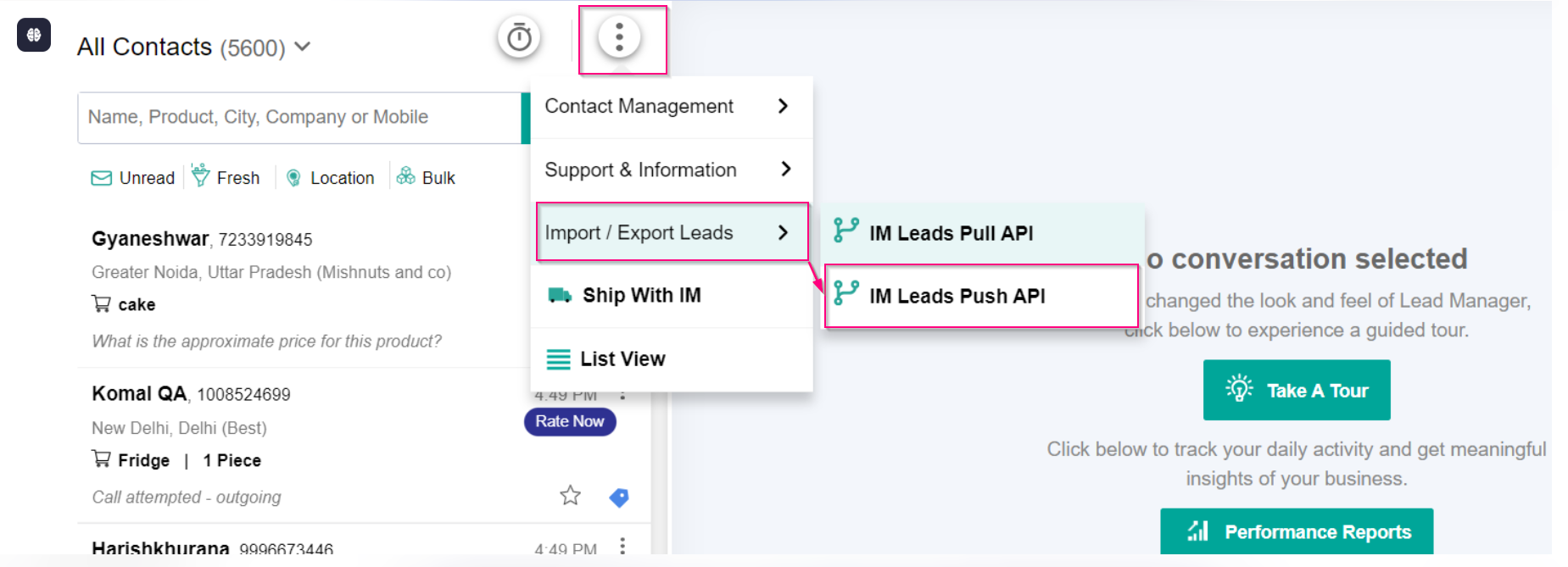
Screen- Push API
This push api step will redirect the exporting lead screen as follows.User must select the CRMplatform name fron the list.
4.Click Generate Key
5.Copy the Current Key . This key must be pasted in app configuration screen of CRM.
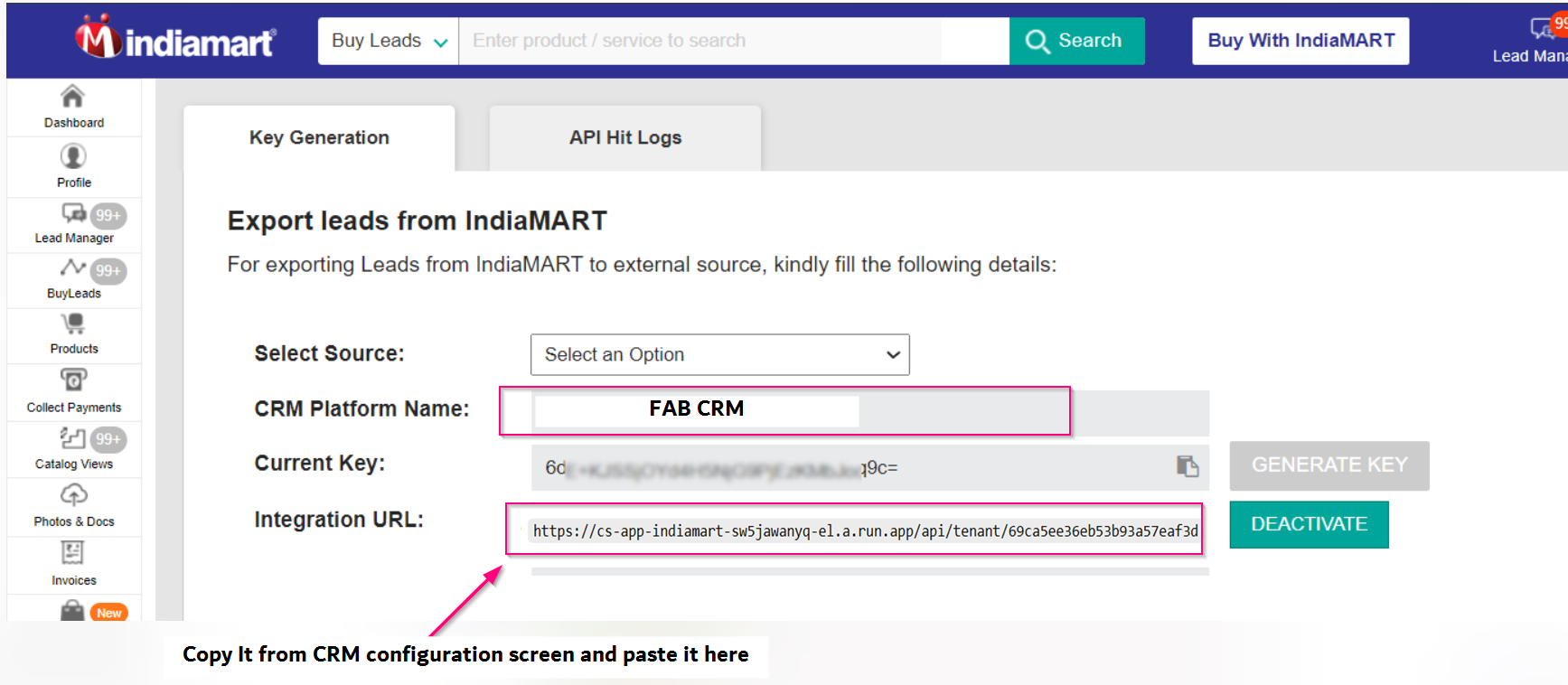
Screen- Generate key and Paste URL
Upon successful integration setup, leads generated on IndiaMART will be automatically synced and available in the CRM system