Overview Google Sheets integration allows lead data to be imported into CRM using a connected Gmail account.
Screen-Gsheet Data Import Post Integration Prerequisites
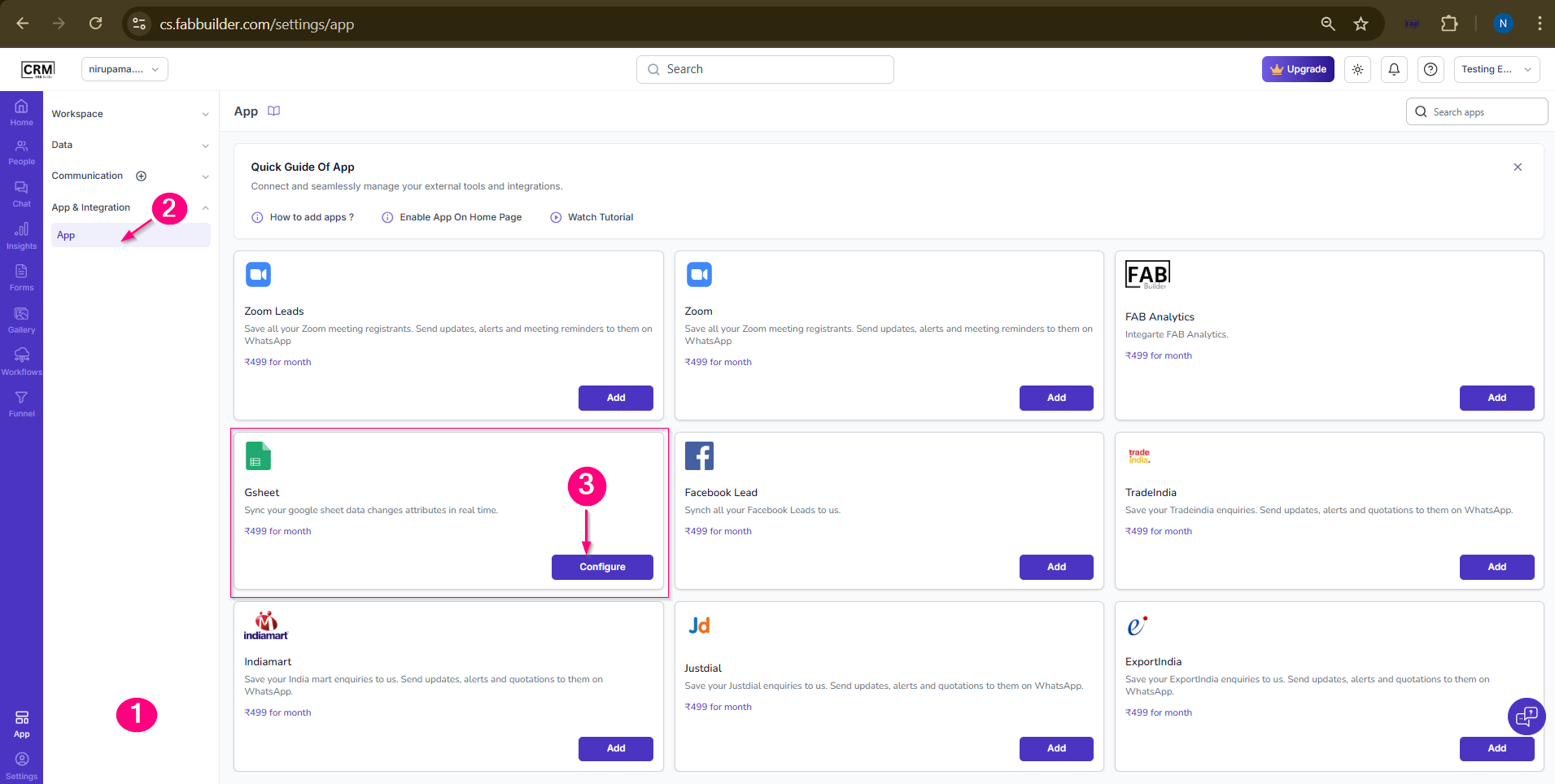
Configuration Steps After successful log in user must follow the step outlined below 1.Click on the App module from the left-side navigation bar. This will open the workspace section displaying various subsections. 2.Select App & Integration → App subsection. This will open the right-side panel displaying the list of available applications. 3.From the list, select the Google Sheets (GSheet) App and click on the Configure button to start the integration process.
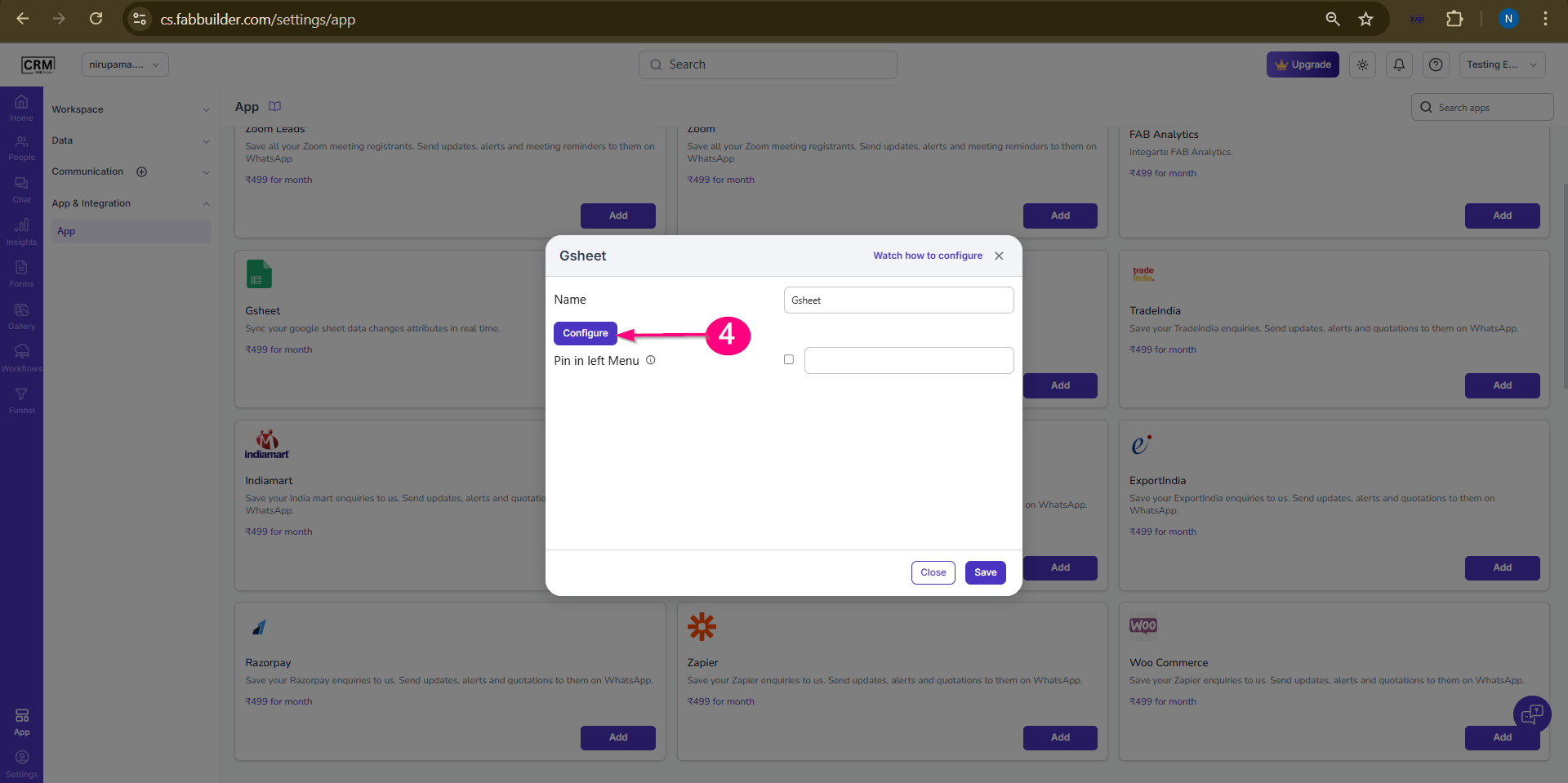
Screen - Navigation Step Gsheet app Google Sheet Configuration & Import Steps4. Click on Configure on the pop-up screen. This will redirect you to the Google sign-in page.
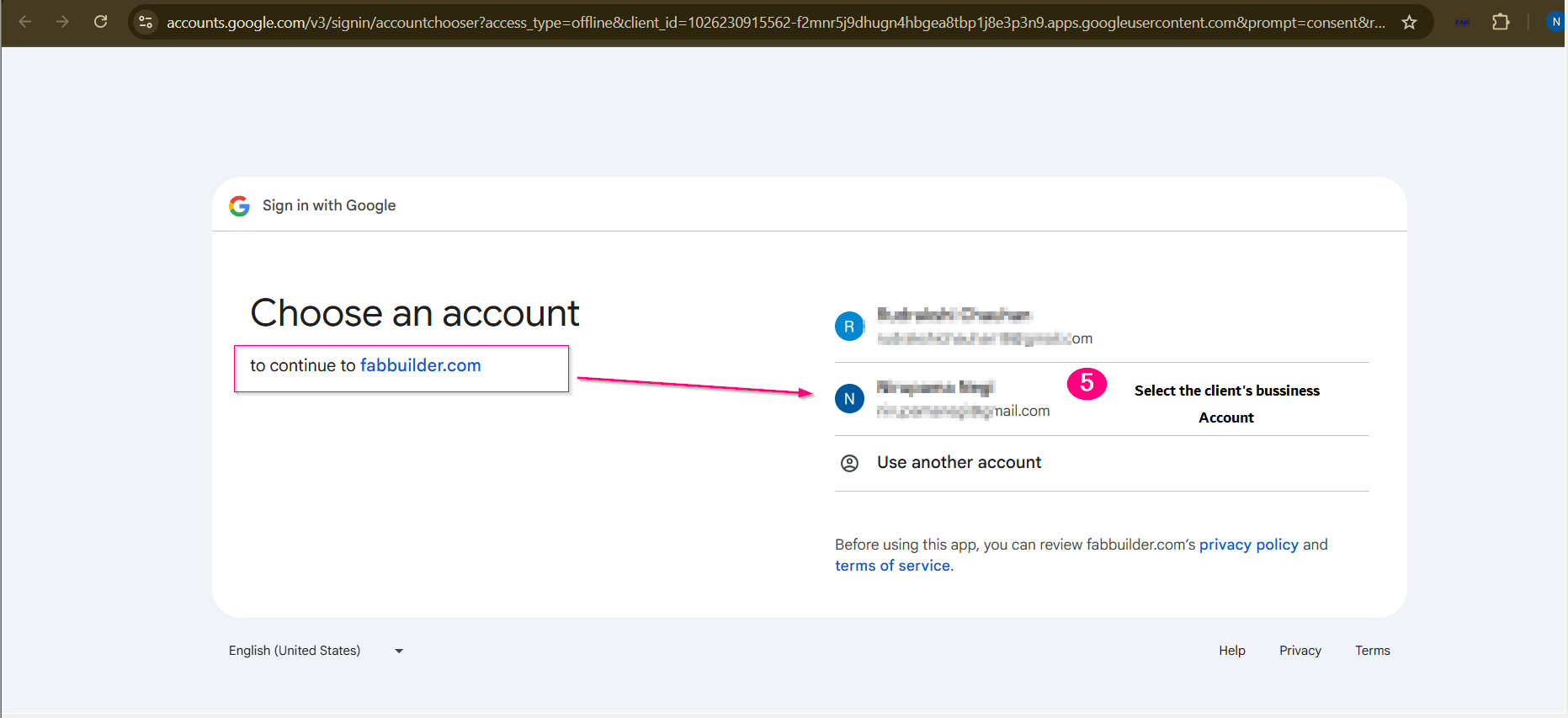
Screen- configuration Gsheet Button 5. Select your business email ID to proceed.
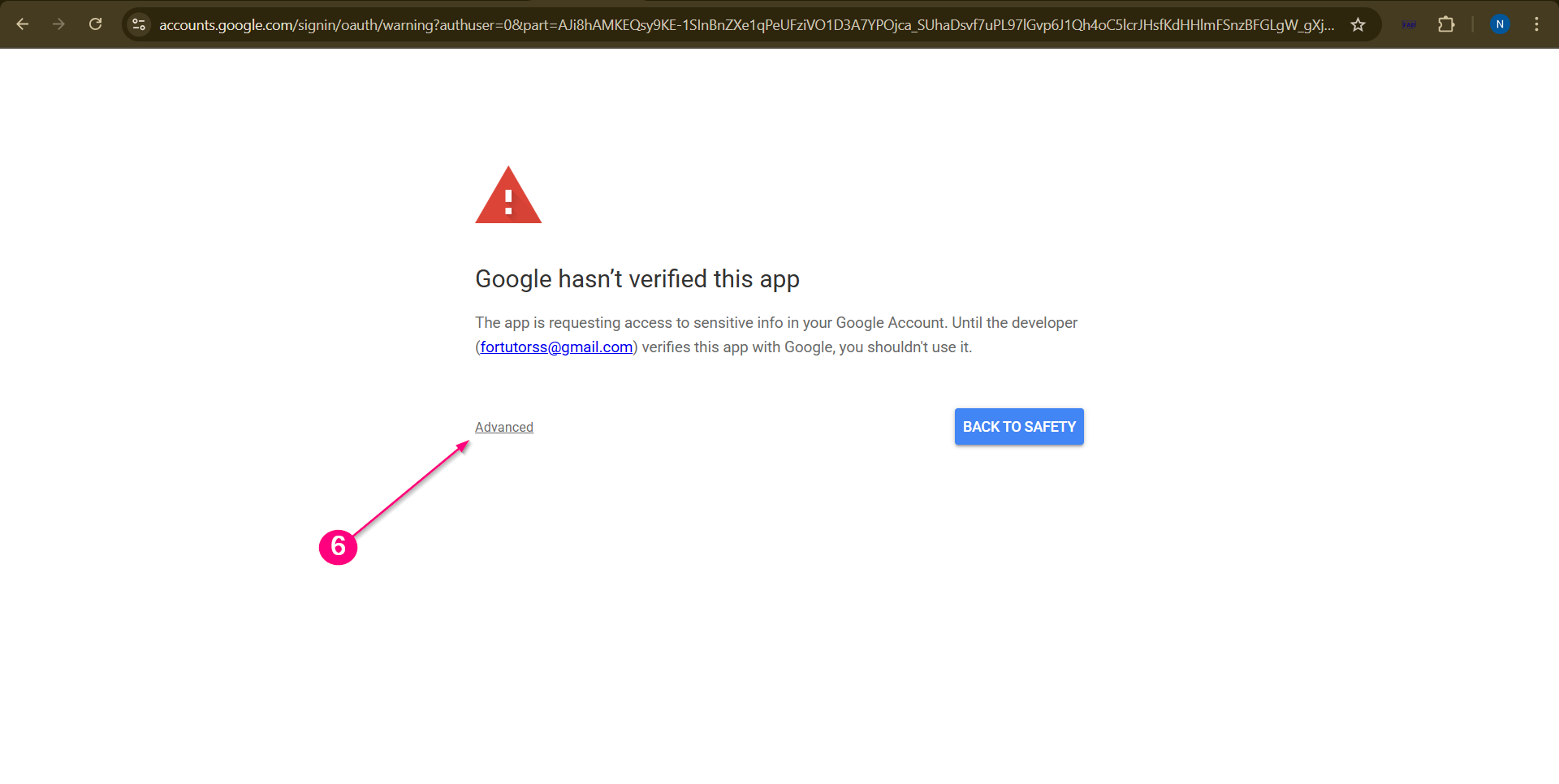
Screen- Gsheet Integration with CRM 6. Click on the Advanced option and allow CRM access to your business email account.
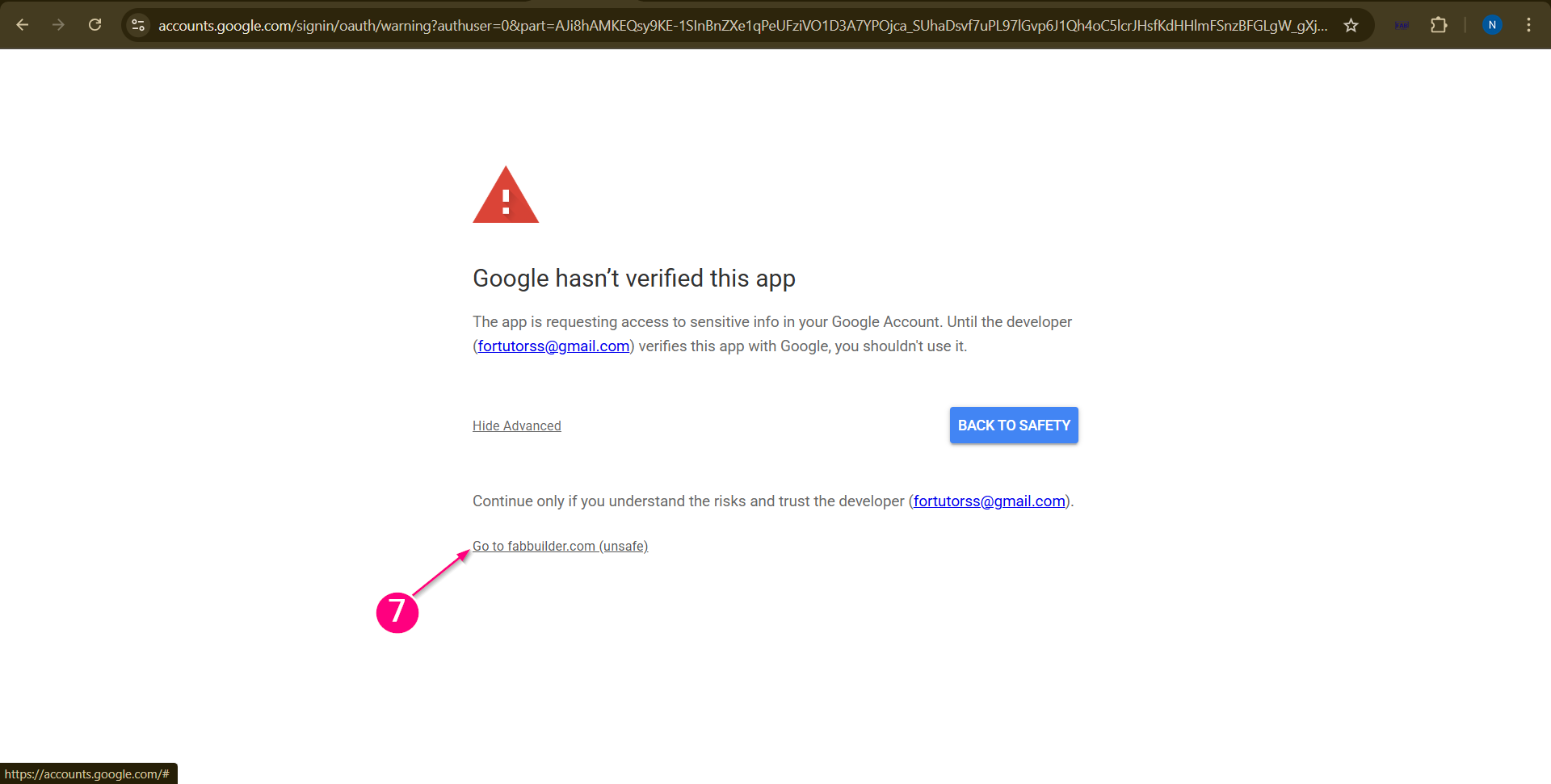
Screen- Click Advance Button to grant access Bussiness Account 7. Click on the link shown on the screen.
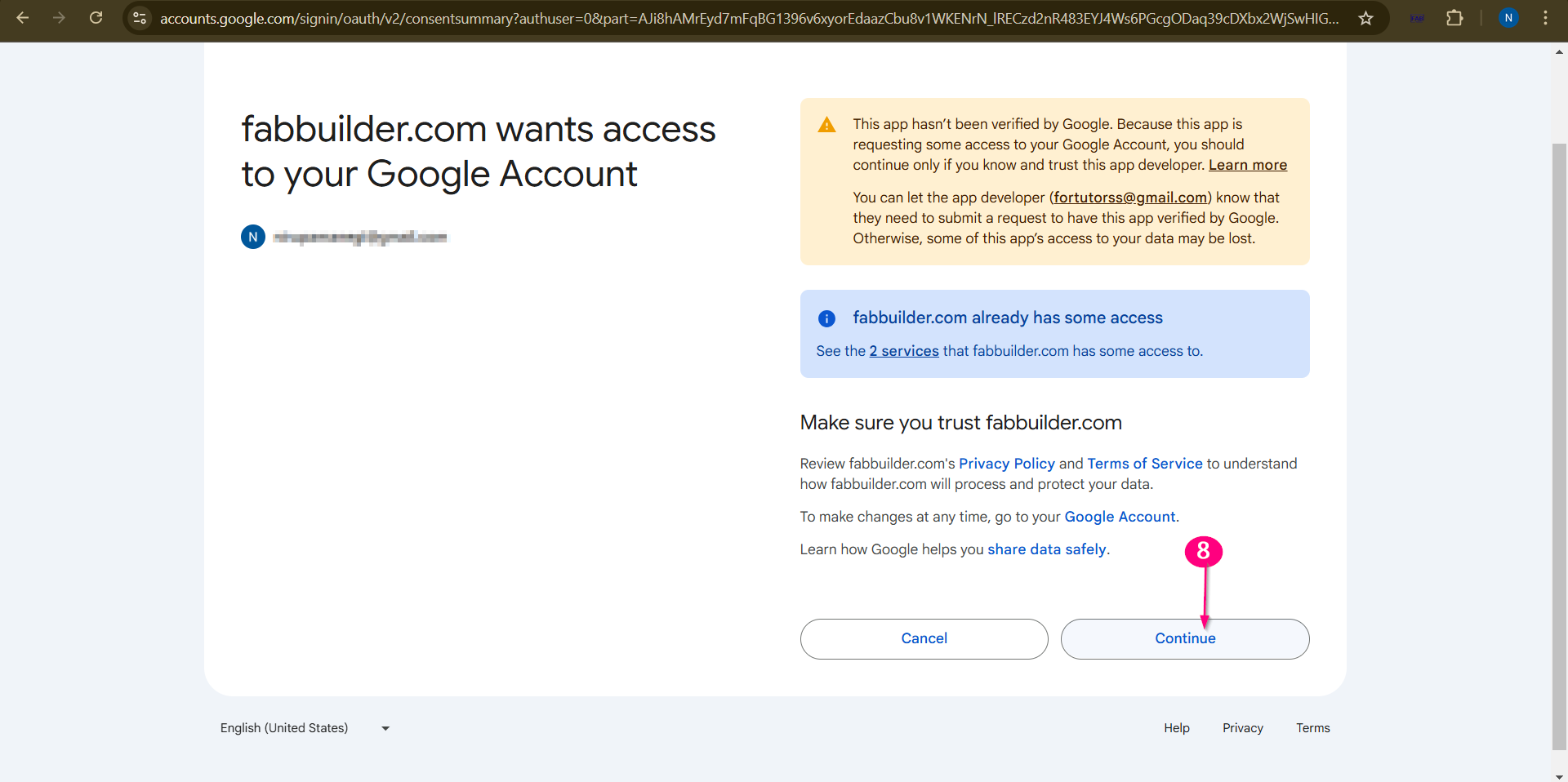
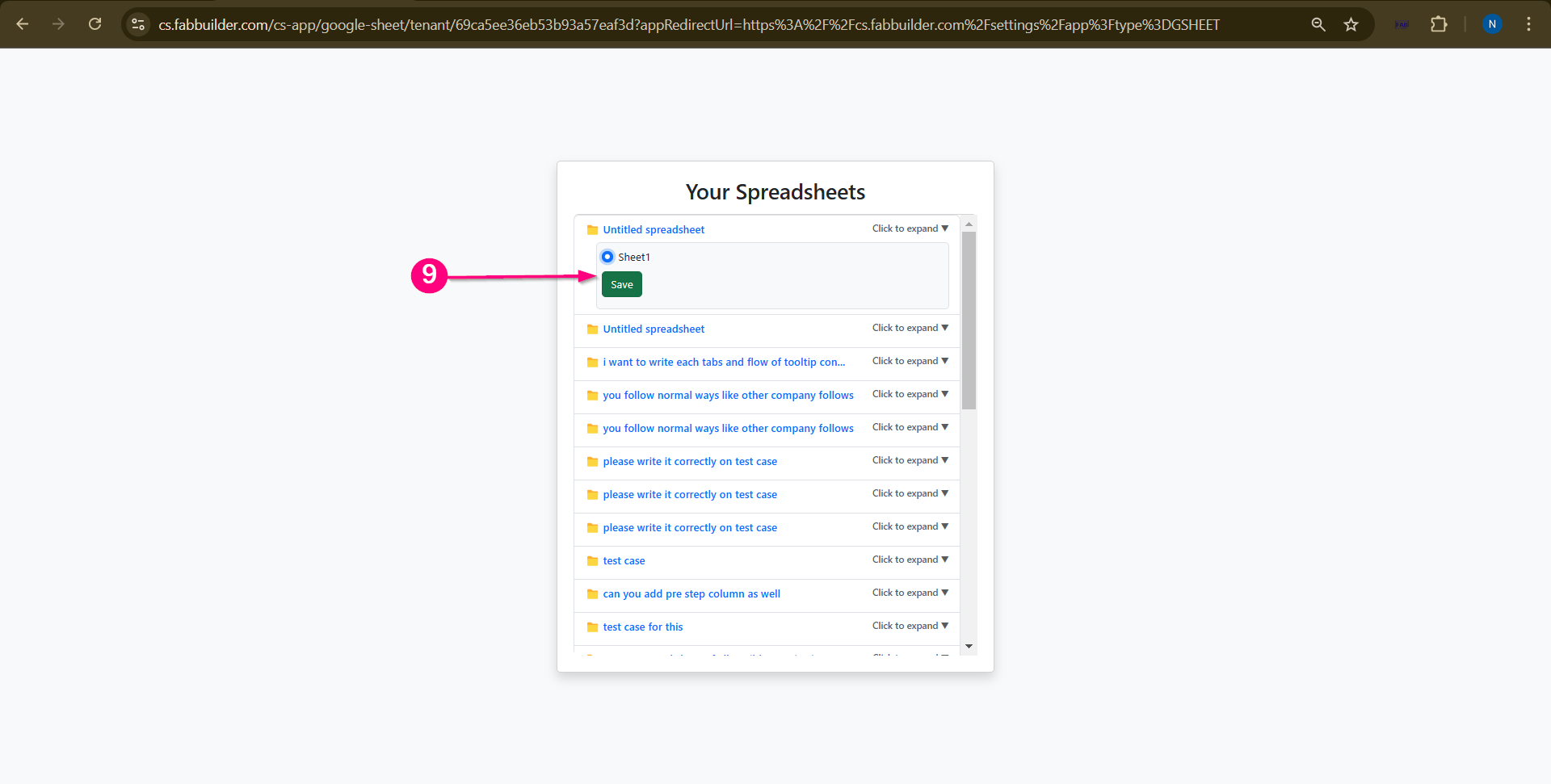
Screen-Request of access by Fabbuilder 8.Click on the Continue button. Screen- Access of Bussiness Account 9. Select the required Google Sheet (GSheet) from your email. Click on the Save button.
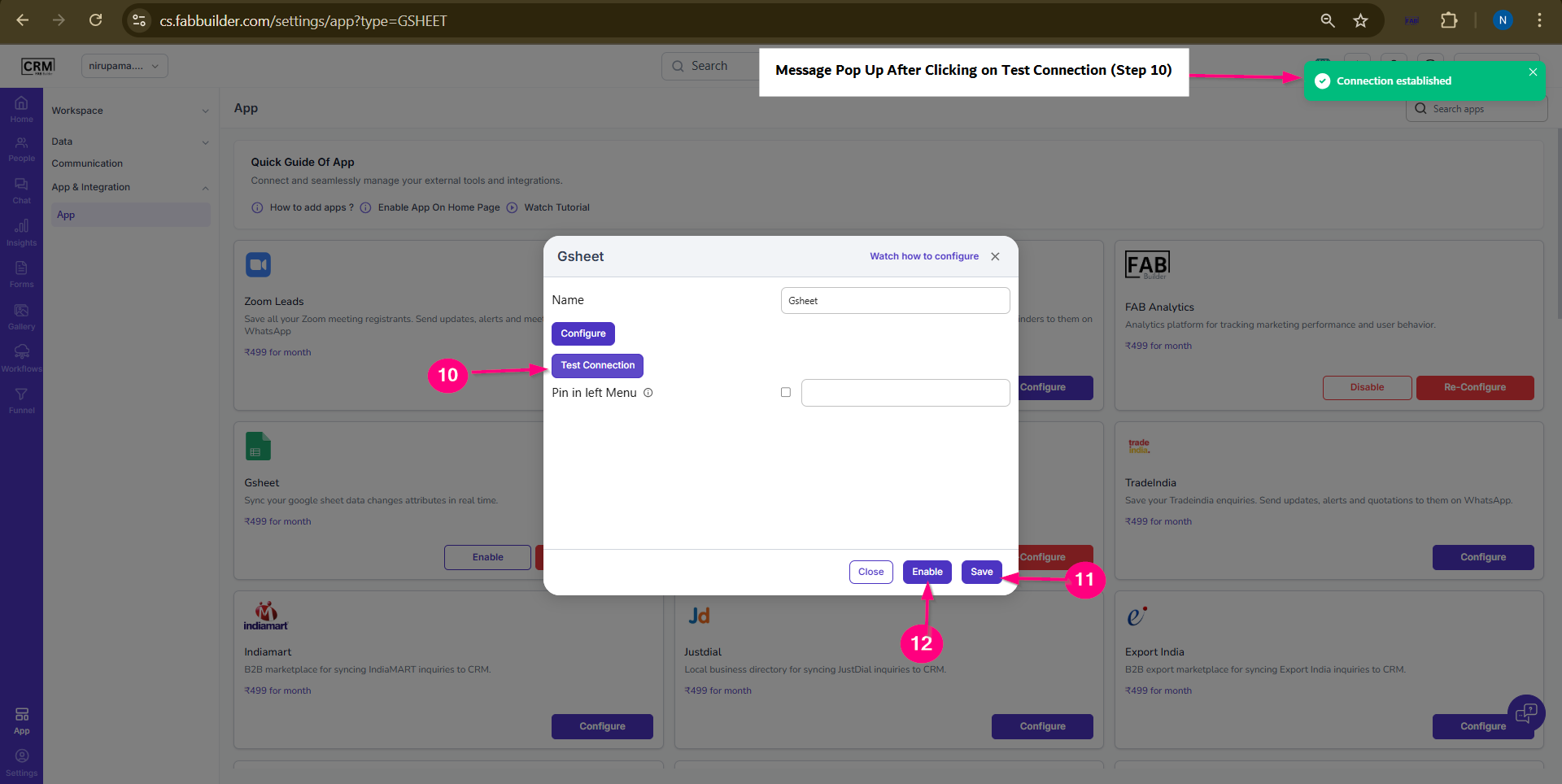
Screen-Selection of Gsheet After Clicking on save button user will be redirected back to the configuration screen. 10.Click on test connection button if the connection was established. 11.Once the connection is established, click on save button. 12.Click on Enable button to import gsheet data.
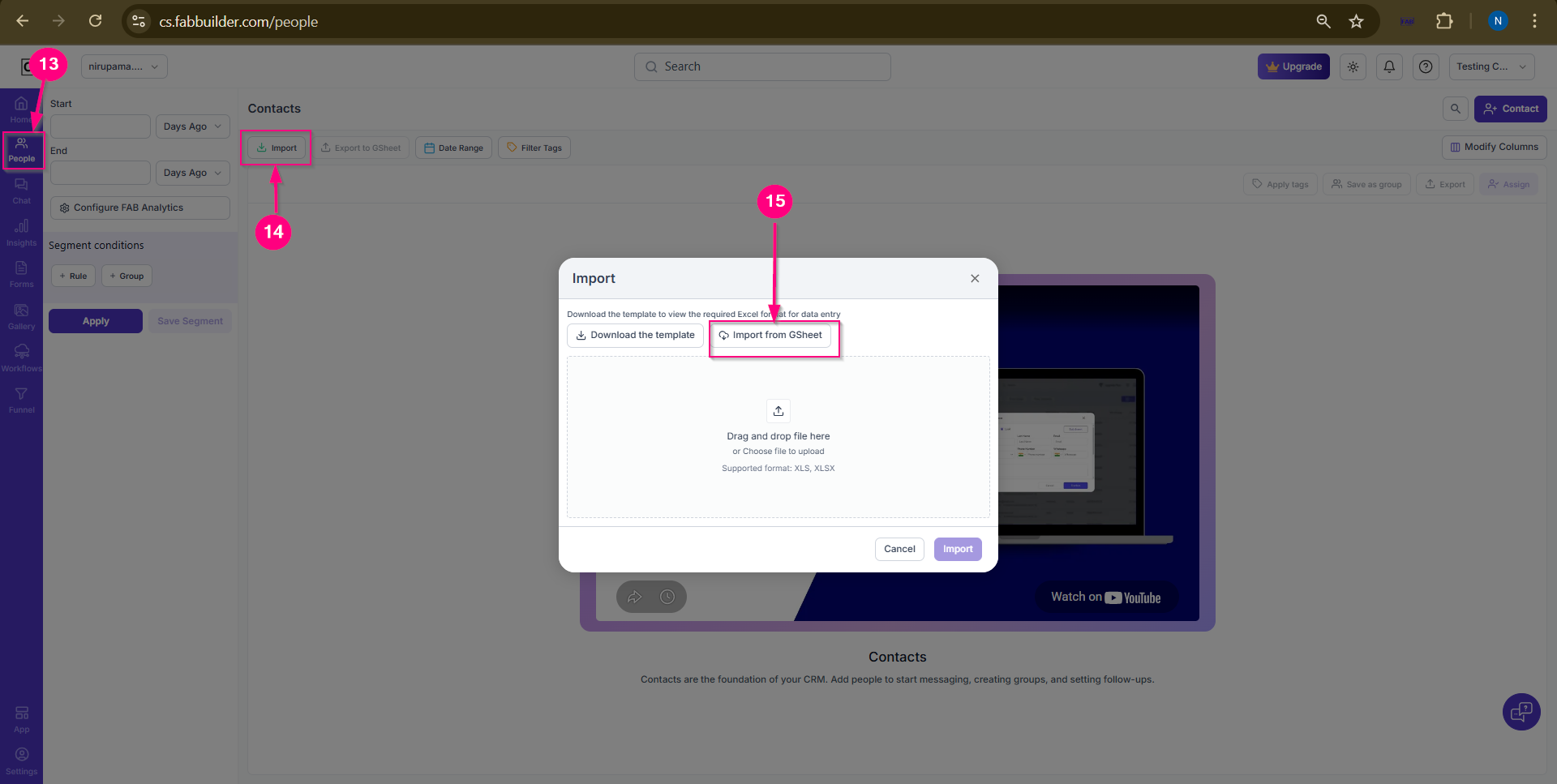
Screen- Test Connection & Congifuration saved Verify Configuration & Import Data13. To verify the configuration, go to the People Module. 14. Click on the Import button on the main screen. A pop-up window will appear. 15. Click on the Import from GSheet button in the pop-up window.
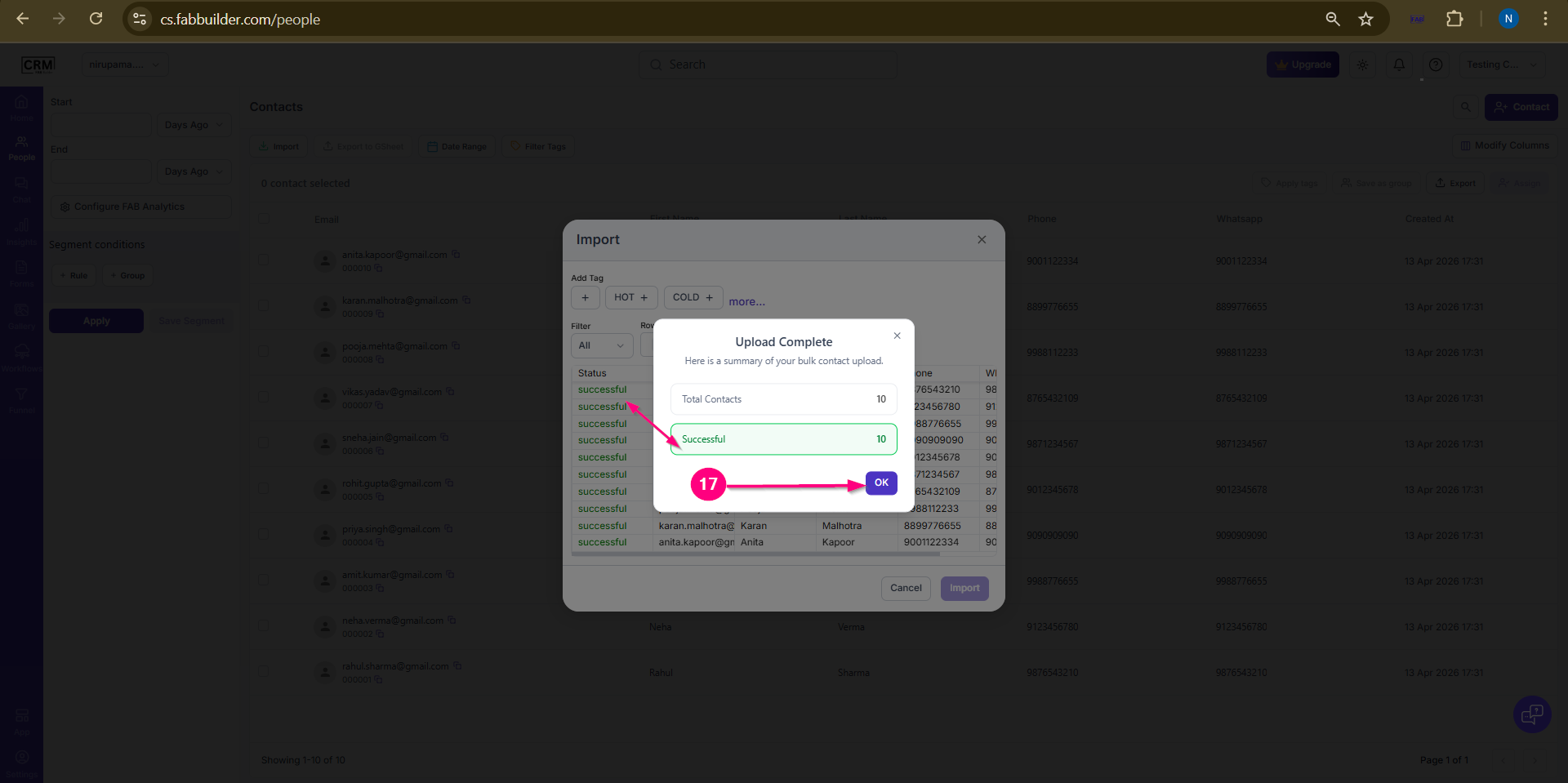
Screen- Import from Gsheet You will see the list of imported lead data on pop up window now. 16.Click on the Import button to successfully import the data into the CRM.
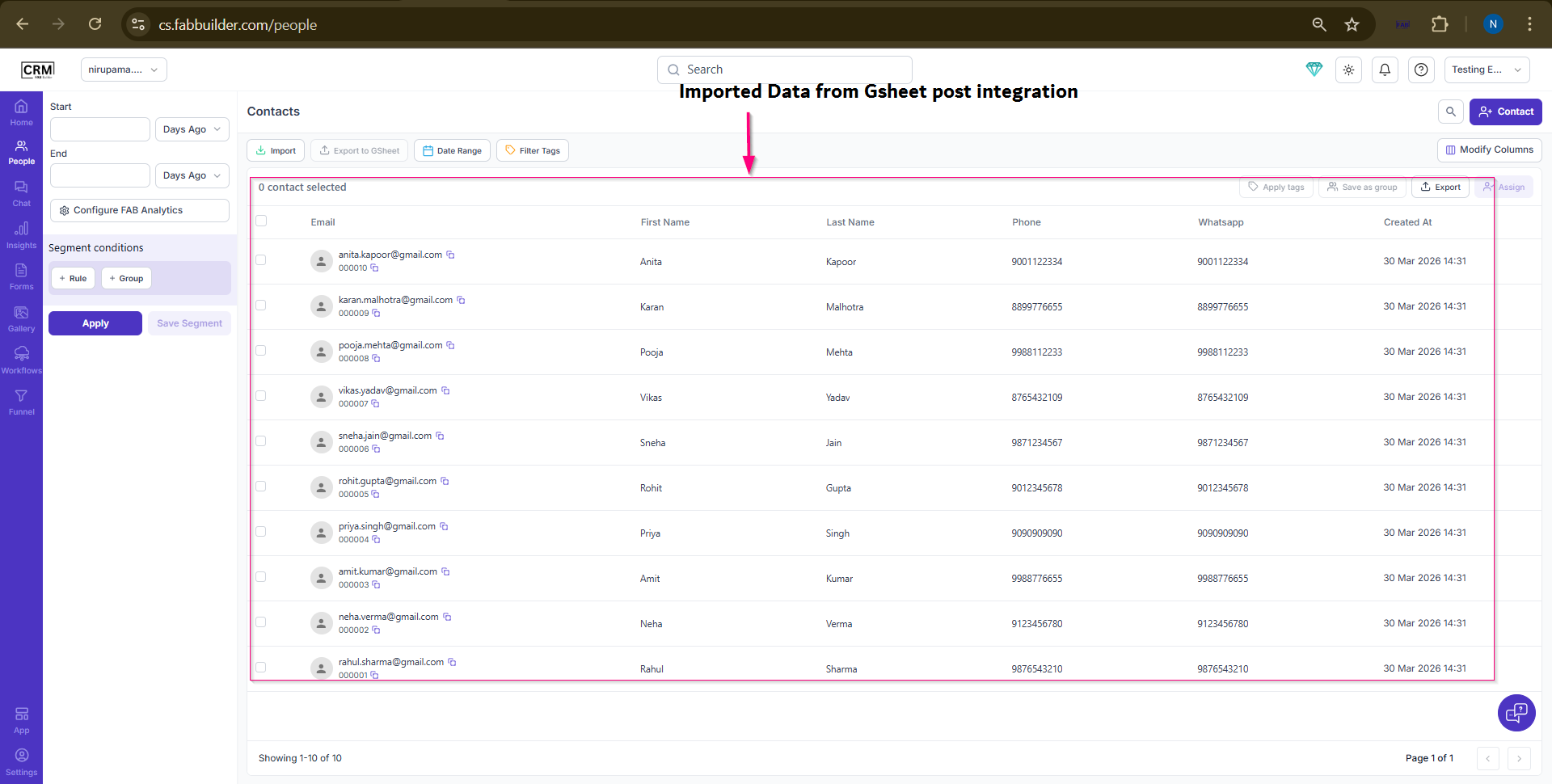
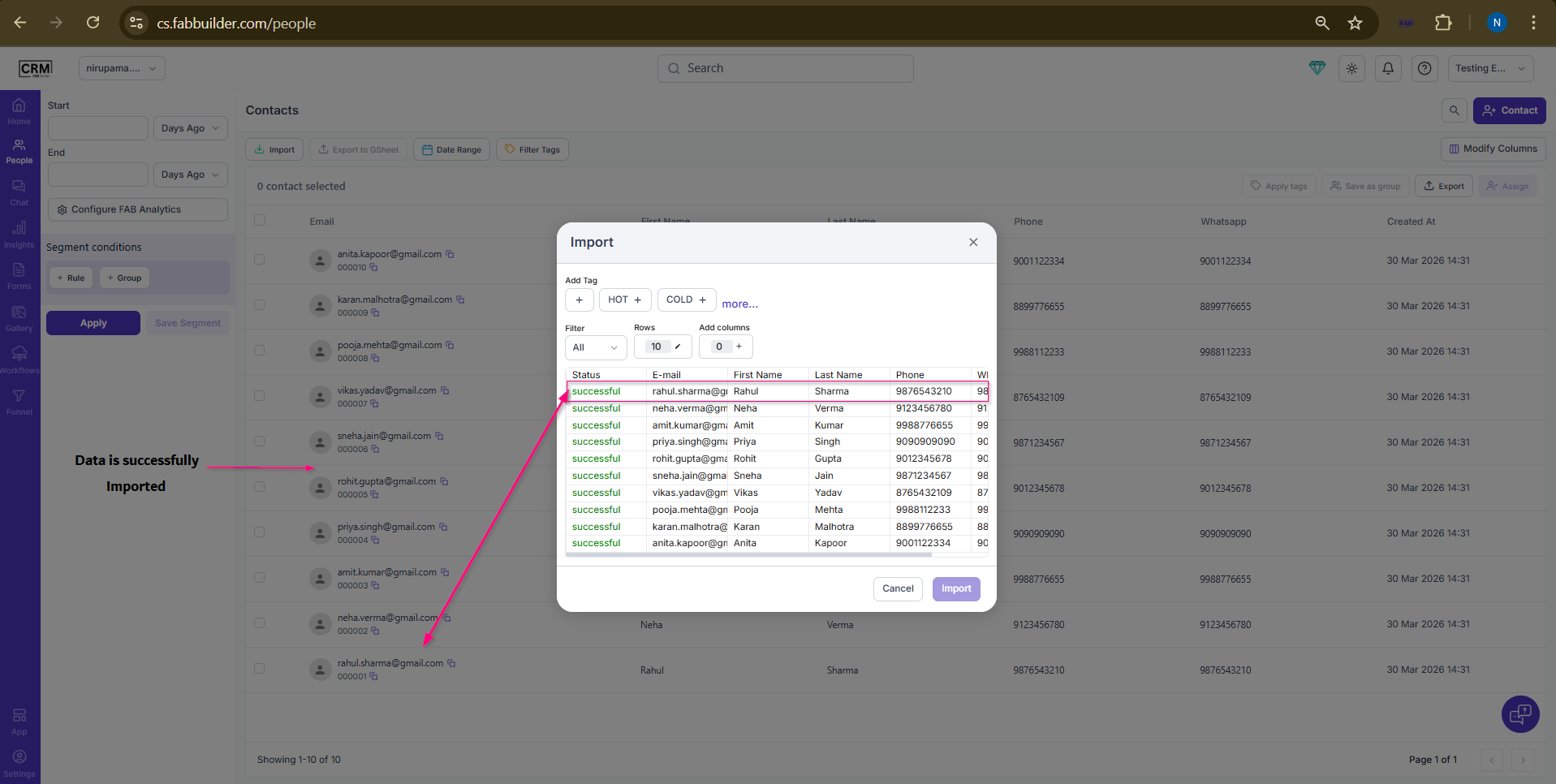
Screen- Data Uploaded Succesfully Now user can view the added lead successfully on people's module.
Screen- Lead Data Imported in People module Contact( at background screen) |