FAB AI Integration with FAB CRM
Overview
FAB AI integration enables the CRM to connect with an AI-powered assistant that helps automate business activities such as content generation, communication, and marketing support.
It allows businesses to streamline operations and enhance productivity by using AI-driven features directly within the CRM.
Prerequisites
Ensure the following before starting the integration:
- Active FAB AI access
- OpenAI account (if required for AI connection)
- API access (if applicable)
- Admin access to FAB CRM
- Stable internet connection
Important Note
- FAB AI setup may require assistance from the support or onboarding team
- If using an external AI provider (e.g., OpenAI), API configuration may be required
- Features can be enabled based on business requirements
Features Available
Users can enable the required features during configuration:
- Upwork
- Company
- SEO Meta Tags
- Social
- AI Paid Ads
How It Works
- User enables required AI features in CRM
- CRM connects with the AI assistant
- AI processes the request (e.g., content generation, automation)
- Response is generated
- CRM displays or uses the output
Flow:
User Input → CRM → FAB AI → Response → CRM Output
Configuration Steps
After successfully logging in to the CRM system, follow the steps below to configure FAB AI:
- Navigate to the App module
- Go to:Workspace → App & Integration → App
- Search for FAB AI.Click on Configure.
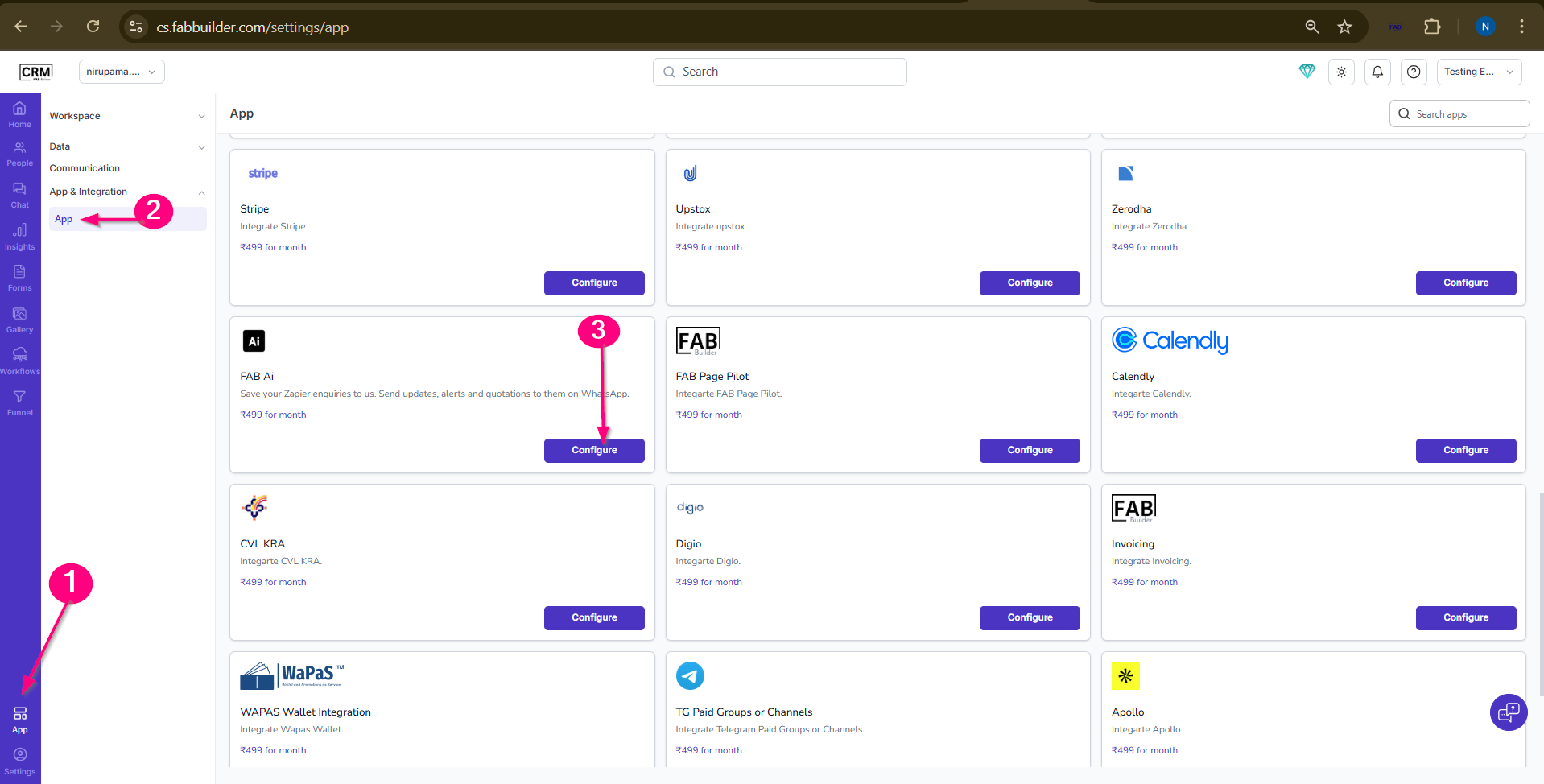
Screen- Step to Access App
4.In the configuration screen:
- Verify the Name (default: FAB AI)
- Enable the required features:
- Upwork
- Company
- SEO Meta Tags
- Social
- AI Paid Ads
5.Click on Save.
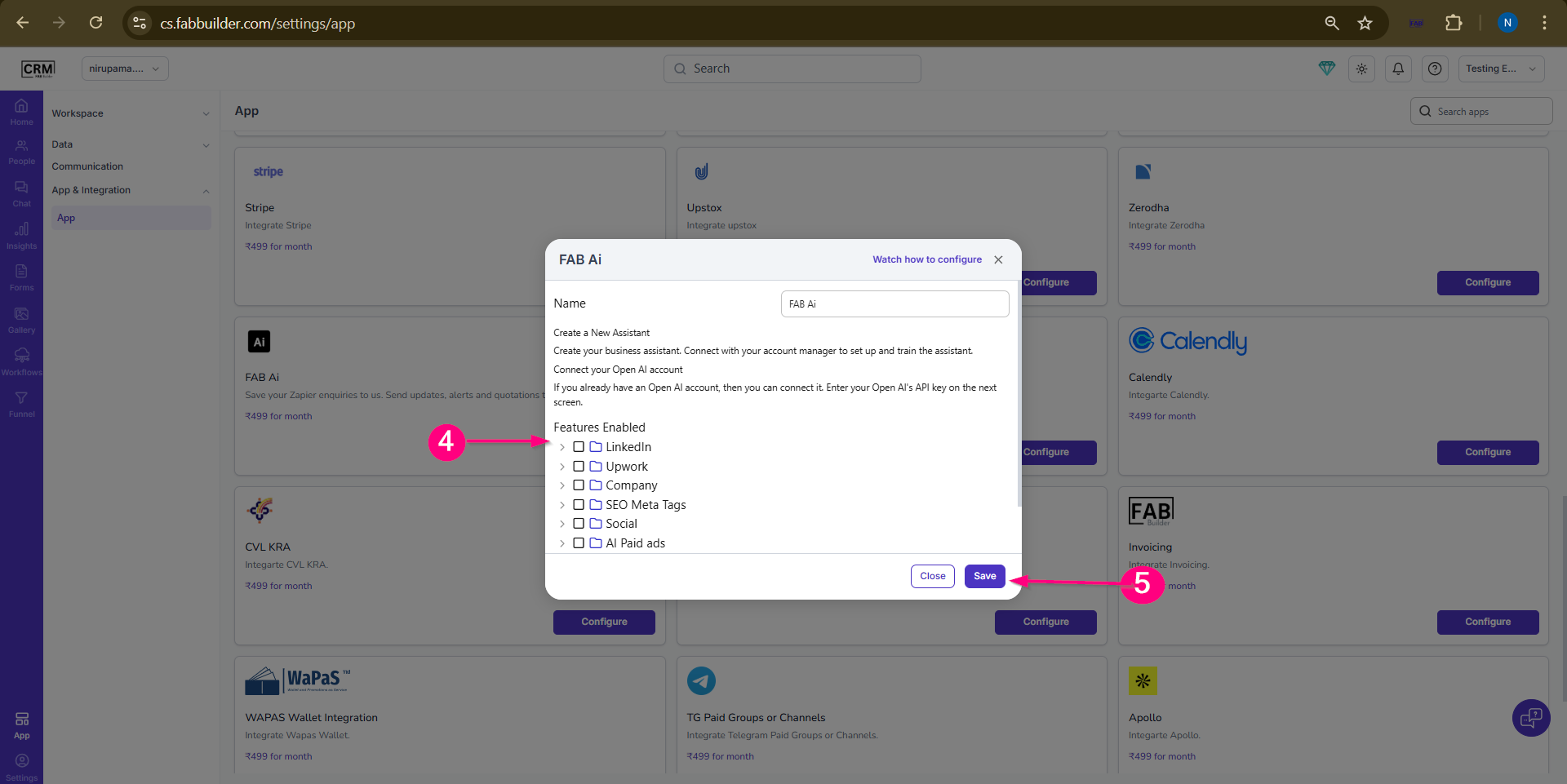
Screen- App Configuration screen
Validation Outcome
After completing the configuration:
- The system saves the selected features
- FAB AI is activated based on enabled options
- Users can start using AI functionalities within CRM