Exotel Integration with FAB CRMOverviewExotel integration enables the CRM to connect with cloud telephony services. It allows businesses to manage calls, track communication, and automate voice interactions directly within the CRM, ensuring a seamless and efficient communication system. PrerequisitesEnsure the following before starting the integration:
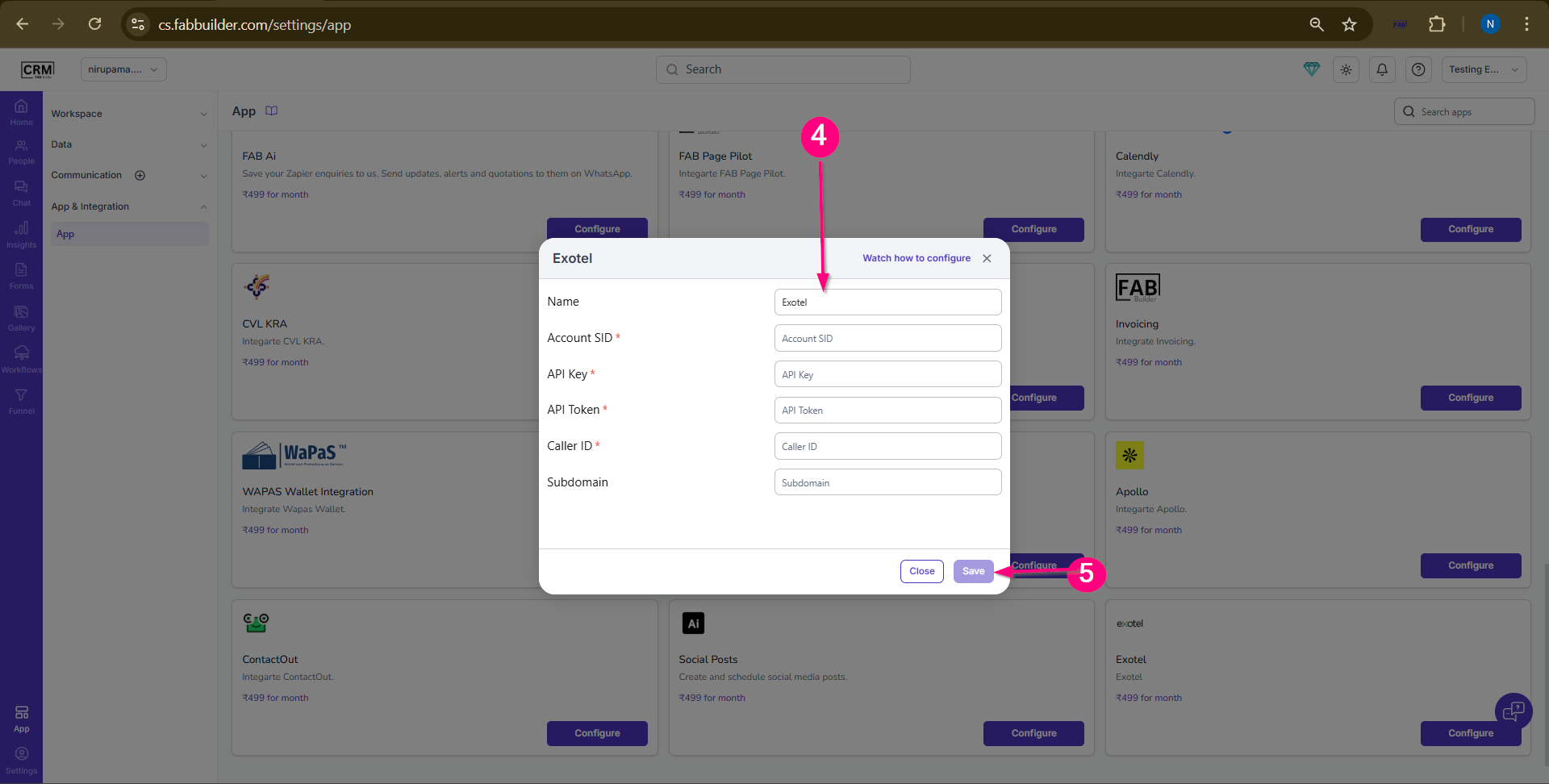
Credentials RequiredEnter the following details during configuration:
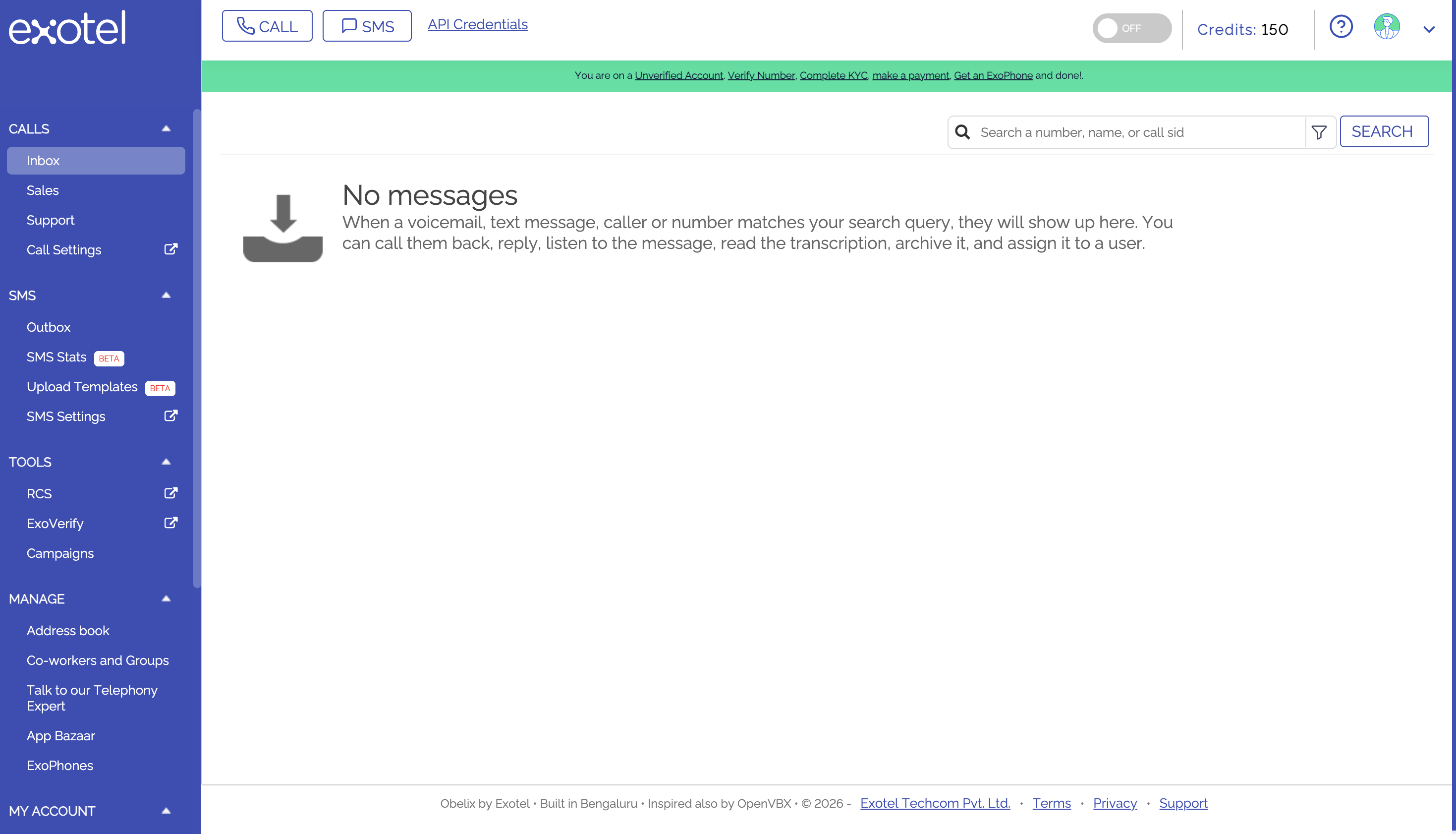
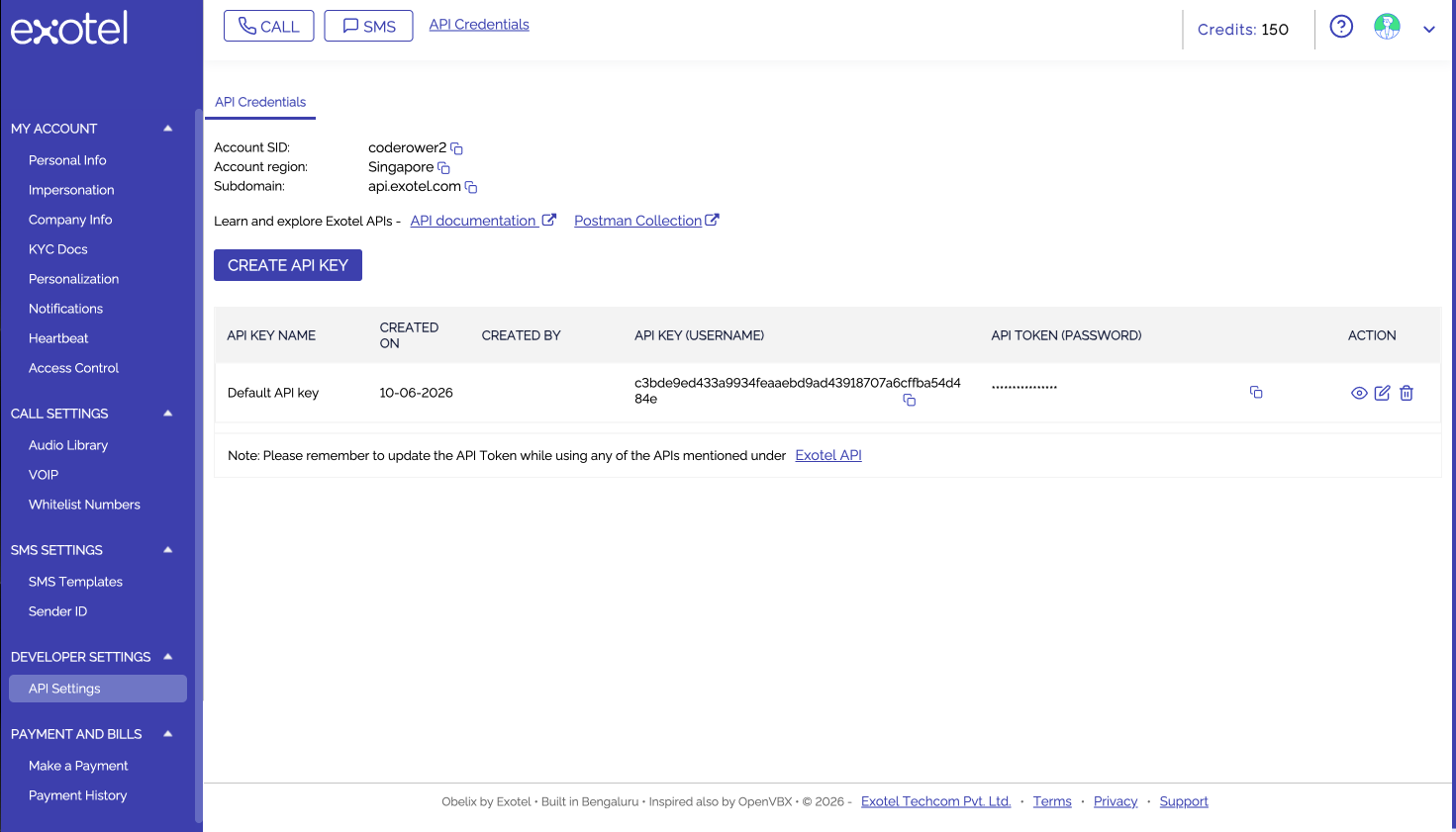
User must ensure all credentials are active and valid.A correct environment settings must be used(if applicable) How to Obtain Exotel Credentials :Before configuring Exotel in FAB CRM, you must obtain the required credentials from your Exotel account. To get started, sign up or log in to Exotel via Exotel Official Website. Step 1: Create or Log In to Your Exotel AccountCreate an account or sign in to your existing Exotel account. Step 2: Navigate to API SettingsFrom the dashboard, locate API Credentials in the header menu. Alternatively, navigate to: Developer Settings → API Settings
Step 3: Retrieve API CredentialsIn the API Settings section, copy the following credentials:
These credentials will be required during FAB CRM configuration.
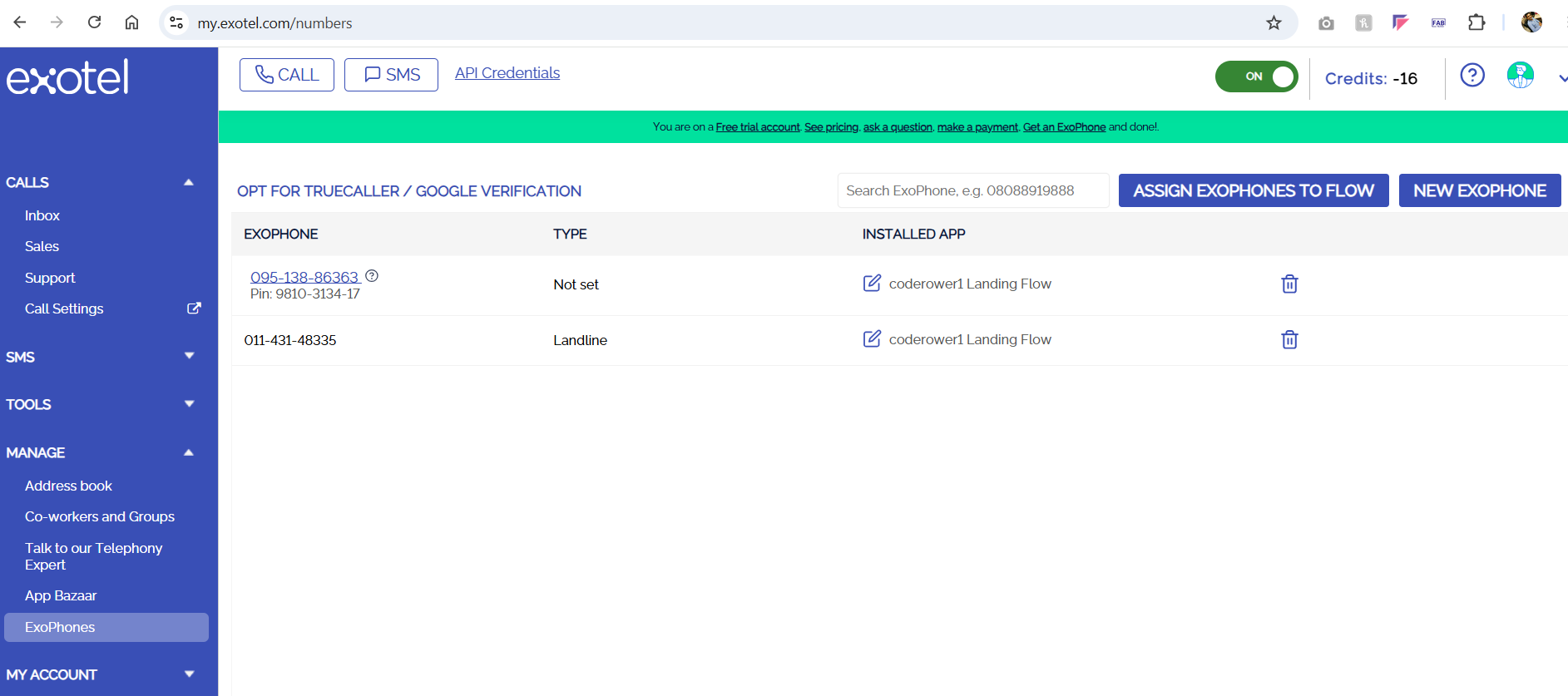
Step 4: Obtain Caller IDNavigate to: Manage → ExoPhones Here you can view and copy your configured Caller ID.
Note: If the Manage section or Caller ID is not available in your account, please contact your Exotel Relationship Manager to request Caller ID setup and access.Credential Retrieval FlowExotel Login → Developer Settings → API Settings → Copy SID, API Key, API Token & Subdomain → Manage → ExoPhones → Retrieve Caller ID How It Works
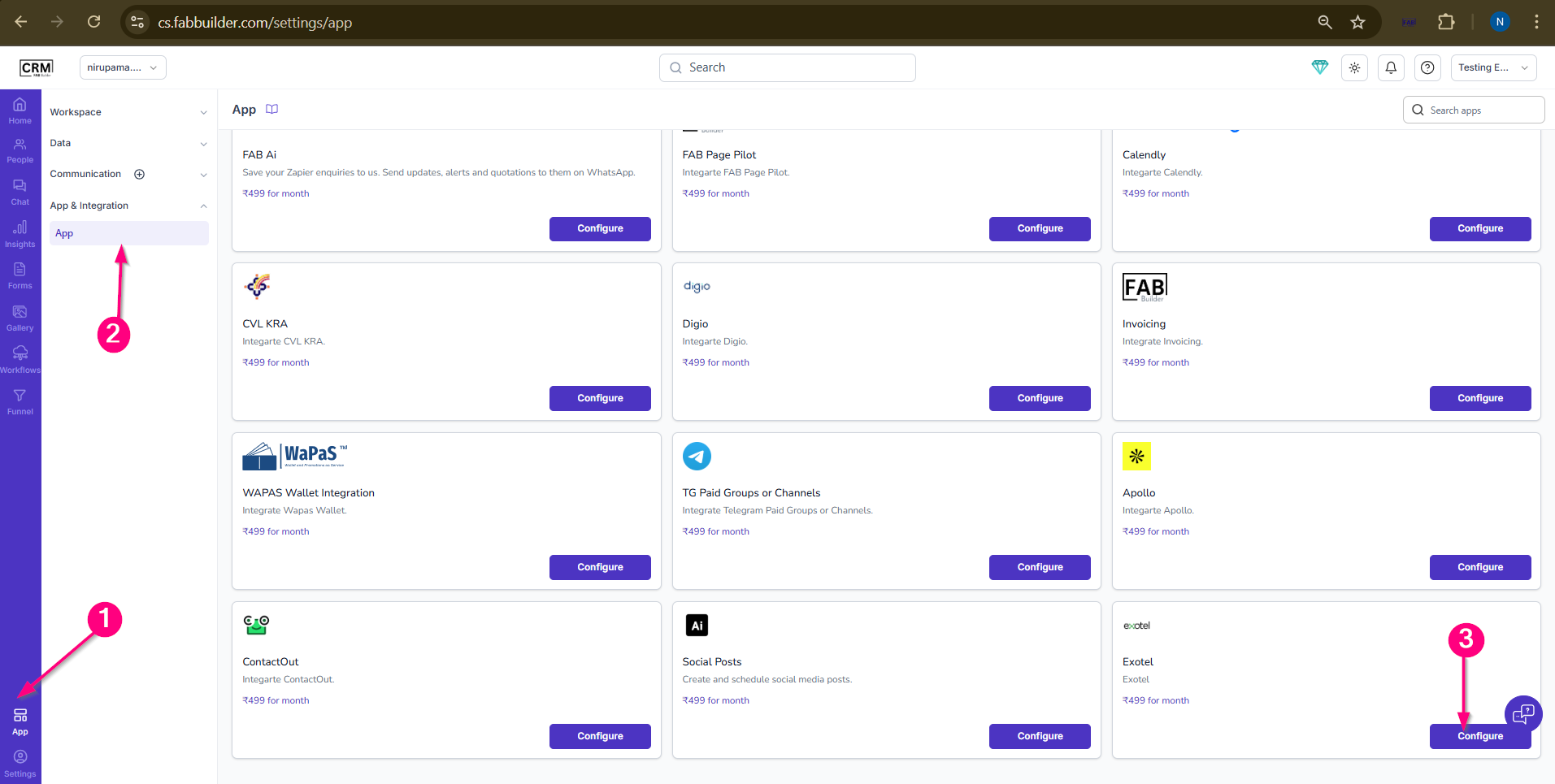
Flow: User Action → CRM → Exotel → Call Processing → CRM Update Configuration StepsAfter successfully logging in to the CRM system, follow the steps below to configure Exotel:
Screen- Srep to Access App 4.Enter the required details:
5.Click on Save. |