KYC (CVL KRA) Integration in CRM
1. Overview
CVL KRA integration allows you to verify customer PAN and KYC details directly from CRM.
This helps in:
- Ensuring customer identity verification
- Meeting SEBI compliance requirements
- Preventing fraud
CRM connects with CVL in the background and displays the verification result.
2. Prerequisites
Before starting, ensure:
- Your company is registered with CVL KRA
- You have access to CRM Integration Settings
- You are authorized to configure integrations
- A valid PAN is available for testing
3. Ensure PAN Field is Available
CRM must have a PAN field to perform KYC.
If PAN field is not available:
- Go to CRM Settings
- Open Form Builder / Custom Fields
- Select Lead or Contact Form
- Click Add Field
- Enter: PAN Number (Text)
- Save the form
4. How It Works
User enters PAN in CRM (Lead/Contact)
- Clicks on Verify KYC
- CRM sends PAN to CVL
- CVL verifies PAN details
- CRM displays the result
5. Request & Obtain CVL KRA Credentials
Send email from your official company email ID to: api_integration@cvlindia.com
Include:
- Company Name
- Contact Person Name
- Purpose (KYC Integration with CRM)
You will receive:
- Login ID
- Password
- POS Code
- AES Key
- API Key
6. Configure CVL KRA in CRM
After completing all the prerequisites, the user can proceed with the following steps to configure and enable CLV KRA integration within the CRM for validating user or lead details. .
1.Go to App section/setting section on side blue bar. This will open the list of subsection.
2.Select App and integration.
3.Select CLV KRA App tab and click to configuration button.
4.Fill all details on configuation pop window.
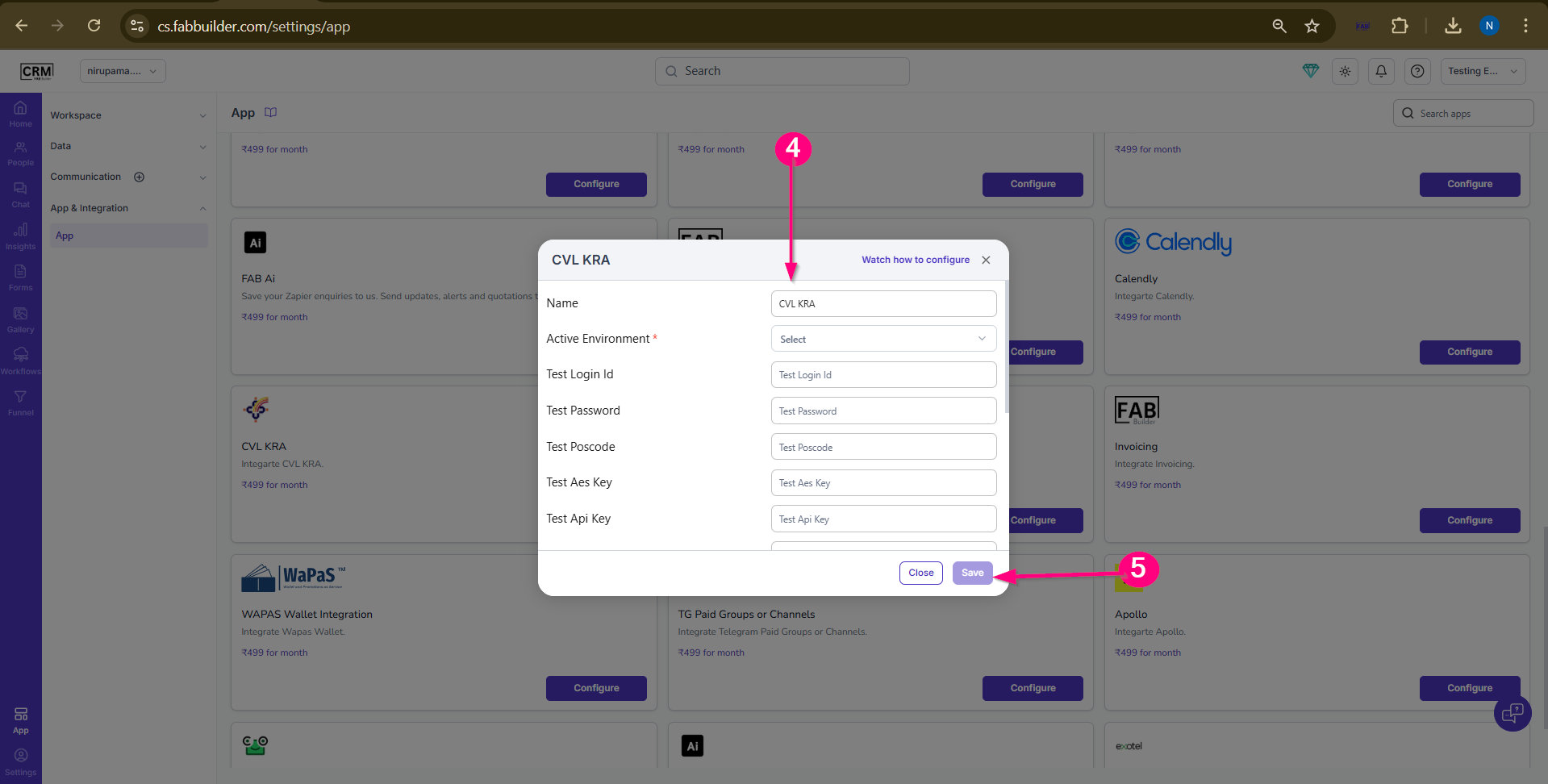
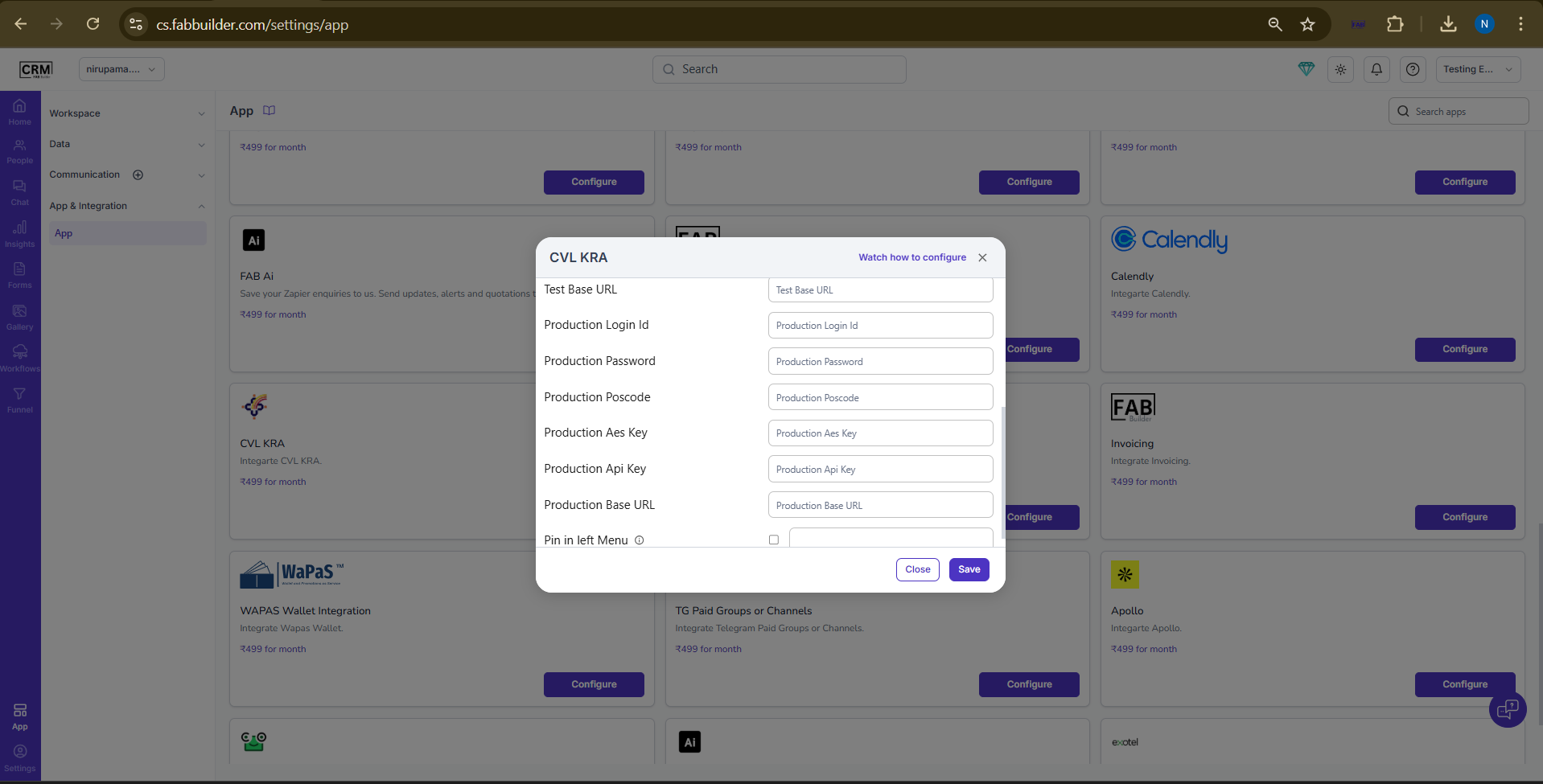
Screen-CLV KLA configuration screen
5.Click on save button.
Once the configuration is successful, the system will be ready to process and KYC verification directly through the CRM.
Required Fields
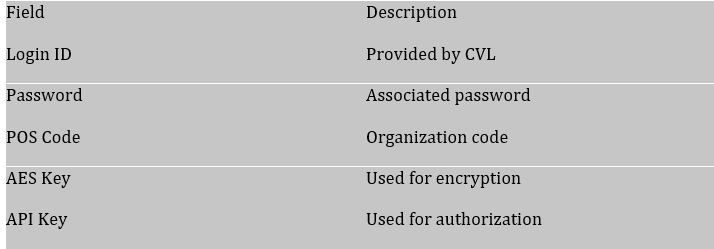
Screen- Field required for integration
7. Test the Integration (UAT)
1. Go to Lead / Contact
2. Enter PAN in PAN field
3. Click Verify KYC
Result:
- Valid PAN → KYC details displayed
- Invalid PAN → Error message shown
8. Move to Live
1. Request Live credentials from CVL
2. Replace UAT credentials in CRM
3. Save configuration
4. Test again
9. Common Issues
- PAN field not available → KYC will not work
- Incorrect credentials → Authentication error
- Invalid PAN → Verification fails
- API not enabled → No response
10. Key Points
- CRM acts as a secure mediator
- No direct integration with CVL is required
- Credentials are company-level
- PAN must be available in CRM
11. Final Summary
Steps to Follow:
1. Ensure PAN field exists
2. Request credentials from CVL
3. Configure in CRM
4. Test using PAN
5. Move to Live
One-Line Understanding:
Enter PAN → Click Verify → CRM checks with CVL → Result is shown