Overview
The Call Log feature in the CRM allows users to manually record call activities and maintain a history of interactions with leads or contacts. It helps in tracking communication, managing follow-ups, and improving visibility of customer interactions.
It can be understood as a digital diary, where users record past conversations and optionally plan future actions such as follow-ups or meetings.
Prerequisites
• User is logged into the CRM (cs.fabbuilder.com)
• Contact/lead exists in the system
• Required permissions are available
Credentials Required
No external credentials are required. Only CRM login access is needed.
Add Call Log under Communication Channels
After successfully log in to the https:/cs.fabbuilder.com/navigate the app from side navifation blue bar and follow the steps outlined below
1. Click on App
2. Navigate Workspace ---Go to Communication Channels
3. Click on Add Channel
4. Select Call Log from the list
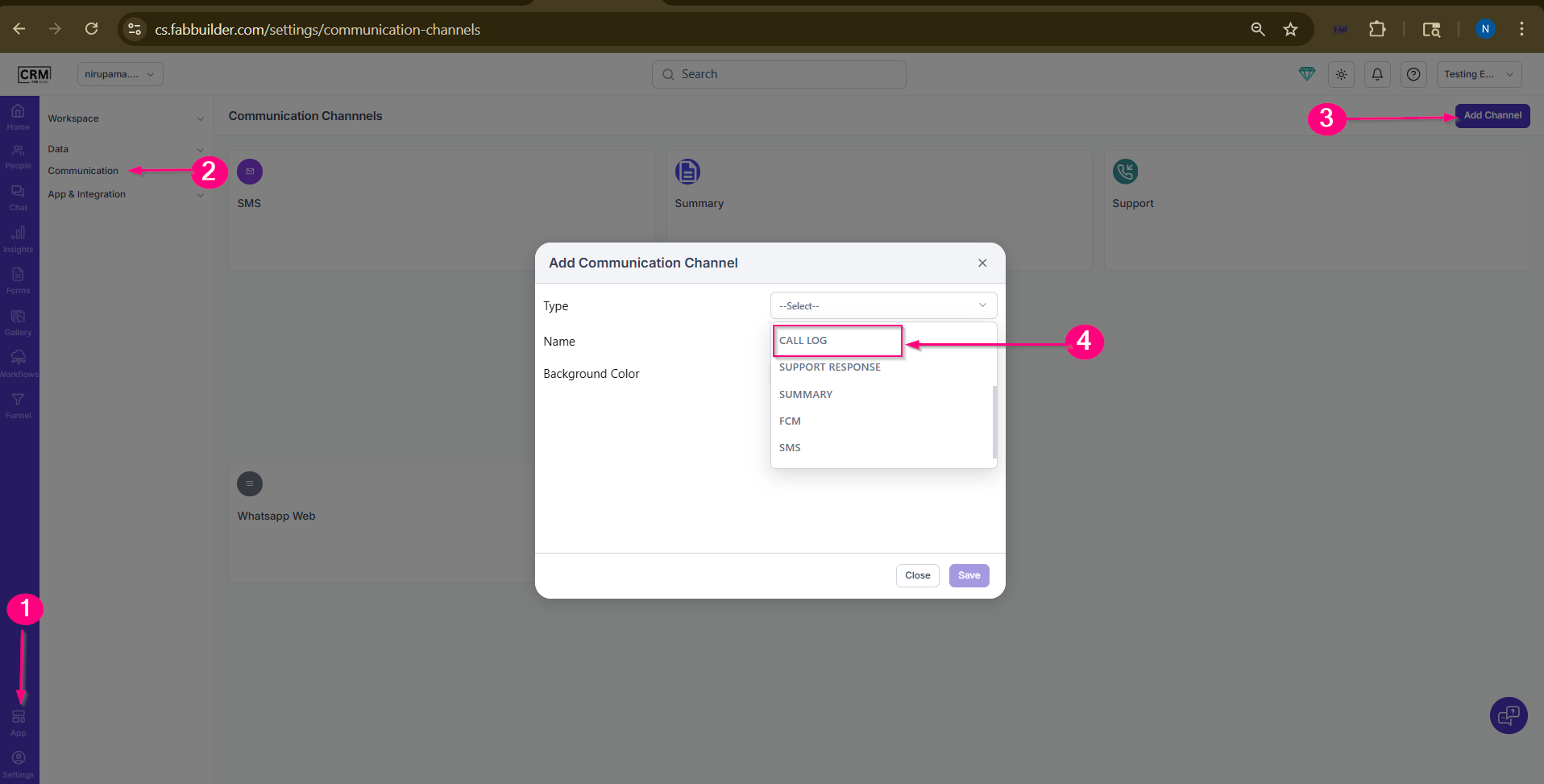
Screen- configuration
Now the call log is added succesfully in communication channels list area.
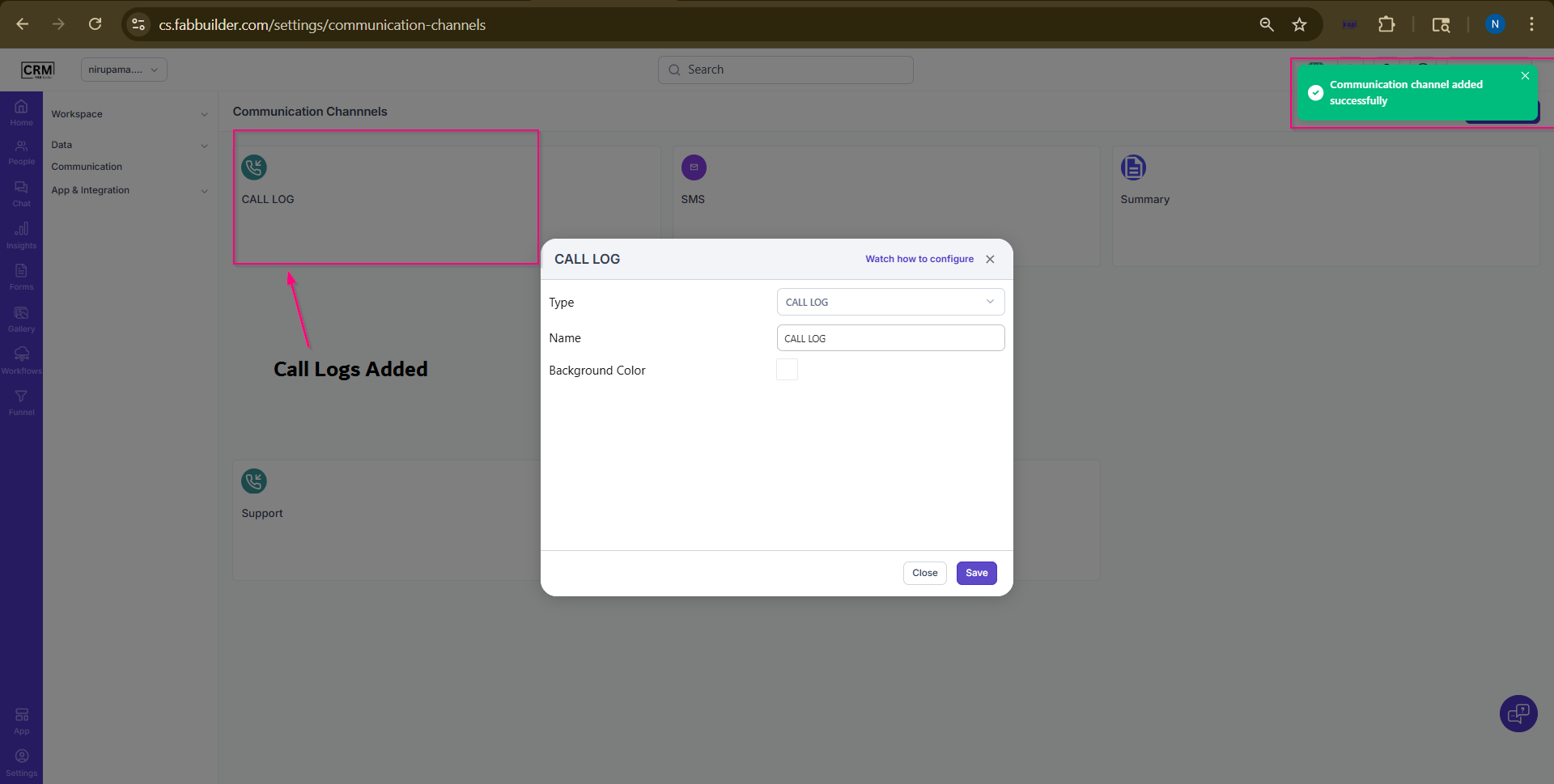
Screen- Call Logs Added
How to Use Call Log
User can use call log by following steps mentioned below
1. Navigate to Chat screen.
2.Select user tab
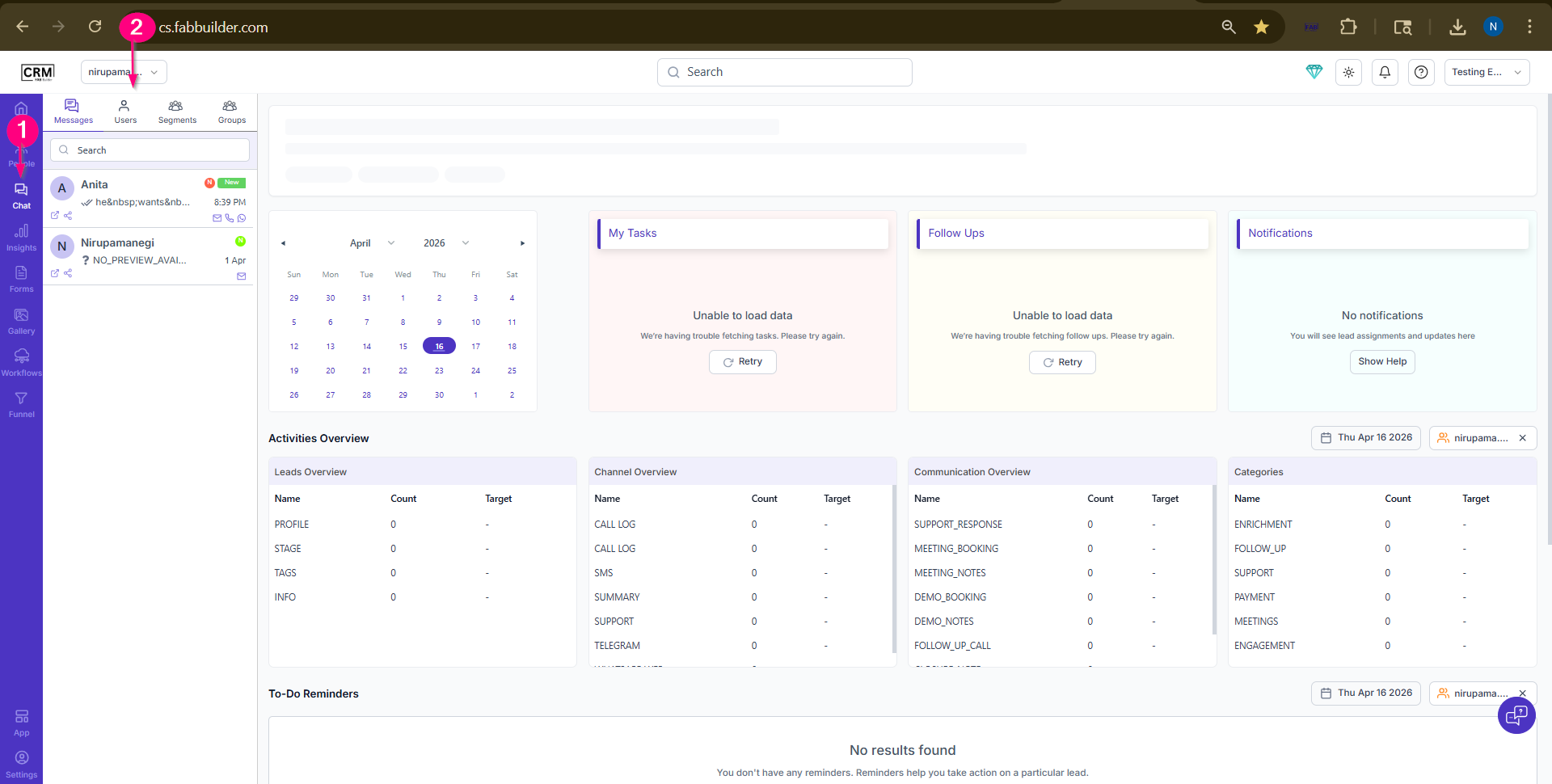
Screen- Select chat/lead contact
3. Select a contact/lead This will expand right side panel which contains all channel menu tab.
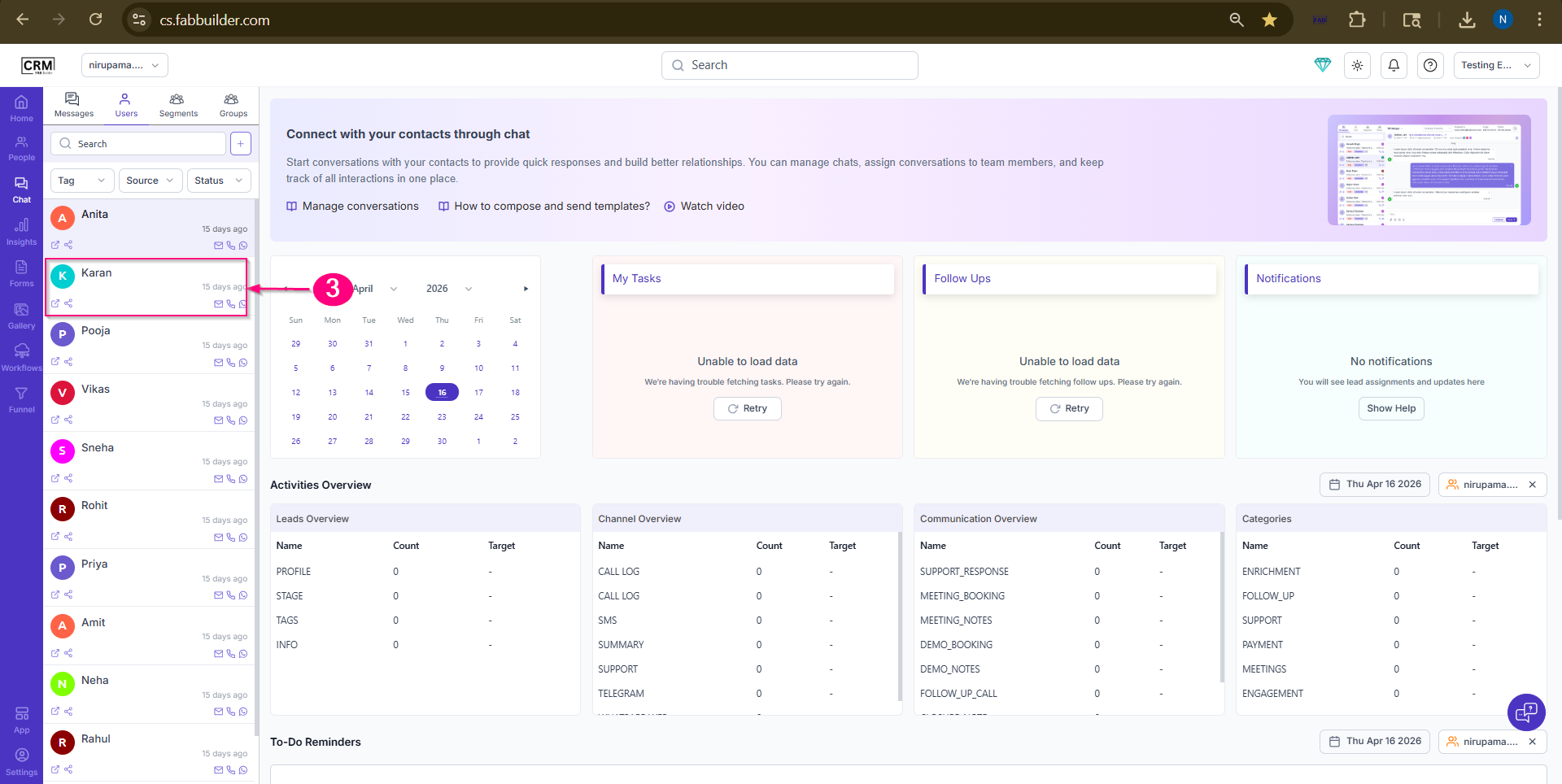
Screen -Select lead
4. Click on drop down and select the call log.
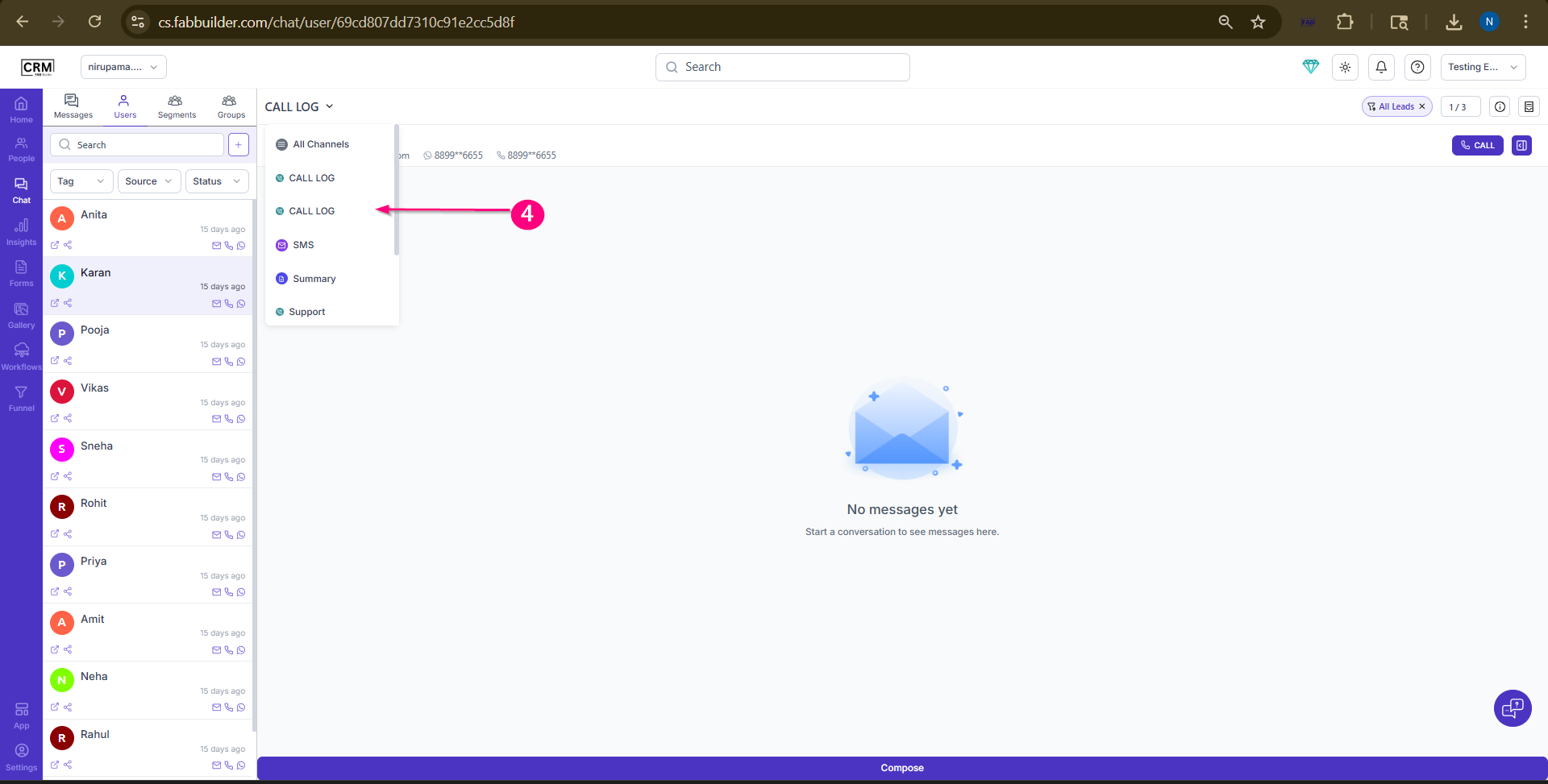
Screen- Select Call Log
5.Click on Compose
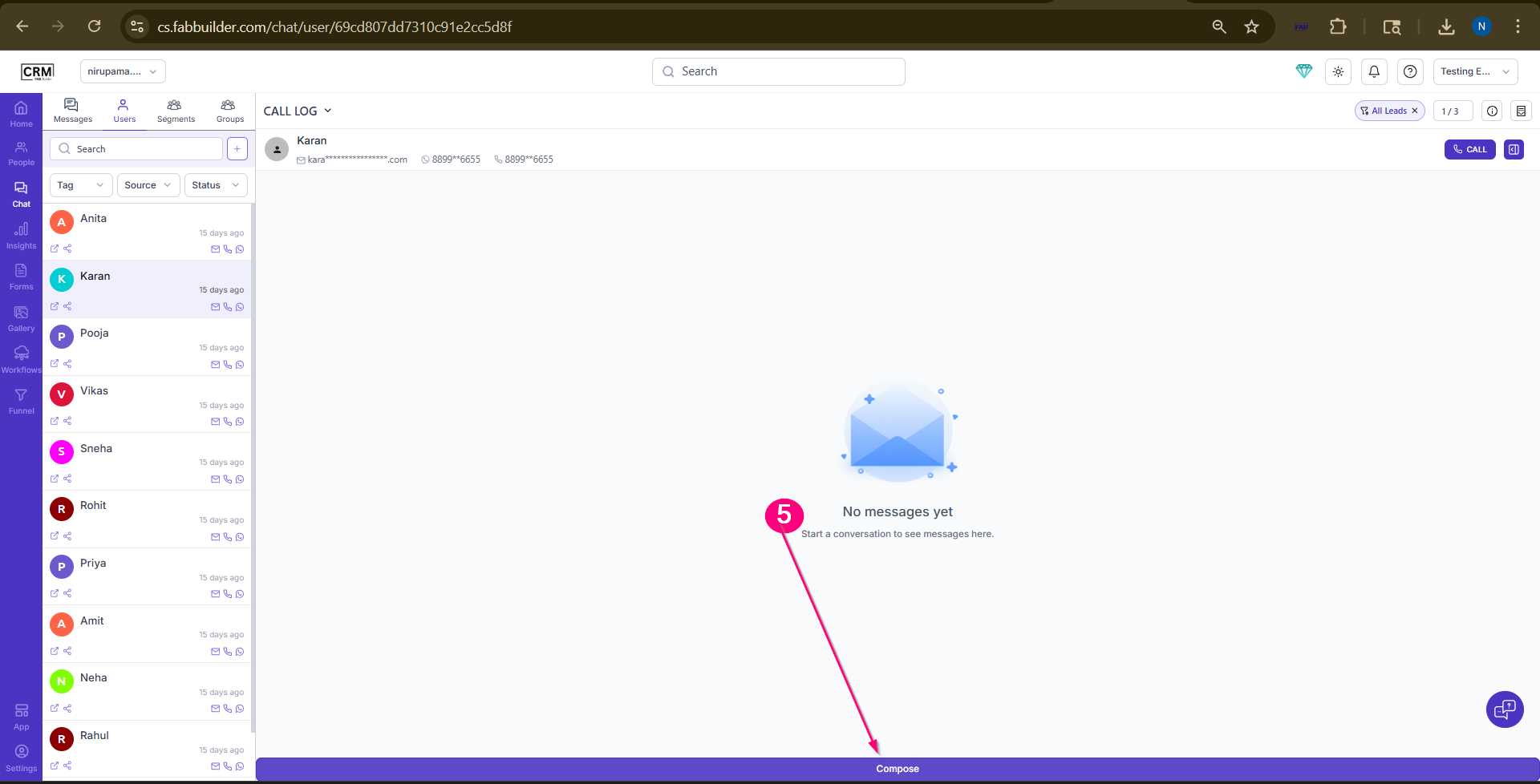
Screen- Select Compose
6. Add the following details
- The appropriate call type
- Enter call details under From Customer and From Support
- Use or create a template(Optional)
- Set reminder date or appointment schedule (Optional)
7. Click Send
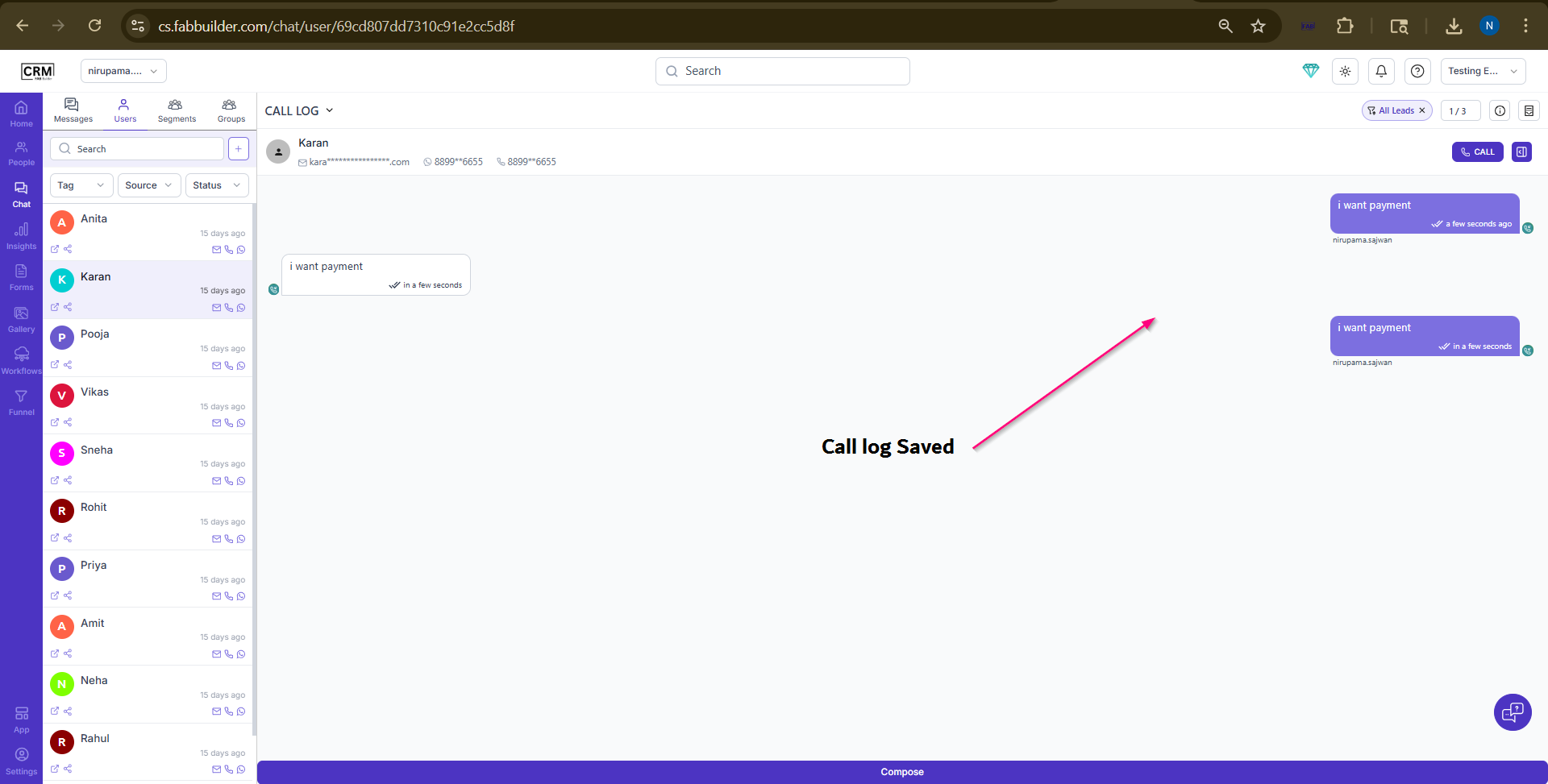
Screen- Add details
The call log is saved in the CRM and linked to the selected contact.Users can view call type, notes, date and time, and created by details.
Call logs can be filtered based on date range and organized using call type or funnel stage.
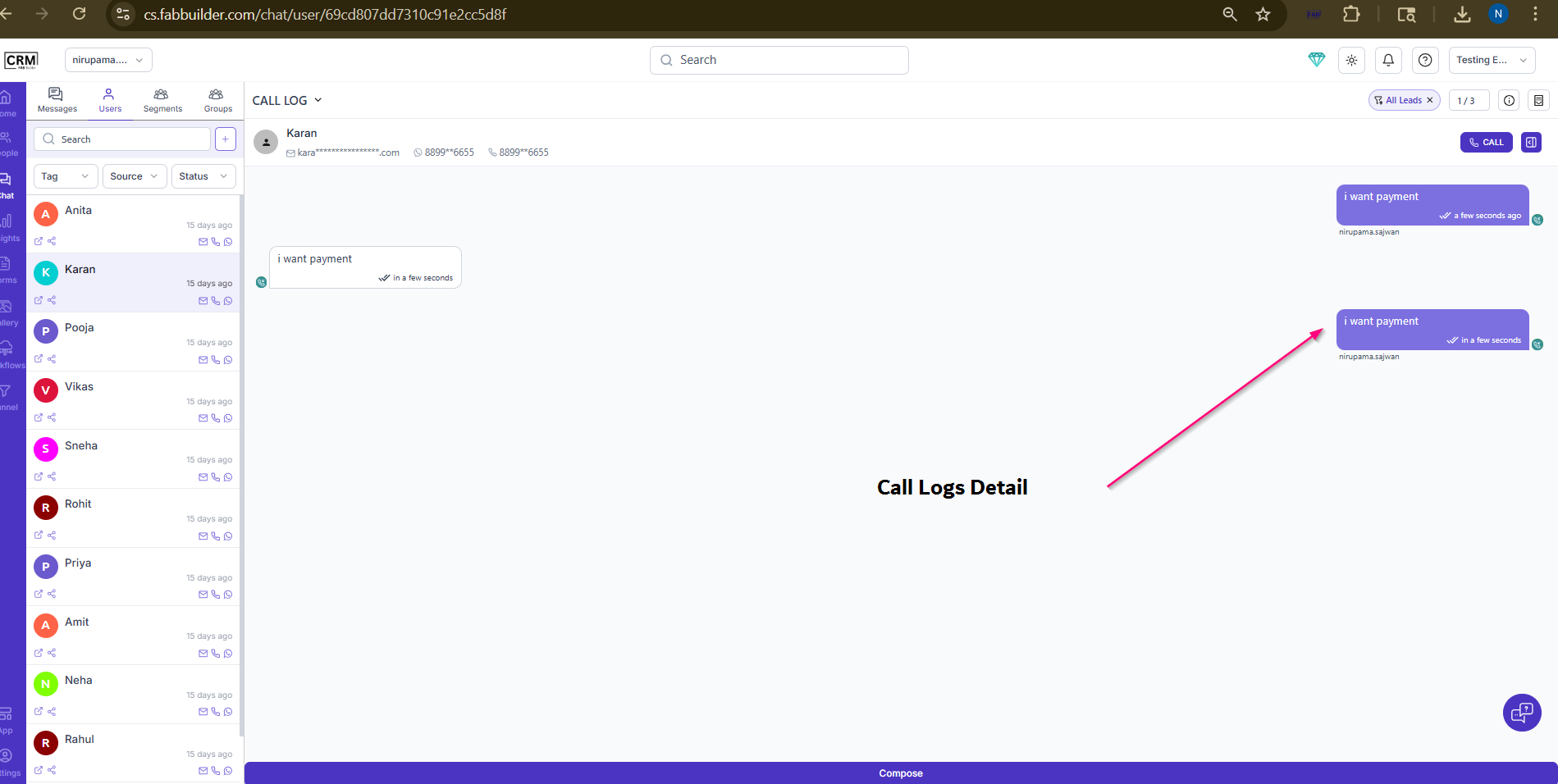
Screen View Call logs
Verification
• Call log appears under the contact’s history
• Correct details are displayed
• Timestamp is recorded accurately
Limitations
• No automatic call tracking
• No telephony integration
• Fully manual process