Brevo Integration with CRM Overview Brevo is used in CRM to send emails (bulk and individual) to leads. CRM connects with Brevo using API and sends emails using the client’s business email. Prerequisites
Required Credentials All following details will be provided by Brevo to bussiness or client by navigaing the steps oulined below
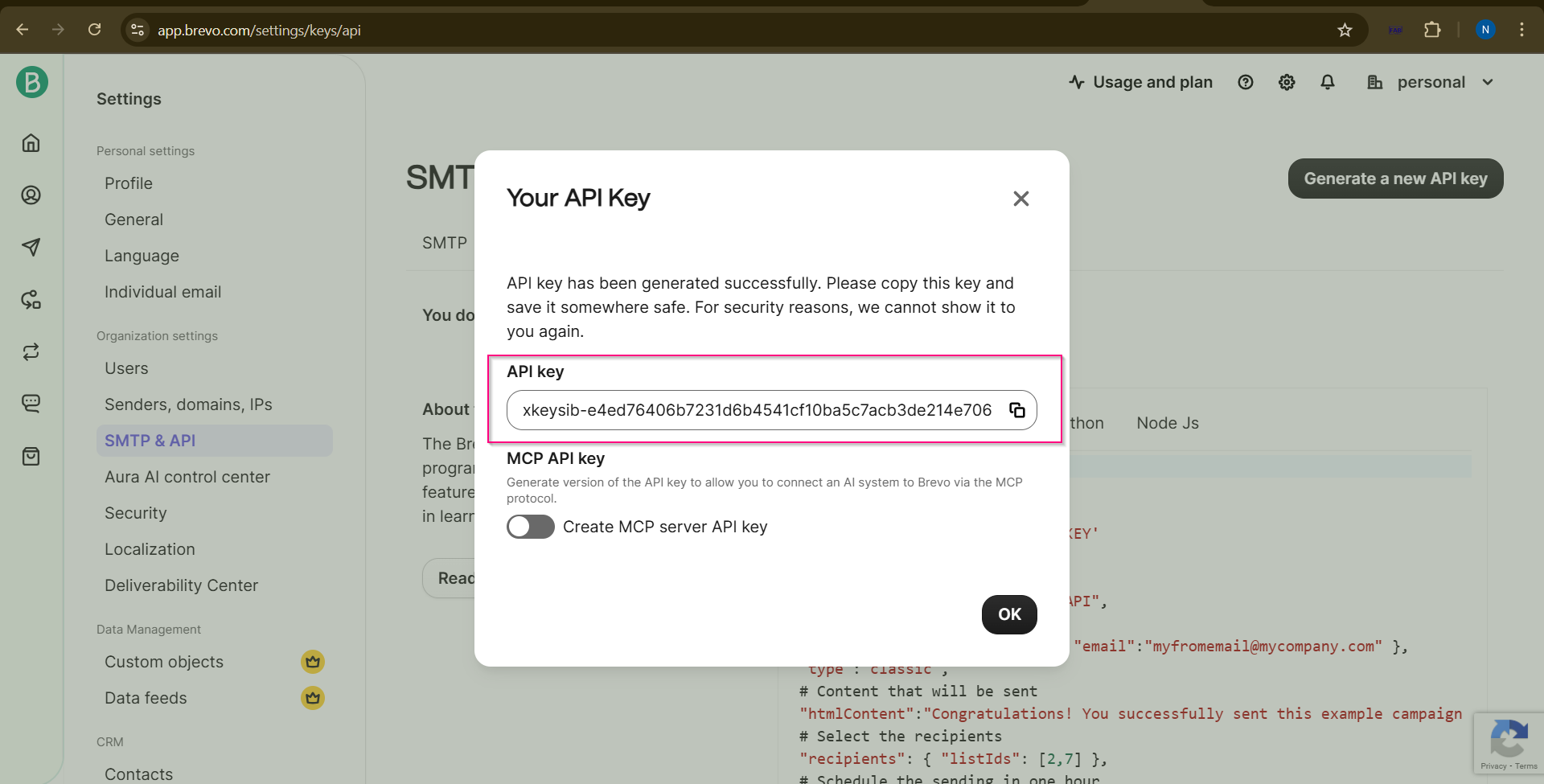
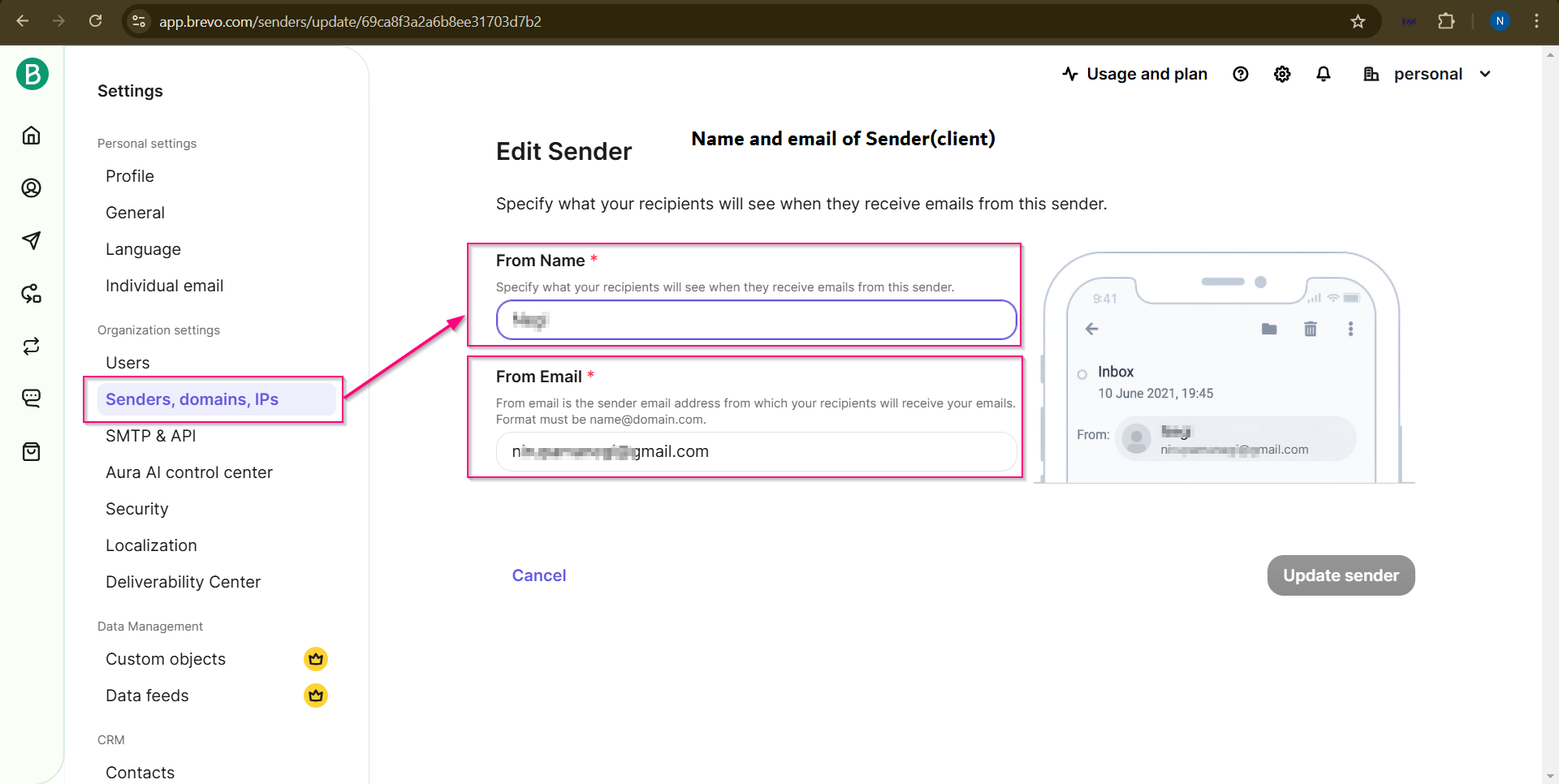
Brevo Screens (Client Side) Generate API Key: 1. Login to Brevo 2. Go to Settings → API Keys 3. Click Generate API Key Screen -Brevo API keys Add Sender Email: 1. Go to Settings → Senders 2. Click Add Sender 3. Enter email and verify
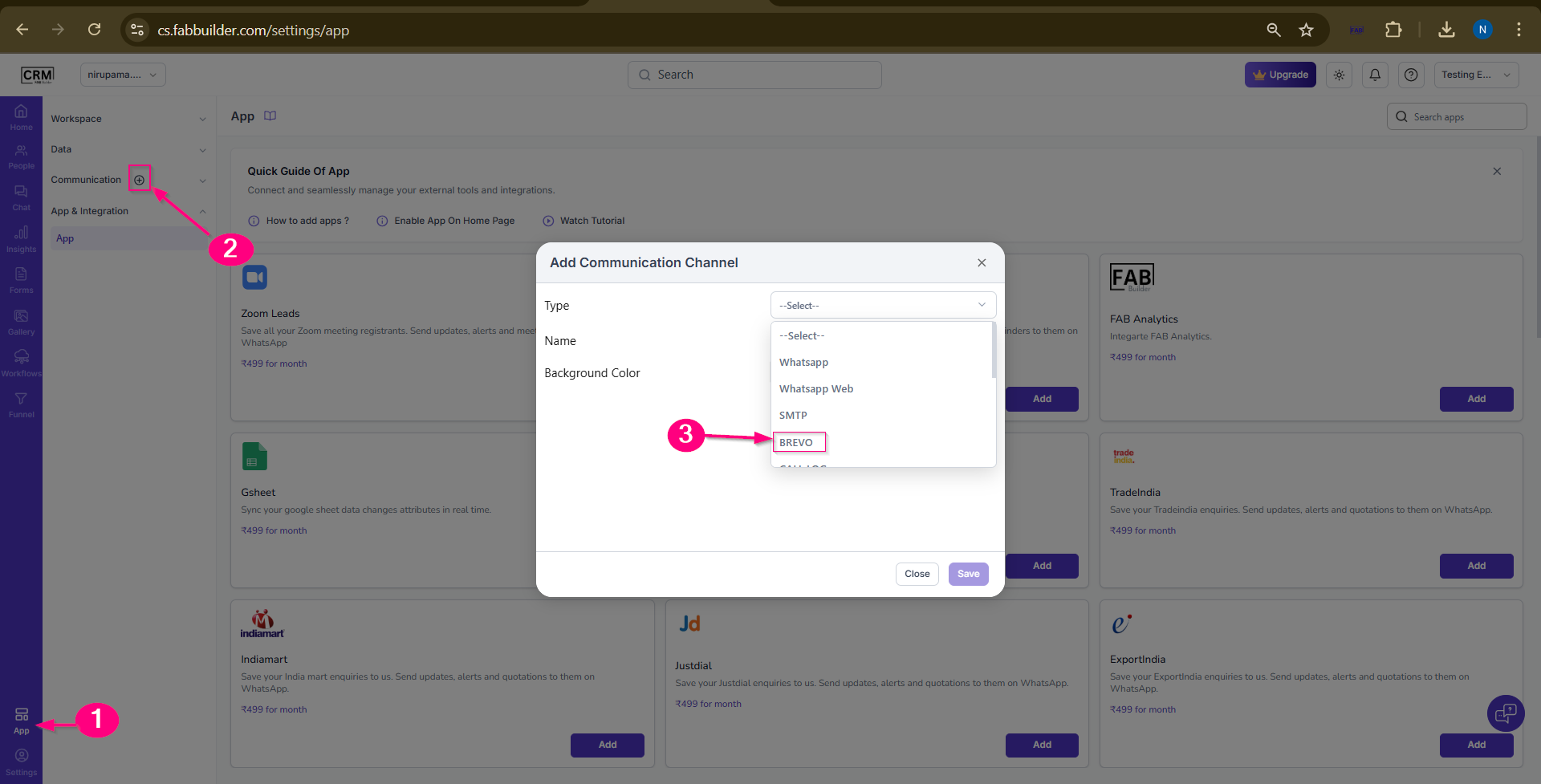
Screen- Senders Name and Email CRM Configuration 1.Navigate to App Module on side bar and click on the app which open workspace panel . 2.Click on + plus icon on communication channel section. 3.Select brevo from the communication channel list on the pop window.
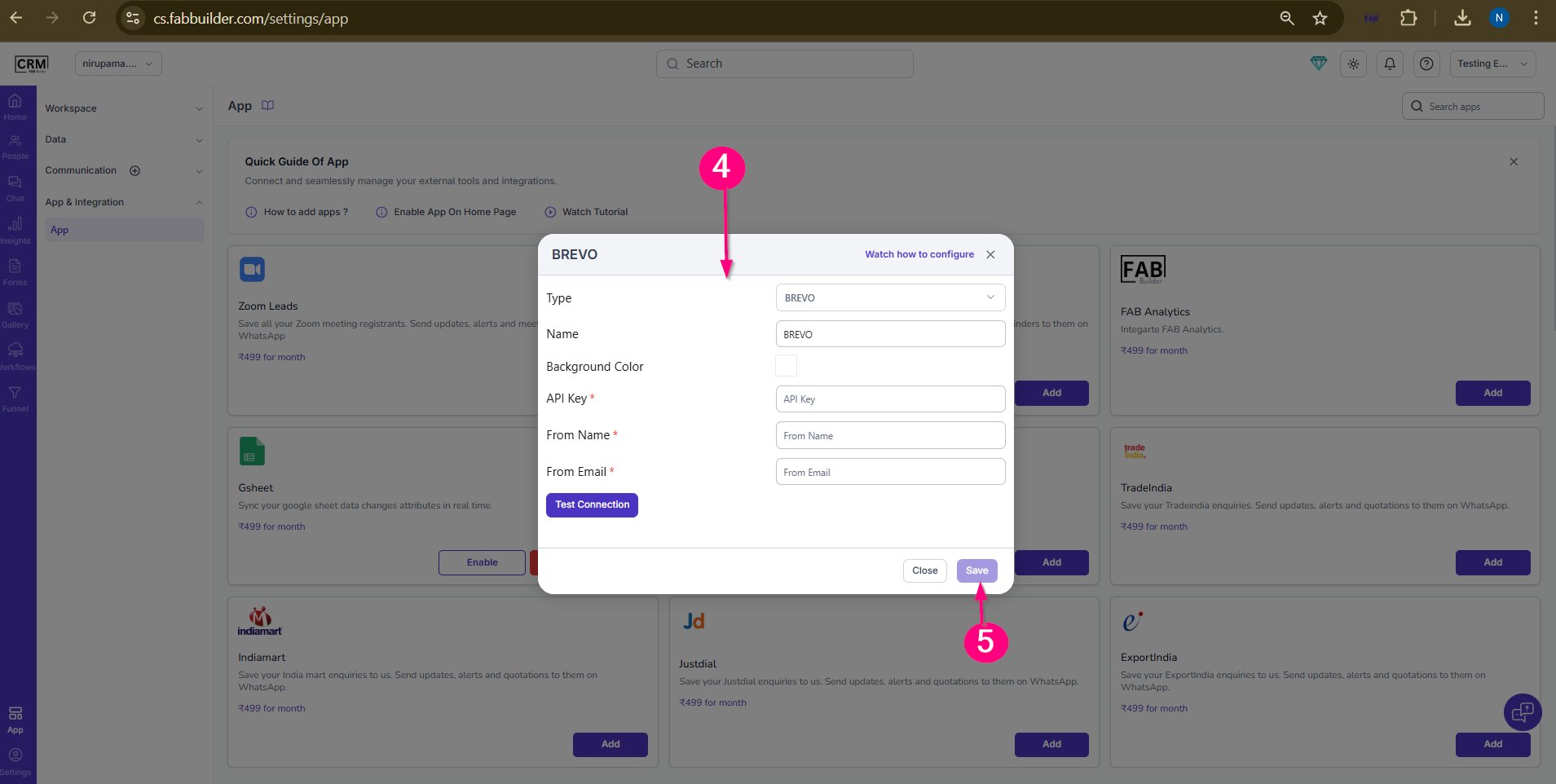
Select -Access to Brevo communication channel 4.Enter API Key, Sender Email, Sender Name
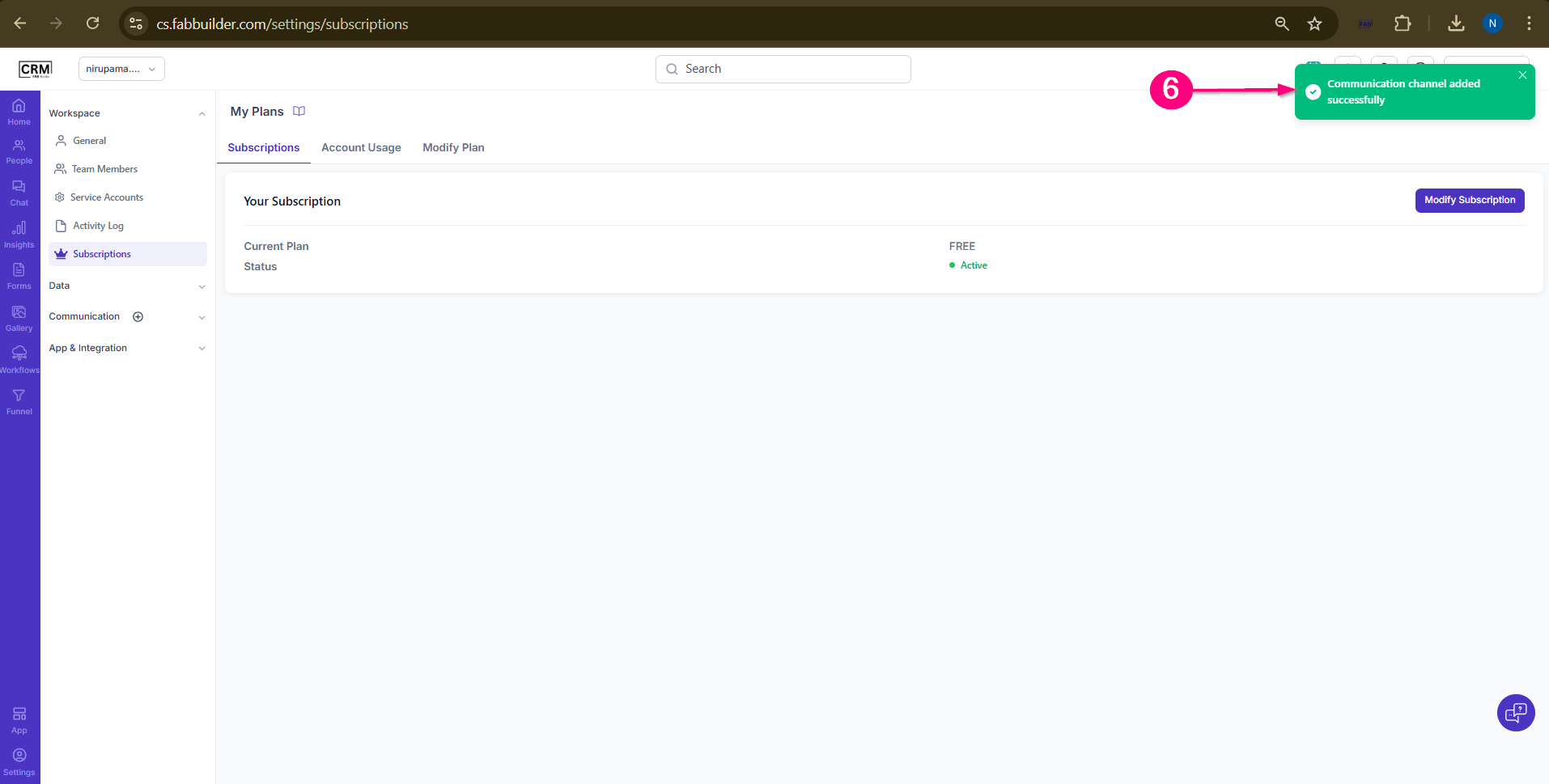
Screen - Add senders email,name 5.Click Save. 6.Close the message of communication channel added successfully.
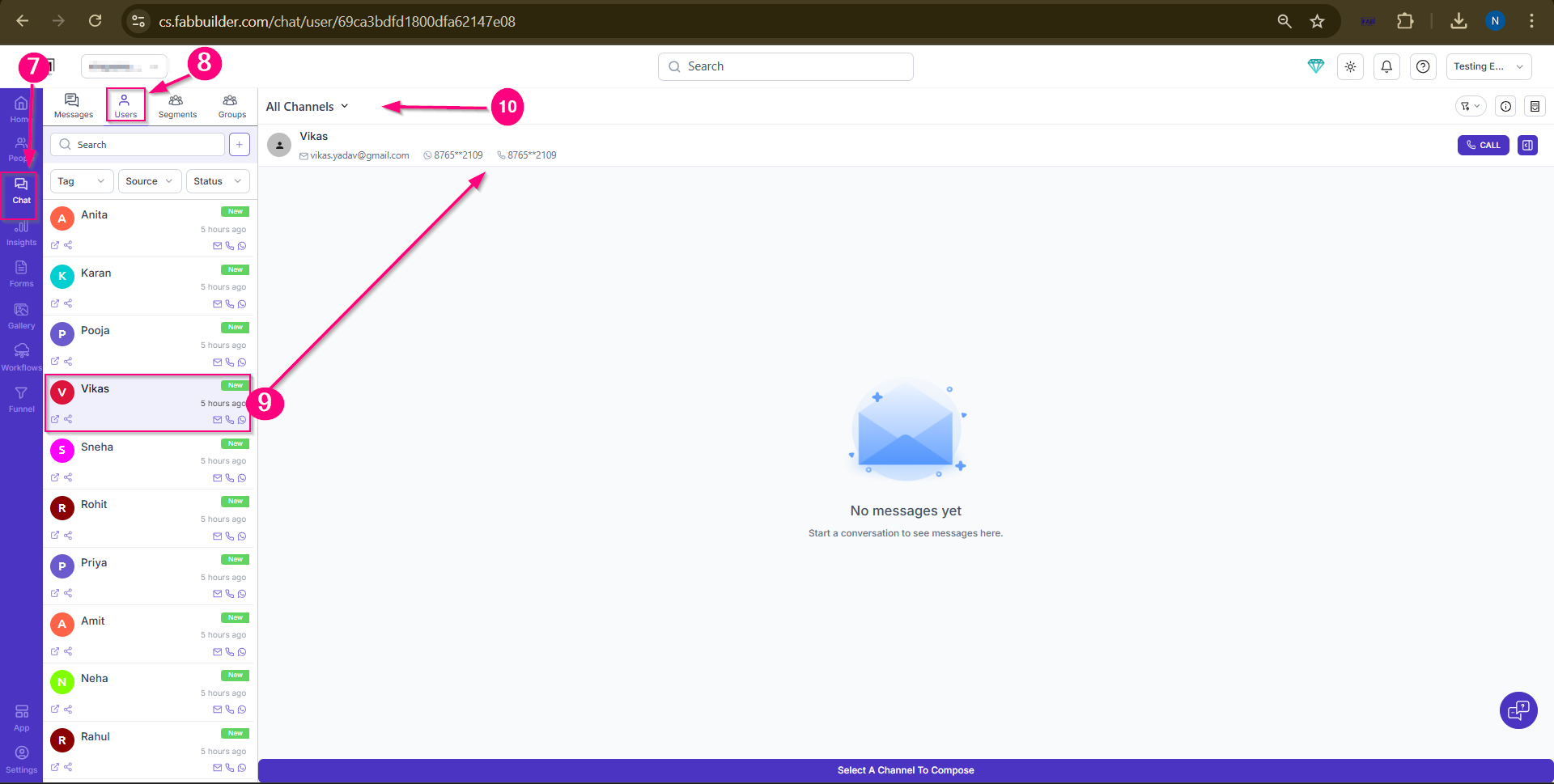
Screen -Message Communication Channel Added successfully Validation To verify email received and sender details are correct send a test email from CRM by following steps outlined below. 7. Click on the Chat Module to validate communication using the newly added Brevo channel. 8. Select any subgroup under the Chat Module (for example, Users). 9. Choose any lead/contact for communication from theuser contant panel. Once selected, the right panel will display the chat summary (initially, no messages will be shown). 10. Click on the Channel dropdown menu.
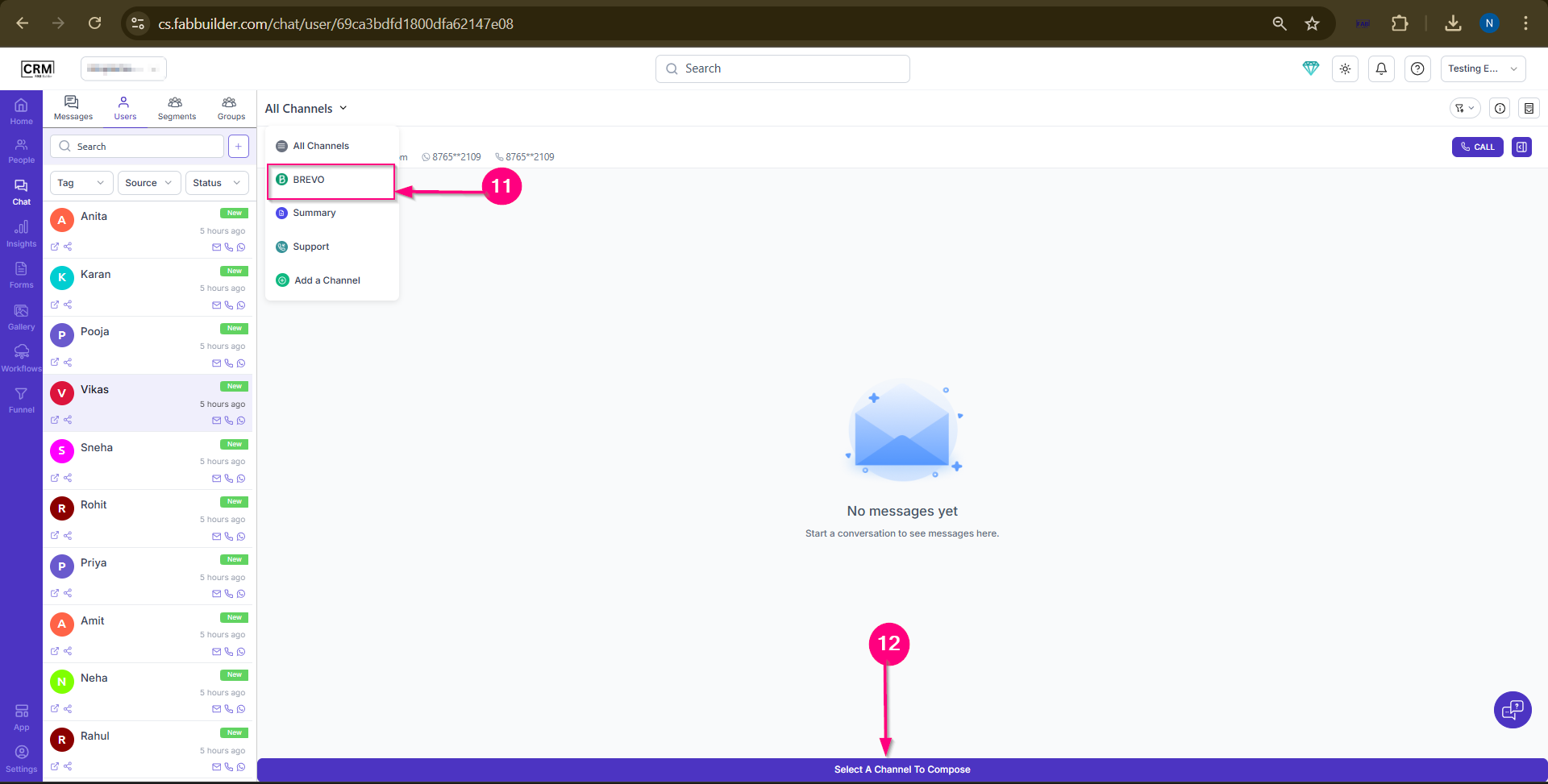
Screen -Send email or Template by added Brevo channel 11. Select the Brevo Channel from the list of available channels. 12.Once select Brevo click on compose button at footer.
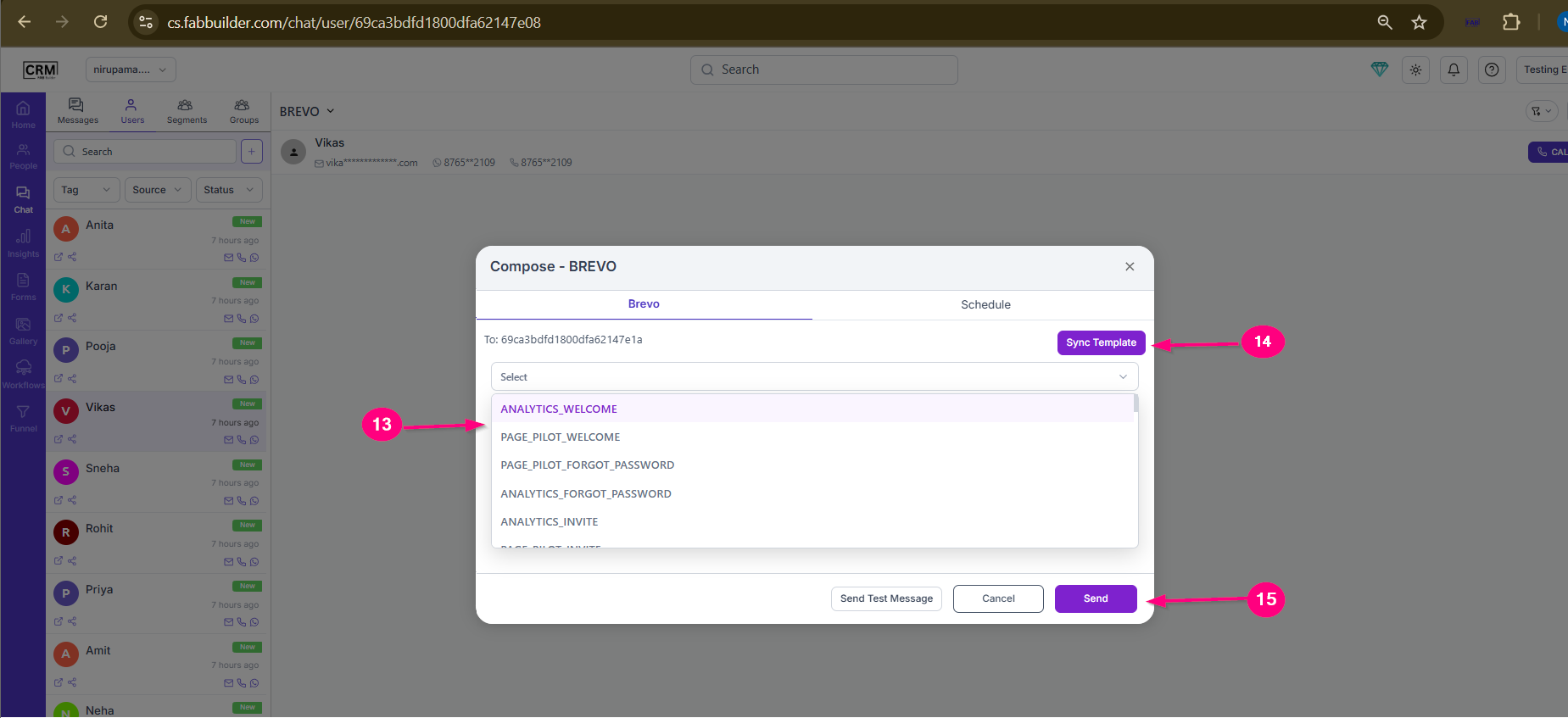
Screen- Brevo Selection Once click on compose button new screen will pop up contains the details of that lead,list of template and template sync button and send the template button. 13.Click on drop down menu to select the required template.
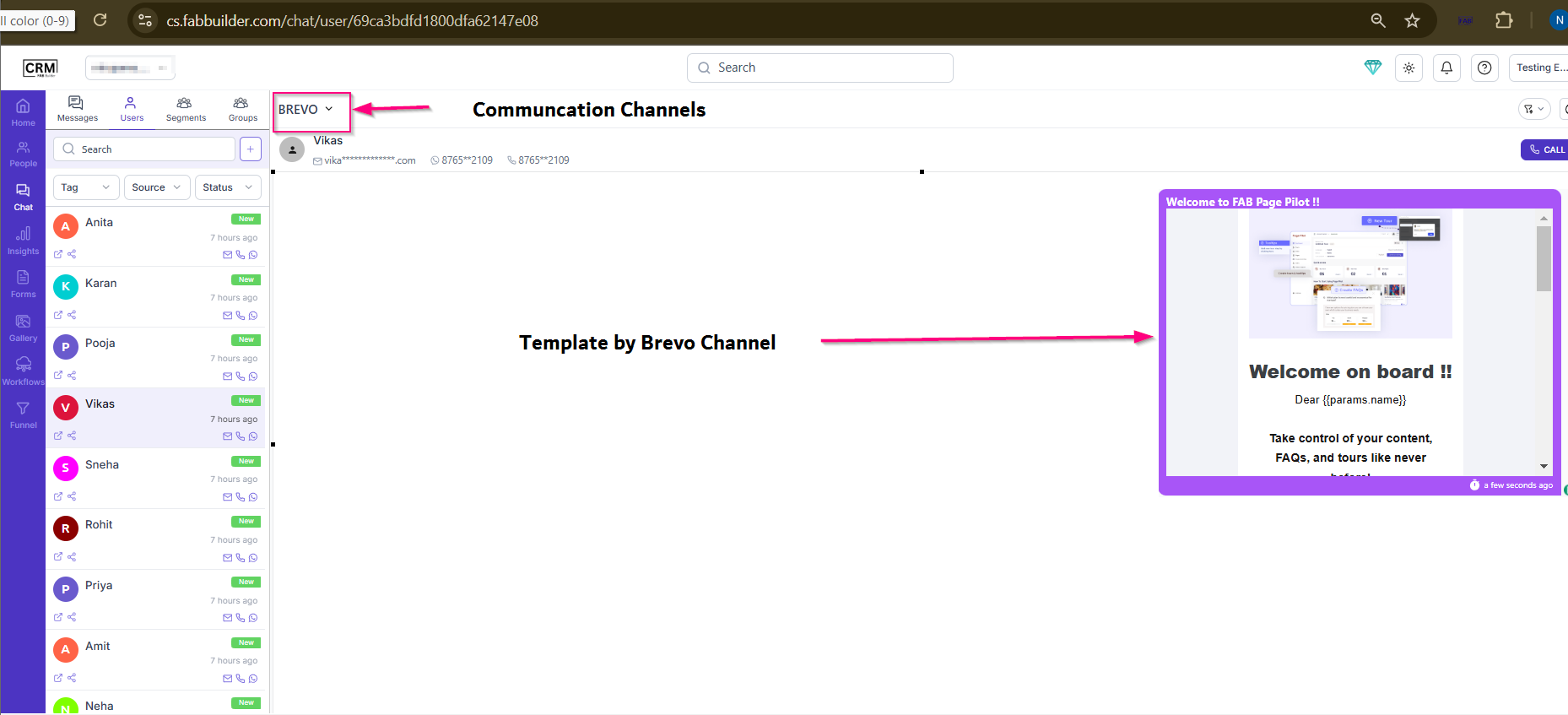
Screen - Sync Template 14.Click on sync template button to a selected template 15.After the template is synced, click on the Send button. Now user can view the sent template on right side panel commucation panel of a selected lead.
Screen- Sent Template via Brevo to Lead Contact |