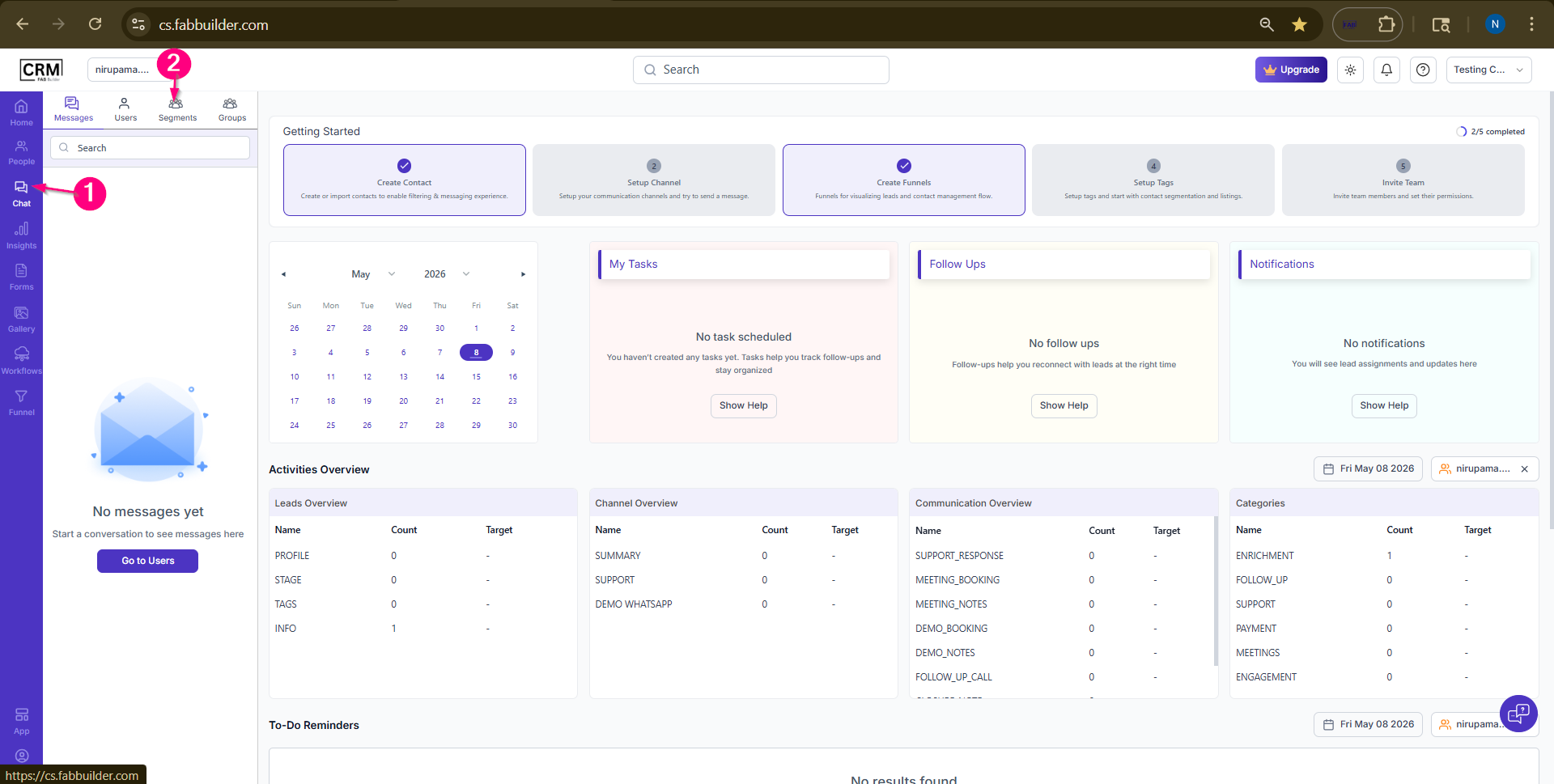
 Screen-Chat Module 3. Use the available filters such as Tags, Source, and Status to quickly locate the required contact. 4.Select the contact (Lead/Customer) to whom you want to send an SMS. After selecting the contact, the right-side panel expands and displays:
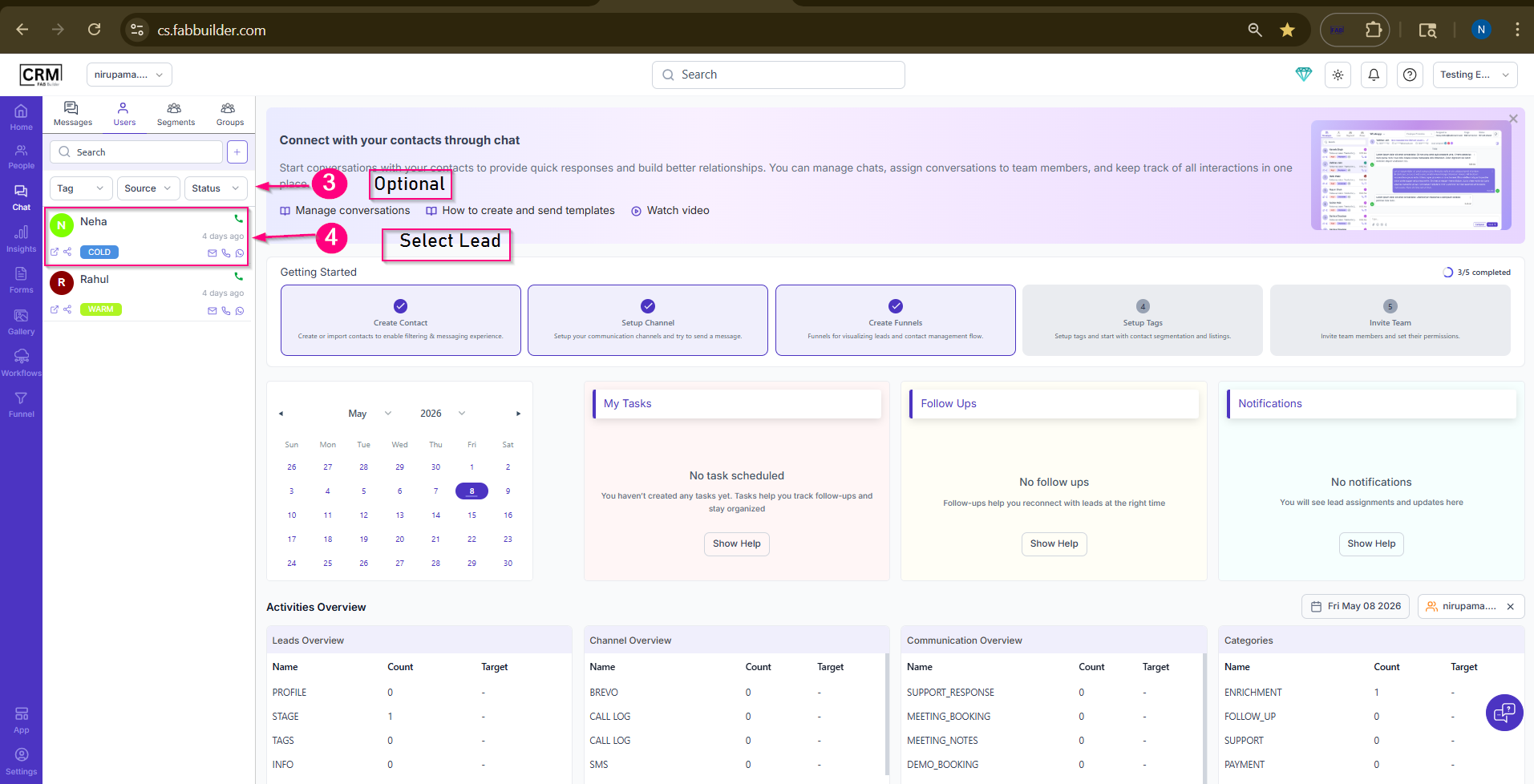
5.Click All Channels to open the list of available communication channels. 6.Select SMS as the communication channel. 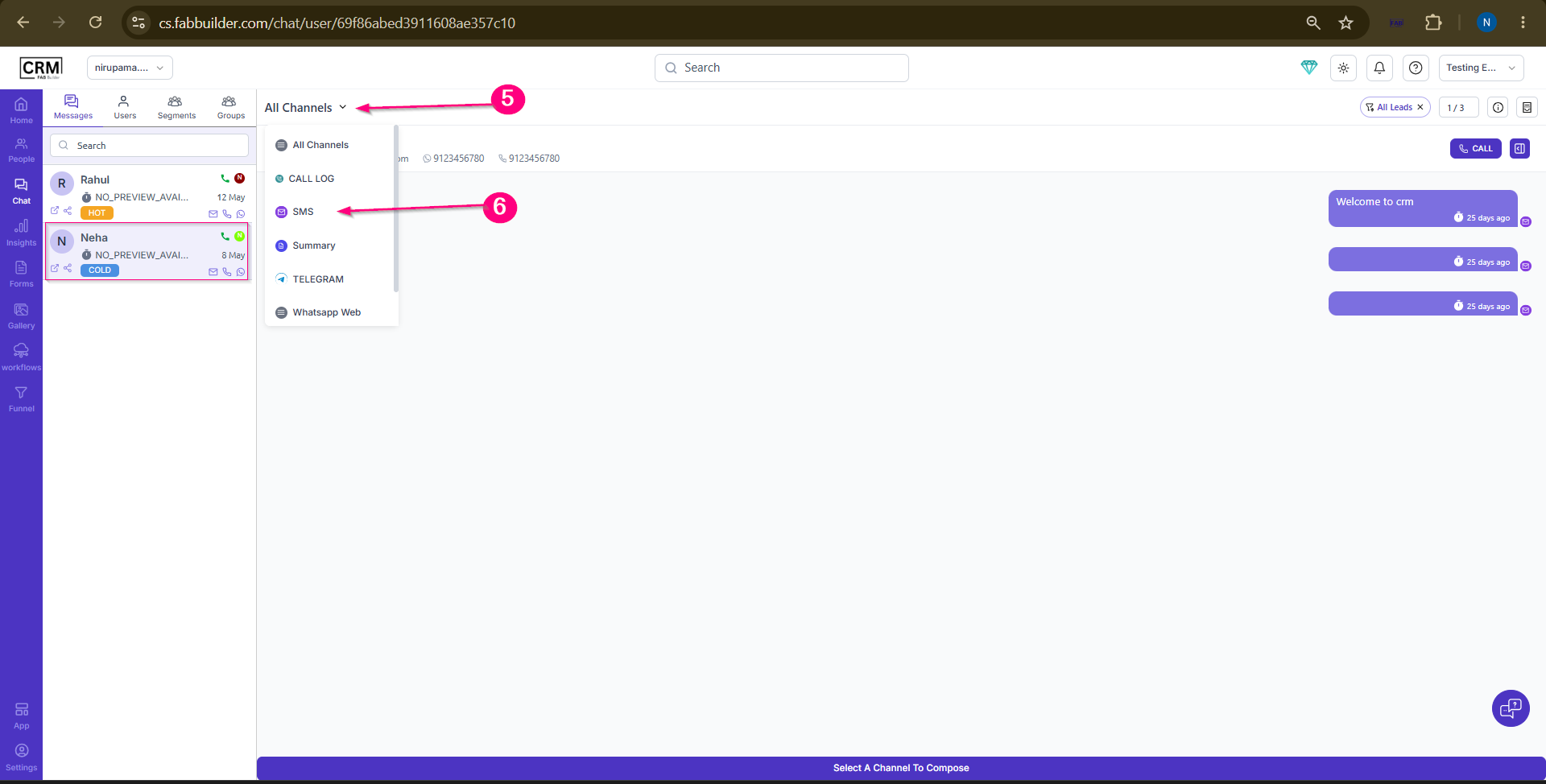 Screen – Select Channel 7.Click Compose 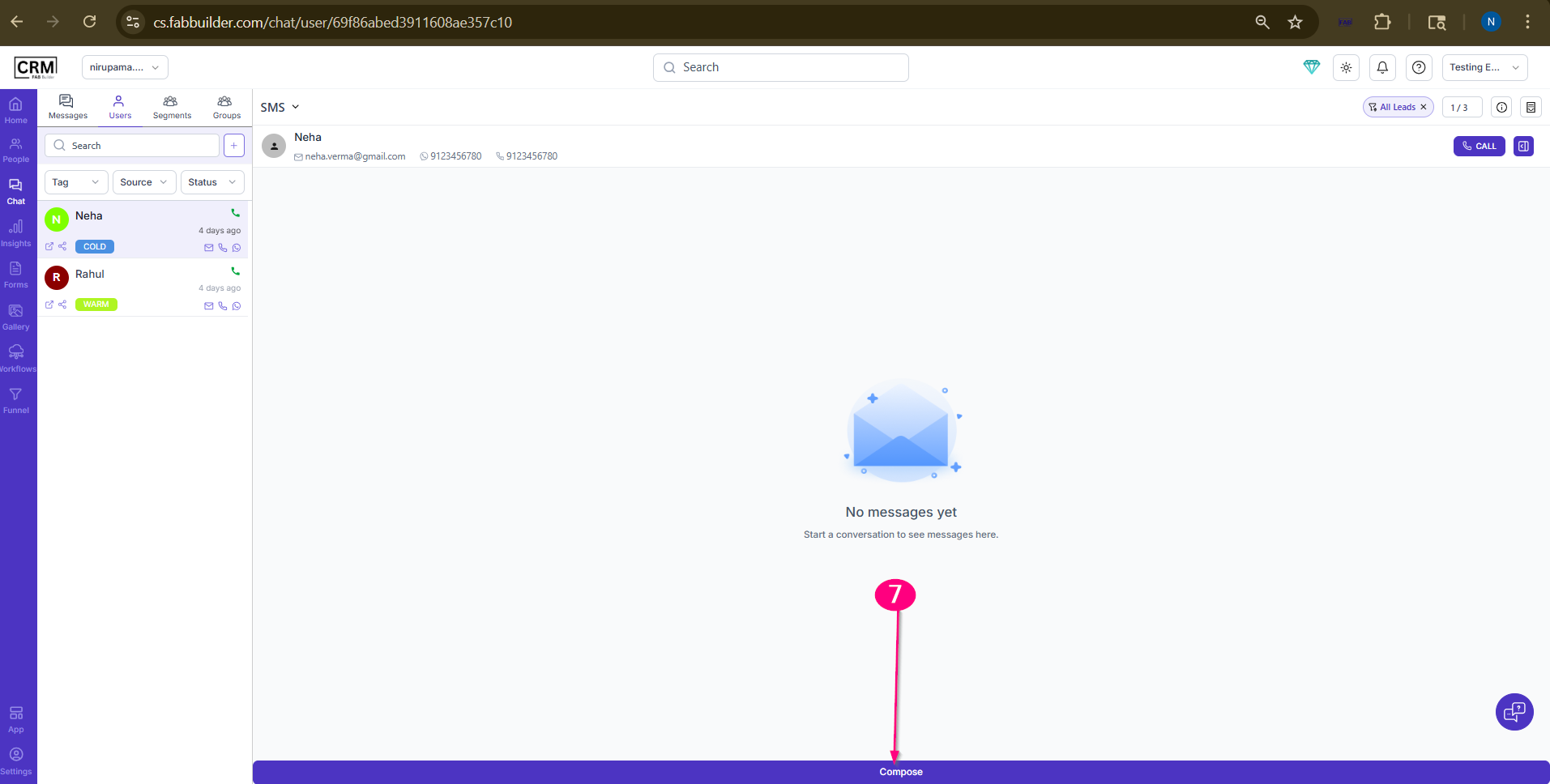 Screen – Compose Message 8. (Optional) Click Sync Template to refresh and load the latest templates if the required template is not available in the template list.
9. Select the required SMS template from the drop-down list. The selected template content is automatically loaded into the message editor.
10. (Optional) Click Send Test Message to send a test SMS to a selected contact before sending it to the intended recipient.
11. (Optional) Click the Schedule tab to schedule the SMS for delivery at a specific date and time.
12. Click Send to deliver the SMS immediately or according to the scheduled date and time.
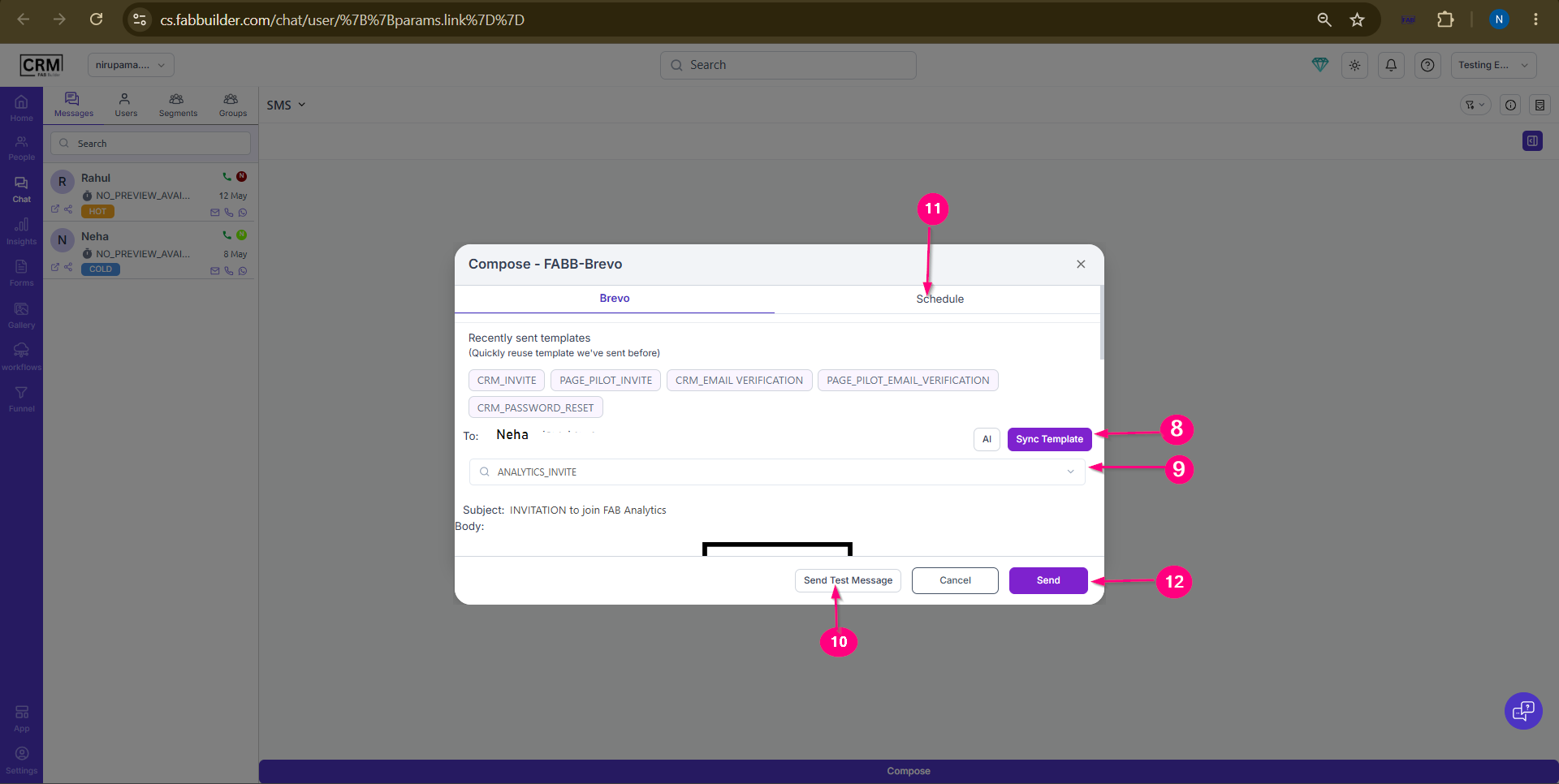 Screen- Send Message After the SMS is sent, users can view the communication history and the details of the sent message in the right-side panel.
Send SMS in Bulk to a Group or SegmentPrerequisitesBefore sending bulk SMS messages, ensure that:
Follow the steps below to send SMS messages to a selected group or segment.
StepsGo to the Chat module from the left-side navigation panel. 1.Screen – Chat Module 3.Choose the required segment (for example,Hot Leads) from the list. After selecting the segment, the right-side panel expands and displays:
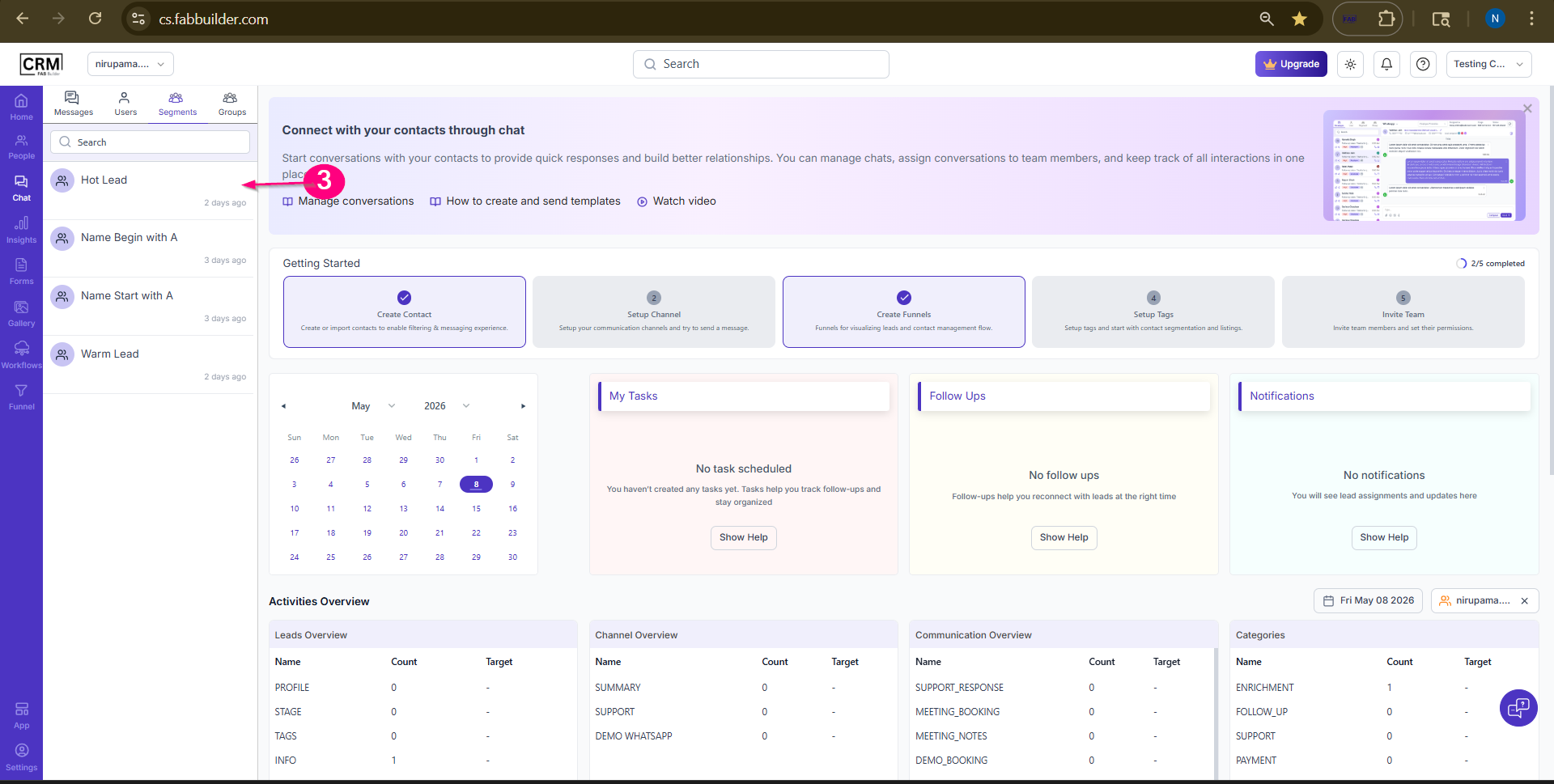 Screen-Select Segment 4. Click All Channels to open the list of available communication channels. 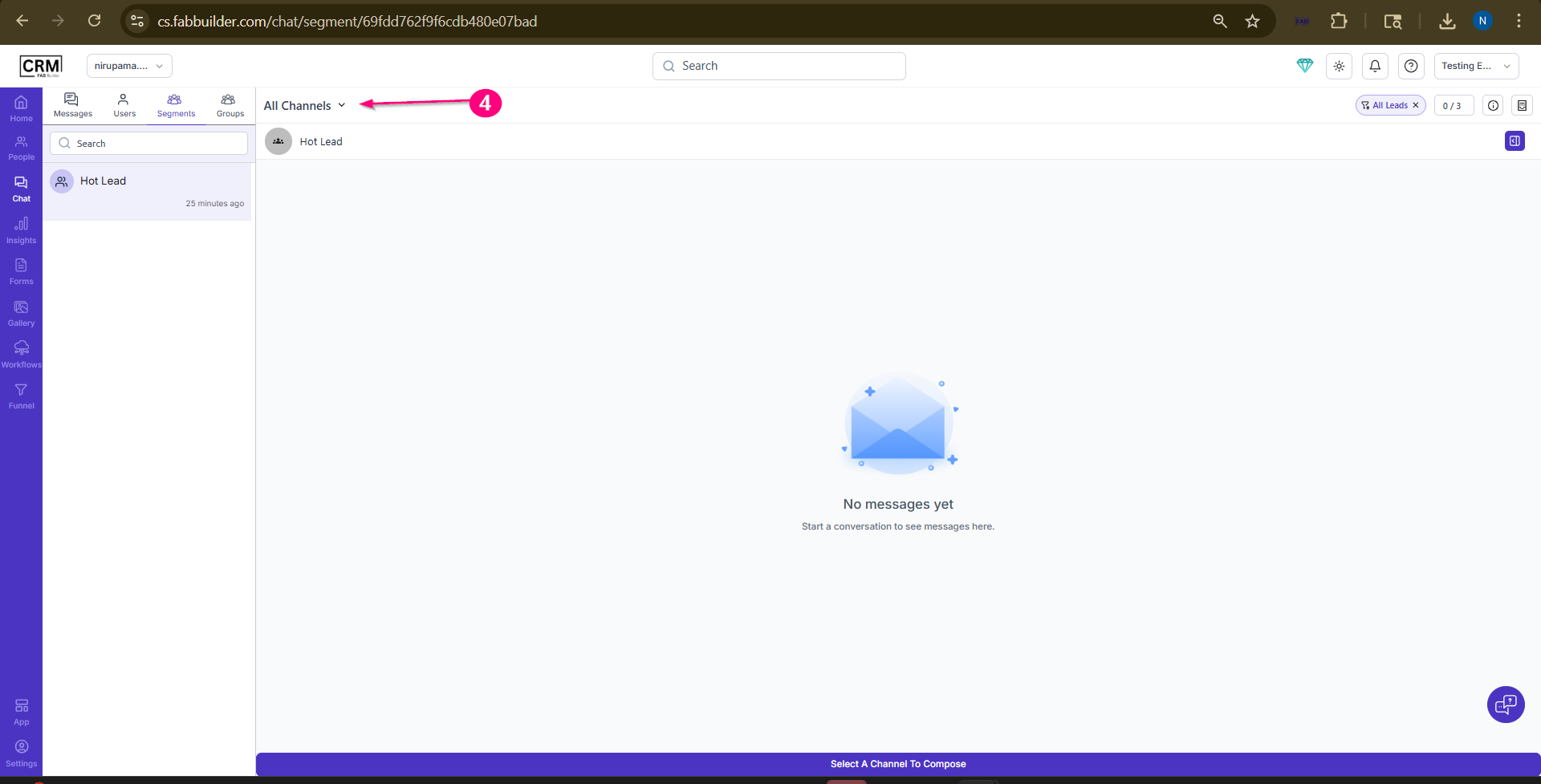 Screen- All channel 5.Select SMS as the communication channel. 6.Click Compose. 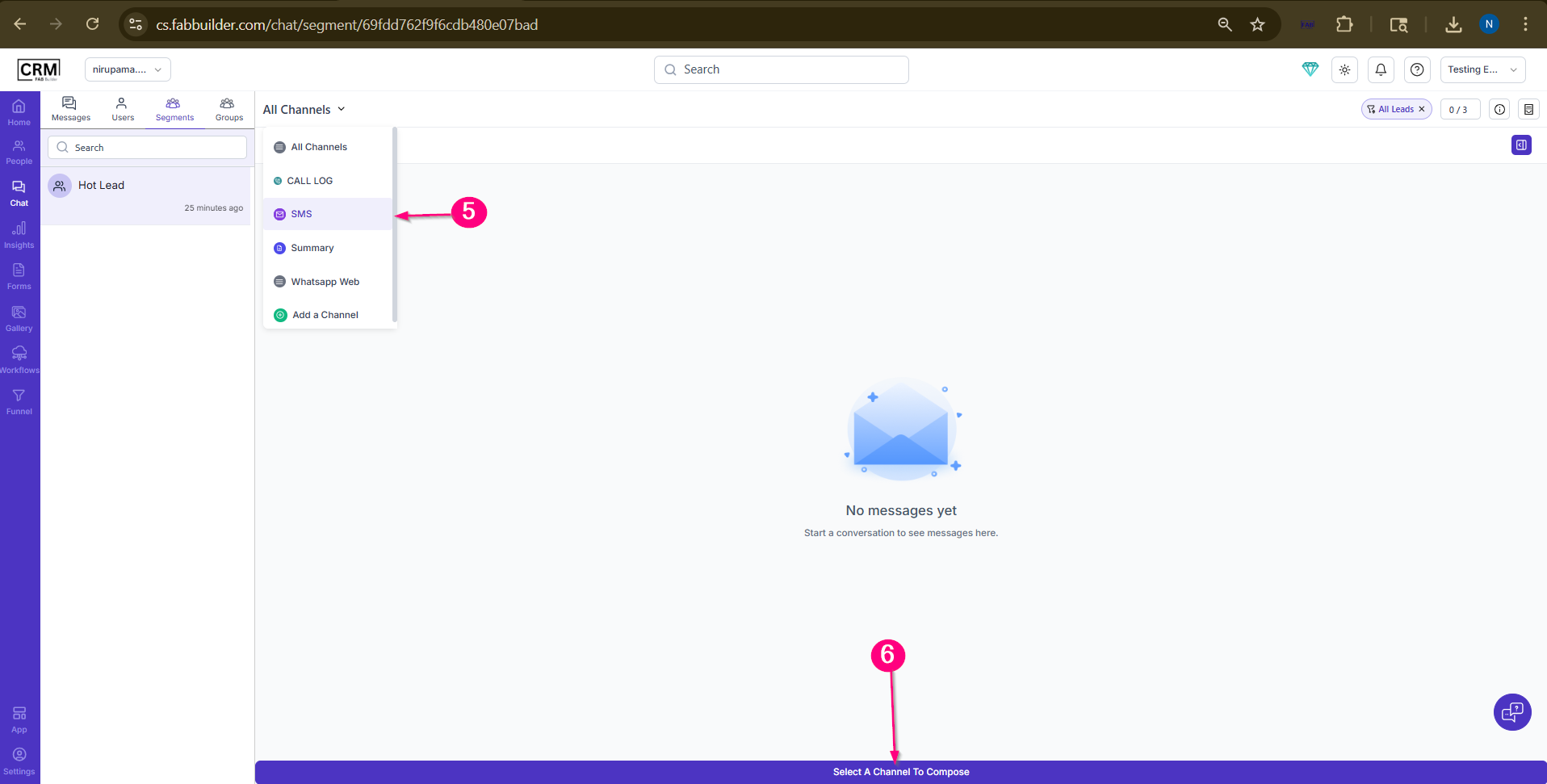 Screen- SMS channel 7. (Optional) Click Sync Template to refresh and load the latest templates if the required template is not available in the template list.
8. Select the required SMS template from the drop-down list. The selected template content is automatically loaded into the message editor.
9. (Optional) Click Send Test Message to send a test SMS to a selected contact before sending it to the intended recipient.
10. (Optional) Click the Schedule tab to schedule the SMS for delivery at a specific date and time.
11. Click Send to deliver the SMS immediately or according to the scheduled date and time.
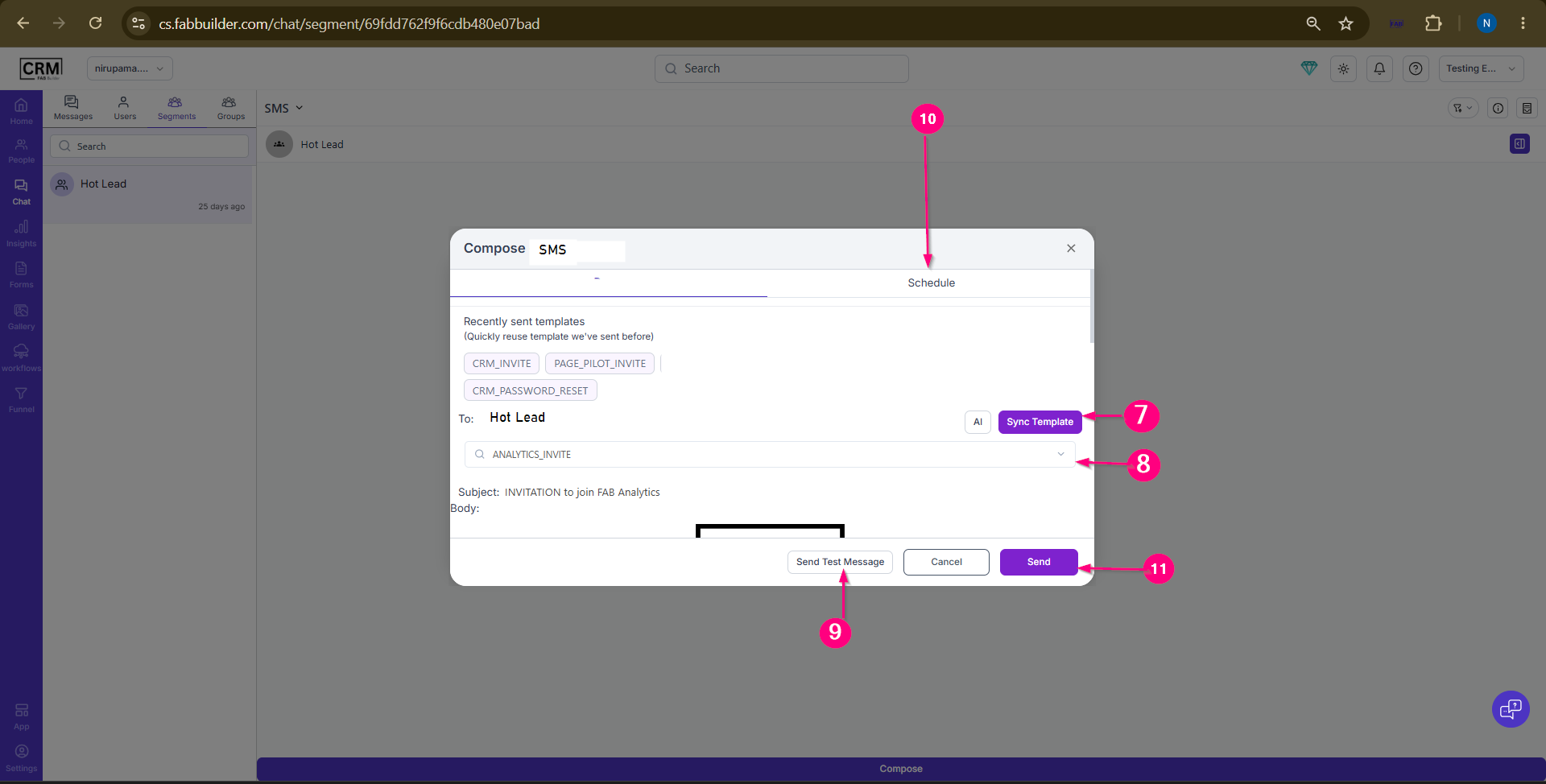 Screen- Send SMS After the SMS is sent, users can view the communication history and the details of the sent message in the right-side panel. |