PrerequisitesEnsure that the Brevo communication channel is configured and active before sending emails. Steps
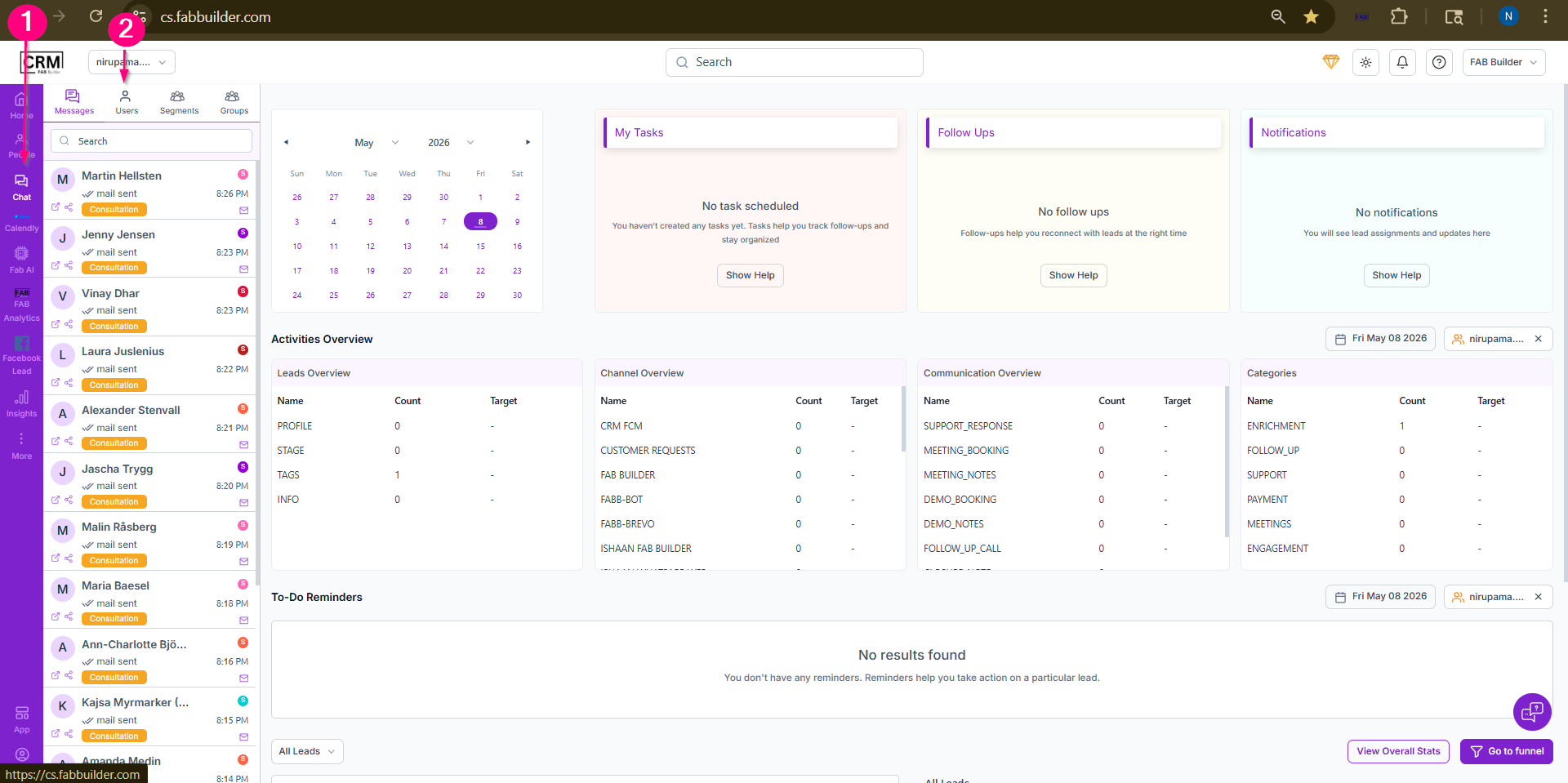 Screen – Access the Chat Module 3.Select the required contact from the user list (for example, Tejas Lende).
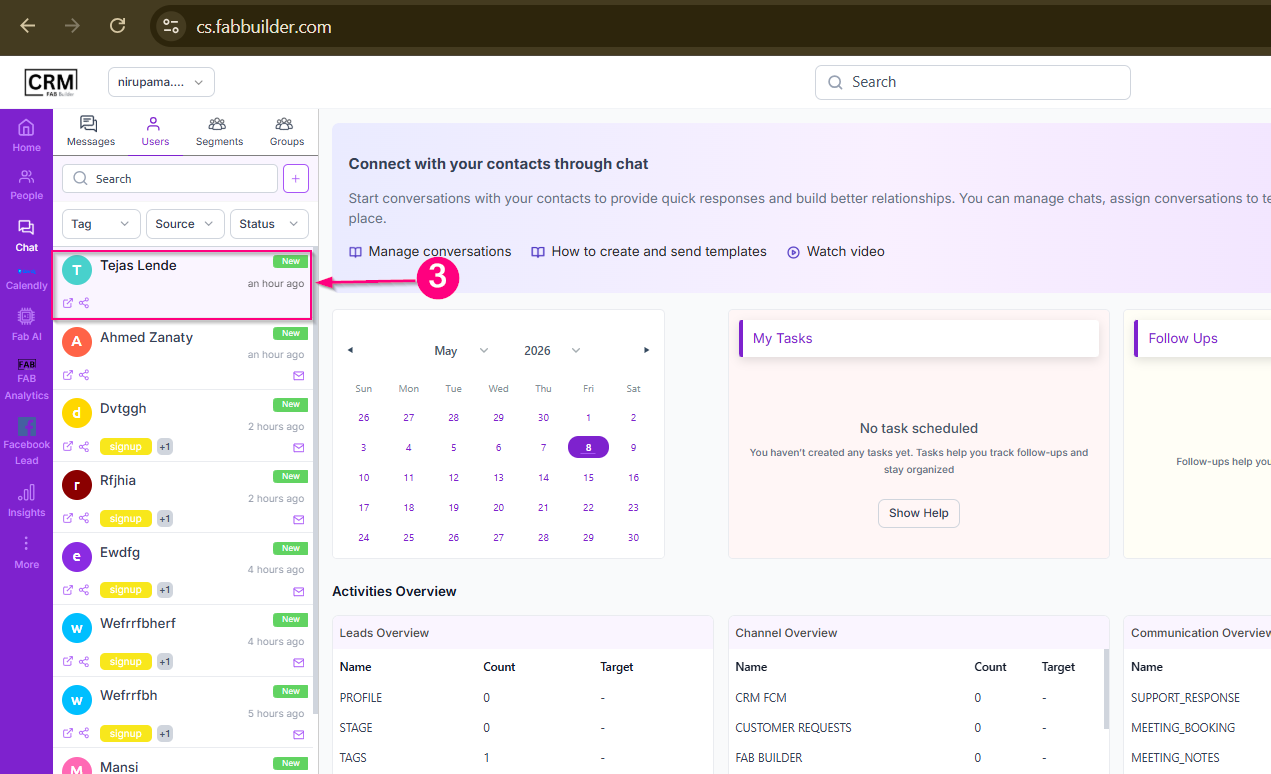 Screen- Select Contact 4.ClickAll Channels to open the list of available communication channels. 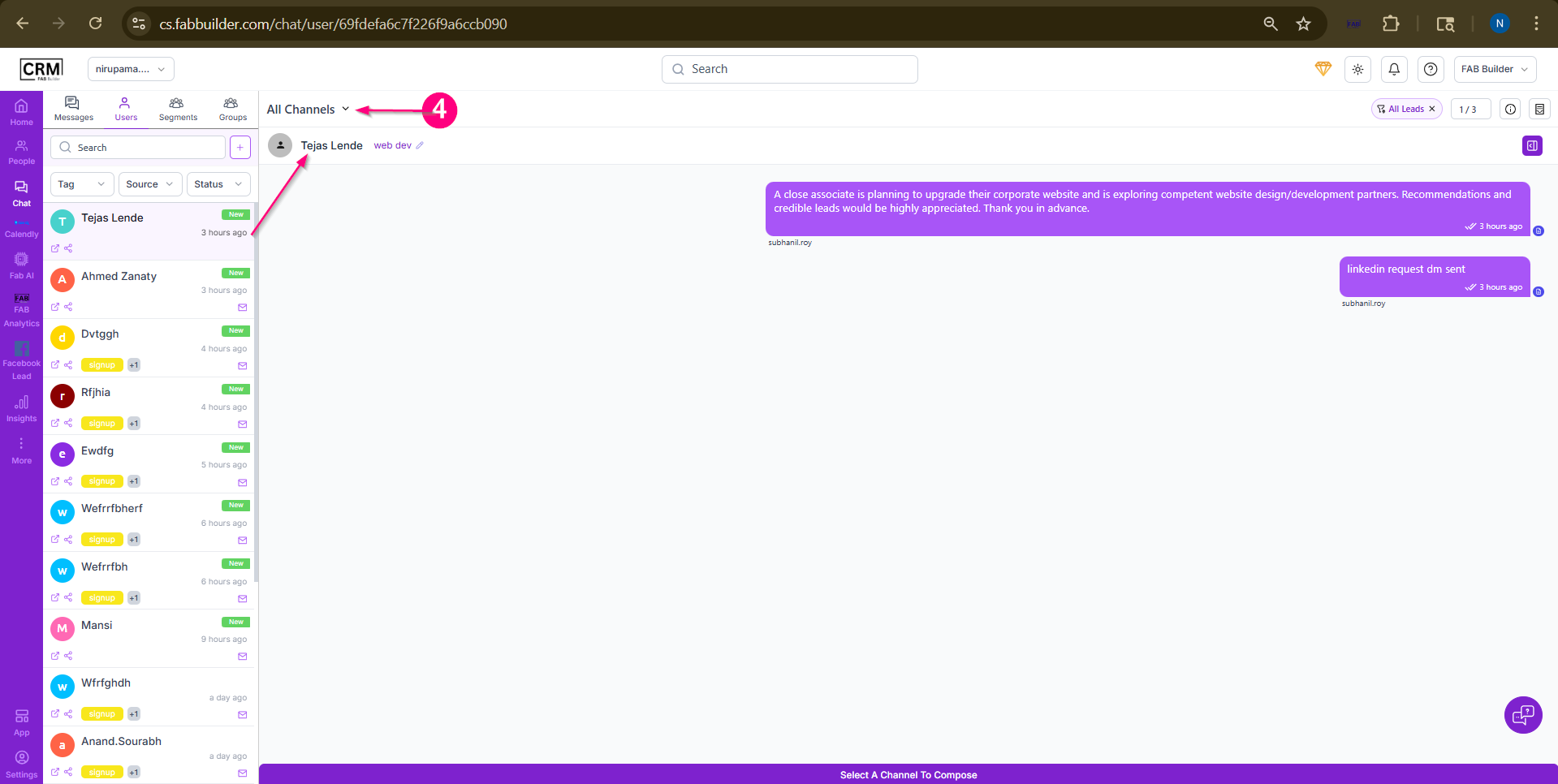 5.Select the Brevo channel. 6.Click Compose from the footer. A compose window will open.
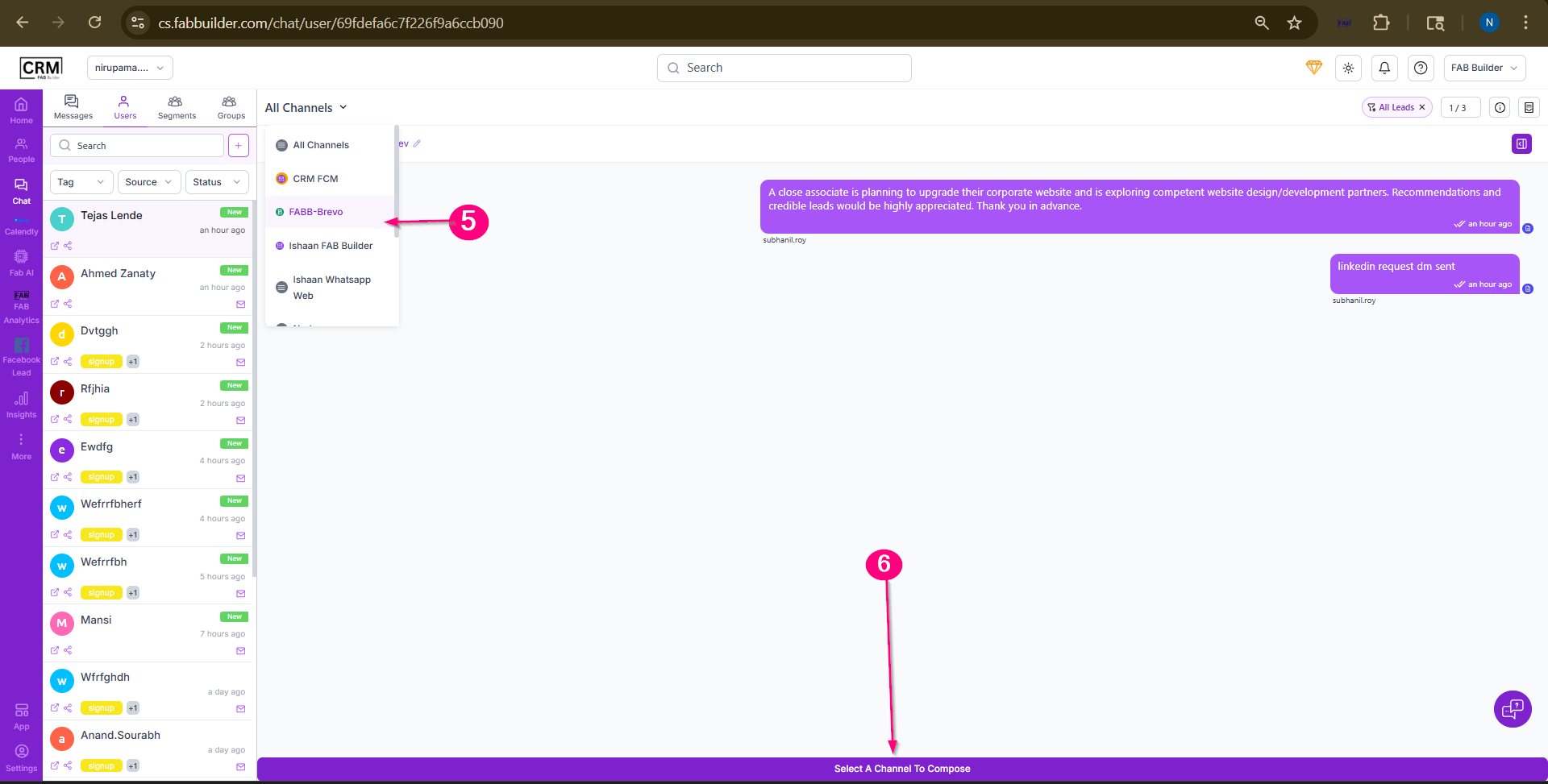 Screen-Brevo Channel Selection and Compose 7.Select the required email template from the template drop-down list. 8.(Optional) Click Sync Template to load the latest templates if the required template is not available, 9.(Optional) Click Send Test Message to send a test email to a selected contact. 10(Optional) Use the Schedule tab to schedule the email for delivery at a later date and time. 11. Click Send to deliver the email.
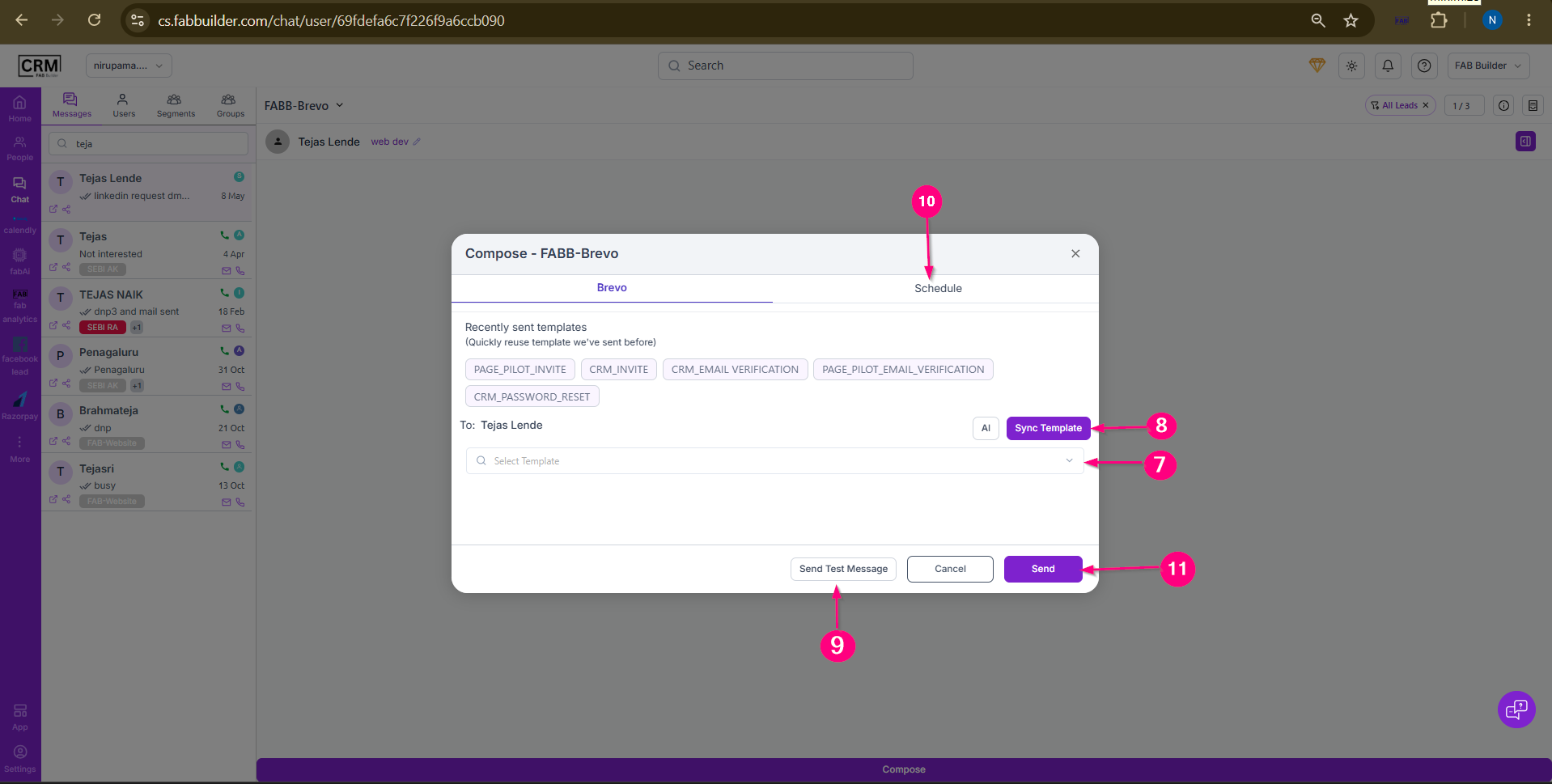 Screen- Send Template by Brevo After the email is sent, users can view the communication history and email details in the right-side panel. |