Assign a Team Member to a LeadOverviewThis section explains how to assign an unassigned lead to a team member within a funnel. Assigning leads helps distribute responsibilities among team members and ensures timely follow-up and lead management. PrerequisitesBefore assigning a lead, ensure that:
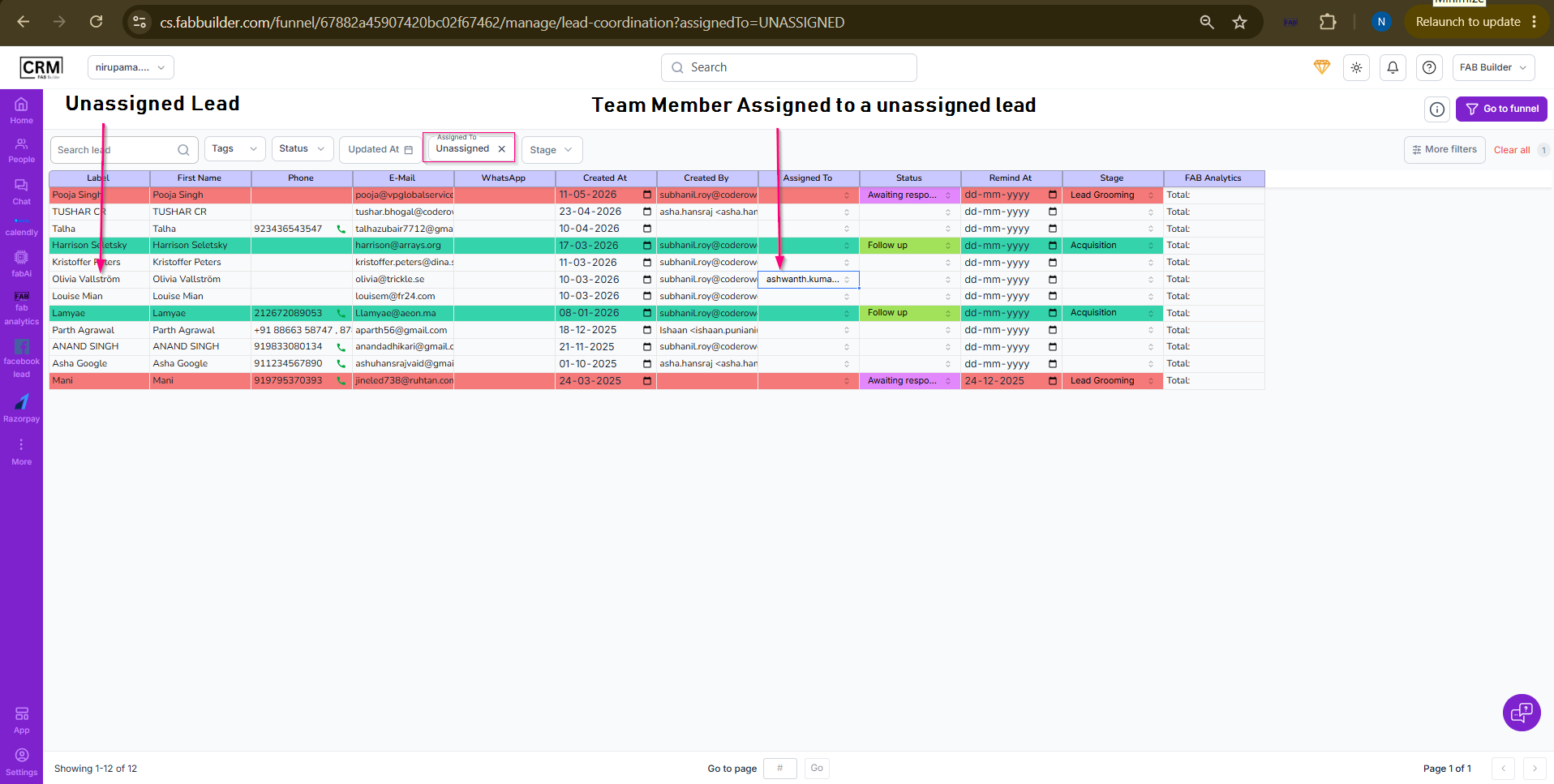 Screen- Assign to Member
Assign a Team Member to a LeadOverviewThis section explains how to assign an unassigned lead to a team member within a funnel. Assigning leads helps distribute responsibilities among team members and ensures timely follow-up and lead management. PrerequisitesBefore assigning a lead, ensure that:
Steps to Assign a Team Member to a Lead
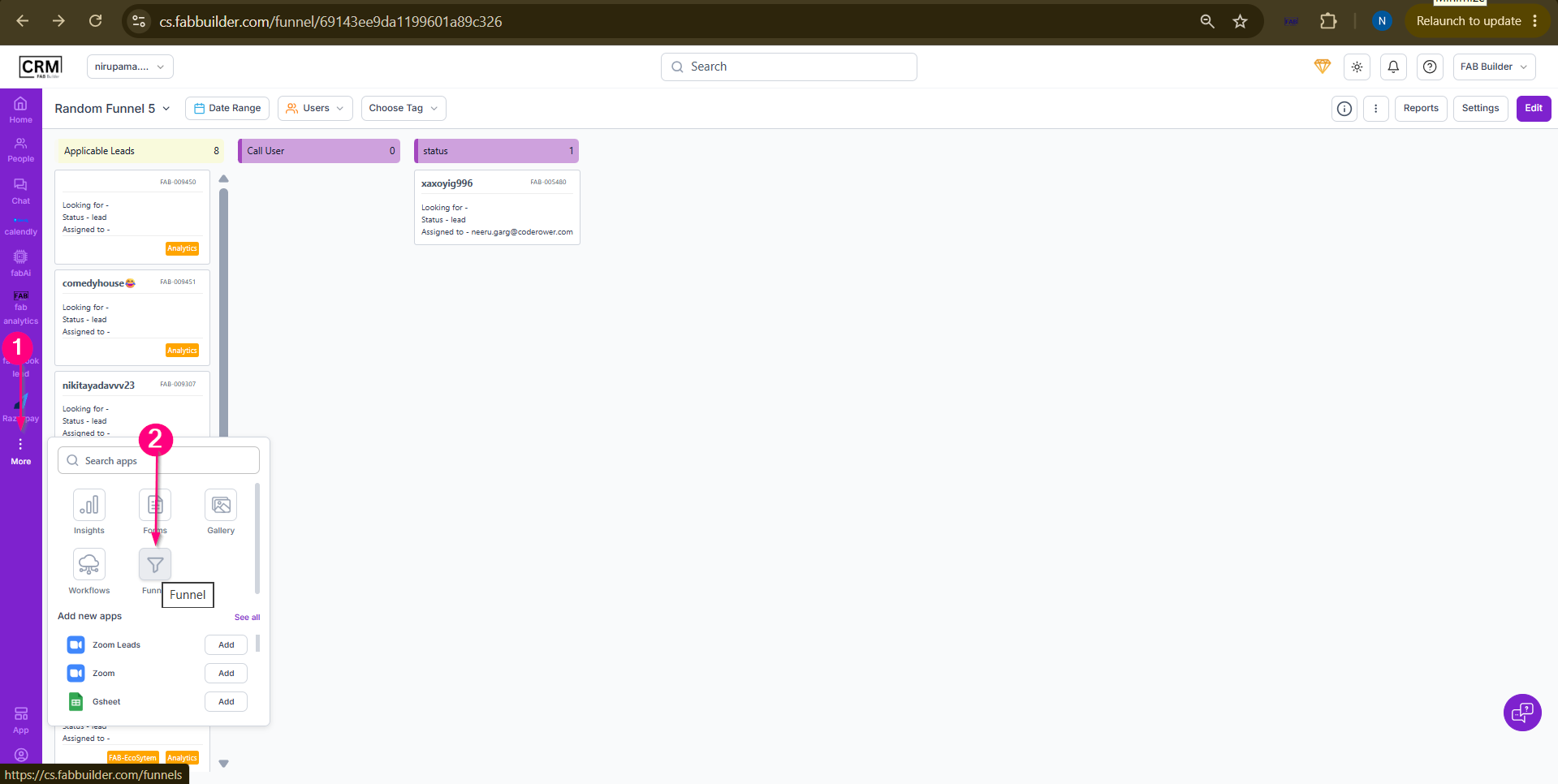 Screen- Access Funnel Module 3.From the Funnel Dashboard, select the required funnel and click View Leads for the selected funnel. The Funnel Stages screen for the selected funnel will open.
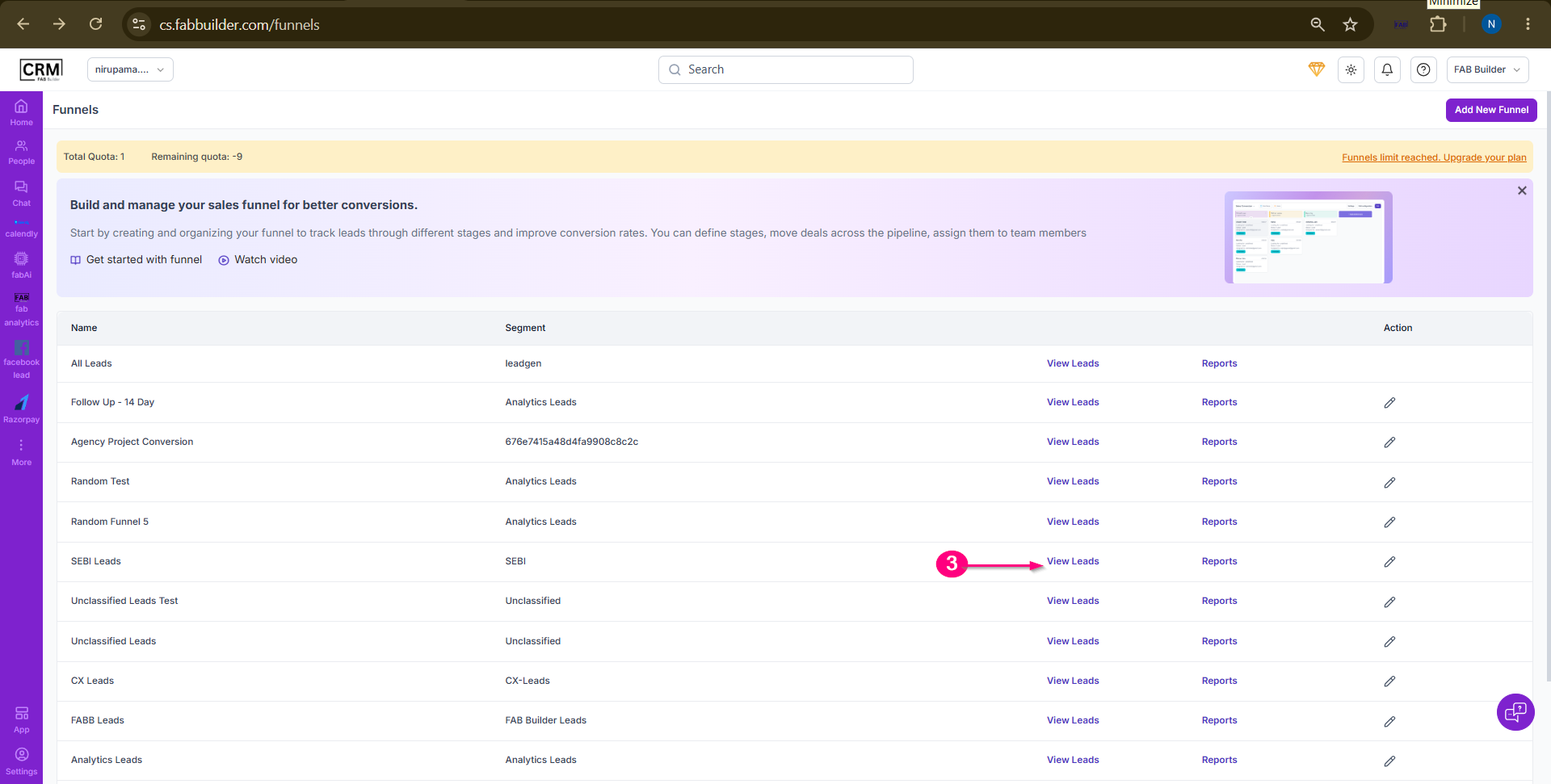 Scrren- Access to View Lead Details
Now click theThree-Dot Menu available in the header section of the Funnel Stages screen.4.Select Unassigned Lead from the available options to display all unassigned leads. 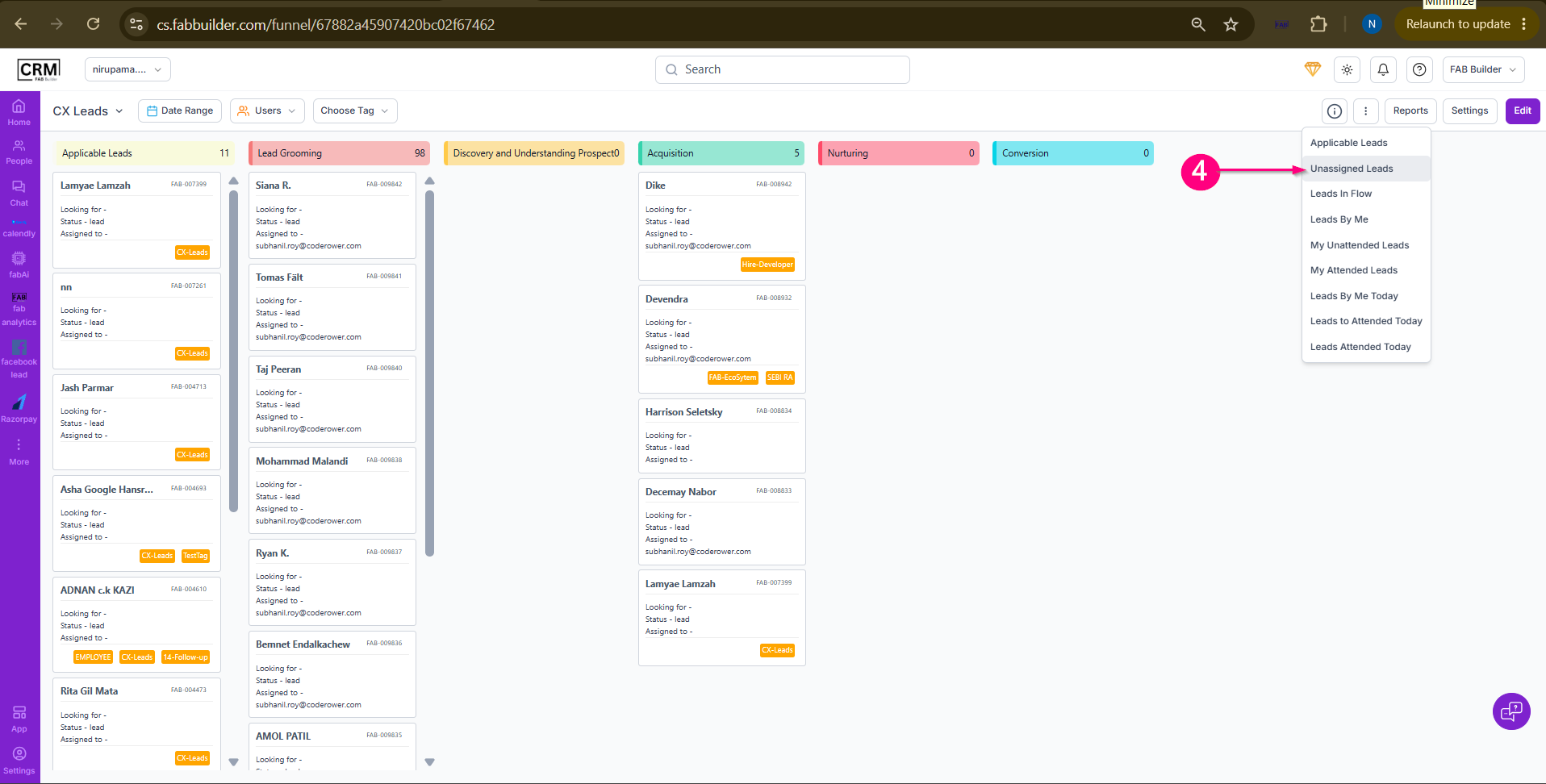 Screen- Unassigned Lead
Now click will redirect to unassigned lead screen.Locate the lead you want to assign.5.In theAssigned Tocolumn, click the dropdown corresponding to the selected lead. 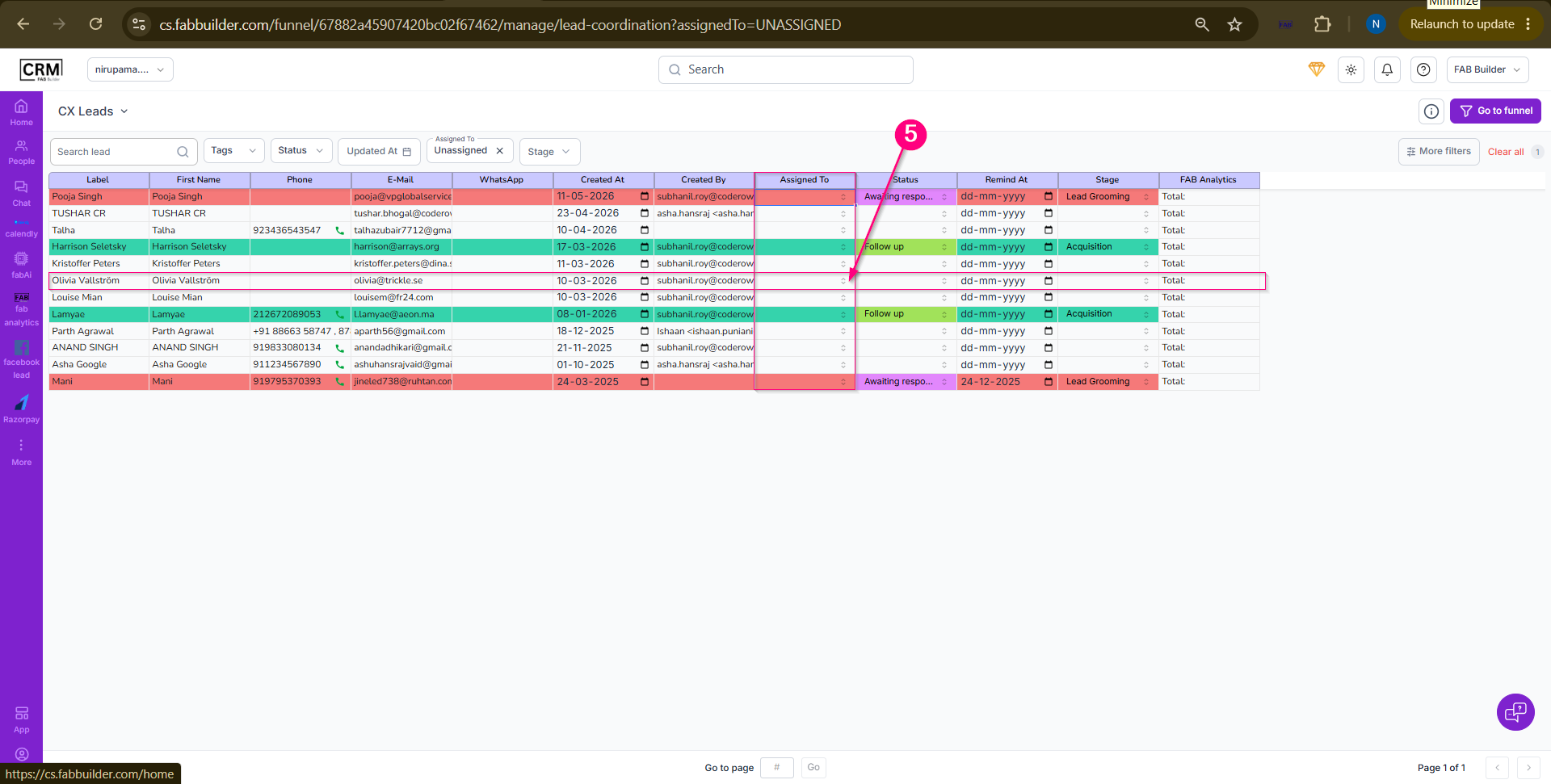 Screen- Navigate Assign to Team Menu A list of available team members will be displayed. 6.Select the desired team member from the list. 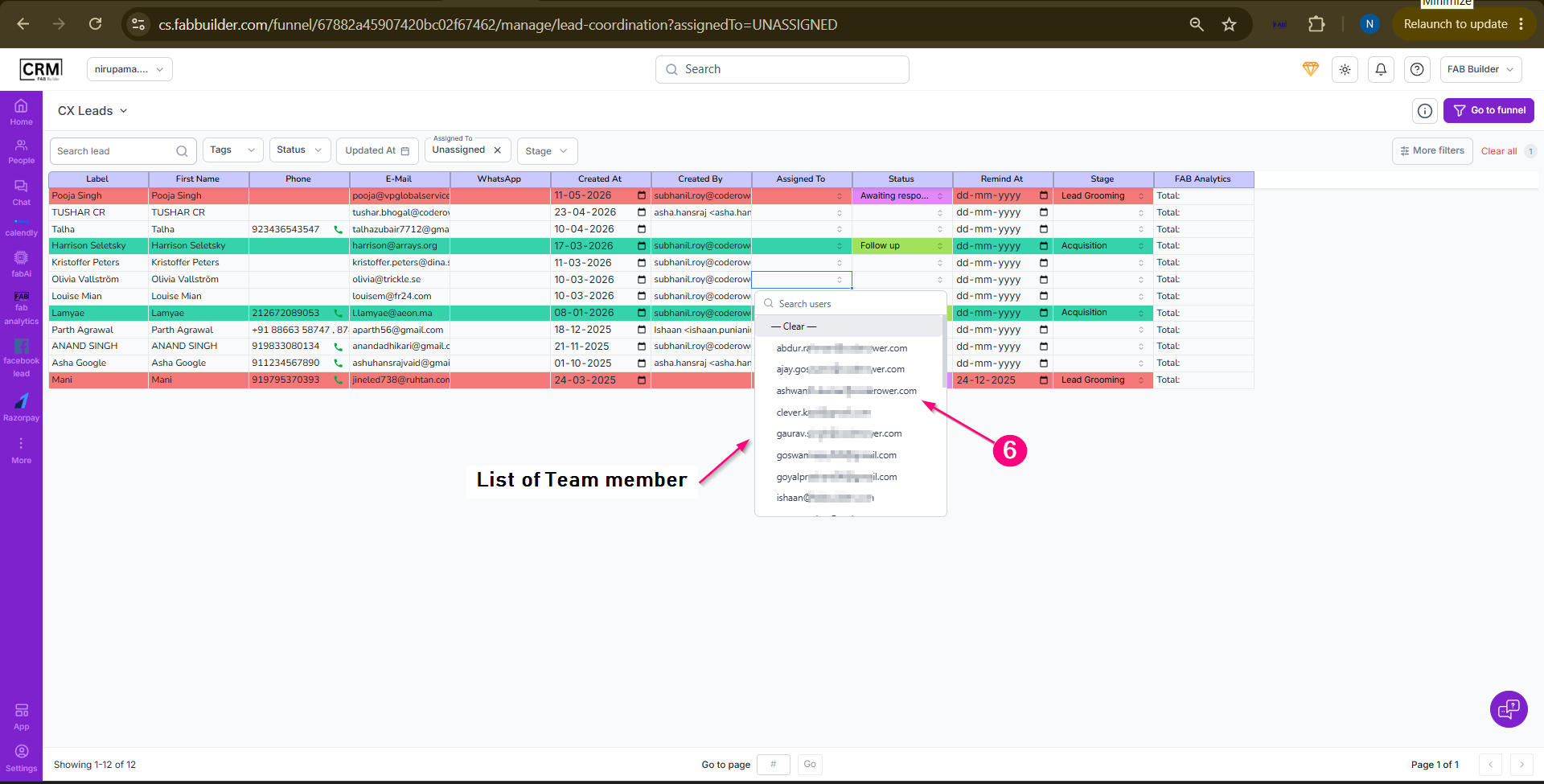 Screen- Select Team Member
ResultThe selected lead is assigned to the chosen team member. The assigned team member can now manage, track, and follow up on the lead within the CRM. Refer the first screen in this section to view the team member successfully assigned. |