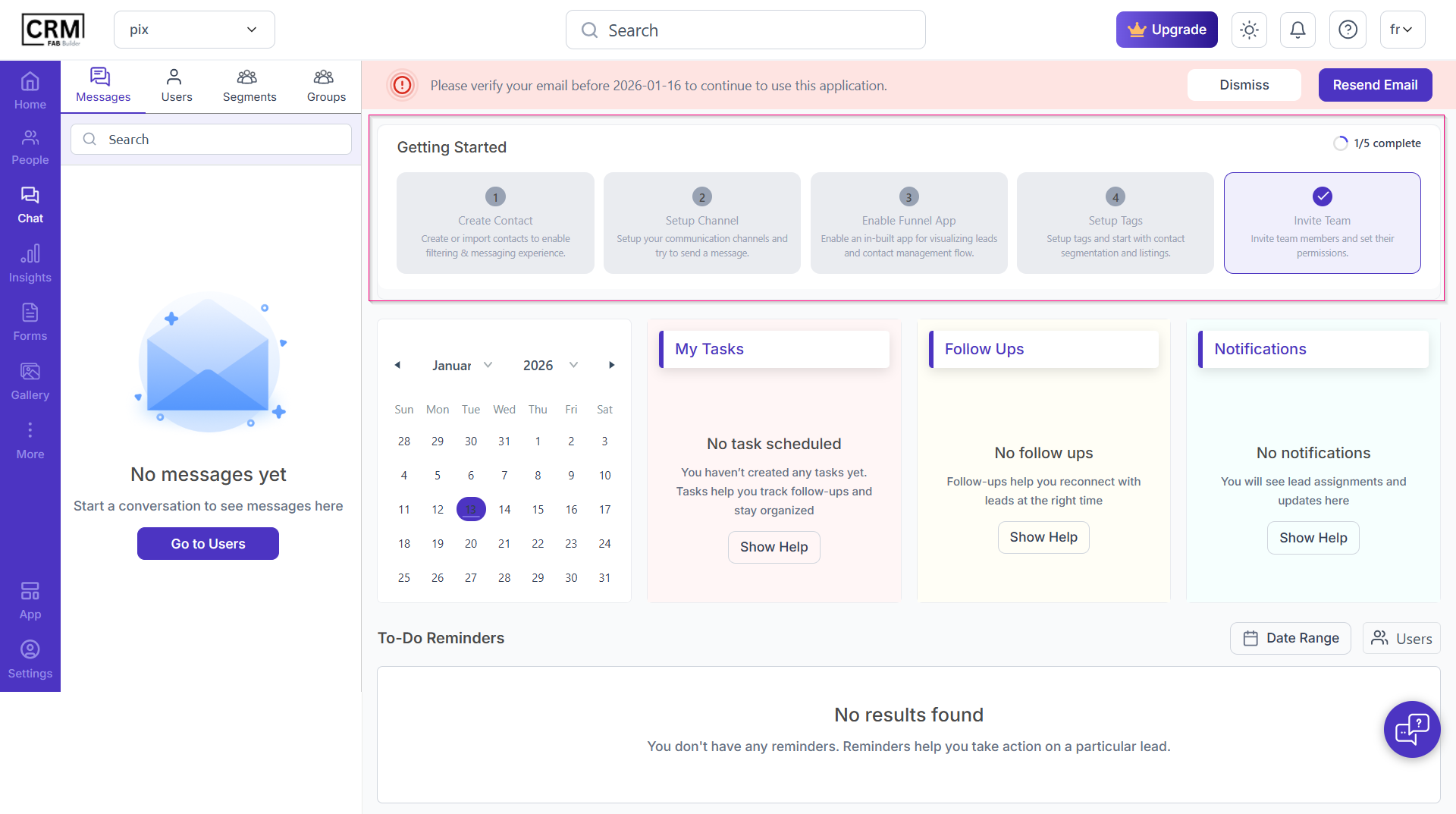
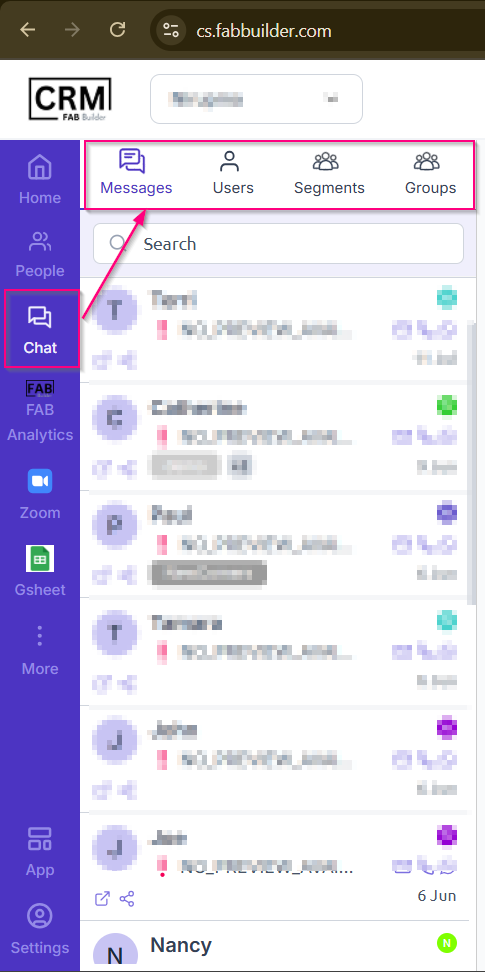
This module serves as the central hub for managing all communication-related activities. It provides a dynamic list of conversations and a centralized view of daily updates, allowing users to monitor interactions, plan actions, and track lead activity in real time. After navigating Chat module on navigation panel two screens of Chat module dashboard have been shown for exisitng user and new user as mentioned below
Screen- Chat (Existing User) For new user chat screen(below) will appear without any data and which also displayed the getting started set up before CRM started automatically on the central activity panel.
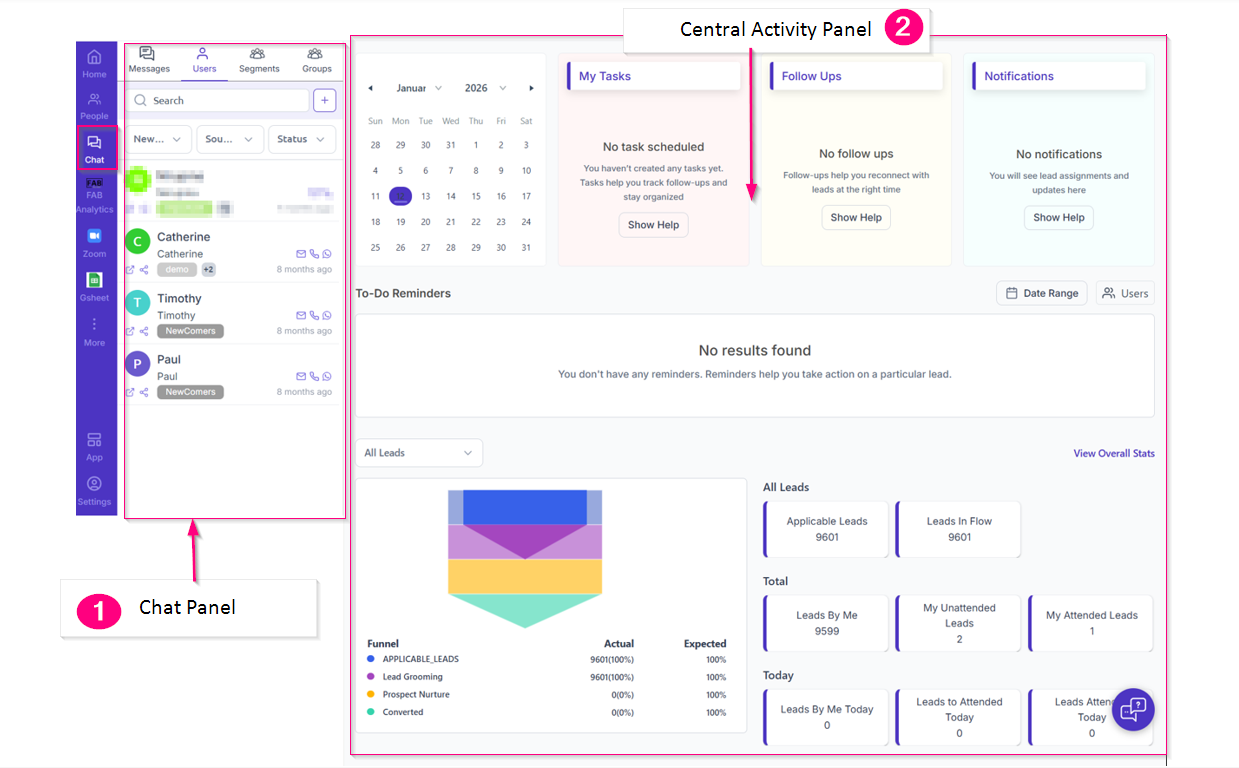
Screen- Chat (New User) Chat Screen components-User can view chat screen devided in two panel as shown below 1.Chat panel- This panel designed to manage all communication-related activities and provide a real-time overview of lead engagement 2.Cenral Activity Panel-The Central Activity Panel provides a quick overview of lead-related notifications, follow-ups, tasks, and reminders. 1.Chat panel This panel displays conversations and lead details, allowing users to message leads, manage contacts, apply templates, archive records, and view people across different chat subsections, as described below. Messages This subsection allows you to send and view messages from all active and past conversations across different channels (such as WhatsApp and Brevo) for all added users. Users This subsection allows you to create and manage a list of users. Users can be categorized based on tags, source, and status for communication purposes. Segments This section displays a list of user segments and enables businesses to send targeted messages to specific segmented groups. Groups This subsection allows businesses to send messages to users added to a specific group.
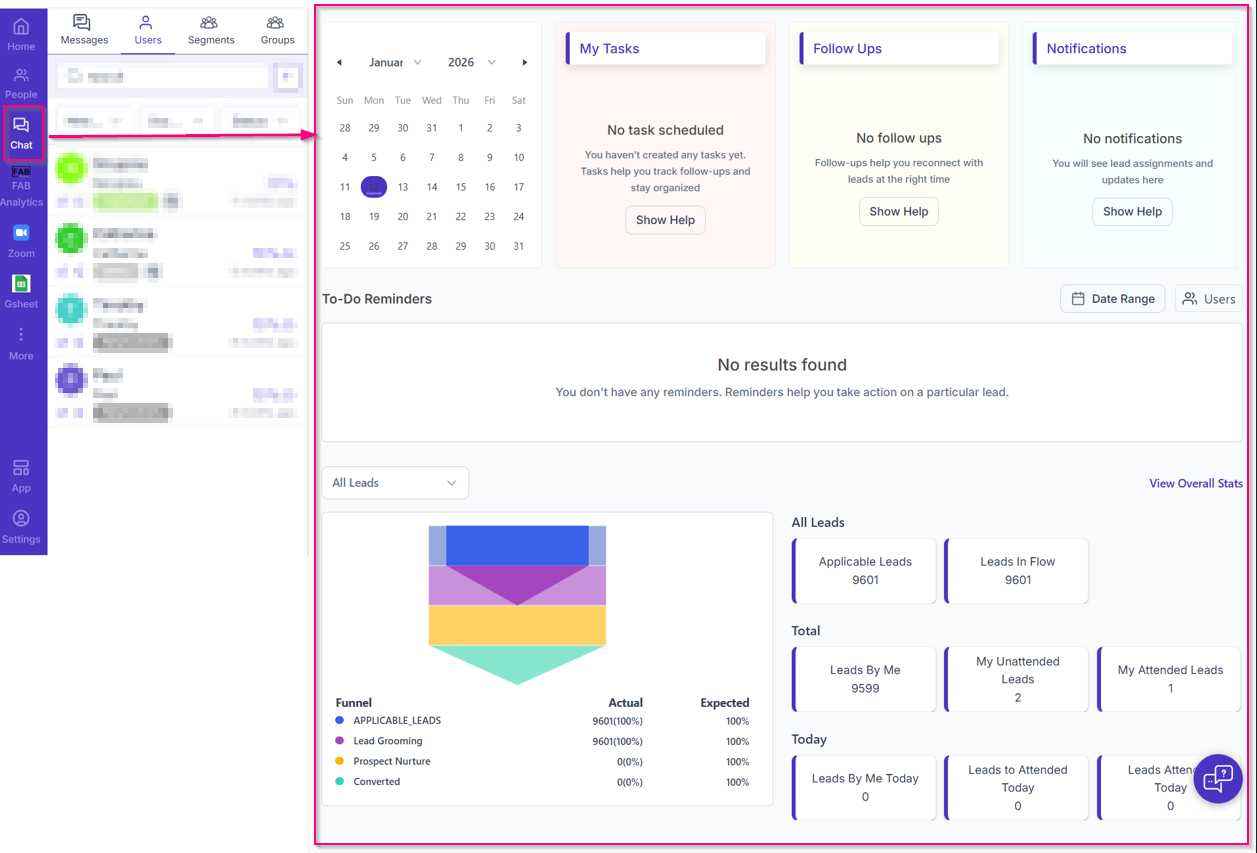
Screen- chat Panel When you select any subsection for messaging, the central activity view changes to the chat conversation screen, where you can view all communication details and send messages to leads. Clicking on the Chat module always redirects you back to the central activity screen. 2.Cenral Activity Panel- User can view this panel under chat section to provides a quick overview of lead-related notifications, follow-ups, tasks, and reminders.Futher scrolling down, user can view quick current metrices of lead staging by the funnel widget.
Screen- Chat -Central Activily Panel My Task-Follow up-Notification Widget This widget section displays the current, pre and post details of task,follow up and notification by applying date filter with the calendar by you.All details of aforementioned widhet cards gets updated automatically by crm system once configured. To Do Reminders This screen section will allows bussiness team to view the reminder of any user(team member)l isted with the users dropdown menu for any specific date by applying date filter. Lead funnel widget This section shows the lead funnel stages and current lead-generation metrics. Use the source channel filter to refine the data. Click View Overall Stats to view the detailed funnel report.
|