SMS Integration in CRM
1. Overview
SMS Integration allows businesses to send messages such as OTPs, notifications, alerts, and marketing messages directly from the CRM to customers. The CRM does not send SMS on its own; it connects with a third-party SMS Service Provider using API credentials.
Prerequisites
- Active account with an SMS provider (e.g., MSG91, Twilio, Fast2SMS)
- Approved and active account status
- Sufficient SMS balance
- The client must complete DLT registration to ensure compliant and successful SMS delivery (for India, if applicable)
Required Credentials
The following details must be collected from the SMS provider:
- API Key: Used to authenticate SMS requests
- Registered Phone Number / Sender ID: Used to send SMS
Note: These credentials are provided by the SMS service provider, not by the CRM.
Configuration Steps
1.Navigate to App Module on side bar and click on the app which open workspace panel .
2.Click on + plus icon on communication channel section.
3.Select SMS from the communication channel list on the pop window.
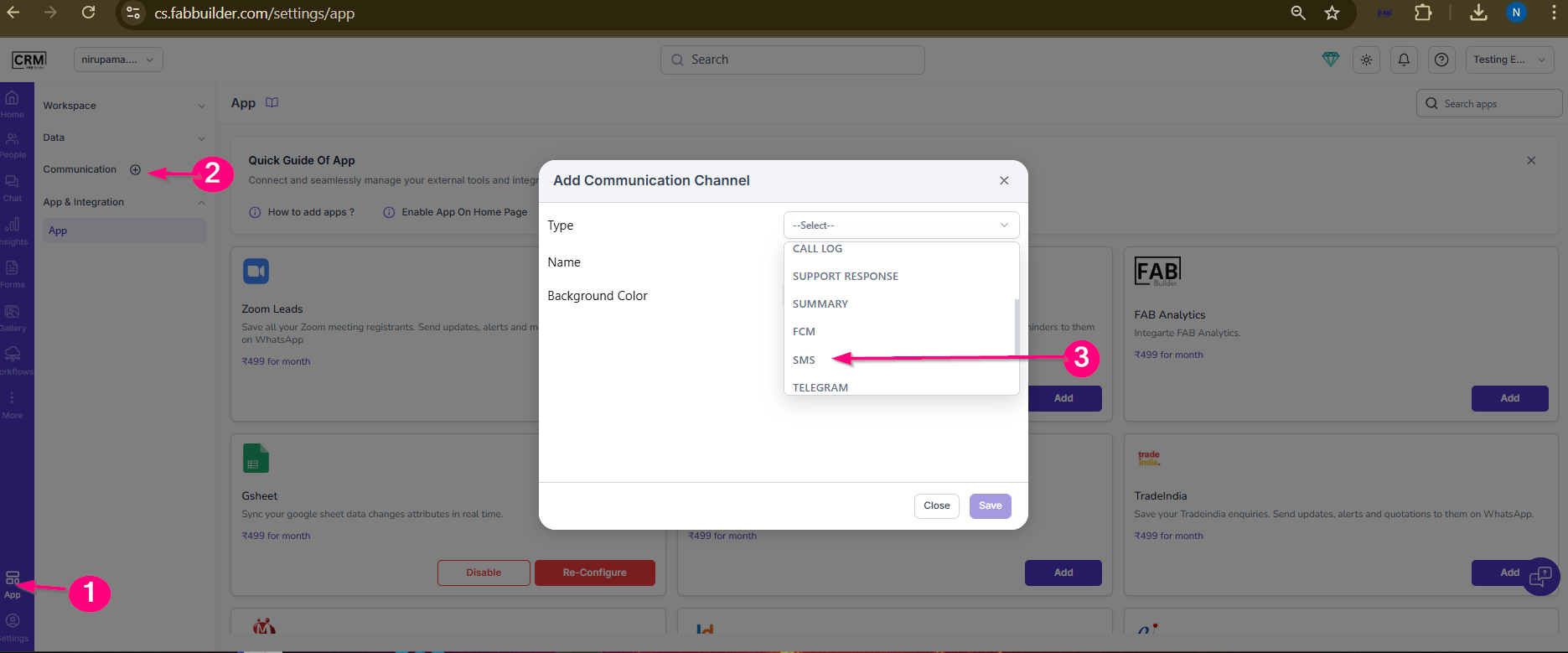
Screen- Access SMS communication Channel Navigation
4.Enter API Key, Sender Email, Sender Name.
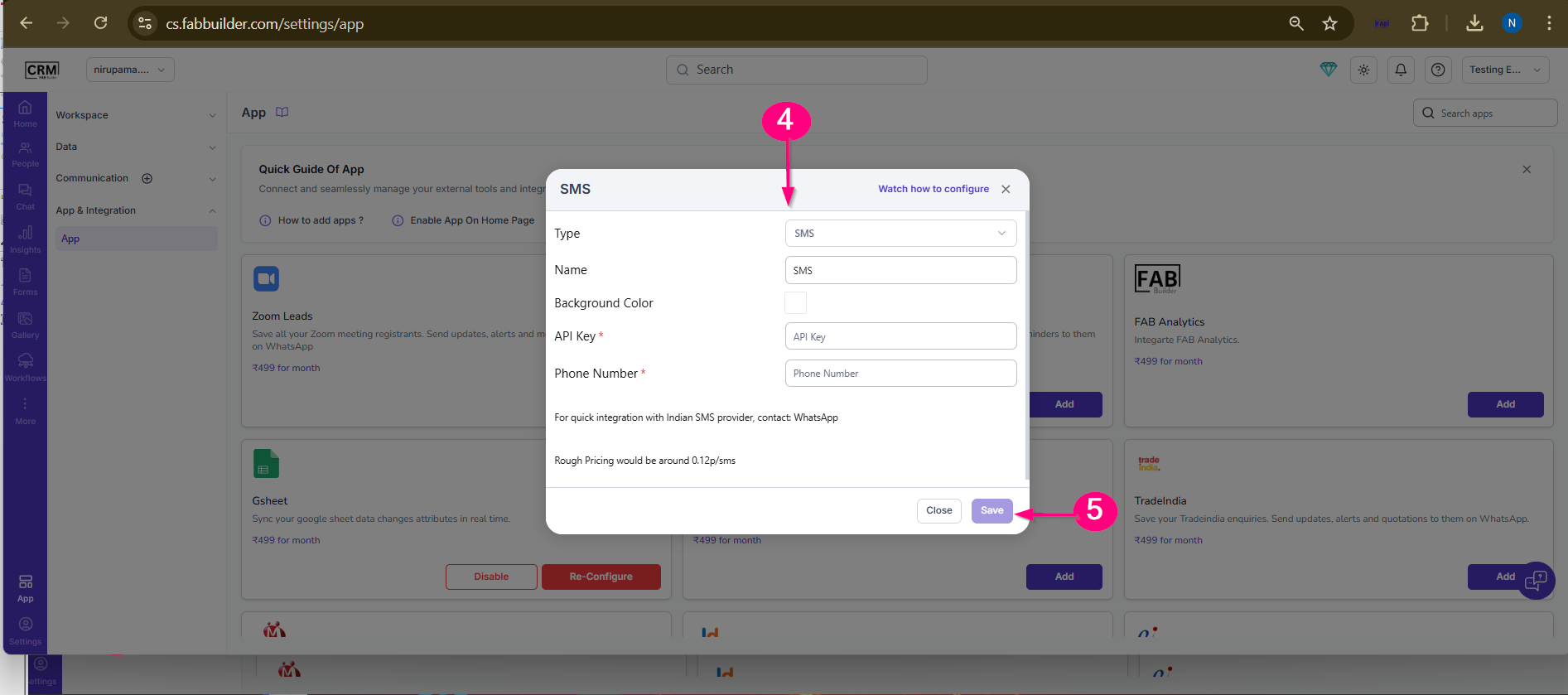
Screen- SMS Credentials
5.Click on save Button. After save Button SMS app is succesfully added.
Verification
To verify the configuration send a test SMS by following the steps as outlined below.
6.Go to Chat Module on side bar blue navigation Panel. Now this click will expand open Chat screen dashboard to add contact .
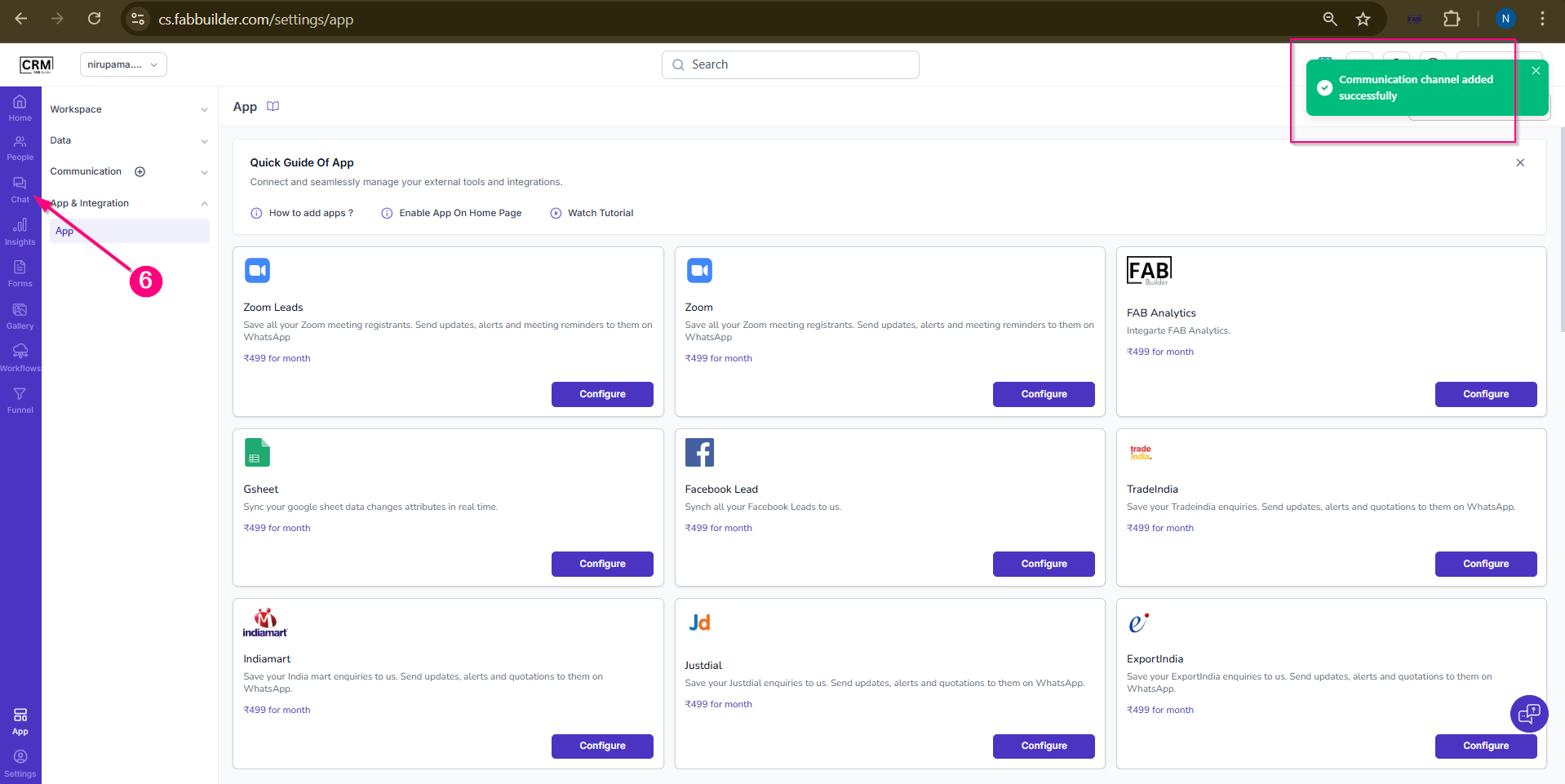
Screen- SMS Channel Added succesfully
7.Select the user/message subsection(any).
8.Select the lead contact to send SMS.On selecting contact, right side screen will expand.
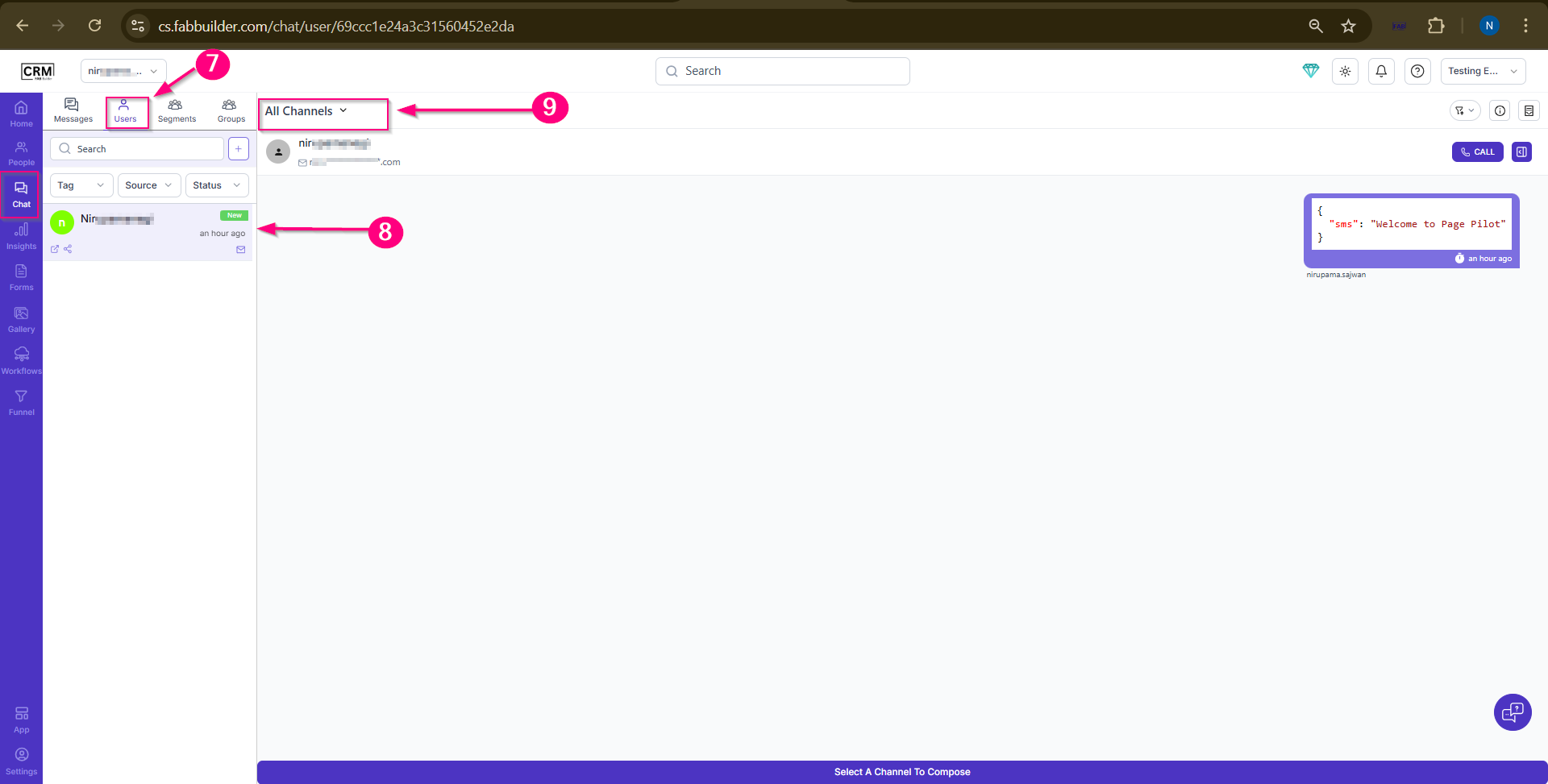
Screen- Steps to Select Lead to send/ Message
10.Click on drop down menu to select the sms Channel
10.Select SMS communication channel.
11.Click to compose button.
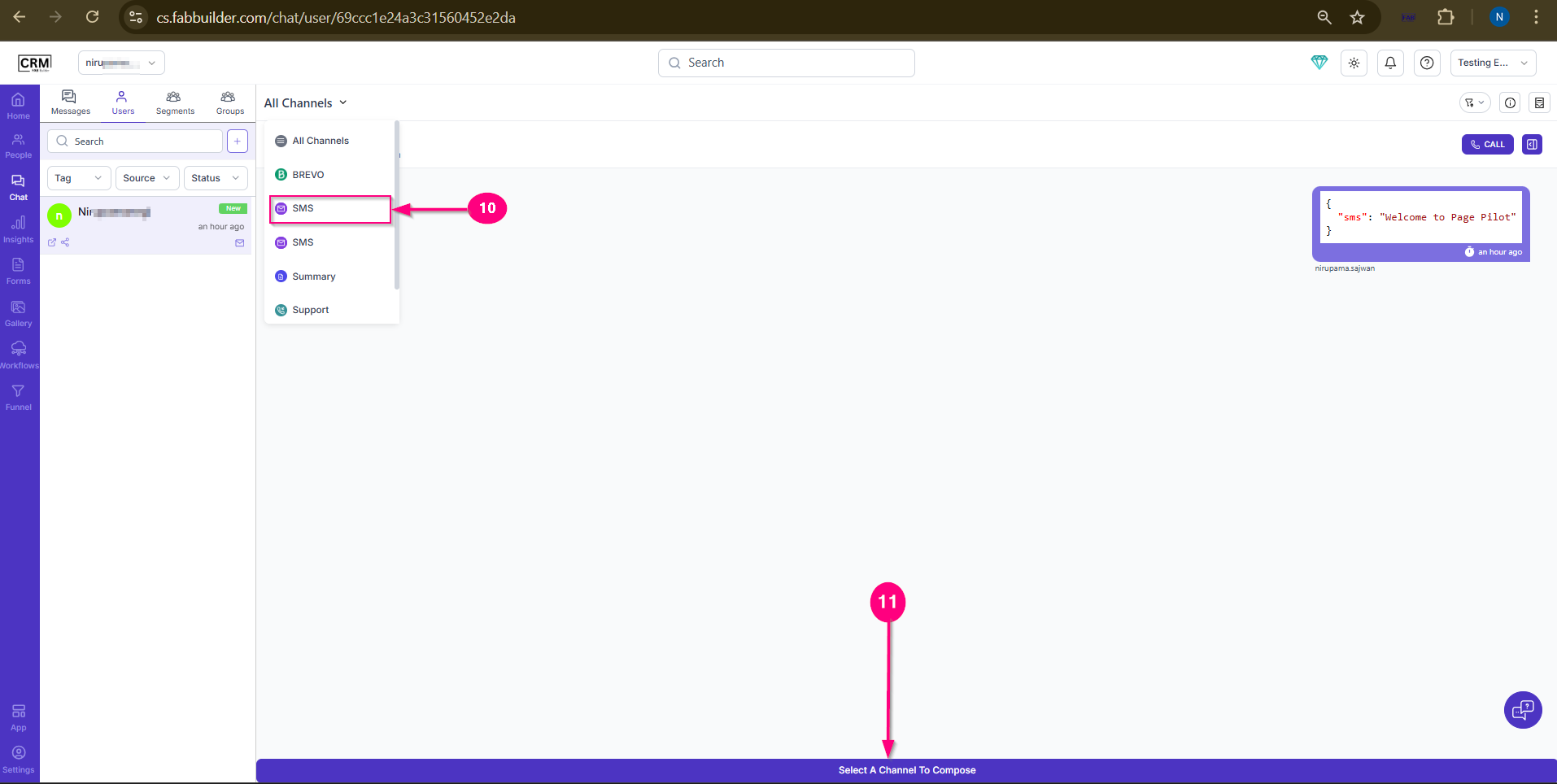
Screen- Steps to Select SMS Channel to Compose Message
12.Select template or create message.
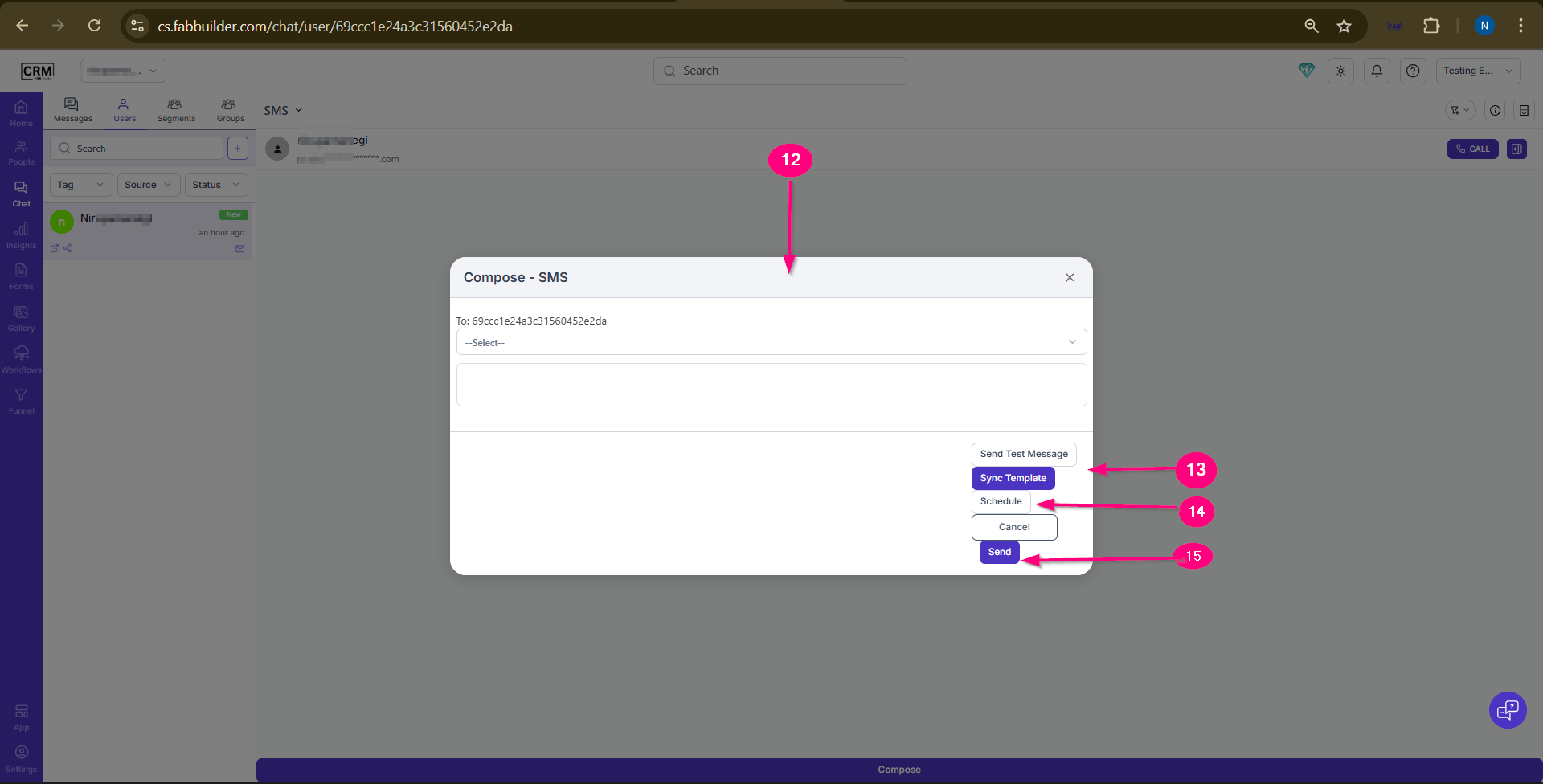
Screen- Step to Compose and Sync MessageTemplate
15.Select from the drop down list and Sync template/ compose message
14.Schedule the synced template
15.Click to send button.
Now user can view the send message by SMS channel
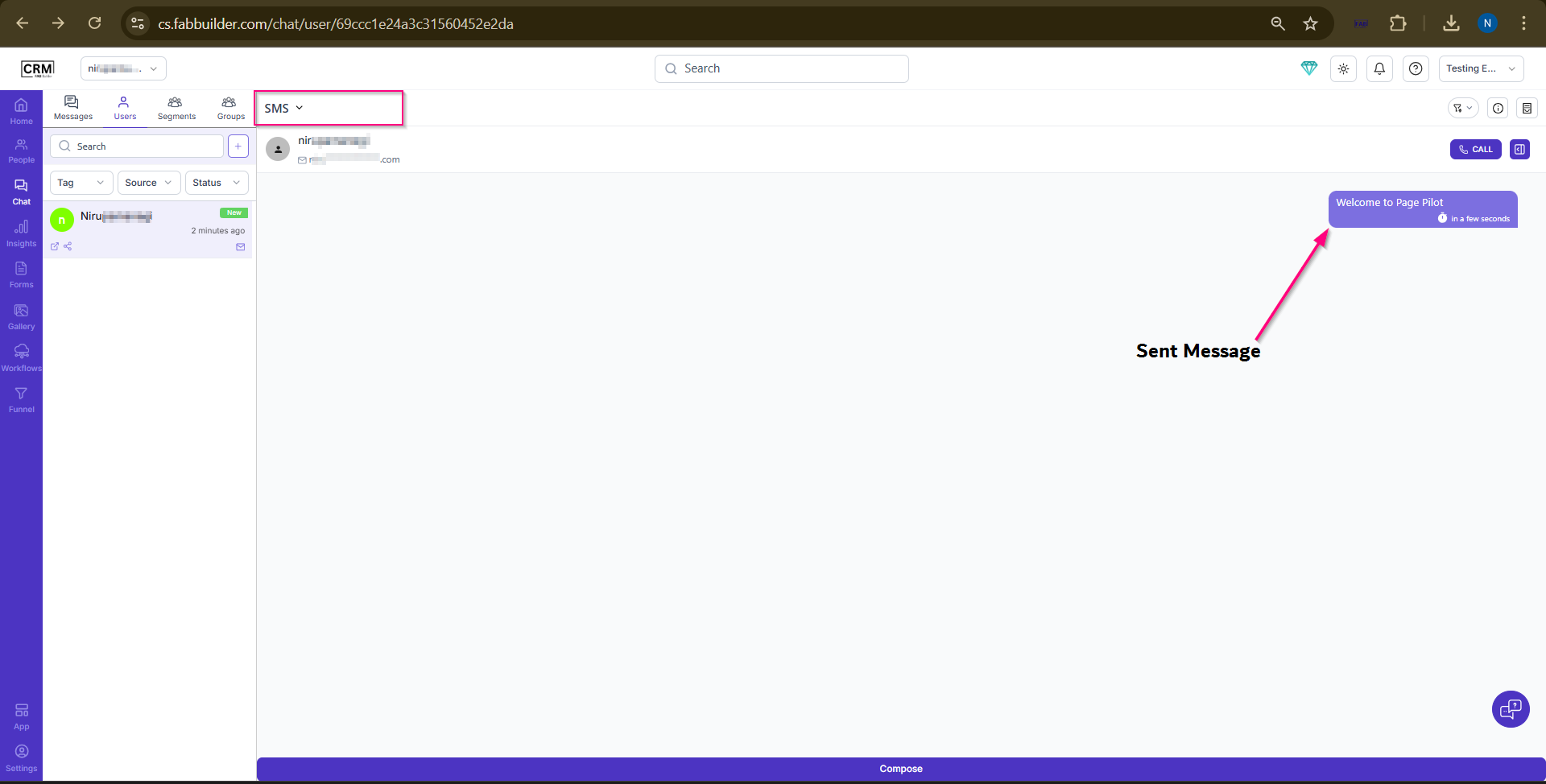
Screen- Sent message via SMS channel